
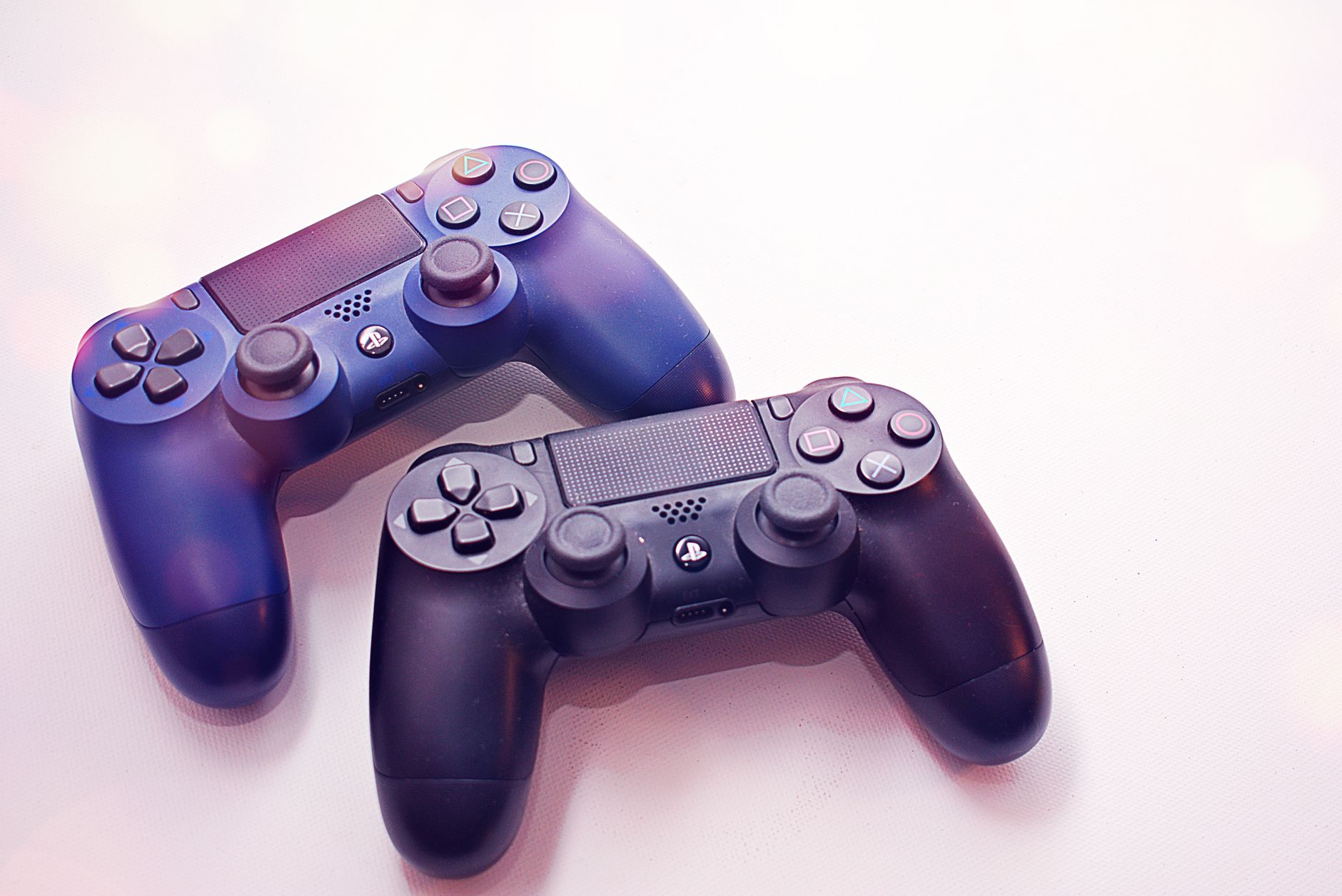
Connecting your PS4 controller to your iPhone can enhance your gaming experience, giving you more control and comfort while playing mobile games. Whether you’re a casual gamer or a serious enthusiast, this guide will help you set up your DualShock 4 controller with your iPhone effortlessly.
This article covers the compatibility requirements, detailed steps for connecting the controller, common issues you may encounter, and troubleshooting tips to resolve any connectivity problems. Let’s dive into the world of gaming on your iPhone!
How to Connect PS4 Controller to iPhone?
To connect your PS4 controller to your iPhone, ensure your iPhone is running iOS 13 or later, then enable Bluetooth pairing mode on your controller and device. Once both devices are in pairing mode, you can successfully connect them.
What You Need to Connect Your PS4 Controller to iPhone
Before you start the connection process, ensure you have the following prerequisites:
- iPhone running iOS 13 or later
- DualShock 4 controller
- Bluetooth capability on your iPhone
Step-by-Step Guide to Connect PS4 Controller to iPhone
Follow these ordered steps to successfully pair your PS4 controller with your iPhone:
- Check iOS Version: Before proceeding, confirm that your iPhone is running iOS 13 or later. To check this, go to
Settings > General > Aboutand look for the iOS version. - Put Your PS4 Controller in Pairing Mode: Start by turning off your DualShock 4 controller if it’s already on. To do this, hold the
PlayStationbutton until the light turns off. Then, press and hold both theShareandPlayStationbuttons simultaneously until the light bar starts to flash. This indicates that the controller is in pairing mode. - Open Bluetooth Settings on Your iPhone: On your iPhone, go to
Settings > Bluetooth. Ensure that Bluetooth is turned on; you should see a toggle display at the top of the screen. - Select Your Controller on iPhone: Under the “Other Devices” section, you should see a device listed as “
DualShock 4 Wireless Controller” or a similar name. Tap on it to initiate the pairing process. - Confirm Connection: Once connected, your PS4 controller will move to the “My Devices” section and show it as “
Connected“. The light bar on the controller should also change to indicate a successful connection.
Using PS4 Controller with iPhone
Once your DualShock 4 controller is connected to your iPhone, it can be used to play compatible games. Many popular games such as Fortnite, Call of Duty Mobile, and others support controller input. To ensure a seamless gaming experience, follow these tips:
- Check Game Compatibility: Not all games on iOS support external controllers. Be sure to verify if your favorite games have controller support.
- Controller Configuration: Some games allow you to configure controls for the PS4 controller. Access in-game settings to customize button mappings, sensitivity, and more.
- Battery Life: Ensure your controller has enough charge. If it’s low, charge it using a USB cable connected to your PS4 or any USB power source.
Troubleshooting Common Issues
Even with clear instructions, you may encounter issues while trying to connect or use your PS4 controller with your iPhone. Here are some common problems and their solutions:
Controller Not Recognized
If your iPhone does not recognize your PS4 controller, try the following steps:
- Ensure the controller is in pairing mode, as described in Step 2 of the connection guide.
- Restart your iPhone and try connecting the controller again.
- Reset your DualShock 4 controller by pressing the small reset button located on the back of the device. Use a small pin to press the button and hold it for a few seconds.
Controller Disconnects Frequently
If your PS4 controller keeps disconnecting from your iPhone, consider these solutions:
- Make sure nothing else is interfering with the Bluetooth connection, such as nearby devices.
- Keep the controller and iPhone within close proximity while using it.
- Ensure that there are no software updates available for your iPhone that might improve Bluetooth connectivity.
Input Lag Issues
Experiencing lag while using the PS4 controller with your iPhone? Here’s how to fix it:
- Type of connection can impact lag. If you are connected to too many Bluetooth devices, it might create interference. Disconnect any unnecessary devices.
- Close any unused applications running in the background on your iPhone to free up processing resources.
Games Not Responding to Controller Input
If games are not responding to controller input, verify the following:
- Check if the game supports external controllers. You can find this information in the app description in the App Store or within the game settings.
- Restart the game and try to reconnect the controller. Sometimes, an app restart is all it takes to fix sensitivity or recognition issues.
- Explore game-specific settings to ensure that controller input is enabled and configured correctly.
Alternative Controllers for iPhone Gaming
If you find that the PS4 controller isn’t meeting your needs or compatibility issues persist, explore some alternative controllers compatible with iPhones:
- Xbox Wireless Controller: Known for its comfortable design and responsive buttons, the Xbox controller is another suitable option for serious gamers.
- MFi Controllers: These controllers are specifically designed for iOS devices and include various models from brands like Razer, SteelSeries, and Gamevice.
- Mobile Controller Attachments: Devices such as Razer Kishi allow you to transform your iPhone into a handheld console, providing a different gaming experience compared to traditional controllers.
Maintaining Your PS4 Controller
Ensuring your PS4 controller remains in good condition can prolong its life and maintain connectivity with your iPhone. Here are a few tips for maintenance:
- Regularly clean the controller with a soft cloth, focusing on the buttons and thumbsticks for optimal functioning.
- Avoid exposing the controller to extreme temperatures, liquids, or physical shocks that may damage internal components.
- Charge the controller fully before long gaming sessions to avoid losing connectivity during critical moments.
Conclusion
Connecting your PS4 controller to your iPhone can elevate your gaming experience significantly. With the right setup and knowledge, you can enjoy a smoother and more comfortable gaming experience on mobile devices. In case of connectivity issues, the troubleshooting tips provided can assist in resolving them effectively.
For further exploration, consider looking into our guides on connecting PS4 controllers to various devices, including other mobile platforms or detailed compatibility reviews. Feel free to check out the following resources for more information:
– How to connect a PS4 controller to a phone
– How to connect a PS4 controller
Happy gaming!