
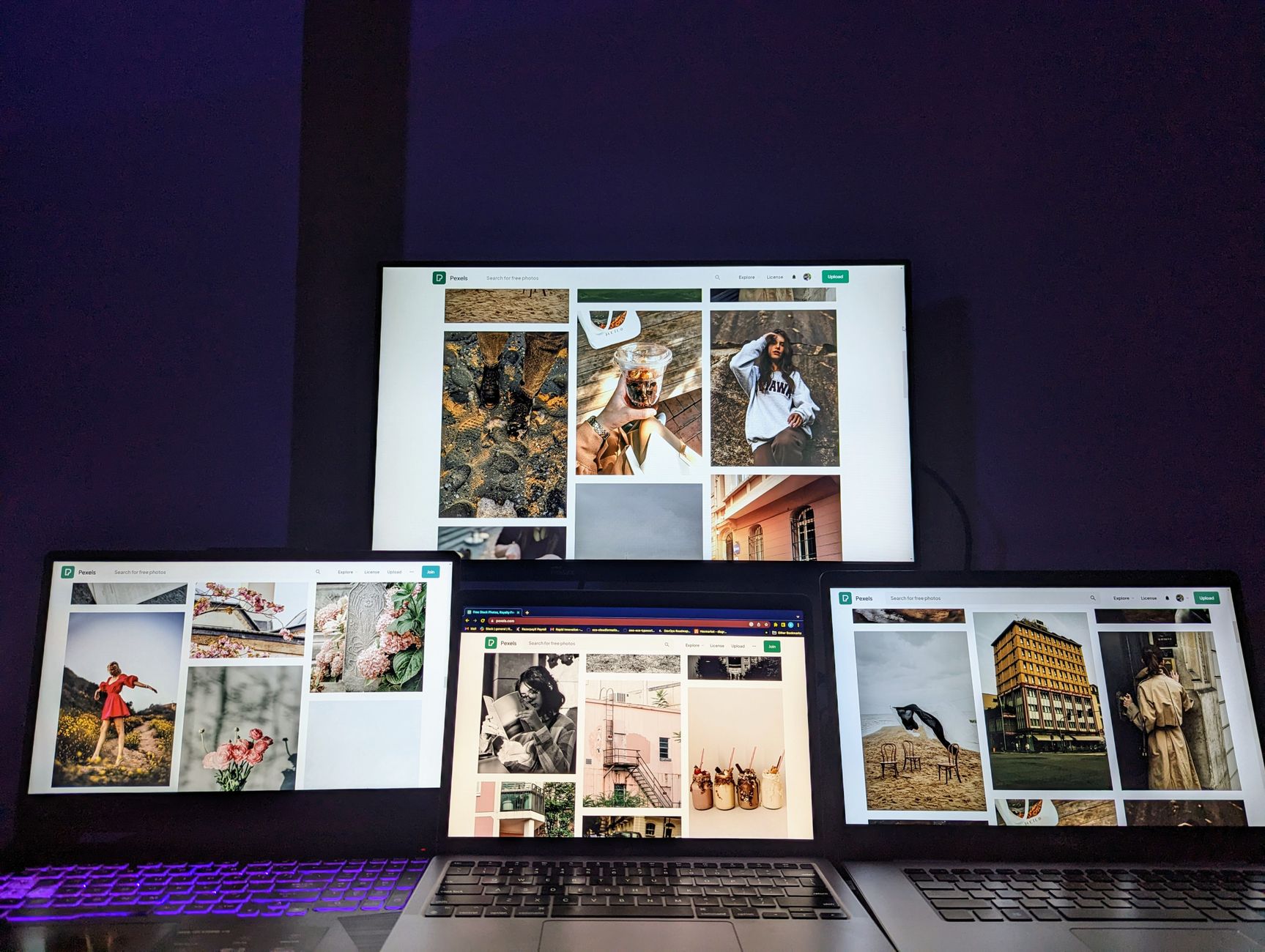
Chromebooks have become increasingly popular due to their simplicity and efficiency. One feature that enhances productivity is the ability to use split screen mode, enabling users to view and interact with two apps or windows side by side. This can be especially useful for multitasking, such as comparing documents or transferring information between two applications.
This guide will walk you through the steps on how to split screen on a Chromebook, covering both apps and window options. With detailed instructions and insights, you’ll be able to maximize your productivity in no time.
How to Split Screen on Chromebook?
To split the screen on a Chromebook, you can use a combination of keyboard shortcuts and trackpad gestures. This allows you to have two windows or apps open at the same time, enhancing your workspace. Here’s a straightforward method to do this.
Understanding Prerequisites
Before proceeding to split screen mode on your Chromebook, ensure you have the following:
- A functional Chromebook with Chrome OS.
- Two applications or windows that you wish to have open simultaneously.
- Basic understanding of using a keyboard and trackpad.
Step-by-Step Guide to Split Screen on Chromebook
Using Keyboard Shortcuts
Keyboard shortcuts on your Chromebook make it easy to access split screen mode quickly. Here’s how you can do it:
- Open the first app or window that you want to use.
- Press and hold the
Altkey and then press the[(left bracket) key. This will snap the current window to the left side of the screen. - Now, open the second app or window.
- Press and hold the
Altkey again and this time press the](right bracket) key. This will snap the second window to the right side of the screen.
Both windows will now be displayed side by side, allowing you to conveniently work on both applications at once.
Using Trackpad Gestures
If you prefer using trackpad gestures, follow these steps:
- Open the first application you want to use.
- Click and hold the top window bar and drag it towards the left or right edge of the screen. You will see a transparent outline indicating where the window will snap.
- Release the mouse button to place the window on that side. The window will occupy half of the screen.
- Now, select the second app by clicking on it. It will automatically fill the other half of the screen.
Adjusting Split Screen Layout
Once you have your screens split, you can adjust the width of each window. Simply click and drag the divider between the two windows to resize them according to your needs.
Using Multiple Desktops
If you’re looking for an even more organized workspace, consider using multiple desktops. Chromebooks allow you to create multiple virtual desktops that can help categorize your tasks.
- To create a new desktop, press
Ctrl+Shift+Switch windowkey (which looks like a rectangle with two lines on the right). - You can switch between desktops by clicking on the “Overview” button (or pressing
Alt+Tab) to see all your opened windows and desktops. - Organizing your windows on different desktops can help minimize distractions while maintaining multiple applications open.
Common Issues and Troubleshooting
While splitting screens on a Chromebook is relatively straightforward, users may encounter some common issues. Here are a few solutions to help troubleshoot problems:
Windows Not Snapping Properly
If you find that your windows are not snapping as expected:
- Ensure that you are dragging the window all the way to the edge of the screen.
- Try restarting your Chromebook to refresh the operating system.
- Check if your Chromebook is running the latest version of Chrome OS. An outdated operating system may lead to functionality issues.
Unable to Use Keyboard Shortcuts
Sometimes keyboard shortcuts may not work. If that happens:
- Make sure your keyboard is functioning properly by testing other shortcuts.
- Check your accessibility settings to ensure no settings conflict with keyboard commands.
Alternatives to Split Screen on Chromebook
If you need more than two windows open or require advanced window management features, consider using extensions or applications designed for enhanced multi-window functionality. Some popular options include:
- Tab Resize: An Chrome extension that allows you to split tabs into predefined layouts.
- MiniMenu: This app lets you manage all your opened windows in an organized manner.
- Keep Tabs: This tool provides an overview of all open tabs and lets you group them for better accessibility.
Using Android Apps for Enhanced Split Screen Functionality
Chromebooks also support Android apps, which can utilize split screen features. When using Android applications:
- Open the Android app you want to use.
- Press and hold the recent apps button (the square icon). You will see existing apps displayed.
- Drag the required app to the top half of the screen.
- Now, choose another app to fill the bottom half.
This approach can effectively combine both Android and Chrome applications for a seamless multitasking experience.
Enhancing Your Chromebook Experience with External Displays
If you’re serious about multitasking or need a larger canvas, consider using an external display. Chromebooks can typically support two screens—your Chromebook’s display and an external monitor:
- Connect your external display using the HDMI port or any available display port.
- Your Chromebook should automatically detect the new display. If it doesn’t, go to
Settings>Device>Displays. - Select how you want your screen to behave—either extend the desktop or mirror your Chromebook screen.
This setup not only increases your screen real estate but also enhances overall productivity.
Conclusion
Learning how to split screen on a Chromebook can significantly enhance your productivity, especially when multitasking between apps or windows. By utilizing built-in features such as keyboard shortcuts or trackpad gestures, you can create a seamless workflow. Additionally, exploring potential alternatives like extended displays or useful applications can further enrich your experience. For a practical next step, explore more features on your Chromebook such as taking screenshots using the guide here.
For more tech tutorials and useful insights, check out our articles on how to split screen on Chromebooks and other tech topics.