
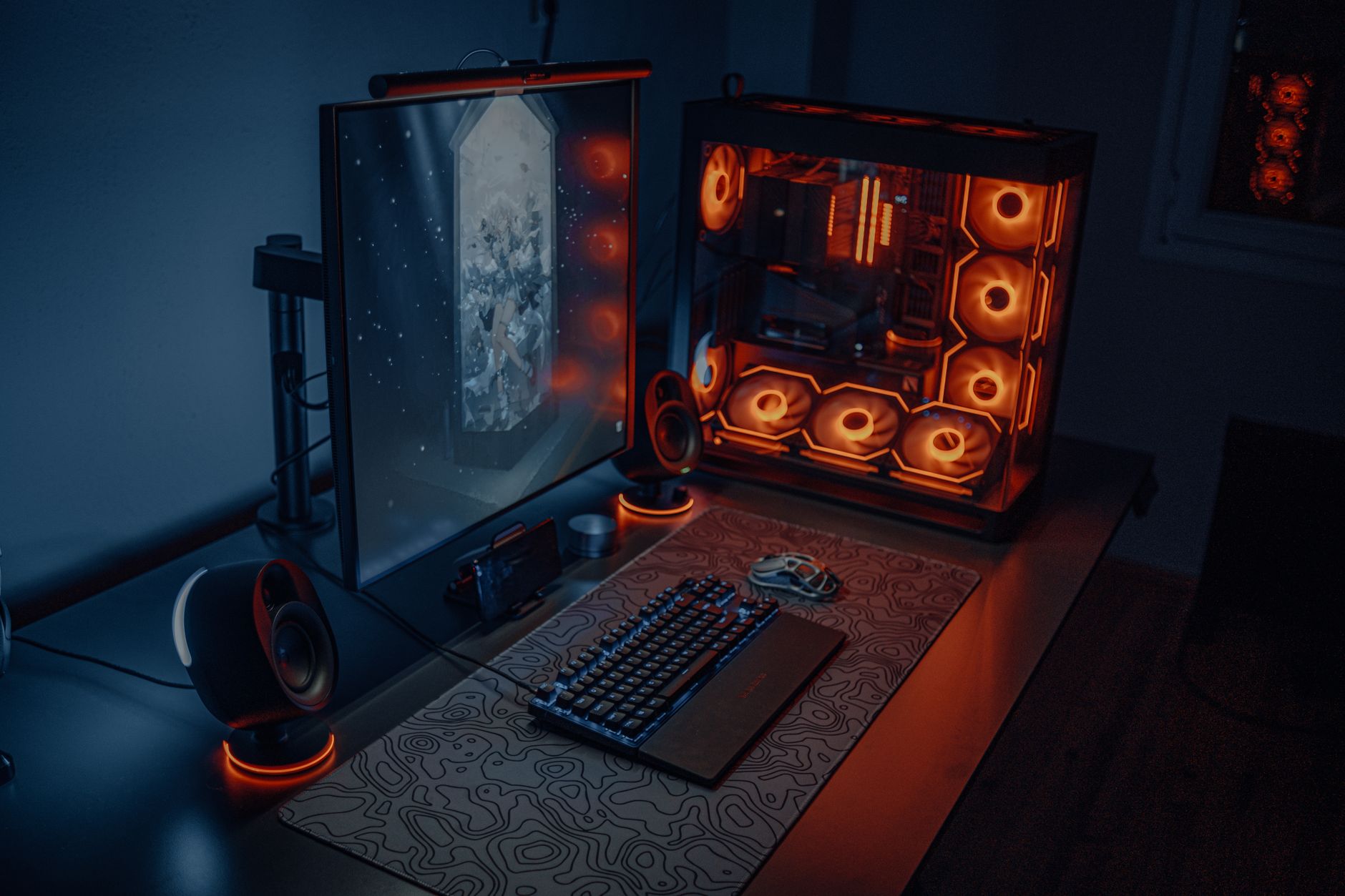
Steam gaming has become a staple in the world of PC gaming, offering a vast library of titles, community features, and digital distribution. It serves as a platform for gamers to purchase, download, and play video games directly from their computers. With its user-friendly interface, frequent sales, and community engagement, Steam has gained immense popularity among gamers.
This article will delve into the various aspects of Steam gaming, including how it works, its features, account management, and much more. Whether you’re new to gaming or a seasoned player, understanding Steam is key to enhancing your gaming experience.
What Is Steam Gaming?
Steam gaming refers to the use of the Steam platform, developed by Valve Corporation, to access, download, and play video games on personal computers. The platform also allows users to connect with friends, join gaming communities, and access a variety of game-related content. Steam offers both free-to-play and paid games, making it accessible to gamers of all budgets.
How Does Steam Work?
At its core, Steam functions as a digital distribution service for games. Let’s break down the key components involved in how Steam operates:
- Client Software: Users must download the Steam client, which serves as the application interface to browse and manage games. The client is available for Windows, macOS, and Linux.
- Game Library: Once you log into your account, you can access your game library, where all purchased and downloaded games reside. This library is organized for easy access and management.
- Steam Store: The Store section of the client allows users to browse thousands of games across different genres. Users can purchase games directly, with frequent sales and discounts offered.
- Community Features: Steam provides various community features, including forums, user reviews, and modding support. Players can also create and join groups, chat with friends, and share game content.
Setting Up a Steam Account
Creating a Steam account is straightforward and free. To get started, follow these steps:
- Visit the Steam website or download the Steam client.
- Click on the “Install Steam” button on the homepage to download the client.
- Once installed, launch the Steam client and click “Create a new account.”
- Follow the prompts, filling in required information such as your email address and preferred username.
- Verify your email address by clicking the link sent to your inbox.
- Log in to your new Steam account, and you’re ready to explore the platform!
Purchasing and Downloading Games
Purchasing games on Steam is an integral part of the experience. Here’s how to buy and download games:
- Open the Steam client and navigate to the Store section.
- Use the search bar to find a specific game or browse through categories.
- Once you find a game, click on its title to view details, including system requirements, reviews, and pricing.
- If you wish to purchase the game, click the “Add to Cart” button followed by “Purchase for myself.”
- Follow the prompts to enter your payment method and finalize the purchase.
- The game will automatically begin downloading to your library. You can track the download progress in the Downloads section of the client.
Steam Library Management
After downloading games, they will appear in your Steam Library. Organizing and managing your games is crucial for an efficient gaming experience. Here are some tips:
- Categories: You can create categories to organize your games better. To do this, right-click on a game in your library, select “Manage,” and then “Add to Category.”
- Sorting Options: Use sorting options to view games by various criteria such as time played or recent activity.
- Hide Games: If you have games you do not want to see, you can hide them. Right-click on the game title and select “Manage” followed by “Hide this game.”
Steam Community and Friend Features
One of the standout aspects of Steam is its community features. Here’s what you can do:
- Add Friends: You can add friends by searching for their usernames or sharing your friend code.
- Join Groups: Participate in groups based on shared interests or specific games.
- Steam Chat: Communicate with friends through the built-in chat feature, which allows voice and text chat.
- Achievements: Many games on Steam feature achievements, which players can earn by completing specific in-game tasks.
Steam Sales and Discounts
Steam is famous for its seasonal sales and discounts. Here are some highlights:
- Seasonal Sales: Events like the Summer Sale and Winter Sale offer significant discounts, often ranging from 10% to 90% off.
- Daily Deals: During sales, individual games may be featured as daily deals, offering even deeper discounts.
- Wishlist: Add games to your wishlist to get notified when they go on sale.
Steam Game Library Features
Steam offers several features that enhance the overall gaming experience:
- Cloud Saves: Most games on Steam allow for cloud saving, enabling you to access your saved games from any device.
- Remote Play: Allows you to play games on your PC from a remote device, like a mobile phone or tablet.
- Steam Workshop: Many games support modding through Steam Workshop, allowing users to create and share mods.
System Requirements and Compatibility
Before purchasing a game, it’s important to check whether your PC meets its system requirements. Here’s how to do that:
- On the game’s Steam page, scroll down to the “System Requirements” section.
- Compare the required specifications with your PC’s hardware.
- If you’re unsure about your PC’s specs, tools like Can I Run It can help you determine compatibility.
Troubleshooting and Common Issues
Encountering issues while using Steam is not uncommon, but many can be resolved easily. Here are some common problems and solutions:
- Download Issues: If your download speed is slow or stuck, try pausing and restarting the download, checking your internet connection, or changing the download region in the settings.
- Login Problems: For login issues, ensure your email and password are correct. If you’ve forgotten your password, use the “Forgot Your Password?” link on the login page.
- Game Crashes: If a game crashes upon startup, check for updates and verify the game files through Steam.
- Steam Not Opening: If the Steam client won’t launch, try restarting your PC or reinstalling the Steam client.
Steam Security and Privacy
When using Steam, privacy and security are important considerations:
- Two-Factor Authentication: Enable Steam Guard to protect your account with an additional layer of security.
- Account Privacy: Adjust settings to control who can see your profile and game activity.
- Suspicious Activity: Regularly monitor your account for unauthorized transactions and report any suspicious behavior to Steam Support.
Steam Alternatives
While Steam is the leading platform for PC gaming, there are several alternatives worth considering:
- Epic Games Store: Known for high-profile exclusives and freebies.
- Origin: Electronic Arts’ platform, primarily offering EA games.
- GOG (Good Old Games): Focuses on DRM-free games, including classics and indie titles.
Tips for New Steam Users
If you’re new to Steam, here’s a list of tips to get the most out of your gaming experience:
- Take Advantage of Sales: Be patient and wait for games to go on sale if budgets are tight.
- Read Reviews: Look at user reviews on the Steam Store to gauge whether a game is worth purchasing.
- Explore Community Content: Join forums or community discussions to discover tips, tricks, and your next favorite game.
Final Thoughts
Steam gaming represents a massive ecosystem combining game distribution, community features, and engaging content. Understanding its functionality is essential for anyone looking to enter the world of PC gaming. With a robust library and frequent seller opportunities, Steam remains a top destination for gamers worldwide.
As you consider diving into gaming on Steam, make sure to keep informed about current promotions, community dynamics, and game management techniques. For further assistance, explore resources on troubleshooting or how to adjust your online presence, such as how to appear offline on Steam.
For more tech tutorials and guides, be sure to check out our resources on troubleshooting and game compatibility.