
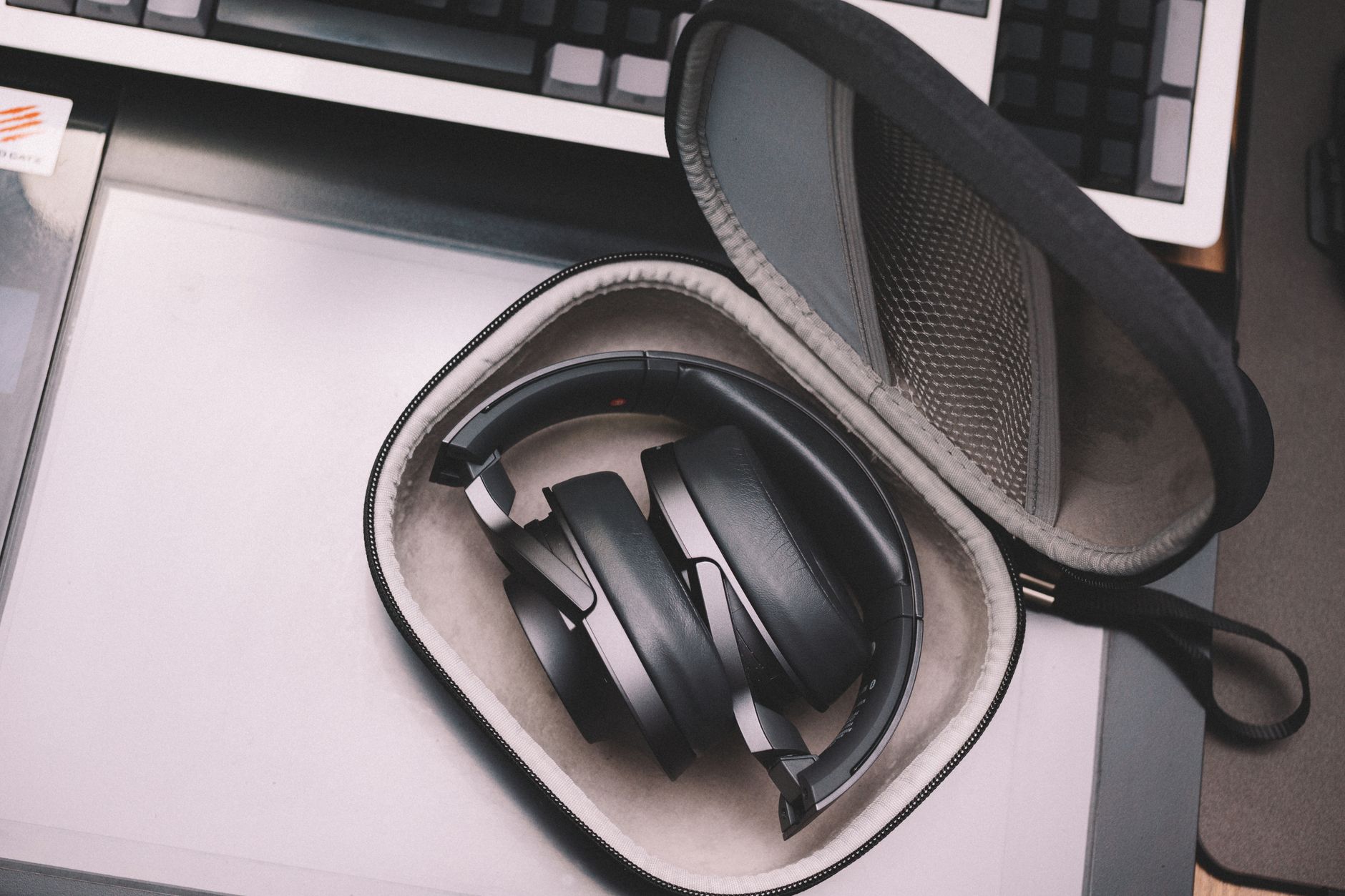
Shokz, previously known as AfterShokz, produces unique bone conduction headphones that allow users to listen to audio while keeping their ears open for surrounding sounds. Pairing your Shokz headphones with a device can enhance your listening experience significantly. In this guide, we will walk you through the steps to pair your Shokz headphones, troubleshoot common connection issues, and ensure optimal setup.
By the end of this article, you will have a comprehensive understanding of how to connect your Shokz headphones to various devices, whether it’s your smartphone, tablet, or computer. Let’s get started!
How to Pair Shokz Headphones?
Pairing Shokz headphones is a straightforward process that mainly involves connecting them via Bluetooth. This section will outline the exact steps needed to pair your Shokz headphones with different devices.
What You Will Need
- Your Shokz headphones
- A Bluetooth-enabled device (smartphone, tablet, or computer)
- Charged headphones (if battery is low, consider charging before setup)
Step-by-Step Pairing Instructions
- Turn On Your Shokz Headphones: Depending on the model, press and hold the power button for 3–5 seconds. The LED light should flash blue, indicating the headphones are on.
- Activate Pairing Mode: To enter pairing mode, continue holding the power button until the LED light alternates flashing red and blue. This indicates that the headphones are discoverable.
- Open Bluetooth Settings on Your Device: On your smartphone, tablet, or computer, go to the Bluetooth settings. This can usually be found in the ‘Settings’ menu.
- Search for Devices: Make sure Bluetooth is turned on, then look for a list of available devices. Your Shokz headphones should appear as “Shokz” or the specific model name.
- Select Your Shokz Headphones: Tap on the name of your Shokz headphones to initiate the connection. You may see a prompt asking for confirmation to pair the devices. Allow the pairing to complete.
- Confirm Connection: Once connected, the LED light on your Shokz headphones should stop flashing and remain blue, indicating a successful pairing. You may also hear a voice prompt confirming the connection.
Pairing with Specific Devices
While the general steps above apply to most Bluetooth-enabled devices, let’s consider specific instructions for popular platforms:
Pairing Shokz with iPhone
- Follow the steps as outlined in the general pairing instructions.
- Once you reach the Bluetooth settings on your iPhone, look for “Shokz” in the list of devices. Tap it to connect.
- To ensure your Shokz headphones have been successfully paired, you can toggle the audio output in music or call settings.
Pairing Shokz with Android Devices
- Enable Bluetooth on your Android device via the quick settings menu or settings app.
- Open Bluetooth settings and follow the steps from the general instructions to discover your Shokz headphones.
- After the connection, test the audio playback to ensure a successful pairing.
Pairing Shokz with Laptops and Desktops
- Make sure your laptop has Bluetooth capabilities. If not, you may need a Bluetooth dongle.
- Go to your computer’s Bluetooth settings, usually located in the control panel or system preferences.
- After enabling Bluetooth, follow the same steps to discover and connect to your Shokz headphones.
Troubleshooting Connection Issues
Sometimes, you might experience issues when trying to connect your Shokz headphones. Below are common problems and their fixes.
Common Connection Problems
- Headphones not discoverable
- Audio not playing through headphones
- Frequent disconnections
- Headphones voice prompts not working
Solutions to Fix Connection Issues
- Ensure Headphones are Charged: If your Shokz headphones are low on battery, they may not enter pairing mode. Always check the battery level before an attempt.
- Reset the Headphones: If your Shokz headphones are not discoverable, try resetting them. To do this, power them off and hold the power button for 10 seconds. The LED will flash red and blue before returning to the default state.
- Unpair and Re-pair: On your device, forget the Shokz headphones from the Bluetooth settings and then try pairing again. This can clear any conflict that prevents connectivity.
- Update Bluetooth Drivers: Ensure that your computer or device has the latest Bluetooth drivers or operating system update, as outdated versions can cause connectivity issues.
- Range Limitations: Bluetooth connections usually have a range of about 30 feet. Ensure you’re within this range and away from other electronic devices that may cause interference.
- Check for Interference: Other Bluetooth devices or electronic equipment can cause interference. Power off or move away from these devices while trying to connect.
Advanced Solutions
If you are still unable to connect your Shokz headphones after following the above steps, consider the following options:
- Factory Reset Your Shokz Headphones: Consult the user manual specific to your headphones model for factory reset instructions.
- Check for Firmware Updates: Visit the Shokz website to see if firmware updates are available that might resolve connectivity issues.
- Contact Customer Support: If all else fails, consider reaching out to Shokz customer support for assistance. They may guide you through specific diagnostics for your model.
Understanding Shokz Features for Enhanced Audio Experience
Familiarizing yourself with your Shokz headphones can greatly improve your user experience. Here are some features that enhance functionality:
- Bone Conduction Technology: This innovative technology allows sound to be transmitted through your skull to your cochlea, enabling you to hear while still being aware of your surroundings.
- IP55 Rating: This means they are water and dust-resistant, making them suitable for outdoor use or during workouts.
- Long Battery Life: Shokz headphones typically offer 6-8 hours of playtime on a single charge, allowing for extended use.
- Voice Assistant Integration: Most models support voice commands through Siri, Google Assistant, or other digital assistants.
General Maintenance Tips for Your Shokz Headphones
To ensure your Shokz headphones remain in optimal condition, consider the following maintenance tips:
- Clean Regularly: Use a soft, dry cloth to clean the surface and gently wipe any parts that come into contact with sweat or moisture.
- Store Properly: When not in use, store your headphones in a case to protect them from dust and physical damage.
- Avoid Extreme Temperatures: Keep your Shokz headphones away from extreme heat or cold to prevent battery damage or malfunction.
- Charge with Care: Use the original charging cable and avoid overcharging to prolong battery health.
Conclusion
Pairing your Shokz headphones is a relatively simple process, and various connection issues can often be resolved through straightforward troubleshooting steps. By following the guidelines outlined here, you can maximize your enjoyment of these innovative audio devices.
For further assistance or to explore other related topics, consider checking out how to pair AirPods to your iPhone or pair AirPods to your laptop for additional Bluetooth setup guidance.