
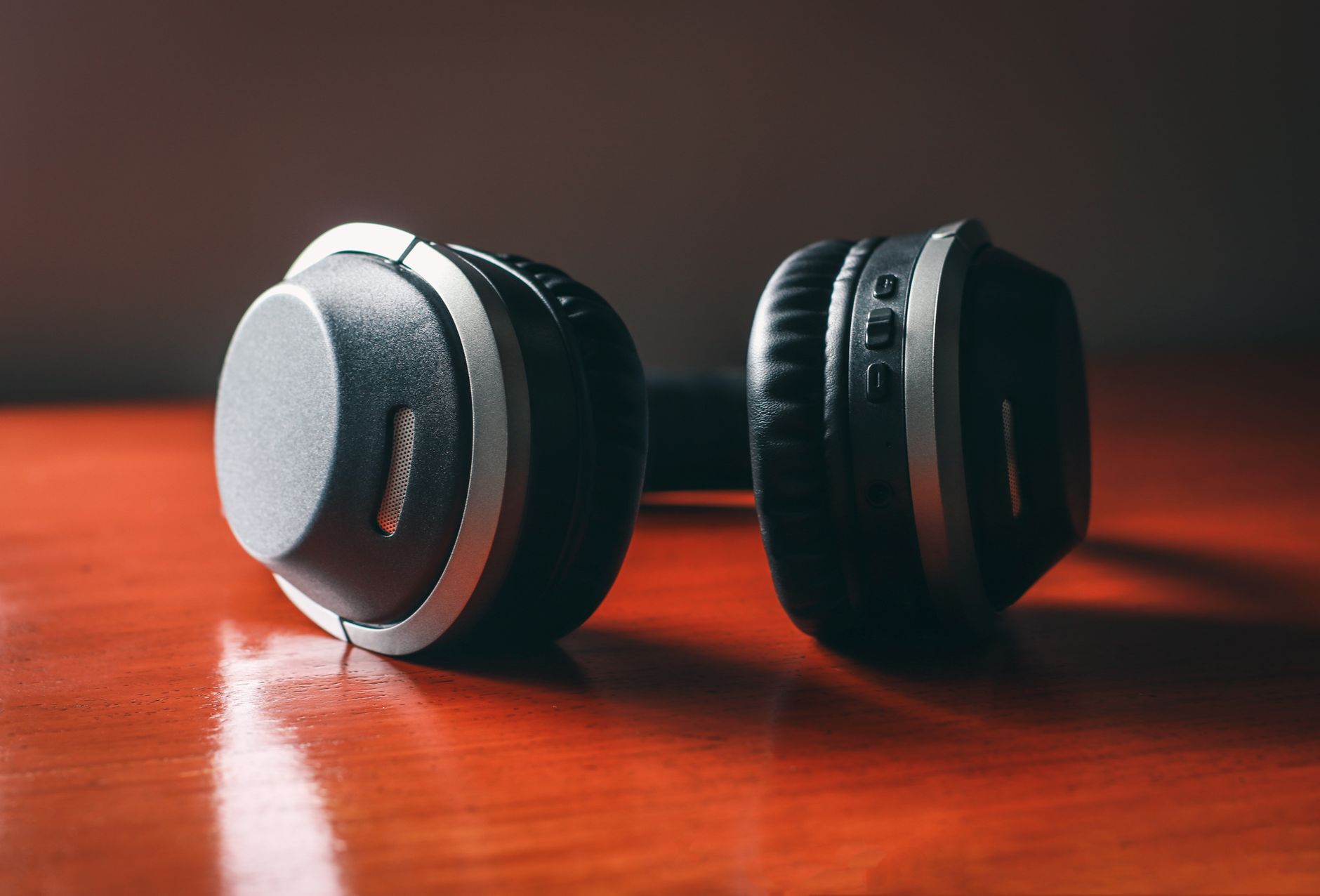
As wireless technology continues to evolve, Shokz headphones have gained popularity for their comfort and sound quality. Pairing these headphones with your devices is typically a straightforward process. However, understanding the steps involved can make the experience smoother and help troubleshoot any issues.
This guide will provide you with detailed instructions on how to pair Shokz headphones, covering various methods for different devices, and offer fixes for common pairing problems you may encounter.
How to Pair Shokz Headphones?
To pair Shokz headphones, you’ll need to enable Bluetooth on your device and put your headphones in pairing mode. The process varies slightly depending on the type of device you’re connecting to, such as iOS, Android, or Windows. Here’s a brief overview of the process.
Prerequisites for Pairing
- Shokz headphones fully charged.
- Device with Bluetooth capability (smartphone, tablet, or computer).
- Bluetooth enabled on the device.
Step-by-Step Instructions to Pair Shokz Headphones
Pairing with iOS Devices
- Ensure your Shokz headphones are charged and turned off.
- Press and hold the power button on your headphones for about 5 seconds until you hear a voice prompt saying “Welcome to Shokz.”
- Activate Bluetooth on your iPhone or iPad. Go to
Settings→Bluetoothand turn it on. - In the Bluetooth menu, wait for your Shokz headphones to appear under “Other Devices.”
- Tap on your headphones’ name to initiate pairing. You will hear a confirmation tone.
- Your headphones should now appear under “My Devices” as “Connected.”
Pairing with Android Devices
- Ensure that your Shokz headphones are fully charged and powered off.
- Press and hold the power button until the voice prompt says “Welcome to Shokz.”
- On your Android device, navigate to
Settings→Connections→Bluetoothand enable Bluetooth. - Wait for your headphones to show up under available devices.
- Tap on the headphones’ name to pair. After a moment, you’ll hear a tone indicating the connection is successful.
Pairing with Windows Devices
- Charge the Shokz headphones and turn them off.
- Press and hold the power button until you hear “Welcome to Shokz.”
- On your Windows device, click on the
Startbutton, then go toSettings. - Navigate to
Devices→Bluetooth & other devicesand toggle Bluetooth on. - Select
Add Bluetooth or other device, then chooseBluetooth. - Your headphones should be visible in the list. Click on them to pair, and you should hear a confirmation sound.
Pairing with macOS Devices
- Ensure your Shokz headphones are charged and powered off.
- Press and hold the power button until you hear, “Welcome to Shokz.”
- On your Mac, click the Apple menu and select
System Preferences. - Open
Bluetoothand enable it if needed. - Wait for your headphones to appear in the device list and click
Connect. - You’ll hear a confirmation tone when the pairing is successful.
Troubleshooting Common Pairing Issues
Sometimes, despite following the steps, you may encounter issues while pairing your Shokz headphones. Here are a few common problems and their solutions.
Headphones Not Appearing in Device List
- Ensure Headphones are in Pairing Mode: Double-check that your headphones are indeed in pairing mode. You should hear a voice prompt when they enter this mode.
- Device Compatibility: Verify that your device supports the Bluetooth version used by Shokz headphones.
- Turn Bluetooth Off and On: Sometimes, toggling Bluetooth off and back on can refresh the connection process.
Connection Drops Frequently
- Proximity: Ensure that you are within an appropriate range of your device. Bluetooth typically works best within 30 feet (around 10 meters).
- Remove Interference: Other electronic devices can cause interference. Try to minimize nearby devices such as microwaves or other Bluetooth devices.
- Restart Devices: Restart your headphones and the phone or computer you are trying to connect to.
No Sound from Headphones
- Volume Levels: Make sure the volume on both the headphones and your device is turned up sufficiently.
- Check Connection: If the headphones are connected but no sound is coming through, disconnect and reconnect them.
- Audio Source: Confirm that the correct audio source is selected if you have multiple outputs (like speakers and headphones).
Additional Tips for Managing Shokz Headphone Connections
To ensure smooth operation, consider these additional tips:
- Keep your firmware updated. Check Shokz’s website for any latest updates.
- Remember to turn off the headphones after use to conserve battery.
- If you frequently switch devices, familiarize yourself with the multi-point connection feature if supported, allowing your headphones to connect to two devices simultaneously.
Alternative Connection Methods
While Bluetooth is the primary method for connecting Shokz headphones, alternative connection options can enhance your experience.
Using a 3.5mm Audio Cable
Some Shokz models come with a 3.5mm audio jack, allowing you to connect directly to devices that support wired audio input:
- Insert one end of the 3.5mm audio cable into your headphones and the other into the audio source.
- Your headphones will automatically switch to wired mode, disabling Bluetooth connectivity.
Using an App for Enhanced Features
If your Shokz headphones support an application, consider downloading it. These apps often provide:
- Features to customize audio settings.
- Updates for firmware and software.
- Additional functionalities like finding your headphones if lost.
Conclusion
Pairing Shokz headphones is primarily a simple process, but like any technology, issues may arise. By following the outlined steps and keeping troubleshooting strategies in mind, you can ensure successful pairing and an optimal listening experience. If you encounter persistent issues, refer to the official documentation provided by Shokz for further troubleshooting.
To deepen your understanding of tech setups, consider exploring related tutorials like how to pair Beats headphones or other tech guides available online.