
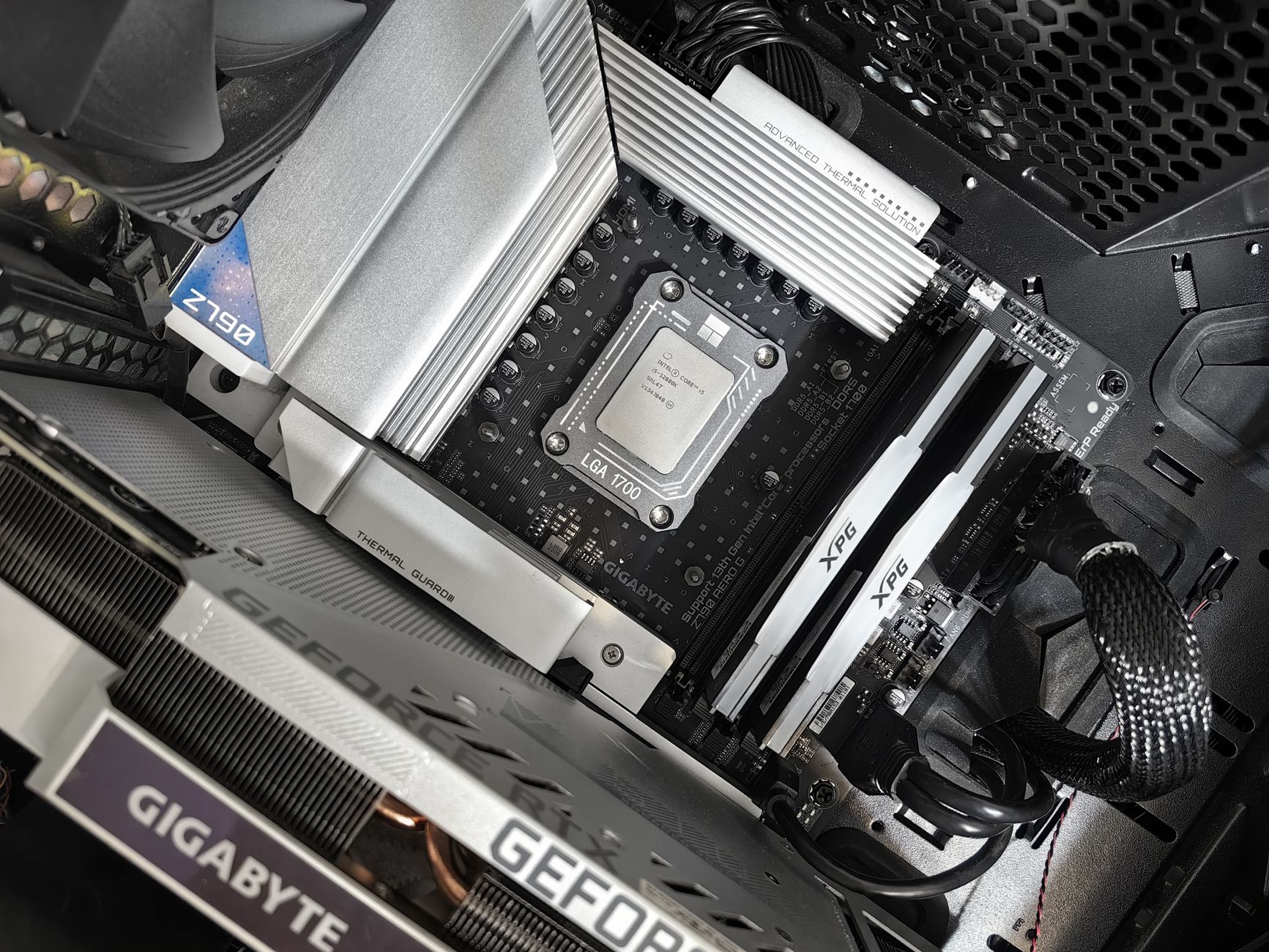
Installing RAM (Random Access Memory) is one of the simplest upgrades you can make to enhance your computer’s performance. Whether you are experiencing sluggishness while multitasking or running memory-intensive applications, adding or replacing RAM can provide a significant boost. This guide will walk you through everything you need to know about RAM installation, including compatibility, setup, and safety checks.
Before diving in, ensure you have the right RAM for your system, the necessary tools, and a basic understanding of your computer’s hardware. Let’s get started!
How to Install RAM?
To install RAM, you need to verify compatibility with your motherboard, prepare your workspace, and execute the installation process carefully. Here’s a comprehensive step-by-step guide to help you accomplish this task effectively, whether you’re upgrading or replacing existing modules.
Understanding RAM Compatibility
Before purchasing RAM or attempting installation, it’s crucial to ensure that the RAM modules are compatible with your system. There are several factors to consider:
- Motherboard Compatibility: Check your motherboard’s specifications to determine the type of RAM it supports (e.g., DDR3, DDR4, DDR5) and the maximum capacity it can handle.
- Form Factor: Most modern desktop RAM comes in DIMM form, while laptops use SO-DIMM. Ensure you choose the correct form factor for your device.
- Speed: RAM speed is measured in MHz. While higher speeds can improve performance, it’s essential to check what your motherboard can support to avoid purchasing incompatible RAM.
- Capacity: Determine how much RAM you currently have and how much your motherboard can support. Common configurations include 4GB, 8GB, 16GB, and 32GB modules.
Checking RAM Specifications
Here’s how to check the specifications of your current RAM and motherboard:
- Windows: Press
Windows + R, typemsinfo32, and press Enter. Under “System Summary,” you’ll find details about your RAM. - Mac: Click on the Apple icon in the top-left corner, select “About This Mac,” and review the memory specifications.
- Manufacturer’s Website: Visit the manufacturer’s website for your motherboard (e.g., ASUS, MSI, Gigabyte) and check the specifications for supported RAM types and capacities.
Required Tools
While installing RAM doesn’t require many tools, having the following items ready can make the process smoother:
- Phillips screwdriver: For removing the computer case screws.
- Anti-static wrist strap: To prevent electrostatic discharge (ESD) that can damage components.
- Soft cloth or mat: To work on and prevent scratches to your components.
Preparing Your Workspace
Safety and organization are vital when installing RAM. Follow these steps to prepare your workspace:
- Choose a clean, dry surface free from clutter.
- Make sure your computer is powered down and unplugged.
- Wear an anti-static wrist strap if possible, and touch a grounded metal object to discharge any static electricity prior to handling computer components.
- Gather your tools and RAM modules.
Removing the Old RAM (If Applicable)
If you are replacing existing RAM sticks, begin by removing them:
- If necessary, remove the side panel of your desktop case or the cover of your laptop.
- Locate the RAM slots on your motherboard. Depending on your system, you may need to unclip or push buttons to release the RAM.
- Grasp the RAM module’s edges and pull it upward at an angle, gently removing it from the slot. Avoid touching the gold connectors.
Installing New RAM
Now that you’ve prepared to install your RAM, follow these steps to do it correctly:
- Identify the notch on the RAM module, which should align with the edge of the RAM slot on the motherboard.
- With the RAM module correctly oriented, gently insert it into the slot. Ensure that it is aligned with the guides on either side.
- Push down on the module until it clicks into place; you should hear a firm snap when the clips on either side secure it.
- If installing multiple RAM modules, repeat the process for each module, making sure to use matching colors for dual-channel configurations.
Reassembly and Initial Checks
After installing the RAM, you’ll need to reassemble your computer and check if the RAM was successfully recognized:
- Replace the side panel or cover of your desktop or laptop.
- Reconnect all cables and peripherals.
- Power on your computer and enter the BIOS/UEFI. This can usually be done by pressing
DELETEorF2during startup.
Verifying Memory Recognition
Once in the BIOS menu, navigate through the settings to locate the memory information. Confirm that the total installed RAM reflects your upgrade:
- If the RAM is detected correctly, exit BIOS and boot into your operating system.
- If not detected, ensure the RAM is seated correctly and that it is compatible with your motherboard.
Operating System Verification
After your system boots, verify the RAM is recognized by your operating system:
- Windows: Right-click on “This PC” and select “Properties.” The installed RAM will be listed under “System.”
- Mac: Click the Apple icon and select “About This Mac” to see the total memory displayed.
Troubleshooting Common Issues
If you encounter issues during or after installation, here are some common problems and potential solutions:
- Computer Fails to Boot: Ensure the RAM is seated properly in the slots. Double-check for compatibility issues with the motherboard.
- System Crashes or Doesn’t Recognize New RAM: Go back into BIOS to ensure the RAM is detected. If not detected, it’s possible the RAM isn’t compatible with your system.
- Incorrect Amount of RAM Displayed: Confirm that you installed all modules correctly and that they match the specifications summed up in BIOS.
Safety Precautions
Always prioritize safety when working on your computer. Consider the following:
- Ensure you are grounded to prevent static electricity from damaging components.
- Keep food and drinks away from your workspace to avoid accidents.
- Handle RAM modules by their edges to avoid contact with the connectors.
Conclusion
Installing RAM can enhance your system’s performance significantly when done correctly. Remember to verify compatibility, prepare your workspace, and follow safe installation steps. Once completed, you’ll enjoy a faster, more responsive computer, making multitasking and running demanding applications a breeze.
For further assistance or to explore additional guides, consider checking out how to build a PC or how to update BIOS to ensure your hardware performs optimally.