
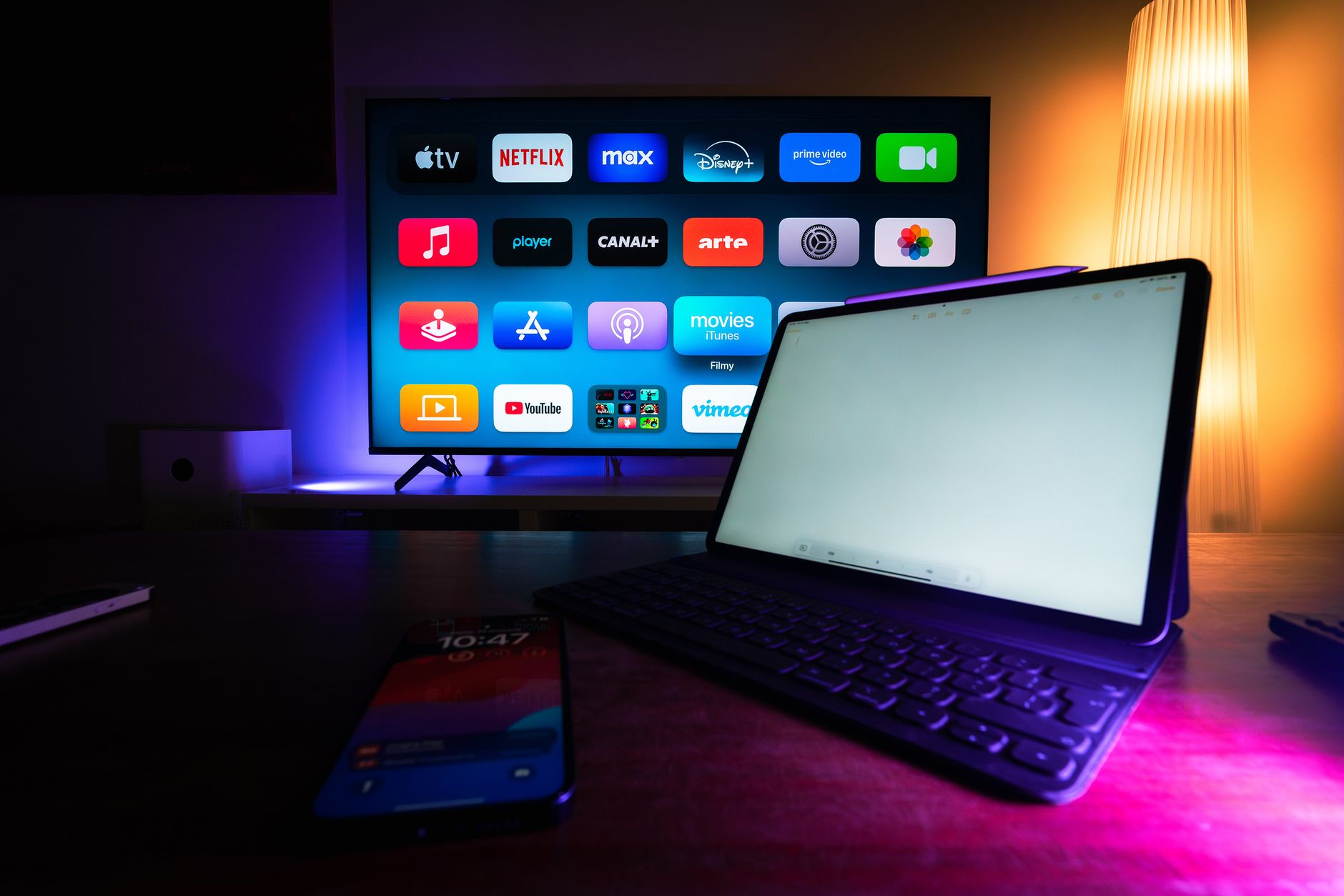
With the increasing demand for bigger screens in our digital lives, the ability to cast a laptop to a TV has become a highly sought-after feature. Whether it’s for streaming your favorite shows, giving presentations, or sharing photos and videos with friends and family, understanding how to cast your laptop to a TV wirelessly can greatly enhance your viewing experience.
This guide will provide step-by-step instructions on how to cast from a laptop to a TV, exploring different methods and the devices that can be used. This article covers various operating systems, including Windows and macOS, so you can find a solution that works for you.
How to Cast Laptop to TV?
To cast your laptop to a TV, you can use different wireless technologies, including Miracast, Chromecast, and Apple AirPlay. The steps may vary depending on the operating system of your laptop and the type of TV you are using. We’ll cover both methods below.
Prerequisites for Casting Your Laptop to a TV
Before starting, there are a few prerequisites you need to consider:
- A compatible TV that supports wireless casting (Smart TV or streaming device).
- A laptop running Windows or macOS with Wi-Fi capabilities.
- A suitable app or technology (such as Miracast, Chromecast, or AirPlay).
- A stable Wi-Fi connection for both the laptop and TV.
Setting Up to Cast from a Windows Laptop
For users of Windows laptops, the process of casting to a TV can be straightforward thanks to built-in features like the Action Center and Miracast.
Using the Action Center
- Ensure that your TV is turned on and connected to the same Wi-Fi network as your laptop.
- On your Windows laptop, click on the notification icon (Action Center) located in the bottom right corner of your screen.
- Click on the “Connect” option. This will open a list of available devices.
- Select your TV from the list of available devices. If prompted, confirm the connection on your TV screen.
- Your laptop screen should now be mirrored on your TV. You can adjust the display settings under “Settings” > “System” > “Display” to change how your laptop connects to the TV (duplicate or extend).
Troubleshooting Windows Casting Issues
If you encounter issues while trying to cast from your Windows laptop, consider the following troubleshooting tips:
- Ensure both devices are on the same network. Double-check the Wi-Fi settings on your laptop and TV.
- Make sure your TV is updated with the latest firmware.
- Restart both your laptop and TV.
- Check your laptop’s display settings to ensure project mode is set correctly.
Setting Up to Cast from a macOS Laptop
For Mac users, Apple’s AirPlay technology offers a seamless way to mirror your laptop onto your TV.
Using AirPlay (for Apple TV or compatible TVs)
- Ensure your TV is powered on and connected to the same Wi-Fi network as your Mac.
- On your Mac, click the Apple logo in the top left corner and select “System Preferences.”
- Click on “Displays.” You should see an option titled “Show mirroring options in the menu bar when available.” Check this box.
- In the menu bar, click the AirPlay icon (a rectangle with a triangle) and select your TV from the drop-down list.
- If prompted, enter the code displayed on your TV screen to establish the connection.
- Your Mac screen should now be mirrored on the TV. You can adjust display settings if needed.
Troubleshooting macOS Casting Issues
In case of issues with AirPlay, here are some potential fixes:
- Ensure your Mac and TV are on the same Wi-Fi network.
- Restart your Mac and TV to refresh their connection.
- Check that AirPlay is enabled on your TV settings.
- Update your Mac to the latest operating system version if problems persist.
Using Streaming Devices
If your TV does not support native casting features, you can use streaming devices like Google Chromecast or Amazon Fire Stick to cast from your laptop. Here’s how:
Using Google Chromecast
- Connect the Chromecast device to your TV’s HDMI port and power it on.
- Ensure your laptop is connected to the same Wi-Fi network as the Chromecast device.
- Open the Google Chrome browser on your laptop.
- Click on the three vertical dots in the upper right corner and select “Cast.”
- Select your Chromecast device from the list. You can choose to cast the entire desktop or a specific tab.
- Your laptop screen should now be displayed on your TV.
Using Amazon Fire Stick
- Connect the Fire Stick to your TV and make sure it is powered on and connected to Wi-Fi.
- On your Fire Stick, navigate to “Settings” > “Display & Sounds” > “Enable Display Mirroring.”
- On your laptop, access the display settings (similar to Windows usage) and select “Connect” from the Action Center.
- Choose your Fire Stick from the device list to establish a connection.
- Your laptop will now be mirrored on the TV.
Alternatives and Advanced Setup Options
If you are looking for alternatives or have advanced needs for casting from your laptop, consider the following options:
Using DLNA
Digital Living Network Alliance (DLNA) is a standard that allows devices to share media within a local network. This method is particularly useful for streaming media files:
- Ensure your TV supports DLNA.
- Use a DLNA-compatible app on your laptop to stream content (examples include Plex or Serviio).
- Follow the app’s instructions to set up the connection to your TV.
Using Third-Party Apps
Applications like AirServer or LonelyScreen can facilitate casting from various devices. They create an AirPlay or Miracast receiver on your laptop, allowing you to cast other devices’ screens to it:
- Download and install the desired application on your laptop.
- Ensure both devices (the laptop and the one you’re casting from) are on the same Wi-Fi network.
- Follow the application’s setup instructions to connect and begin casting.
Common Errors and Solutions
When casting from your laptop to a TV, several common issues may arise. Here’s a breakdown of these issues and their solutions:
Connection Issues
Problems with connecting your laptop to your TV can often be resolved with these tips:
- Verify that both devices are on the same Wi-Fi network, as network discrepancies can prevent successful connections.
- Check that your laptop’s firewall settings are not blocking incoming connections.
- Ensure that the casting software on your laptop is up to date.
Quality Issues
If you notice lagging or poor quality during casting, consider the following:
- Disconnect any unnecessary devices from your Wi-Fi to reduce network congestion.
- Reduce the number of background applications running on your laptop.
- Consider switching from a Wi-Fi connection to a wired connection if possible for improved performance.
Best Practices for Casting
Follow these best practices for a seamless casting experience:
- Keep your devices updated to the latest software versions to ensure compatibility.
- Use a 5GHz Wi-Fi network to enhance streaming performance when available.
- Regularly restart your devices to resolve temporary connection issues.
Conclusion
Casting your laptop to a TV can significantly enhance your entertainment and productivity experience. By following the provided steps, you can easily set up your devices for seamless wireless viewing. Remember to troubleshoot any issues that arise and explore various alternatives to find what works best for your specific needs.
For more related topics, check out our guides on connecting your laptop to a projector and connecting your Nintendo Switch to a TV.