
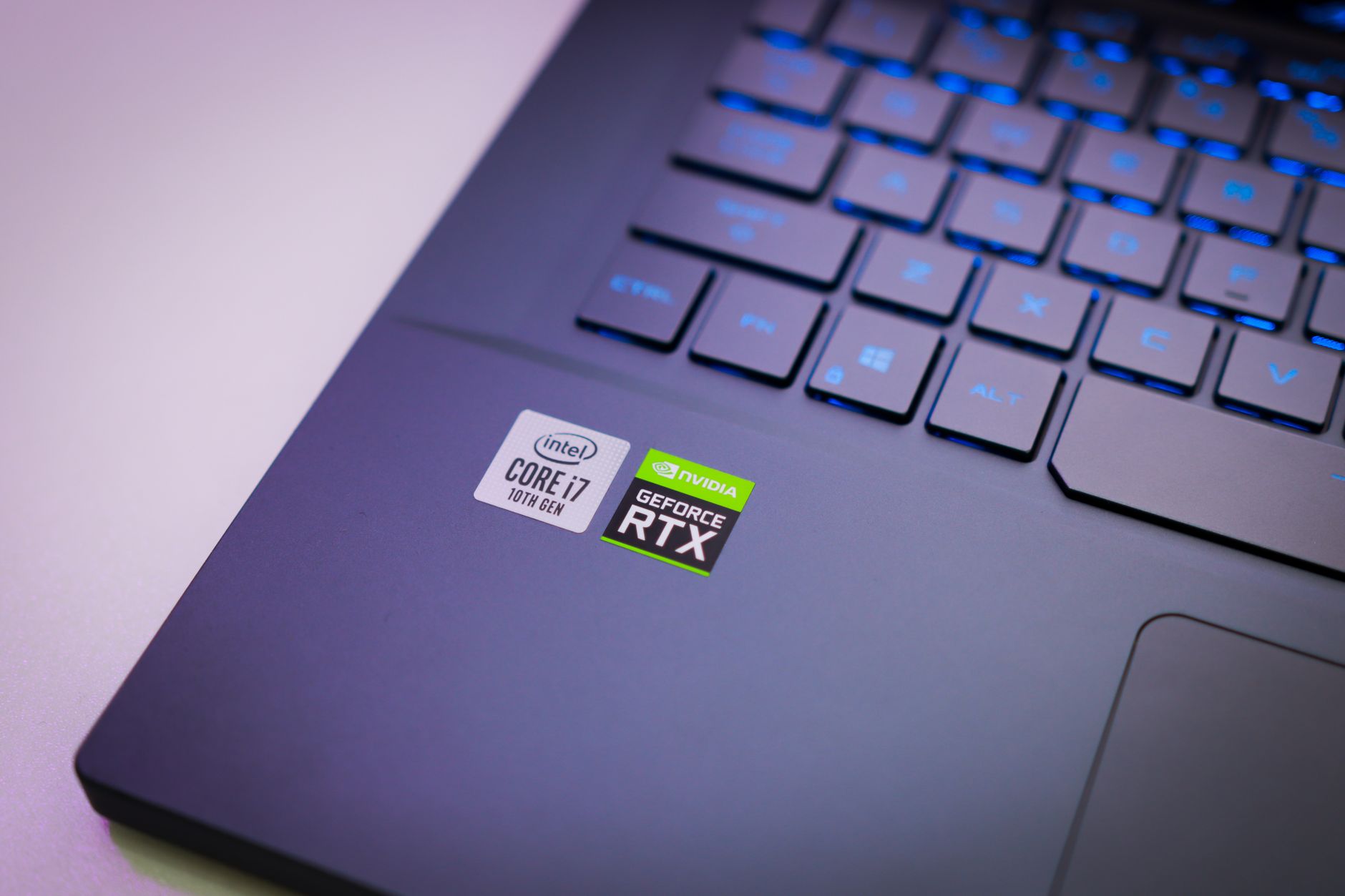
Gaming has become one of the most popular forms of entertainment, but not everyone owns a top-of-the-line gaming rig. If you’re wondering, “Can my PC run it?” when it comes to the latest video games, you’re not alone. Knowing your computer’s capabilities can help you avoid frustration and wasted time.
This guide will walk you through the essential steps needed to check your PC’s hardware specifications against the system requirements of any game. By the end, you will be empowered to determine if your setup can handle your gaming desires.
Can My PC Run It?
To determine if your PC can run a specific game, you must compare your system’s specifications to the game’s system requirements. Every game will have its own set of minimum and recommended requirements that outline the hardware needed for optimal performance.
Understanding System Requirements
System requirements are detailed specifications provided by game developers indicating what hardware is necessary to run their games. These requirements generally fall into two categories: minimum and recommended specifications.
Minimum vs. Recommended Requirements
The minimum requirements are the bare minimum necessary for the game to run. However, meeting these may result in lower graphics settings and potentially a less enjoyable experience. Recommended requirements, on the other hand, indicate the hardware specifications capable of delivering a smoother and visually richer gaming experience.
- Minimum Requirements: The lowest hardware specifications needed to run the game.
- Recommended Requirements: Suggested specifications for better performance and visual quality.
Gathering Your PC’s Specifications
The first step to determining if you can run a game is to know your computer’s specifications. Here’s how to find out your system’s details on Windows and macOS.
For Windows Users
- Press
Windows + Rto open the Run dialog. - Type
dxdiagand hit Enter. - The DirectX Diagnostic Tool will open, displaying your system information.
- Note down the following details:
- Processor (CPU)
- Memory (RAM)
- Graphics (GPU)
- Your operating system version.
For macOS Users
- Click on the Apple icon in the upper left corner.
- Select About This Mac.
- A window will pop up showing your Mac’s model, processor, memory, and graphics.
Where to Find Game System Requirements
Once you have your specifications, it’s time to locate the system requirements for the game you want to play. This information can usually be found on the game’s official website or on popular gaming platforms.
Popular Platforms for Game Requirements
- Steam: Offers a dedicated page for each game that includes system requirements.
- Epic Games Store: Features a game page with detailed specifications.
- Official Publisher Websites: Often provide comprehensive details on system requirements.
Comparing Your Specifications to Game Requirements
With your PC’s specifications and the game’s requirements in hand, it’s time to compare them directly. Here’s how to interpret the information.
Understanding Each Specification
Here’s how to analyze the specifications:
- Processor (CPU): Compare the speed (GHz) and number of cores. Games will specify a minimum and recommended CPU that you can measure your own against.
- Memory (RAM): Ensure you have the minimum amount required. Recommended specs will generally be a higher number.
- Graphics Card (GPU): This is often the most critical component for gaming. Compare your GPU model to the minimum and recommended specifications.
- Operating System: Make sure your version of Windows or macOS is supported by the game.
Additional Tools to Help Check Compatibility
Many tools can simplify the compatibility check, providing a detailed analysis and performance expectations.
Using Third-Party Software
- Can You RUN It: This online tool automatically detects your system specs and compares them to the requirements of thousands of games.
- Speccy: A detailed PC inspection tool that gives an overview of your hardware.
- GPU-Z: This tool focuses on providing detailed information about your graphics card.
By using tools like these, you can simplify compatibility checks significantly, saving you time and effort.
Common Issues and Troubleshooting
If you find that your PC doesn’t meet the requirements for your intended game, there are several avenues to explore. Here are some common strategies for troubleshooting and improving compatibility.
Upgrading Hardware Components
- Upgrading RAM: Increasing RAM can improve performance, especially if you are below recommended specifications.
- Upgrading Your GPU: If your graphics card is a major bottleneck, consider investing in a newer model that meets or exceeds the recommended specs.
- Processor Upgrades: Upgrading your CPU may require a new motherboard, depending on compatibility. Always check manufacturer specifications.
Common Errors and Fixes
When you try to run a game that strains your system, you may face errors or crashes. Here are some tips to deal with those situations:
- Error Messages: If you receive error messages, take note of them. Search online, as they often have defined solutions on forums.
- Update Drivers: Updating your graphics and sound drivers can resolve many game-related issues.
- Game Settings: Lowering the game’s graphics settings can make an unfit PC manageable. Look for settings like texture quality and resolution.
Optimizing Performance for Low-End PCs
If you know your PC is on the lower end of the gaming spectrum, there are ways to optimize performance to ensure the best possible gaming experience.
Adjusting In-Game Settings
- Resolution: Reducing the display resolution can significantly improve frame rates.
- Graphics Settings: Lowering the quality of shadows, textures, and effects can ease the strain on your hardware.
- V-Sync and Frame Rate Limiters: Turning these off may improve performance, but could introduce screen tearing.
Windows Settings for Better Performance
Adjusting a few settings in Windows can also help improve system performance:
- Power Settings: Setting your power plan to “High Performance” can help in resource allocation.
- Disable Background Applications: Close unneeded applications to free up system resources.
- Game Mode: Windows has a built-in Game Mode that prioritizes gaming performance. You can enable this in the Game bar settings.
Conclusion
By following the steps outlined in this guide, you can determine whether your PC can run the desired games effectively. Understanding system requirements, checking your specifications, and utilizing various tools for assistance are all part of the process. Don’t hesitate to consider hardware upgrades if you find that your setup falls short.
For more detailed information on upgrading your system, check out our guides on how to install RAM or how to update your BIOS. Understanding your equipment is essential for an optimal gaming experience.
Explore more tech tutorials and guides to ensure your setup is always game-ready!