
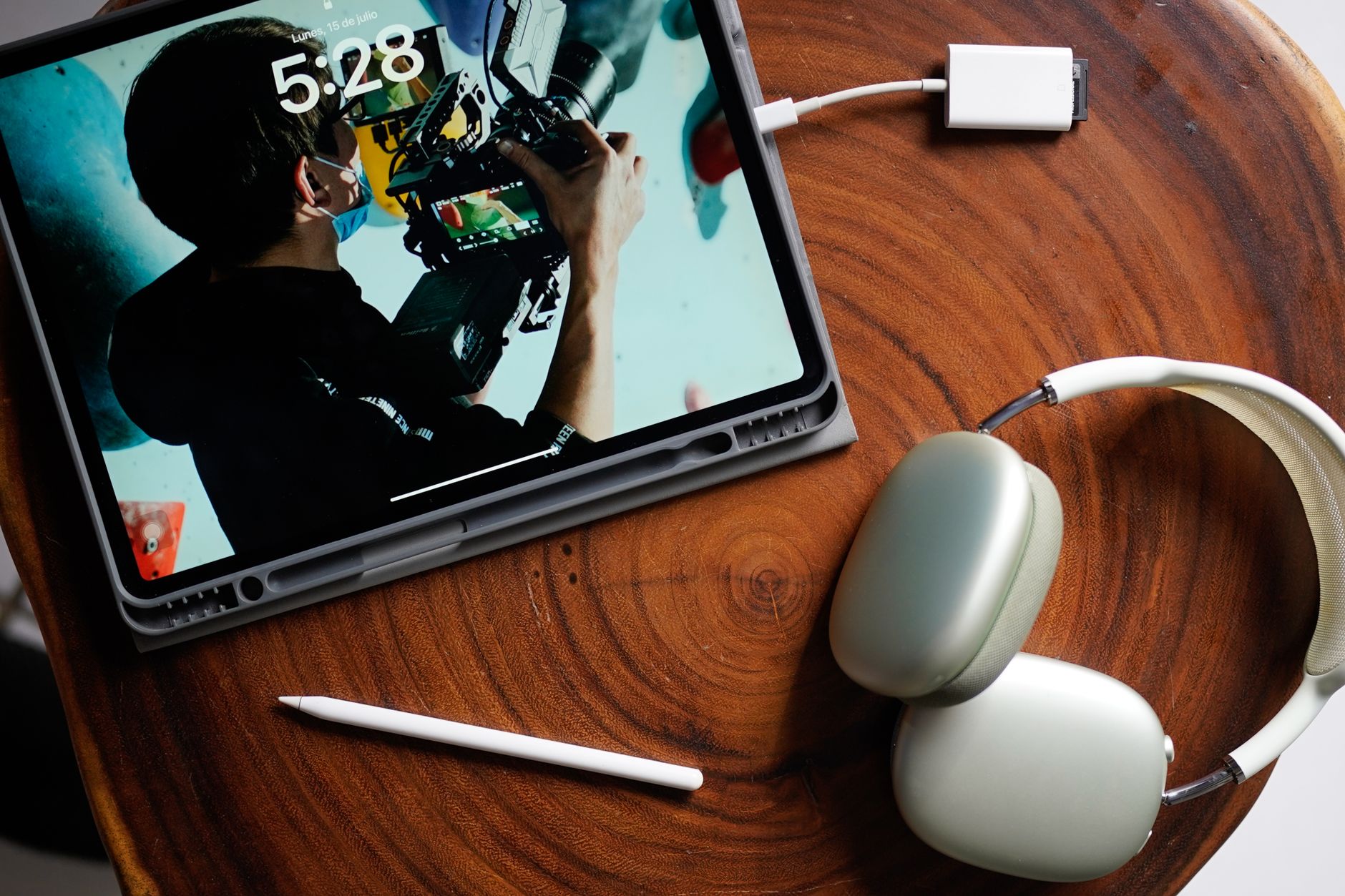
Apple Pencil is a powerful tool designed to enhance productivity and creativity for users of Apple devices, especially the iPad. However, to harness its full potential, understanding how to properly charge and maintain it is crucial. This article details the charging steps for Apple Pencil models, along with battery maintenance tips to extend its lifespan.
Whether you’re using the first generation or the newer second generation Apple Pencil, the charging methods vary slightly. By following the guidelines outlined here, you can ensure that your Apple Pencil remains charged and ready for your next task.
How to Charge Apple Pencil?
Charging an Apple Pencil is a straightforward process, but it differs based on the model you own. Here’s a quick overview of how to charge both generation models effectively.
Understanding Apple Pencil Generations
Before diving into the charging steps, it’s essential to identify which generation of Apple Pencil you have, as this affects how you charge the device.
- Apple Pencil (1st Generation): This model features a Lightning connector at the end and can be charged directly from the iPad or using a Lightning adapter.
- Apple Pencil (2nd Generation): This model charges wirelessly and magnetically attaches to the side of compatible iPad Pro and iPad Air models.
Charging Steps for Apple Pencil (1st Generation)
The first generation Apple Pencil can be charged in a couple of ways: directly via the iPad or using a Lightning adapter. Follow these steps for each method:
Method 1: Charging via iPad
- Remove the cap from the Apple Pencil to expose the Lightning connector.
- Insert the Lightning connector of the Apple Pencil into the Lightning port of your iPad.
- Ensure the Apple Pencil is securely connected; you should see a charging icon appear on the screen.
- Leave the Apple Pencil connected for approximately 15 minutes to charge sufficiently for use.
Method 2: Charging with a Lightning Adapter
- Take the Lightning adapter that came with the Apple Pencil.
- Connect the Apple Pencil’s Lightning connector to the adapter.
- Insert the other end of the adapter into any standard Lightning cable and connect it to a power source.
- Monitor the pencil as it charges, which you can confirm through your iPad or by the LED indicator if available.
Charging Steps for Apple Pencil (2nd Generation)
Charging the second generation Apple Pencil is simplified by its design, as it charges wirelessly. Here’s how to do it:
- Attach the Apple Pencil to the magnetic connector on the side of your compatible iPad Pro or iPad Air.
- Ensure that it is placed correctly so that it sticks and charges. You should see a charging message pop up on your iPad screen.
- Allow the pencil to charge. It can recharge from 0% to about 30% in 10 minutes, making it a quick and convenient solution.
Checking the Battery Level of Your Apple Pencil
It’s essential to periodically check the battery level of your Apple Pencil, especially before long tasks. Here’s how you can do that:
- Make sure your Apple Pencil is connected to the iPad.
- Open the Notes app or any application that recognizes the Apple Pencil.
- Swipe down from the top of the screen to access the Control Center.
- Look for the Apple Pencil icon to see its current battery percentage.
Alternatively, you can also add the batteries widget to your Home Screen or Today View for quick access to your pencil’s status.
Best Practices for Apple Pencil Battery Maintenance
To ensure that your Apple Pencil lasts as long as possible, follow these battery maintenance tips:
- Avoid Extreme Temperatures: Keep your Apple Pencil away from extremely hot or cold environments, as temperature extremes can damage the battery.
- Store Properly: When not in use, store your Apple Pencil in its original case or in a designated place where it can remain undamaged. Avoid leaving it in a hot car.
- Charge Regularly: It’s recommended to keep the Apple Pencil charged between 20% and 80% for optimal battery health. Avoid letting it discharge completely too often.
- Update Your Device: Ensure your iPad is running the latest version of iPadOS. Software updates can provide better battery management tools and compatibility.
Troubleshooting Common Charging Issues
Even with proper use, some users may encounter issues while charging their Apple Pencil. Here are some common problems and how to resolve them:
1. Apple Pencil Not Charging
- Check Connections: Ensure that the Apple Pencil is securely connected to your iPad or the Lightning adapter. For the second generation, make sure it’s correctly attached magnetically.
- Inspect the Lightning Port: Look for any debris or lint in the Lightning port of both the iPad and Apple Pencil. Cleaning it carefully can often solve charging issues.
- Restart Your iPad: Sometimes a simple restart of your iPad can resolve connectivity problems with the Apple Pencil.
- Try a Different Charger: If you are using the Lightning adapter, try a different Lightning cable or power source to see if the issue lies there.
2. Apple Pencil Charging Slowly
- Charge Directly from iPad: If you notice slow charging from the adapter, try charging it directly from the iPad Lightning port, as it may provide a more efficient charge.
- Use a Wall Adapter: Charging from a wall outlet may offer faster charging compared to a computer’s USB port.
3. Apple Pencil Not Recognized
- Unpair and Pair Again: Go to the Bluetooth settings of your iPad, unpair the Apple Pencil, and then pair it again by connecting it to the iPad.
- Reset Bluetooth: Turning Bluetooth off and then back on can sometimes restore the connection.
Understanding Apple Pencil Battery Life
The battery life of an Apple Pencil can vary based on usage patterns. Typically, the first generation Apple Pencil lasts around 12 hours on a full charge, while the second generation can provide around the same with quick recharges. Here’s how to get the most out of your Apple Pencil battery:
- Limit Heavy Use: If you’re using resource-intensive apps, this can drain the battery faster. Consider interspersing heavy usage with lighter tasks.
- Turn Off Unused Features: Features like “Pressure Sensitivity” in drawing apps can use more battery. Adjust settings based on your current needs.
Enhancing Your Apple Pencil Experience
Beyond charging, you can improve your Apple Pencil experience through various accessories and applications:
- Pencil Grips: Adding a grip can enhance comfort during prolonged use.
- Protective Cases: Consider a sturdy case that provides slots for Apple Pencil storage.
- Apps Optimized for Apple Pencil: Explore drawing apps such as Procreate, Note-taking apps like Notability, or document annotation tools that capitalize on the precision of the Apple Pencil.
Conclusion
Charging your Apple Pencil correctly and implementing best practices for battery maintenance are essential for ensuring that it reliably supports your productivity and creativity. Whether you have the first or second generation Apple Pencil, following these guidelines will help keep your device functioning optimally. Remember to regularly check your Apple Pencil’s battery status, maintain it properly, and troubleshoot any issues promptly.
For more information on related topics, consider checking out additional tech tutorials and guides to enhance your understanding of Apple products and other technology tools.