
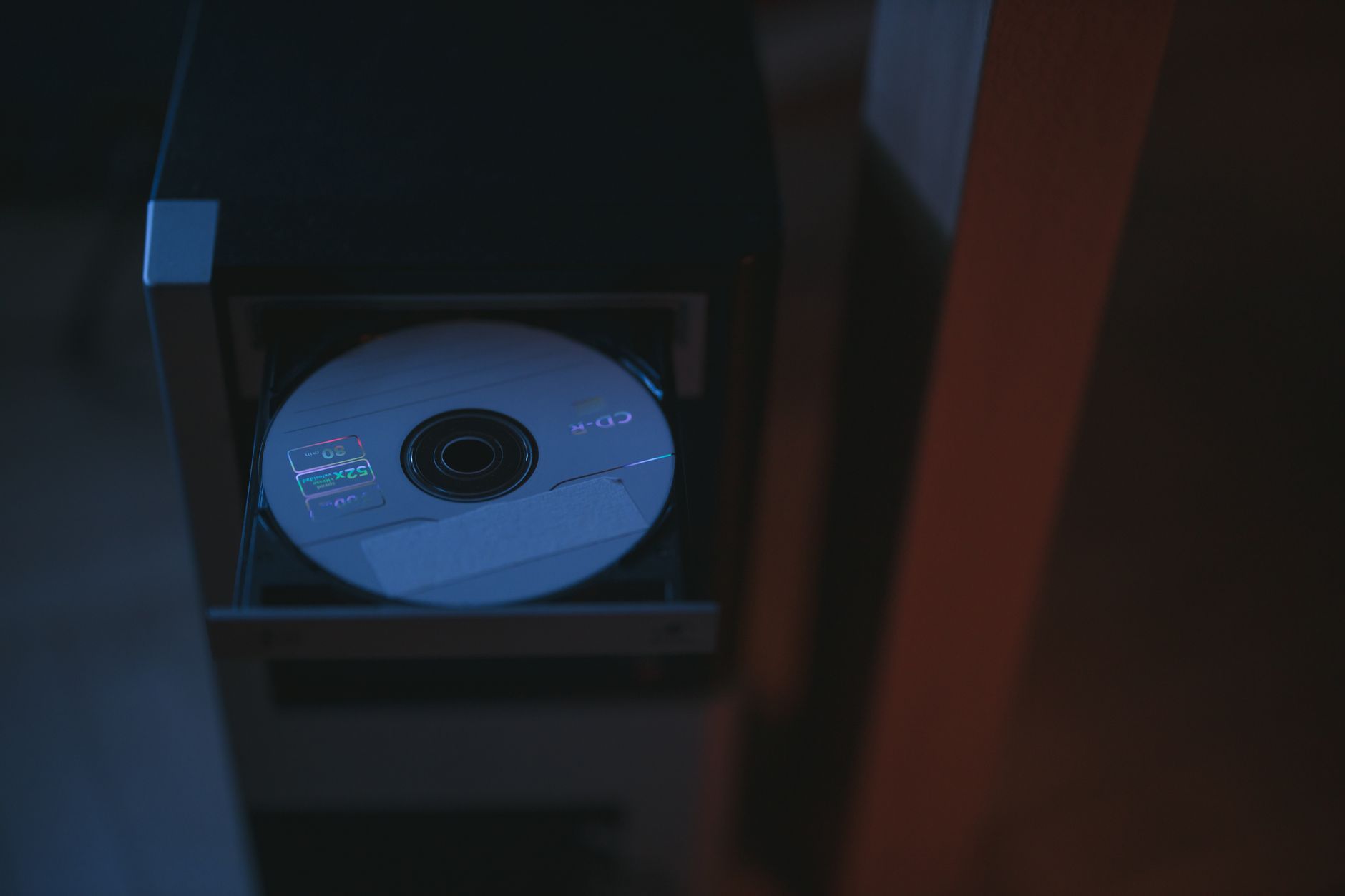
A CD, or Compact Disc, is a digital optical disc storage format that has played a significant role in the evolution of media storage and playback. Originally designed for audio storage, its capabilities have expanded to include data storage and even video playback. In this article, we will delve into the various aspects of CDs, including their formats, technology, and relevance in today’s digital world.
While they may seem outdated in the era of cloud storage and streaming, CDs still hold value for audio enthusiasts and data archiving. Whether you’re looking to discover the technical details behind this format or are curious about how to utilize CDs in modern technology, this comprehensive guide will clarify what a CD is and how it can be used effectively.
What Is a CD?
A CD, or Compact Disc, is a flat, circular optical disc that encodes data using a laser. Commonly associated with audio, CDs have evolved to store a variety of digital data, including computer files and video content. The most common types of CDs include:
- Audio CDs
- CD-ROMs
- CD-Rs
- CD-RWs
Each type serves a different purpose and has distinct characteristics, making CDs versatile storage solutions.
History and Development of CDs
The Compact Disc format was developed in the late 1970s by Philips and Sony, with the first audio CD released in 1982. The revolutionary aspect was its ability to store audio in digital format, which greatly enhanced sound quality compared to analog formats like vinyl and cassette tapes. By the late 1980s, the technology evolved to allow for data storage, leading to the creation of CD-ROMs.
Over the years, several variations of CDs have been developed, including:
- Audio CD: Stores music in a format that can be played back on CD players.
- CD-ROM: Stores computer data and is read-only, making it suitable for software and applications.
- CD-R: A recordable disc that allows users to write data once, after which it becomes a read-only medium.
- CD-RW: A rewritable version that allows multiple read and write cycles.
How CDs Work
CDs utilize a laser to read and write data encoded on their surface. The disc’s surface comprises tiny pits and lands that represent bits of data.
Here’s how the process works:
- Data Encoding: The pits (representing zeros) and lands (representing ones) are formed on the disc’s surface during manufacturing or writing (for CD-Rs and CD-RWs).
- Laser Reading: When a CD is played on a CD player or computer, a laser beam illuminates the disc. The laser reflects differently off the pits and lands, creating an electrical signal.
- Digital Conversion: The electrical signal is converted back into digital data, which can then be interpreted by the device to produce sound, display information, or run applications.
CD Formats
The CD format includes technical specifications that define how data is stored and read. Here’s an in-depth look at the various CD formats:
Audio CDs
Audio CDs are designed specifically for music playback. They follow the Red Book standard, which specifies a maximum capacity of 74 to 80 minutes of audio. Each audio track is compressed and stored digitally, allowing for high-quality sound reproduction. Audio CDs, compatible with most CD players, have largely been replaced by digital streaming but remain popular among audiophiles.
CD-ROMs
CD-ROM stands for Compact Disc Read-Only Memory. These discs are pre-pressed, meaning data is written during manufacturing and cannot be altered afterward. They are commonly used to distribute software, games, and other digital content. Due to their stable storage, CD-ROMs are still utilized in many educational and archival contexts.
CD-Rs
CD-Rs (Compact Disc Recordable) enable users to write data only once. After initial writing, the data becomes permanent, and the disc cannot be modified. CD-Rs are ideal for creating backups or sharing files, as they can store up to 700 MB of data or 80 minutes of audio. With inexpensive writing devices, CD-Rs are widely accessible for personal and professional use.
CD-RWs
CD-RWs (Compact Disc Rewritable) are unique due to their ability to be erased and rewritten multiple times. They are suitable for temporary data storage or projects that require frequent updates. However, they typically offer slightly lower durability and compatibility compared to CD-Rs. A CD-RW can generally be rewritten around 1,000 times, making it a versatile storage option.
Using CDs in Today’s Digital Age
Even though cloud storage and USB flash drives have proliferated, CDs are still relevant for several applications:
- Music Collections: For music enthusiasts, collecting and owning physical copies of albums is still preferred.
- Data Backup: CDs can be used for long-term storage of important data, especially in environments where electronic media may be at risk.
- Software Distribution: Many companies still distribute software via CD-ROMs, particularly in regions with limited internet access.
Advantages of Using CDs
CDs have several advantages that contribute to their continued use:
- Durability: Properly stored CDs can last for several decades, making them reliable for archival purposes.
- Audio Quality: Audio CDs provide high-quality sound compared to MP3 formats.
- Portability: CDs are lightweight and easy to store, allowing for convenient transport and sharing.
- Digital Format Compatibility: Many devices, including computers, car stereos, and standalone CD players, can read CDs.
Disadvantages of Using CDs
While CDs offer several benefits, there are limitations to consider:
- Storage Capacity: With a maximum capacity of about 700 MB, CDs may not suffice for large data files or extensive multimedia.
- Physical Degradation: CDs can scratch, warp, or become unreadable over time, especially if improperly stored.
- Obsolescence: Many modern devices no longer include CD drives, making it harder to access CD content.
How to Write Data on a CD
Writing data to a CD requires a CD writer and appropriate software. Here’s a basic step-by-step guide:
- Gather Required Equipment: You will need a CD writer (or DVD writer), blank CD-R or CD-RW media, and a computer with suitable software (e.g., Windows Media Player, iTunes, or CD burning software).
- Insert the Blank CD: Place the blank CD into the CD drive.
- Open your CD Burning Software: Launch your preferred CD burning application.
- Select Data to Burn: Add files or audio tracks you wish to write to the CD within the software.
- Choose Burn Settings: Depending on the software, you may have settings to adjust (e.g., burn speed).
- Start the Burning Process: Click the burn button to initiate writing data to the CD.
- Finalize the CD: Ensure you finalize the CD (if applicable) to make it readable on other devices.
Common Issues When Using CDs
As with any technology, users may encounter issues when working with CDs. Here are some common problems and troubleshooting tips:
CD Not Recognized
If your device does not recognize a CD, consider the following steps:
- Check Compatibility: Ensure the disc format is compatible with the player or computer.
- Inspect the Disc: Look for scratches, dirt, or damage on the CD surface.
- Test Other CDs: Try other CDs to determine if the issue lies with the disc or the drive itself.
CD Playback Issues
If the audio skips or doesn’t play smoothly, try these tips:
- Clean the Lens: Dust on the CD player lens can affect playback quality; clean it using a lens cleaning kit.
- Check for Scratches: Inspect the CD for any deep scratches that may be causing read errors.
- Switch Players: Test the CD on another device to see if the issue persists.
Data Corruption
Occasionally, data may become corrupted on a CD. To mitigate this:
- Always Verify After Burning: Many burning software suites provide an option to verify data after writing to ensure it’s readable.
- Store CDs Properly: Keep CDs in protective cases and away from direct sunlight or extreme temperatures.
Future of CDs in a Digital World
With the rise of digital downloads and streaming services, the demand for physical media has decreased. However, CDs still maintain a niche market among collectors, artists, and consumers who prefer owning tangible copies of music or data. Additionally, for archiving purposes, CDs continue to serve as a viable storage medium, especially in situations where electronic data storage is at risk of corruption or loss.
Conclusion
CDs may not be the forefront of digital technology, but they remain an important part of the landscape for audio, data storage, and archival purposes. From audio CDs that deliver high-fidelity music to CD-Rs that provide reliable data writing capabilities, the capabilities of this format are still relevant today. The understanding of CDs allows users to make informed choices about their media formats and storage solutions.
For more insights into technology topics, consider exploring what a CD is further at What Is A CD or learn about different types of data storage with RAID Arrays.