
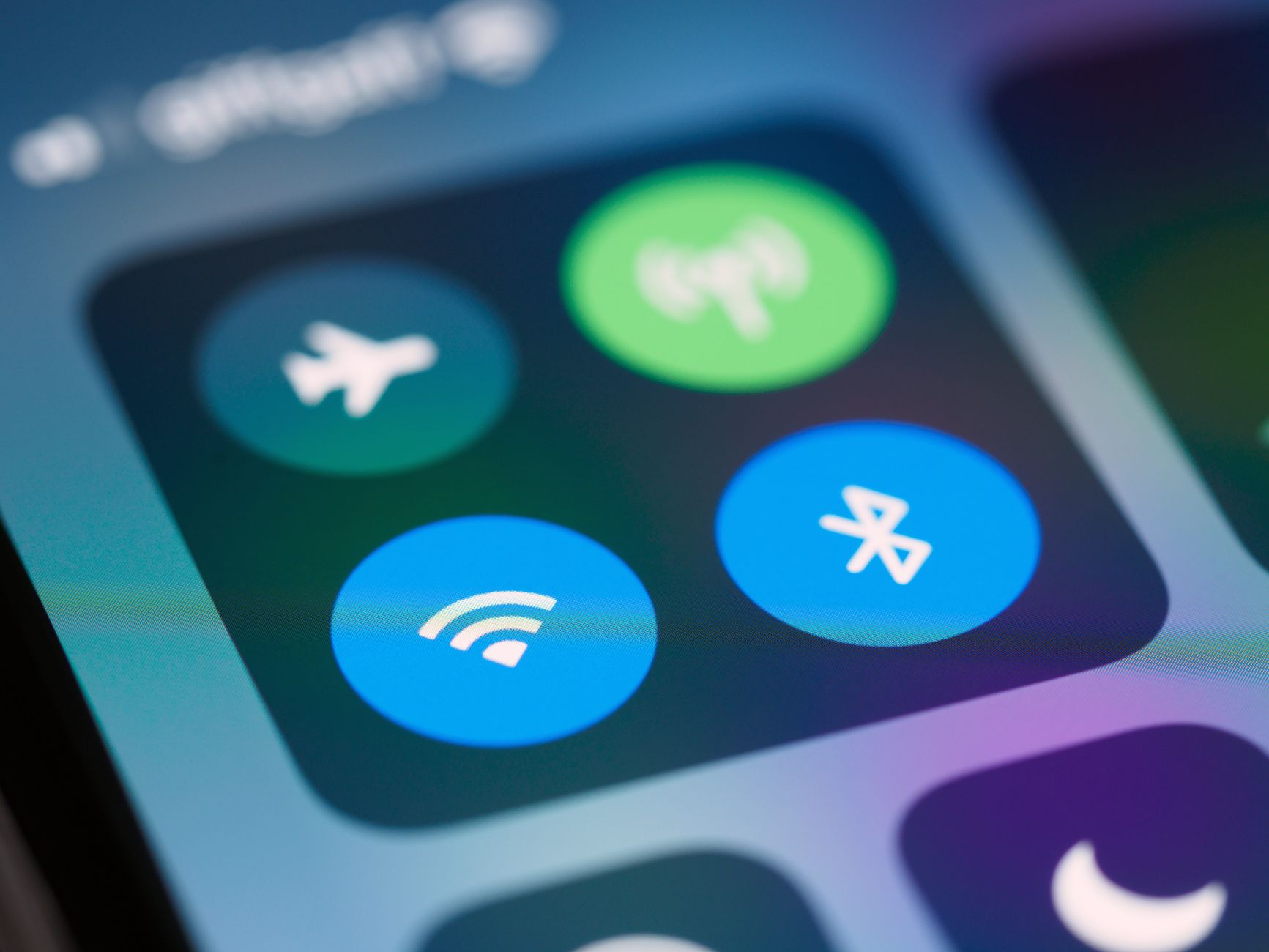
Airplane mode is a common feature found on mobile devices, allowing users to disconnect from cellular and network services while still using various functions of their devices. Understanding how airplane mode works and its implications can help in making informed choices about device usage, especially during travel or in specific environments.
This article delves into what airplane mode is, how it functions, its features, and its importance in different contexts. By the end, you will have a comprehensive understanding of airplane mode and how to utilize it effectively.
What Is Airplane Mode?
Airplane mode is a setting available on smartphones, tablets, and other devices that temporarily suspends their ability to connect to cellular networks, Wi-Fi, and Bluetooth. When activated, this mode effectively turns off all wireless communications, allowing users to conserve battery life and avoid interference with aircraft communication systems.
How Does Airplane Mode Work?
When you enable airplane mode on your device, it disables the radios that facilitate connections to cellular networks, Wi-Fi, and Bluetooth devices. This is achieved without affecting the device’s other functionalities, allowing you to access offline content or use applications that do not require an internet connection.
Here’s a simplified breakdown of the process:
- The user activates airplane mode through their device settings or quick settings panel.
- The device’s software sends a command to the radio hardware to disable wireless communications.
- All connectivity options, such as cellular data, Wi-Fi, and Bluetooth, are turned off.
- The user can access other device functions and applications without any interruptions.
Features of Airplane Mode
Airplane mode includes several notable features that enhance its practicality and usability:
- Web Access: While airplane mode disables Wi-Fi and cellular data, users can still browse content previously downloaded, including music, videos, or emails.
- Wi-Fi and Bluetooth Control: Users can selectively re-enable Wi-Fi or Bluetooth after enabling airplane mode, allowing for internet access via Wi-Fi networks or connection to Bluetooth devices.
- Battery Conservation: Disabling connectivity helps extend the device’s battery life, making it useful in situations where charging options are limited.
- Device Security: By disabling external connections, airplane mode adds an extra layer of security in sensitive environments.
- Preventing Interference: Airplane mode is primarily designed to prevent electronic interference with flight instruments, which is crucial for safe air travel.
When Should You Use Airplane Mode?
Airplane mode is beneficial in various scenarios, particularly:
- During Flights: As advised by airlines, using airplane mode during takeoff, landing, and throughout the flight prevents any potential interference with the aircraft’s navigation systems.
- Conserving Battery Life: When your device’s battery is running low, turning on airplane mode can help conserve remaining power, especially when you are not using it actively.
- Traveling Internationally: Avoiding unexpected roaming charges while traveling can be achieved by enabling airplane mode, and selectively using Wi-Fi when necessary.
- In Meetings: To minimize distractions, participants often activate airplane mode during important meetings while allowing access to offline content.
- In Secure Environments: Using airplane mode can enhance device security in locations where it is advisable to limit data transmission, such as government buildings or sensitive company premises.
How to Activate Airplane Mode
Activating airplane mode is straightforward and varies slightly depending on the device’s operating system. Below are instructions for both iOS and Android devices:
For iOS Devices
- Open the Settings app on your device.
- Locate and tap on Airplane Mode.
- Switch the toggle to On (the toggle will turn green).
- To disable it, repeat the process and switch the toggle to Off.
For Android Devices
- Swipe down from the top of the screen to access the Quick Settings panel.
- Look for the Airplane Mode icon (usually an airplane symbol).
- Tap on the icon to enable the mode (the icon will highlight or change color).
- To turn it off, tap the airplane icon again.
Common Issues When Using Airplane Mode
While airplane mode is generally reliable, users may encounter a few common issues:
Cannot Connect to Wi-Fi after Disabling Airplane Mode
Occasionally, devices may not automatically reconnect to available Wi-Fi networks after disabling airplane mode. To troubleshoot:
- Ensure that Wi-Fi is enabled in the device settings if it does not reconnect automatically.
- Restart your device if the problem persists.
Bluetooth Devices Not Connecting
Bluetooth devices might require re-pairing if the connection is disrupted. To resolve this:
- Go to Settings > Bluetooth and ensure Bluetooth is enabled.
- Re-pair the Bluetooth device if necessary by following the connection instructions.
Persistent Notifications
Some devices may continue to show notifications related to connectivity when switching from airplane mode. To clear them:
- Swipe down to access notifications and manually dismiss any lingering alerts.
Alternatives to Airplane Mode
If airplane mode seems too restrictive for certain use cases, consider these alternatives:
Turning off Cellular Data
Disabling only cellular data while keeping Wi-Fi enabled can preserve internet access while preventing cellular data usage. Here’s how:
- On iOS, navigate to Settings > Cellular and toggle off Cellular Data.
- On Android, go to Settings > Network & internet > Mobile network and toggle off Mobile data.
Managing Wi-Fi and Bluetooth Manually
Instead of activating airplane mode, you can manage your Wi-Fi and Bluetooth connections individually. Go to your settings menu to toggle these on or off as needed.
Using Do Not Disturb Mode
If the goal is to minimize interruptions instead of disconnecting from all communications, enabling Do Not Disturb mode allows users to silence notifications while still connected to Wi-Fi or cellular networks. This can be configured in the settings menu under Sound & vibration or Notifications.
Impact on Applications and Features
Enabling airplane mode has varying effects on applications and device features:
- Offline Access: Apps can function offline without a connection. You can enjoy music, videos, or read saved articles.
- Games: Many mobile games allow single-player modes to operate without connections, enhancing entertainment on flights.
- GPS Functionality: GPS usually remains functional, allowing you to access maps and navigation features without needing internet access.
Privacy and Security Considerations
Using airplane mode can enhance privacy and security in specific situations, as it prevents apps from sending or receiving data. However, particularly sensitive data might still be vulnerable if the device is reconnected to networks. It’s essential to remember the following:
- Ensure proper security measures, such as a strong password or biometric access, are in place.
- When airplane mode is deactivated, be aware of app permissions and data sharing settings to protect your privacy.
Key Takeaways on Using Airplane Mode
Understanding airplane mode can help you use your device more effectively in different environments.
- Airplane mode disables all wireless communication, enhancing battery life and security.
- Users can selectively re-enable Wi-Fi and Bluetooth connections while in airplane mode.
- It is primarily used during air travel but has broader applications in daily life.
- Ensure to manage connectivity preferences after disabling airplane mode for an optimal experience.
Overall, airplane mode is a simple yet powerful feature designed for convenience and security, making it an integral part of modern mobile device usage.
For further information, you might explore what airplane mode does in more detail by visiting this page, or if you need clarification regarding SIM cards, check out this guide.