
Determining your motherboard model is essential for upgrading components, troubleshooting issues, and ensuring compatibility with new hardware or software. While it might seem daunting, there are various straightforward methods to check your motherboard model using built-in system tools and settings.
This article guides you through different approaches to identifying your motherboard model, whether you prefer software-based methods or delving into physical inspection.
How to Check Motherboard Model?
You can check your motherboard model using several methods, including software tools, system settings, BIOS/UEFI, or by physically inspecting the motherboard itself. Each method applies to different user preferences and skill levels.
Why Knowing Your Motherboard Model Matters
Your motherboard model plays a pivotal role in your PC’s overall functionality and upgrade potential. Here are key reasons for knowing your motherboard model:
- Compatibility: Ensuring that new hardware components, such as RAM, CPUs, and GPUs, are compatible with your board.
- Troubleshooting: Diagnosing hardware issues often involves knowing your motherboard model to find specific solutions or drivers.
- BIOS Updates: To enhance stability or performance, updates might be available for your motherboard, which requires knowing its model.
- Upgrades: Planning future upgrades requires an understanding of the motherboard’s capabilities, like the maximum supported RAM or CPU generation.
What You Will Need
Before starting, ensure you have the following:
- Access to your computer or laptop.
- Basic understanding of your operating system (Windows, macOS, or Linux).
- Tools for physical examination (optional, if necessary).
Method 1: Using System Information Tools in Windows
Windows has built-in tools that can help you identify your motherboard model easily.
Step 1: Open System Information
- Press
Windows + Rto open the Run dialog box. - Type
msinfo32and hitEnter.
Step 2: Find Motherboard Information
The System Information window will open. Look for the following entries:
- System Manufacturer: Lists the brand of your motherboard.
- System Model: Indicates the specific model of your motherboard.
These entries will provide you with the necessary model information.
Method 2: Using Command Prompt
This method is slightly more technical but can yield quick results.
Step 1: Open Command Prompt
- Press
Windows + R. - Type
cmdand pressEnter.
Step 2: Run the Command
In the Command Prompt window, type the following command:
wmic baseboard get product, manufacturerPress Enter to execute the command. This will display the manufacturer and product (model) of your motherboard.
Method 3: Using Third-Party Software
If you prefer more extensive details regarding your hardware, third-party software can be a great option.
Recommended Software
- CPU-Z: A lightweight tool that provides in-depth details about your hardware, including the motherboard model.
- Speccy: Offers a summary of all your system specs, making it easy to find your motherboard model.
- HWiNFO: An advanced tool that provides real-time monitoring and detailed information about your system.
Step 1: Download and Install
- Select one of the software options from above and download it from its official website.
- Install the software by following the setup prompts.
Step 2: Check the Motherboard Model
- Open the installed software.
- Look for the motherboard section, which typically lists the manufacturer and model directly.
Method 4: Checking Motherboard Model in BIOS/UEFI
Accessing your motherboard’s BIOS/UEFI can also provide a quick way to find out your model.
Step 1: Enter BIOS/UEFI
- Restart your computer.
- As the computer starts, press the appropriate key to enter the BIOS/UEFI setup. Common keys include
F2,Del, andEsc, but it varies by manufacturer.
Step 2: Find Motherboard Information
- Once in the BIOS/UEFI menu, navigate to the section that displays system information. This often lists the motherboard model prominently.
- Use the on-screen navigation help to find where this information is located, as it differs by manufacturer.
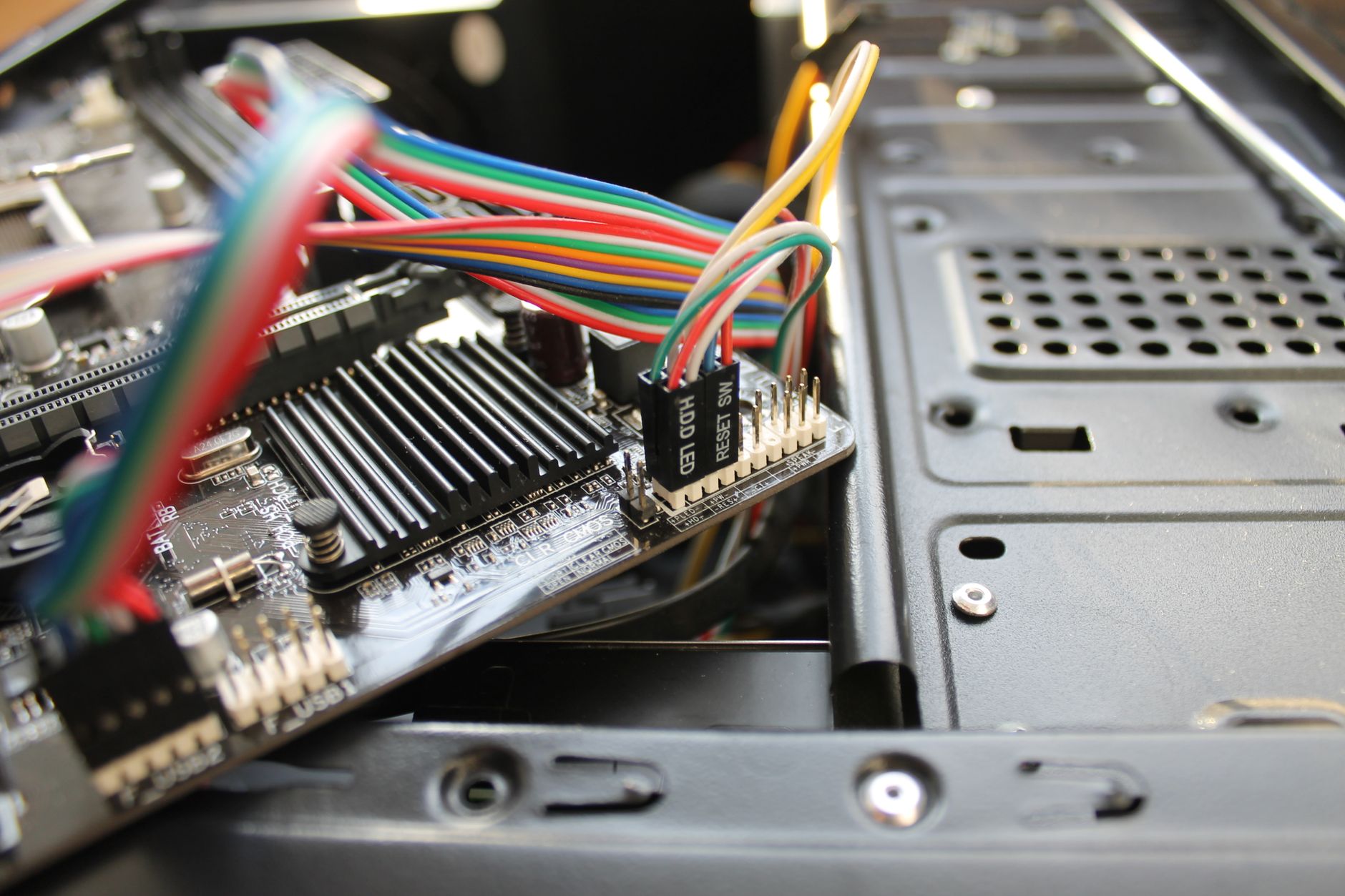
Method 5: Physically Inspecting the Motherboard
If all else fails, or if you prefer a hands-on approach, you can check your motherboard model manually.
Step 1: Shut Down and Unplug Your PC
- Make sure your computer is completely powered off.
- Unplug all peripherals and the power cable.
Step 2: Open the Case
- Use a screwdriver to remove the screws holding the side panel of your PC case.
- Slide off the side panel to expose the internal components.
Step 3: Locate the Motherboard Model
- Look for the motherboard itself; it is the large board where the CPU, RAM, and other components are attached.
- Typically, you’ll find the motherboard model printed directly on the board, often between the PCI slots or near the CPU socket.
Make sure to write down the model number for future reference.
Common Errors and Troubleshooting
Here are a few common issues that might arise when checking your motherboard model and how to address them:
Common Error: Unable to Find Model Information
If you are having trouble locating your motherboard model using any of the methods above, consider the following:
- Software Problems: Ensure the software you are using is up-to-date or try a different tool.
- BIOS Access: If you’re unable to access your BIOS, refer to your motherboard manual for the correct key.
- Physical Inspection: Check that you have the correct access to view the motherboard and that it is securely connected.
Common Error: Incomplete Details
Sometimes, the information returned from tools may not be complete. In such cases:
- Use multiple methods to cross-check.
- Consult the manufacturer’s website; they often provide comprehensive specifications and manuals that include model details.
After Identifying Your Motherboard Model
Once you have your motherboard model, you can:
- Check for the latest BIOS updates.
- Research compatibility with new components for upgrades.
- Look up troubleshooting guides tailored to your model.
- Ensure you’re downloading the correct drivers and other software.
Conclusion
Checking your motherboard model is essential for maintaining and upgrading your computer effectively. Whether you choose to utilize built-in system tools, third-party software, or physical inspection methods, each approach provides a reliable means to gather that crucial information. With your motherboard model in hand, you are better equipped to make informed decisions about upgrades, troubleshooting, and future purchases.
If you’re looking to perform advanced tasks on your PC, consider exploring how to update your BIOS or learn how to install RAM to enhance performance. These resources will assist you in optimizing your hardware setup.