
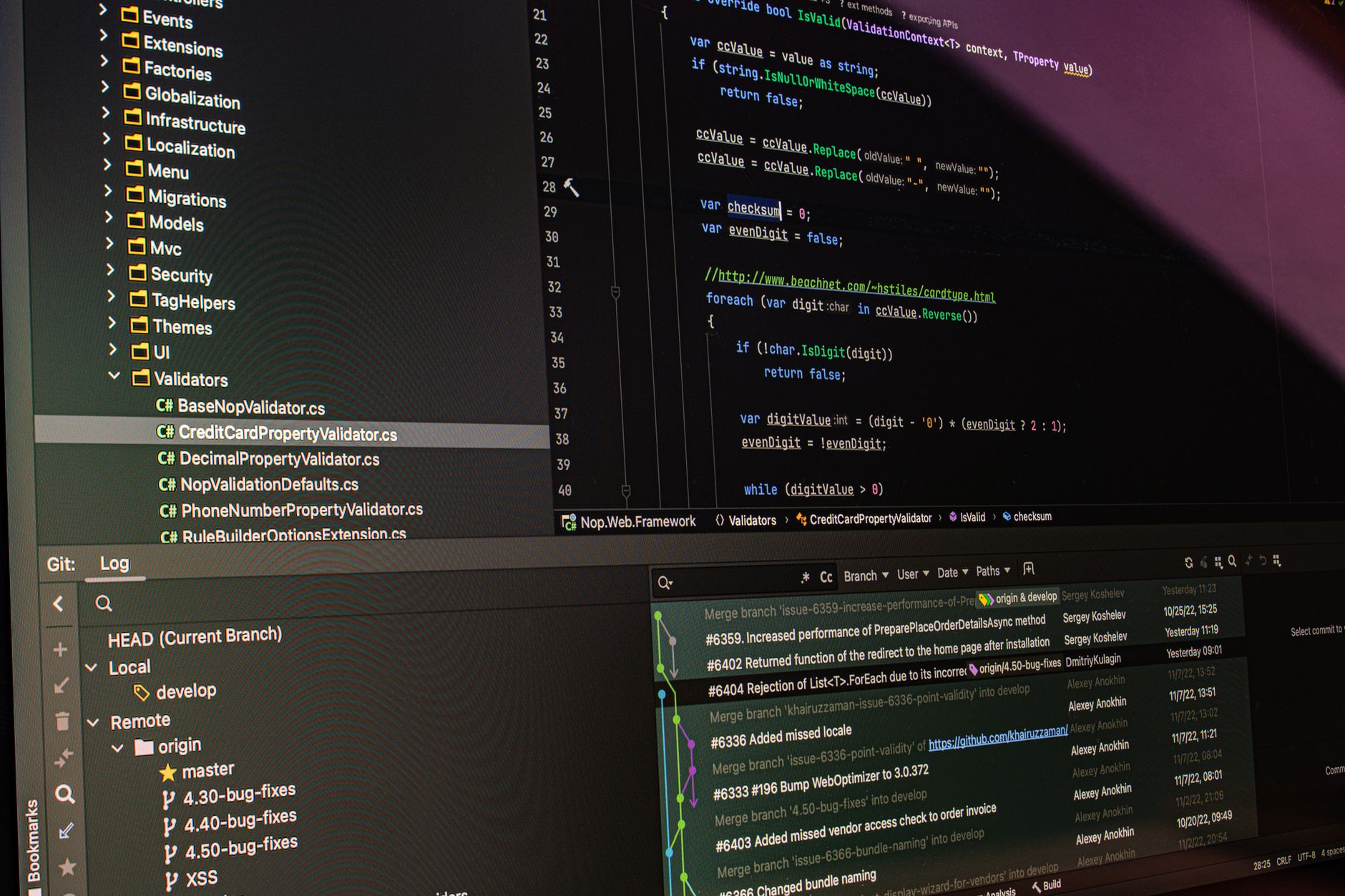
Git is a distributed version control system essential for software developers to track changes in source code during software development. Whether you are working on a small project or collaborating with a large team, Git provides tools to manage code versions effortlessly.
This article will delve into what Git is, how it operates, its uses, and provide practical examples to illustrate its capabilities. By understanding Git, you’ll be equipped to handle your coding projects more efficiently.
What Is Git?
Git is a free and open-source version control system designed to handle everything from small to very large projects with speed and efficiency. It allows multiple developers to work on the same project simultaneously without interfering with each other’s changes.
Originally created by Linus Torvalds in 2005 for the development of the Linux kernel, Git has evolved to be the most widely used version control system. It operates on a distributed model, which means every developer has a complete copy of the repository, enabling offline work and resilience against data loss.
Key Features of Git
- Branching and Merging: Git simplifies the process of branching from a main line of development, allowing features to be created and tested in isolation.
- Distributed Architecture: Every developer clones the entire repository, ensuring that they can work independently and offline.
- Speed: Operations like commits, branches, and merges are fast since they are executed locally.
- Data Integrity: Git uses SHA-1 hashing to ensure data integrity, making it challenging to corrupt files.
- Collaboration: Git makes it simple to collaborate by providing a robust model for merging changes and resolving conflicts.
How Git Works
Git operates on a few fundamental concepts that govern how it tracks changes and manages code. Understanding these concepts is crucial for new users.
Repository
A repository is a storage space for your project’s files and history. In Git, a repository contains the entire codebase, including the .git directory, which tracks all changes to the project.
Commit
A commit is a snapshot of the project at a given point in time. When you commit code, you save the current state of your files to the repository along with a message describing the changes.
Branch
A branch is a separate line of development in your project. The default branch in Git is usually called “main” or “master.” Branching allows you to work on new features without affecting the main code until you are ready to merge your changes.
Merge
Merging combines two branches together, bringing together the code changes made in different branches. This operation helps incorporate new features or fixes into the main project.
Clone
Cloning is the process of creating a local copy of a remote repository. This action allows you to work on the project offline and then push changes back to the remote repository when done.
Setting Up Git
To start using Git, you need to have it installed on your computer. Below are steps to install Git on various operating systems.
Installation on Windows
- Download the Git installer for Windows from the official Git website.
- Run the installer and follow the instructions. Make sure to select the option to add Git to your system PATH.
- Open Git Bash to begin using Git.
Installation on Mac
- Open Terminal.
- If you have Homebrew installed, you can simply run the command:
brew install git. - Alternatively, you can install Git via the Git website following the prompts.
Installation on Linux
- Open your terminal.
- Use your package manager to install Git. For example, on Ubuntu, you would run:
sudo apt-get install git. - Verify the installation by typing
git --versionin the terminal.
Configuring Git
After installation, you should configure Git with your user information so that your commits can be attributed correctly.
- Open your terminal or Git Bash.
- Set your user name:
git config --global user.name "Your Name". - Set your email address:
git config --global user.email "your.email@example.com". - To confirm your configuration, type:
git config --list.
Basic Git Commands
Once you have Git installed and configured, you can begin using it to manage your code. Below are some basic commands to get you started.
Initializing a Repository
To create a new Git repository, navigate to your project directory and run:
git initChecking Status
To see the current state of your repository, including staged changes and untracked files, use:
git statusAdding Changes
To stage changes for the next commit, use:
git add filenameTo stage all changes in the current directory, run:
git add .Committing Changes
To save your staged changes to the repository, use:
git commit -m "Your commit message"Pushing Changes
If you are working on a remote repository (like GitHub), you can push your changes using:
git push origin mainReplace main with the name of your branch if you are on a different branch.
Pulling Changes
To update your local repository with changes from the remote repository, use:
git pull origin mainWorking with Branches
Branches are a powerful feature in Git that allows multiple versions of a project to be developed simultaneously. Here’s how to work with branches.
Creating a New Branch
To create a new branch, use:
git branch new-branch-nameSwitching Branches
To switch to another branch, use:
git checkout branch-nameAs of Git version 2.23, you can use the following command, which is shorter:
git switch branch-nameMerging Branches
After finishing work on a branch, you can merge it back into the main branch:
- Switch to the main branch:
git checkout main. - Merge your branch:
git merge new-branch-name.
Common Git Workflows
There are several workflows that developers use when working with Git, depending on the size of the team and the complexity of the project.
Feature Branch Workflow
This is one of the most common workflows, where developers create a new branch for each feature they are working on. When the feature is complete, it gets merged back into the main branch.
Git Flow
Git Flow is a more structured workflow that uses feature branches, but also includes additional types of branches for releases and hotfixes. This approach is especially useful for larger projects with multiple teams.
Forking Workflow
This workflow is commonly used in open-source contributions. Developers fork a repository, make their changes in their forked repo, and then submit a pull request to propose the changes to the original repository.
Best Practices for Using Git
To make the most out of Git, consider the following best practices:
- Commit Often: Make commits for every meaningful change so that you can easily track modifications.
- Write Clear Commit Messages: Always include a descriptive message with your commits to convey what the changes involve.
- Use Branches: Avoid working directly on the main branch. Always create a new branch for your changes.
- Keep Your Branches Focused: Each branch should have a single purpose, whether it’s a new feature or a bug fix.
- Pull Before You Push: Always pull the latest changes from the remote repository before pushing your work to ensure you’re working on the most up-to-date code.
Common Errors and Troubleshooting
While using Git, you might encounter some common errors and issues. Below are some of these along with their solutions.
Merge Conflicts
Merge conflicts occur when changes to the same line of a file are made in different branches that are being merged together. To resolve conflicts:
- Open the conflicting file. Git will mark lines with conflict markers.
- Edit the file to resolve the conflict.
- Stage the resolved file:
git add filename. - Complete the merge with a commit:
git commit -m "Resolved merge conflict".
Detached HEAD State
This occurs when you switch to a commit that is not a branch. To get out of the detached HEAD state:
git checkout mainUntracked Files
If you see untracked files while checking the status, you can either add them to the repository with git add or ignore them by adding them to the .gitignore file.
Integrating Git with Other Tools
Integrating Git with various development tools can significantly enhance productivity. Here are some popular integrations:
GitHub
GitHub is a web-based platform that hosts Git repositories and offers additional features like issue tracking and project management. Integration with Git allows for seamless collaboration with other developers.
GitLab
Similar to GitHub, GitLab is a web-based platform supporting Git repositories with integrated CI/CD functionality for continuous integration and continuous deployment.
Visual Studio Code
Visual Studio Code provides built-in Git support, allowing users to manage repositories directly from the editor, visualize changes, and resolve conflicts easily.
Continuous Integration Tools
Using tools like Jenkins or Travis CI, you can automate testing and deployment processes directly tied to your Git repository, ensuring high code quality and rapid delivery.
Conclusion
Git is an indispensable tool in modern software development that empowers developers to track changes, collaborate effectively, and manage projects efficiently. Understanding its fundamental concepts and commands will enable you to leverage its full potential in your coding endeavors.
To get started with coding and expand your programming skills, check out our guide on What Is Coding, and learn about containerization with What Is Docker.