
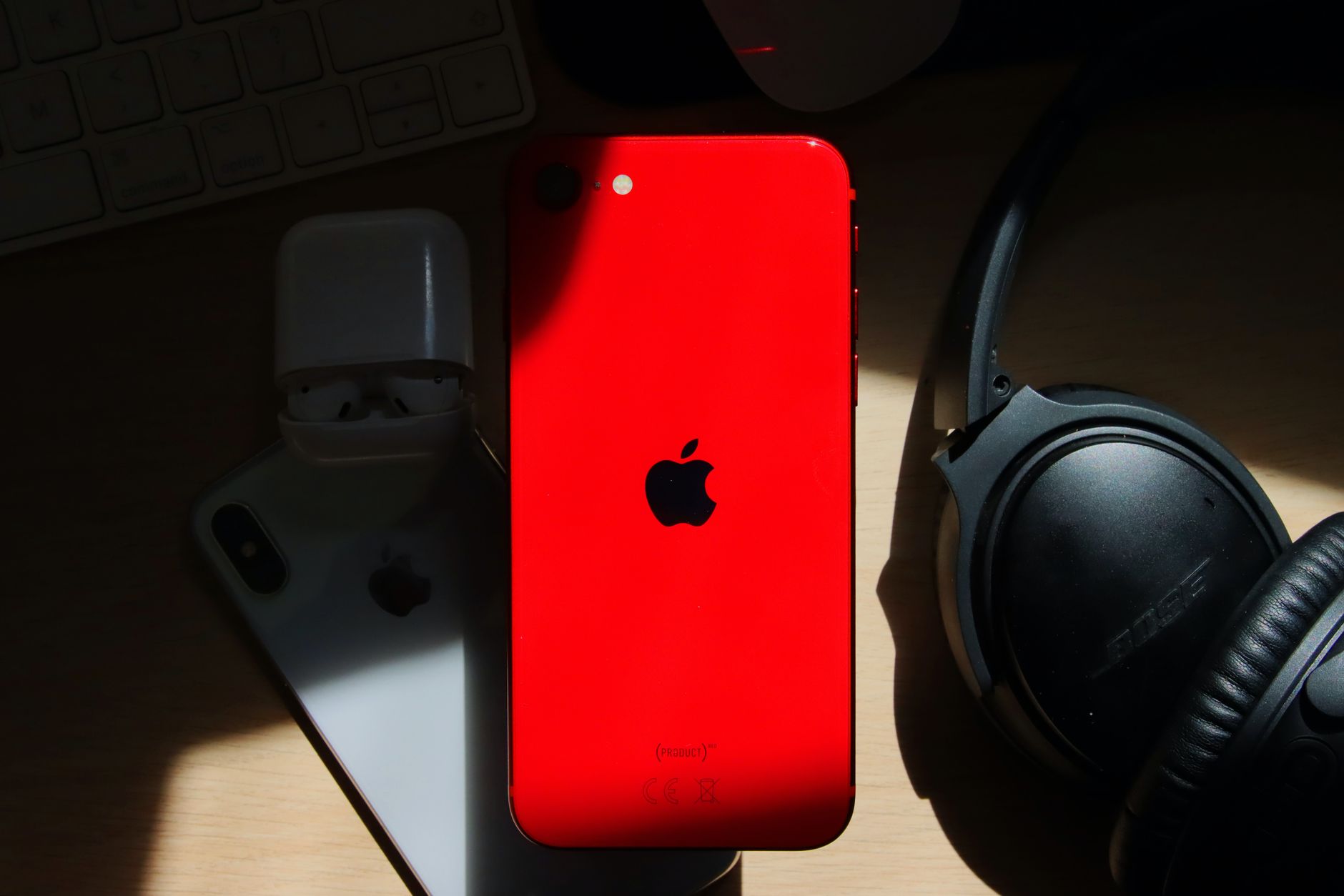
Pairing your AirPods to an iPhone should be a simple and seamless experience. In this guide, we will walk you through the process step-by-step, while also providing tips to troubleshoot common connection issues.
By the end of this article, you will have successfully paired your AirPods with your iPhone, allowing you to enjoy a wireless audio experience. Let’s dive into the setup process and address any potential connection fixes that may arise.
How to Pair AirPods to iPhone?
To pair your AirPods with your iPhone, firstly ensure that your devices are compatible. This process will guide you through the straightforward steps to connect your AirPods for the first time or to reconnect if needed.
Prerequisites for Pairing AirPods with iPhone
- Your iPhone must be an iPhone 5 or later for compatibility with AirPods.
- Ensure that Bluetooth is turned on your iPhone.
- Your AirPods should be charged and inside their charging case.
- Check that the iOS version on your iPhone is up-to-date (iOS 10 or later is required).
Step-by-Step Guide to Pair AirPods to iPhone
- Open the Lid of the AirPods Case: Begin by opening the lid of your AirPods charging case while keeping the AirPods inside.
- Turn on Bluetooth: On your iPhone, open the Settings app, then tap on
Bluetooth. Ensure that Bluetooth is turned on. - Press the Setup Button: Locate the small setup button on the back of the AirPods case. Press and hold this button until you see a white flashing light on the front of the case. This indicates that your AirPods are in pairing mode.
- Connect from Your iPhone: On your iPhone, under the
Bluetoothsettings, you should see your AirPods listed under “Other Devices.” Tap on your AirPods’ name to connect them. - Check Connection: Once connected, your AirPods will move to the “My Devices” section, and the status will change to “Connected.” You may also hear a chime indicating the successful connection.
- Test the Audio: To ensure everything is working correctly, play some music or a podcast. Adjust the volume to your desired level.
Using AirPods with Your iPhone
Once connected, your AirPods will automatically connect to your iPhone when they are in range and out of their case. Here are some additional usage tips:
- Automatic Ear Detection: AirPods can sense when they are in your ears. When you wear them, the audio will automatically play through your AirPods.
- Custom Settings: You can customize controls for double-tapping on your AirPods to activate Siri, play/pause music, or skip tracks.
- Find My AirPods: Use the Find My app to locate your AirPods if they go missing. Make sure to enable this feature in your iCloud settings.
Troubleshooting Connection Issues
Despite the straightforward process, users may encounter connection issues. Here are common problems and their solutions:
Why Won’t My AirPods Connect to My iPhone?
There are various reasons why your AirPods might not connect to your iPhone. Here are troubleshooting steps to resolve these issues:
- Ensure Bluetooth is Active: Go to
Settings>Bluetoothand confirm that Bluetooth is turned on. If it is on, consider toggling it off and on again to refresh the connection. - Check AirPods Charge: Ensure your AirPods are charged. Place them in the case and check if the LED indicator on the case lights up. If not, charge the case using a lightning cable.
- Reconnect AirPods: If the AirPods were previously connected but won’t reconnect, reset them. Put your AirPods back in the case, close the lid, wait for about 30 seconds, and then open the lid again.
- Forget and Reconnect AirPods: If issues persist, go to your iPhone’s Bluetooth settings, find your AirPods, and select
Forget This Device. Afterward, repeat the pairing process. - Restart Your iPhone: Sometimes, simply restarting your iPhone can resolve connectivity issues. Hold the power button and slide to power off, then power your phone back on.
- Update iOS: Ensure your iPhone is running the latest version of iOS. Go to
Settings>General>Software Updateto check and install any available updates.
Additional Connection Fixes
If your AirPods still won’t pair or connect, consider the following fixes:
- Reset AirPods: If necessary, reset your AirPods. Put them in the case, open the lid, and hold the setup button until the light flashes amber, then white. This will erase previous connections.
- Check for Interference: Ensure your AirPods are within a reasonable distance from your iPhone and away from potential interference sources like Wi-Fi routers or microwaves.
- Test with Another Device: Try connecting your AirPods to another device, such as another iPhone or a Mac. This can help determine if the problem lies with the AirPods or your iPhone.
- Contact Apple Support: If all else fails, contact Apple Support or visit an Apple Store for further assistance. It may indicate a hardware issue that requires professional help.
AirPods Compatibility and Considerations
When considering AirPods, it’s essential to note the compatibility factors:
- Compatible Devices: AirPods can pair not only with iPhones but also with other Apple products like iPads, Macs, and Apple Watches. However, they can also connect to non-Apple devices via standard Bluetooth.
- Battery Life: Be aware of their battery life. AirPods usually offer around 5 hours of listening time and more than 24 hours with the charging case. Monitor battery levels using the widget in the Control Center or the Bluetooth settings.
- Environmental Considerations: AirPods are designed to function in various conditions, but extreme temperatures or moisture may impact performance. Store and use them within recommended conditions.
The Benefits of Using AirPods with Your iPhone
Pairing AirPods with your iPhone offers several advantages:
- Wireless Convenience: Say goodbye to tangled wires. AirPods provide a truly wireless audio experience, allowing for easy movement without fussing with cords.
- Siri Integration: AirPods allow you to summon Siri hands-free by simply saying “Hey Siri.” This feature enhances convenience by enabling voice-activated commands.
- Seamless Switching: When connected to multiple devices, AirPods automatically switch between them. For example, if you receive a call on your iPhone while listening to music on your iPad, your AirPods switch to the iPhone automatically.
Conclusion
Pairing your AirPods to your iPhone is a straightforward process designed to enhance your audio experience. Following the steps outlined in this guide will help ensure a successful connection while troubleshooting any issues that may arise. If you encounter persistent problems, do not hesitate to seek assistance through Apple support channels.
For further exploration, consider checking out related tech tutorials such as how to connect AirPods to iPhone or why won’t my AirPods connect. Happy listening!