
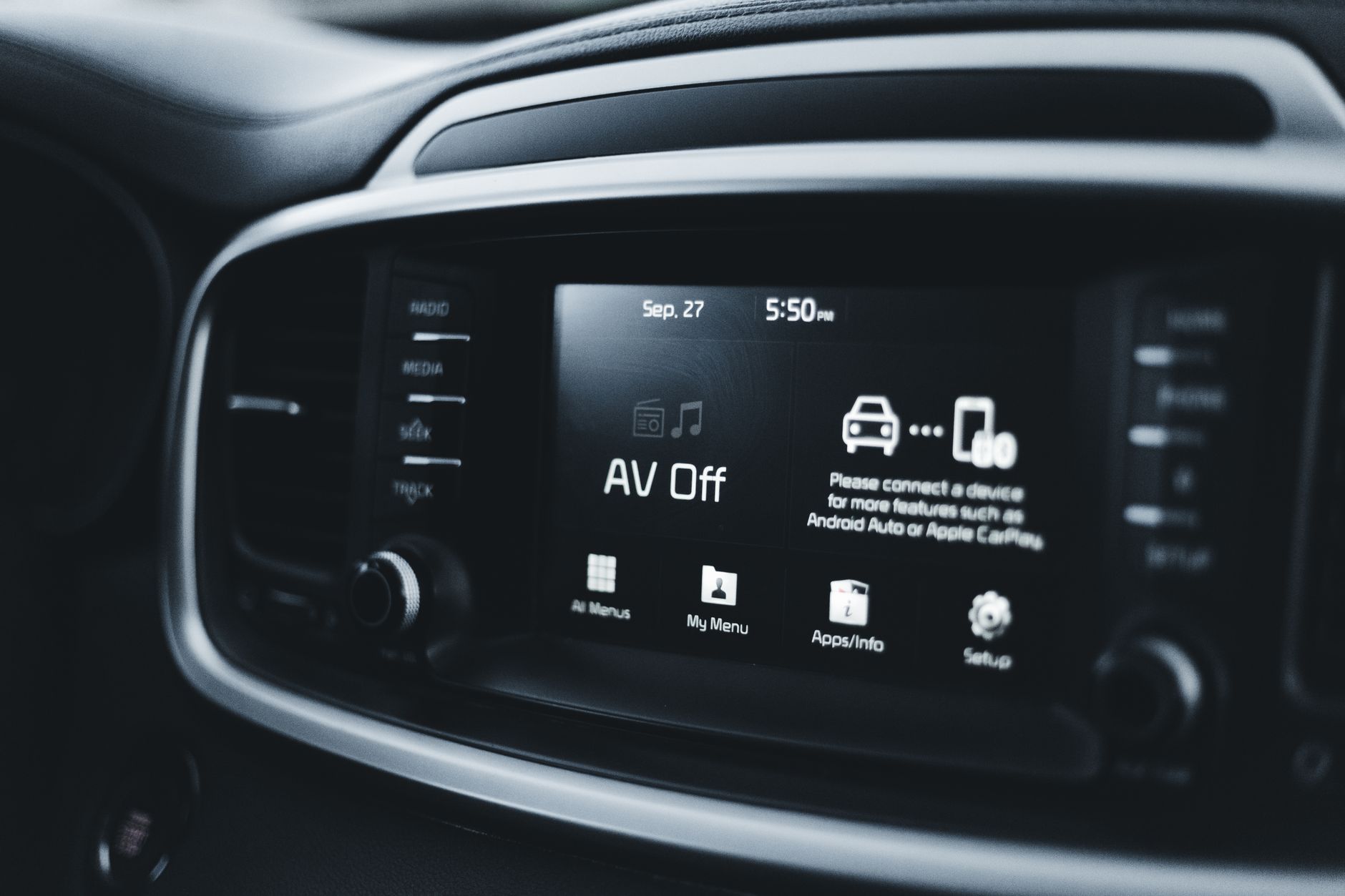
CarPlay is Apple’s in-car interface that connects your iPhone to your vehicle’s dashboard, allowing you to use various apps seamlessly while driving. This technology is designed to offer a more user-friendly way to access features like navigation, music, and messaging, all while keeping your focus on the road.
By integrating with your car’s screen, CarPlay enhances your driving experience with Siri voice commands and an intuitive touch interface. Understanding how CarPlay works can help you make the most of this feature while ensuring safety and convenience.
What Is CarPlay?
CarPlay is an intelligent and safe way to use your iPhone while driving. It enables users to connect their iPhones directly to the car’s infotainment system, allowing for easy access to navigation, music playback, and messaging applications. Besides enhancing driver safety by minimizing distractions, CarPlay exemplifies how technology can improve everyday tasks.
How Does CarPlay Work?
CarPlay works by utilizing a wired or wireless connection between your iPhone and the car’s infotainment system. This connection allows for the mirroring of select iPhone apps on the car’s dashboard display, enabling users to control their favorite smartphone applications directly.
- Wired Connection: Most commonly done by connecting your iPhone to the car via a USB cable, which then activates the CarPlay interface on the car’s display.
- Wireless Connection: Some modern vehicles support wireless CarPlay. This requires both the car and the iPhone to support Wi-Fi and Bluetooth connectivity.
Once connected, users can rely on voice commands through Siri, touchscreen functionality, or the car’s physical controls to navigate and interact with applications.
Features of CarPlay
CarPlay boasts several features that enhance the driving experience. Key functionalities include:
- Navigation: Apple Maps offers turn-by-turn directions and real-time traffic updates. Third-party navigation apps like Waze and Google Maps are also supported.
- Music and Audio: Users can stream music from services such as Apple Music, Spotify, and others, seamlessly controlling playback via the car’s system.
- Messaging: Siri can read incoming messages aloud and allow users to respond with voice commands, minimizing distractions.
- Phone Calls: Making and receiving calls with voice commands or via the interface for streamlined communication.
- Calendar Access: Users can access their calendars and receive reminders, providing essential information during commutes.
- Podcasts and Audiobooks: Access to listening options is also provided through compatible apps.
Supported Apps
Many applications are compatible with CarPlay. Apple’s own app offerings such as Maps, Music, and Messages are standard. Besides those, Apple allows third-party developers to create CarPlay-compatible apps. Some notable third-party apps include:
- Google Maps
- Waze
- Spotify
- Audible
As CarPlay continues to evolve, developers are likely to expand the list of supported applications, enhancing the user experience further.
How to Set Up CarPlay
Setting up CarPlay is typically a straightforward process, but it can vary slightly depending on the vehicle make and model. Here’s a general step-by-step guide:
- Check Compatibility: Ensure your iPhone is running iOS 7.1 or later and your car supports CarPlay.
- Connect Your iPhone: For a wired connection, use a USB cable that is compatible with your iPhone. For wireless CarPlay, make sure both Wi-Fi and Bluetooth are enabled.
- Access CarPlay: Once your iPhone is connected, the CarPlay interface should automatically appear on your car’s display. If not, look for the CarPlay icon.
Troubleshooting Common CarPlay Issues
While CarPlay is designed to be user-friendly, issues may arise during use. Here are some common problems along with their possible fixes:
- CarPlay Not Connecting:
- Ensure that your iPhone is updated to the latest iOS version.
- Restart your iPhone and vehicle’s infotainment system.
- Check if the USB cable is damaged or try a different cable if using a wired connection.
- Apps Not Working:
- Verify if the app is compatible with CarPlay.
- Update any conflicting apps from the App Store.
- Remove and re-add the app from the CarPlay settings on your iPhone.
- Audio Issues:
- Check volume settings on both your iPhone and the car’s audio system.
- Ensure Bluetooth audio connection is stable if using wireless options.
Using Siri with CarPlay
Siri integration is one of CarPlay’s standout features. Users can interact with different applications using voice commands, which reduces the need to take hands off the steering wheel. Here’s how to make the most of Siri in CarPlay:
- Activate Siri: Hold the voice command button on your steering wheel or use the “Hey Siri” wake command if supported.
- Voice Commands: Ask Siri to perform tasks such as sending messages, playing music, or providing directions.
- Contextual Awareness: Siri understands context; for example, saying “play my road trip playlist” will prompt playback from the specified app.
CarPlay vs. Android Auto
When considering in-car smartphone interfaces, many users compare CarPlay and Android Auto. Both systems have their strengths and weaknesses, which include:
| Feature | CarPlay | Android Auto |
|---|---|---|
| User Interface | More simplified, iOS-like design. | Material Design, integrated with Google Assistant. |
| Voice Assistant | Siri | Google Assistant |
| Supported Apps | Great selection, especially for iOS users. | Wide variety, benefiting from Google services. |
| Compatible Devices | iPhone only. | Android devices only. |
CarPlay Compatibility
CarPlay is supported in a growing number of vehicles from various manufacturers. Before purchasing a new vehicle, consider whether it supports CarPlay. Some brands known for integration include:
- Ford
- Chevrolet
- Toyota
- Honda
- BMW
Checking the manufacturer’s website prior to purchase can provide specific details related to CarPlay compatibility.
Privacy and Security Considerations
Using CarPlay raises important privacy and security considerations, especially since it integrates closely with your iPhone. Here are some factors to keep in mind:
- Data Handling: Understand how your data is used by apps and be wary of permissions when using third-party applications.
- Phone Security: Ensure that your iPhone is secured with strong passcodes, biometrics, or two-factor authentication to protect your information.
- Software Updates: Always keep your iPhone up to date to mitigate security vulnerabilities.
The Future of CarPlay
As technology continues to evolve, so does CarPlay. With ongoing developments, Apple is likely to enhance functionality and usability. Features such as a broader selection of compatible apps, deeper integration with vehicle systems, and improvements in user interface design may be on the horizon.
Moreover, as autonomous driving technology matures, CarPlay could play a significant role in allowing drivers to access entertainment and productivity tools while not focused on driving.
In addition to traditional vehicles, the integration of CarPlay with electric and self-driving cars may open new avenues for user interaction, creating a more immersive driving experience.
Conclusion
CarPlay serves as a practical solution for merging the convenience of smartphone technology with everyday driving. By enabling safe access to important applications, it enhances the user experience without compromising safety. As you explore CarPlay, take the time to familiarize yourself with its features, troubleshoot common issues, and ponder the implications of its growing technology. To start using CarPlay effectively, consider learning how to set it up for your specific vehicle model.
If you’re interested in learning more, explore our guide on how to use Apple CarPlay, which can help you maximize your in-car experience.