
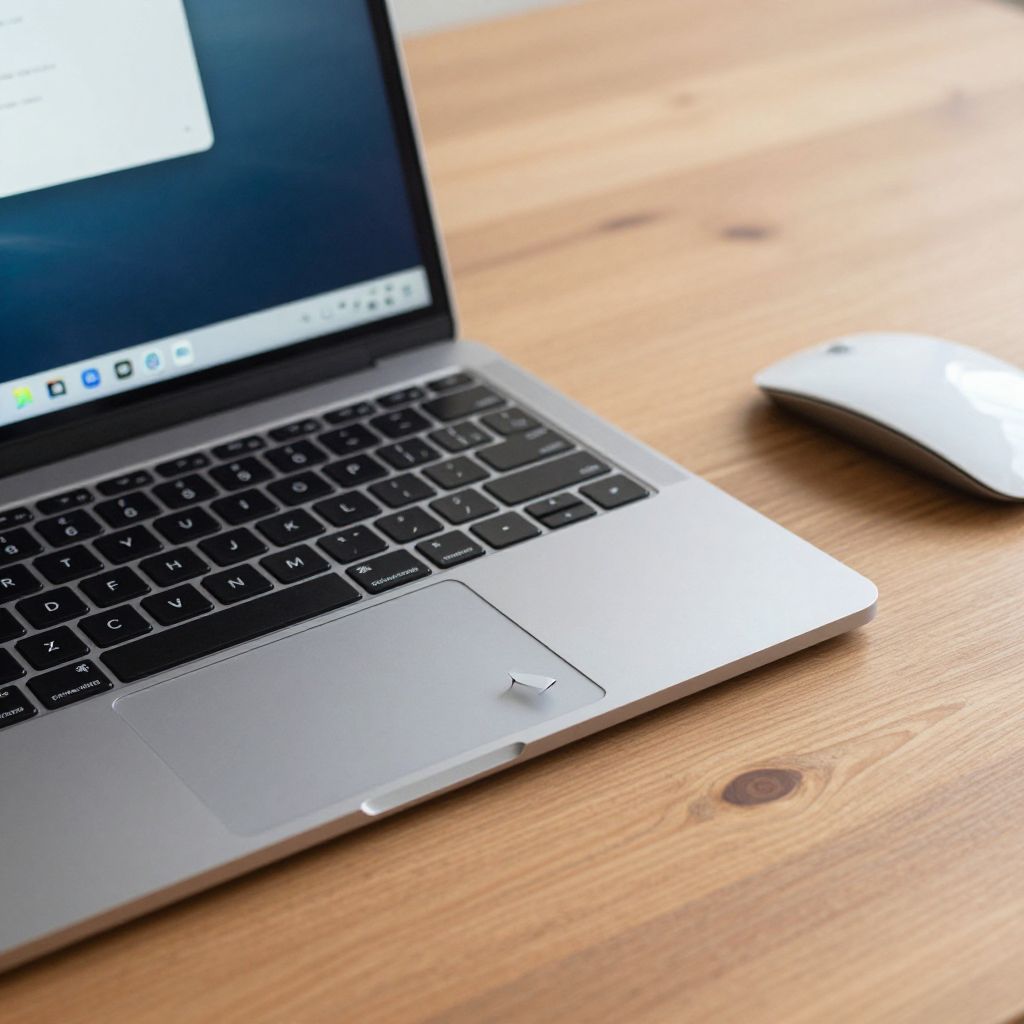
Understanding how to right-click on a Chromebook is essential for users looking to maximize their productivity. Although Chromebooks differ from traditional laptops, right-clicking is still straightforward once you grasp the necessary techniques. This guide explains various methods to perform a right-click using both the touchpad and keyboard on your Chromebook.
Whether you’re accustomed to using a mouse, touchpad gestures, or keyboard shortcuts, we’ll cover everything you need to know. You’ll be able to select options, open context menus, and utilize additional features effectively.
How to Right-Click on a Chromebook?
To right-click on a Chromebook, you can either use the touchpad with a two-finger tap or configure your settings to enable a dedicated button function. You can also use keyboard shortcuts depending on your preferences. This guide will elaborate on each method.
Right-Click with the Touchpad
The primary method for right-clicking on a Chromebook is through the touchpad, which supports various gestures. The following options allow for ease of use:
Using Two-Finger Click
- Place your fingers on the touchpad.
- Tap with two fingers simultaneously.
- A context menu should appear, indicating a successful right-click.
This method is popular among users because it mimics right-clicking on a traditional mouse.
Using Tap Zones
Some Chromebooks allow you to enable ‘tap zones’ in settings. If it’s available, this feature lets you designate the right side of the touchpad for right-click actions.
- Open the Settings app on your Chromebook.
- Navigate to the “Device” section.
- Select “Touchpad.”
- Locate the “Tap” settings and look for “Enable tap zones.”
- Once activated, tapping the right zone will execute a right-click.
Right-Click with a Mouse
If you’re using a USB or Bluetooth mouse, right-clicking is as simple as it traditionally is on other devices. Here’s what you need to know:
- Connect your mouse to the Chromebook.
- Make sure it’s powered and properly connected.
- Press the right mouse button to bring up the context menu.
This method is intuitive and works flawlessly for those who prefer using a mouse.
Right-Click Using Keyboard Shortcuts
For users who prefer shortcuts over touch gestures or mouse clicks, there’s a keyboard-based method to achieve a right-click action:
- Position the cursor where you want to right-click.
- Hold down the
Altkey on your keyboard. - Click the touchpad with one finger or press the left mouse button if a mouse is connected.
This method is particularly useful when your hands are occupied or if you have limited mobility.
Customizing Touchpad Settings
Chromebooks offer customizable options for touchpad gestures, providing users with flexibility in their workflows. Here’s how to access and adjust these settings:
- Open the Chrome OS Settings.
- Scroll down to the “Device” section.
- Select “Touchpad” and review available settings.
- You can enable or disable features like “Tap-to-click” or customize the scrolling options.
If you’re someone who often uses right-click functions, ensuring that your settings are correctly configured can enhance your overall experience.
Common Issues and Troubleshooting
Despite the simplicity of right-clicking on a Chromebook, you may encounter a few issues. Below are some common problems along with their solutions:
Right-Click Menu Does Not Appear
If the right-click menu does not appear, try the following:
- Ensure that two-finger tapping is enabled in the touchpad settings.
- Restart your Chromebook to refresh system processes.
- Try using an external mouse to confirm that the issue is not hardware-related.
Touchpad is Unresponsive
If your touchpad is unresponsive:
- Check for any physical obstructions on the touchpad.
- Update the Chromebook software by navigating to Settings > About Chrome OS > Check for updates.
- If an update is pending, install it and restart your device.
Difficulty with Gesture Sensitivity
If you find that the touchpad is overly sensitive or not sensitive enough:
- Adjust the sensitivity settings in the touchpad settings menu.
- Experiment with different finger placements for gestures.
Using Accessibility Options for Right-Click
Chromebooks come with several accessibility features that can assist users who have difficulty with standard input methods. To activate these options:
- Go to Settings.
- Navigate to “Accessibility.”
- Explore options such as “Enable Sticky Keys” or “Enable Control and Click.” These can create additional ways to perform clicks without traditional methods.
These settings can be particularly helpful for users with mobility challenges.
Exploring Third-Party Options
If you are looking for additional functionalities or customizable gestures, consider third-party applications available in the Chrome Web Store. Some extensions allow you to enhance touchpad functionality or customize the right-click menu.
- Gesture Sign: An extension that provides customizable gestures for various actions, including right-click commands.
- Touchpad Blocker: Helps prevent accidental clicks while typing by detecting hand movement and disabling the touchpad temporarily.
Conclusion
Learning how to right-click on a Chromebook is vital for efficiency and productivity. Whether you choose to use the touchpad, a mouse, or keyboard shortcuts, various methods are customizable to suit your preference. Familiarizing yourself with these techniques will empower you to navigate your Chromebook more effectively.
Try out the different methods provided and find what works best for you. Are you looking for more useful Chromebook guides? Discover how to take screenshots on your Chromebook or split your screen for better multitasking.
Explore more tech tutorials and guides for enhancing your productivity and troubleshooting any issues you may encounter.