
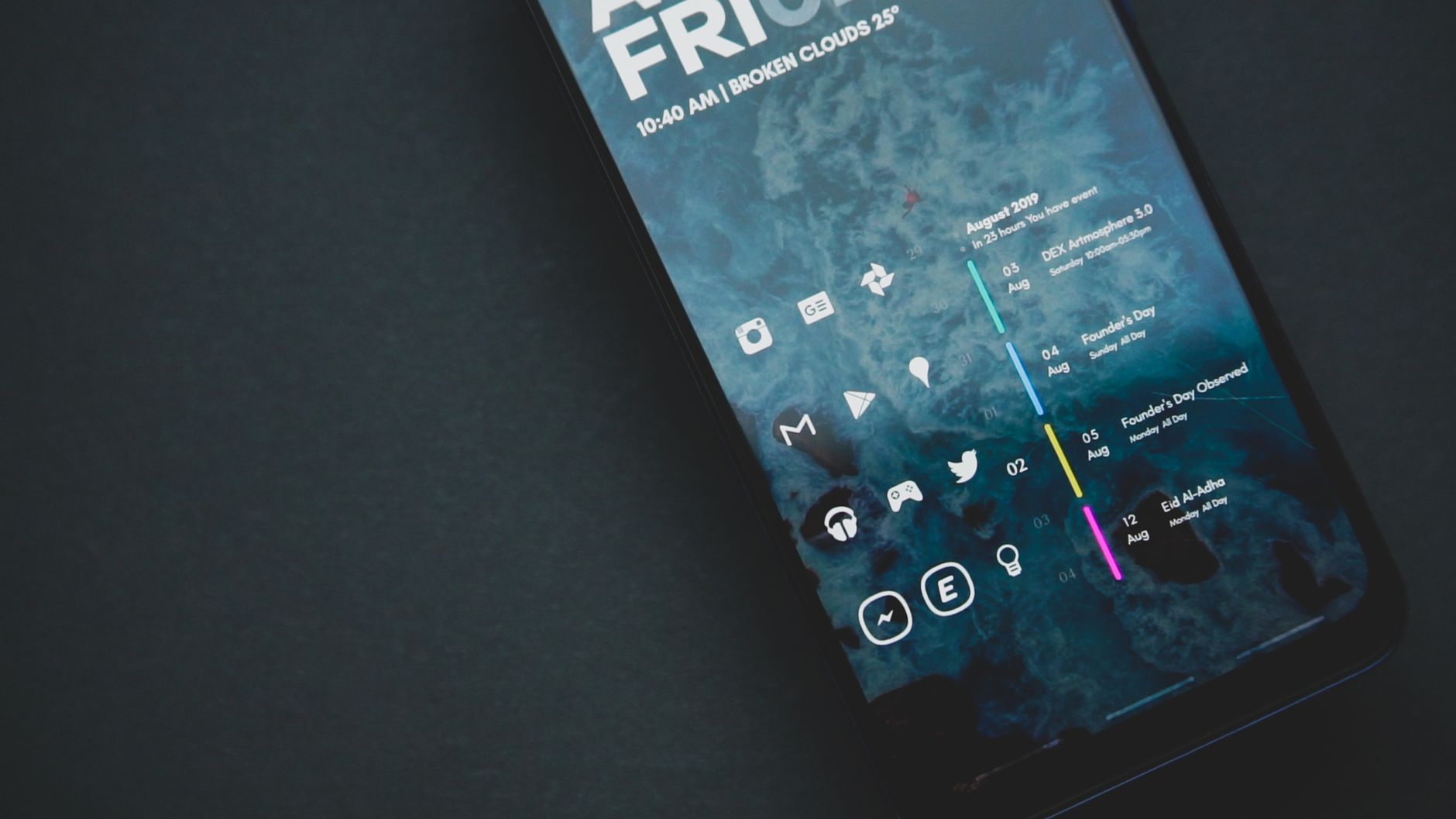
Changing app icons can help personalize your device and improve your user experience. Different platforms have unique methods for altering icons, allowing for greater customization and aesthetic appeal. In this guide, we will cover how to change app icons on various devices, focusing on both iOS and Android systems, along with desktop solutions.
Whether you’re looking to redesign your home screen or make your access to favorite applications more visually appealing, knowing how to change app icons is a useful skill. This resource will provide step-by-step instructions, tips, and troubleshooting advice to help you achieve the look you desire.
How to Change App Icons?
To change app icons, you can use built-in settings on your device or third-party applications. Generally, the process involves selecting an app, choosing a new icon, and applying the change. The exact steps may vary depending on your platform.
Prerequisites for Changing App Icons
- A smartphone or computer that allows app customization.
- The latest version of your operating system, as older versions may have limited customization options.
- Optional: Image files for custom icons if you’re not using built-in options.
Changing App Icons on iOS Devices
iOS provides a user-friendly way to change app icons using the Shortcuts app. This method allows for significant customization without needing to jailbreak your device. Follow these steps:
- Open the Shortcuts app on your iPhone or iPad.
- Tap the plus icon (+) at the top right corner to create a new shortcut.
- Select Add Action and choose Scripting. Then, select Open App.
- In the app list, select the app whose icon you want to change.
- Tap the ellipsis icon (…) in the top right corner.
- Here, you can tap Add to Home Screen. This allows you to customize the icon that will appear on your Home Screen.
- Choose a name for your shortcut, then tap the icon next to the name. You can choose a photo from your library or use an image from the web.
- Tap Add in the top right corner. Your new app icon will now be created and placed on your Home Screen.
Using Custom Icons with iOS
If you prefer using custom icons, there are several resources available online where you can download icon packs. After downloading the icons you want to use, ensure they are saved in your photo library and follow the steps above to set them as app icons.
Changing App Icons on Android Devices
Android offers a more flexible approach to changing app icons, with methods varying based on your device manufacturer, launcher, and operating system version. Here’s how you can change app icons on most Android devices:
- Long-press the app icon you want to change on your Home Screen.
- Select Edit or the pencil icon (this option could be different based on the Android version).
- Your device may allow you to change the icon directly. If it does, tap it and select from the available icons.
- To use a custom icon, click on Gallery or File Manager to choose an image from your files.
- Once the new icon is selected, tap Save to confirm the change.
Using Custom Launchers
For greater customization, consider using a custom launcher. Launchers like Nova Launcher, Microsoft Launcher, and Apex Launcher allow you to change not only app icons but also layouts, gestures, and more. Here are the general steps to change icons using a custom launcher:
- Download and install your preferred launcher from the Google Play Store.
- Set it as your default Home Screen app when prompted.
- Long-press the app icon and choose the option to edit or change the icon.
- Select a new icon from the built-in options or your downloaded images.
- Save the changes to see them reflected on your Home Screen.
Changing App Icons on Windows Devices
You can also change app icons on Windows computers. However, this feature is not as flexible as mobile devices. Here’s how to change application icons on a Windows PC:
- Right-click the app icon on your Desktop or in the Start Menu.
- Select Properties from the context menu.
- In the Properties window, locate the Shortcut tab.
- Click on the Change Icon… button.
- Choose an icon from the available list or browse your PC for custom icons ending in .ico format.
- Select the icon you wish to use, then click OK.
- Click Apply and then OK to confirm your changes.
Using Third-Party Software on Windows
If you’re looking for even more customization, third-party software like Rainmeter and IconPackager can help you design and change your icons significantly. Follow the specific instructions provided by the software you choose for icon customization.
Changing App Icons on macOS
For Mac users, changing app icons is a straightforward process. Here is how to do it:
- First, download the image file you want to use as an icon. Ideally, it should be a square image (512×512 pixels recommended).
- Open the image in Preview and select the entire image (Cmd + A), then copy it (Cmd + C).
- Find the application whose icon you want to change. Right-click the app and select Get Info.
- In the Info window, click the small icon in the top left corner.
- Paste the new icon (Cmd + V) over the old one.
- Close the Info window, and your icon will be updated!
Tips for Custom Icons
- Ensure the images you use for custom icons are of high quality and appropriately sized to avoid pixelation.
- For easy organization, create a dedicated folder for all your custom icons to ensure they remain accessible.
- Experiment with different themes and icons to create a cohesive look across your device.
- Keep a backup of your original icons in case you want to revert the changes later.
Troubleshooting Common Issues
While changing app icons is generally a straightforward process, you might encounter some issues. Here are some common problems and how to address them:
App Icons Not Changing
If your app icons won’t change, consider the following steps:
- Restart your device to refresh the system.
- Clear the app cache for any launcher or shortcut apps you are using.
- Ensure you’ve followed the steps precisely as described.
- Check for updates to the app or the operating system.
Performance Issues with Custom Launchers
Sometimes, using a custom launcher may slow down your device. To resolve this:
- Try disabling some visual effects in the launcher settings to increase performance.
- Consider removing unused widgets and apps from your Home Screen.
- Switch back to the default launcher if performance issues persist.
Icons Not Appearing
If your custom icons are not displaying correctly, try the following:
- Check the format of the image file. Ensure they are in supported formats, such as PNG or ICO.
- Re-download the icon or use a different downloading method, as the file could be corrupted.
- Revisit the steps to ensure you have uploaded the icon correctly.
Conclusion
Changing app icons is a simple but effective way to enhance your device’s appearance and functionality. With various methods available across different platforms, you can easily create a personalized environment that suits your style. Whether using built-in features, third-party applications, or launchers, the power to customize is at your fingertips. As a next step, explore the customization further by checking out how to change your keyboard on Android or learning about replacing your AirTag battery.
For more tech tutorials and guides, consider exploring how to change your keyboard on Android or how to change the battery on your AirTag.