
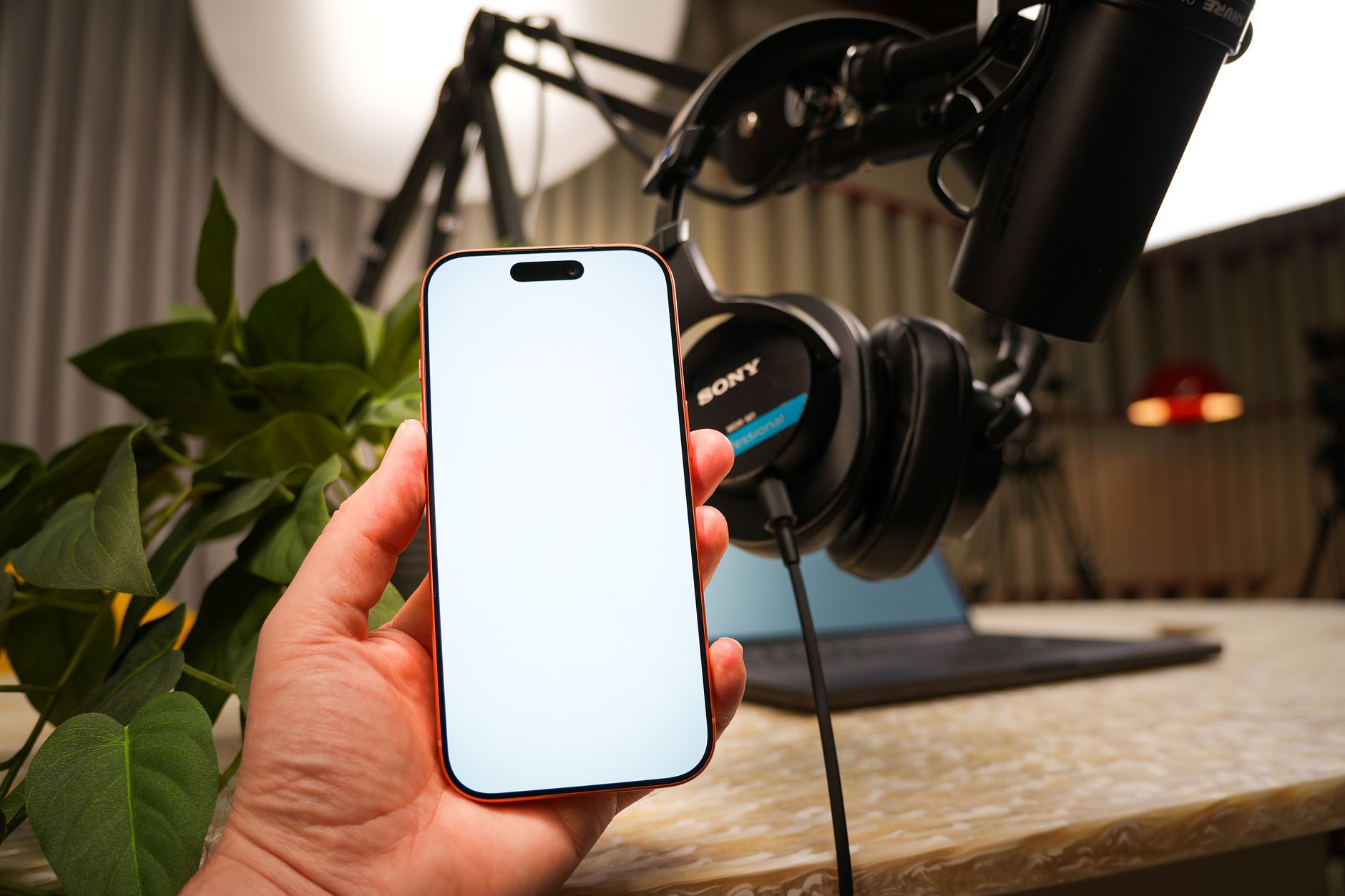
Recording audio on your iPhone can be incredibly useful for multiple purposes, including capturing lectures, saving personal notes, or brainstorming sessions. With built-in features like Voice Memos, recording audio has never been easier. In this guide, you’ll learn how to effectively record audio on your iPhone, share files, and troubleshoot common issues.
Whether you are looking to make quick recordings or need to share audio files with others, this article will provide step-by-step instructions and additional tips. You’ll be equipped to make the most out of your iPhone’s audio recording capabilities.
How to Record Audio on iPhone?
To record audio on your iPhone, the easiest method is to use the Voice Memos app, which allows you to capture high-quality audio recordings quickly. You can also share these recordings via different platforms. Below is a comprehensive guide on how to utilize this functionality.
Prerequisites for Recording Audio
- An iPhone running iOS 12 or later.
- Access to the Voice Memos app (pre-installed on most iPhones).
- Internet connection (for sharing audio files via email or cloud services).
Step-by-Step Guide to Record Audio Using Voice Memos
- Open the Voice Memos app: Locate the Voice Memos app on your iPhone. If you cannot find it, swipe down on the home screen to access the search bar and type “Voice Memos.”
- Start a new recording: Once you are in the app, tap the red circular record button to start recording audio. You will see the timer indicating that recording has begun.
- Pause and resume: If you need to take a break during your recording, tap the pause button. You can resume recording by pressing the same button.
- Stop the recording: Once you have finished your audio, tap the red square button to stop the recording.
- Save your recording: After stopping, you will automatically be prompted to name your recording. Enter a relevant name for easy identification later.
How to Listen to Your Recording
After saving your recording, it will appear in a list within the Voice Memos app. You can easily listen to it by following these steps:
- Locate your recording in the list.
- Tap on the recording title to play it back.
Editing Your Recordings
Voice Memos offers basic editing features that let you trim recordings to save only the most important parts. Here’s how to edit:
- Tap on the recording you wish to edit.
- Tap on the three dots (•••) icon for more options.
- Select “Edit Recording.”
- Move the yellow trimming handles to select the desired start and end points of your audio.
- Tap “Trim” to remove the unwanted sections.
- Finally, tap “Done” to save the edited version.
Sharing Your Recordings
Sharing your recordings is simple and can be done through multiple applications like Mail, Messages, or cloud services. Follow these steps to share your audio:
- Open the Voice Memos app and select the recording you want to share.
- Tap on the three dots (•••) icon next to the recording.
- Select “Share.” A menu will pop up showing various sharing options.
- Choose your desired sharing method, whether it’s via AirDrop, Mail, Messages, or uploading to a cloud service.
- If you select an email, a new email window will pop up with the audio file attached, ready to be sent.
Common Issues and Troubleshooting
While recording audio on your iPhone is generally straightforward, you may encounter some common issues. Below are some potential problems along with their solutions:
1. Voice Memos App Not Found
If you can’t locate the Voice Memos app:
- Check your App Library by swiping left on your home screen until you find it.
- Use the search function by swiping down and typing “Voice Memos.”
- If it’s still missing, ensure it’s not hidden in a folder or consider reinstalling it from the App Store.
2. Recording Quality is Poor
Poor audio quality can often be attributed to external noise or microphone blockage:
- Ensure you’re in a quiet location to avoid background noise.
- Clean your iPhone’s microphone area to ensure it’s not obstructed.
- Keep the microphone close to the sound source for clearer audio.
3. Unable to Share Recordings
If you’re having trouble sharing your recordings:
- Verify your internet connection is working if sharing via email or cloud service.
- Try restarting your device to resolve temporary software glitches.
- Make sure the app used for sharing is updated, like Mail or Messages.
Advanced Recording Features
For those who need more than just basic recordings, explore alternative recording apps available on the App Store. Some recommended features to look for include:
- Multi-Track Recording: Apps like GarageBand allow for mixing multiple audio tracks.
- Noise Cancellation: Certain apps can filter out background noise, enhancing audio quality.
- Audio Effects: Some apps offer sound effects and equalizers for a more professional touch.
Alternative Methods to Record Audio on iPhone
Besides the Voice Memos app, you can also use other ways to record audio on your iPhone:
Using Third-Party Apps
Several third-party applications excel in audio recording. Consider these popular apps:
- AudioShare: Ideal for musicians, this app lets you record, edit, and share your audio files easily.
- Notability: Excellent for educational purposes, it allows audio recording synchronized with handwritten notes.
- GarageBand: A comprehensive audio production app for creating high-quality tracks.
Using Zoom for Recording Meetings
If you participate in virtual meetings, you can also record audio using applications like Zoom:
- Open the Zoom app and join or start a meeting.
- Tap the “Record” button, usually located in the toolbar during the meeting.
- Select whether you want to record on this device or to the cloud.
- After the meeting, the recording will be processed. You can access it later for playback and sharing.
Best Practices for Recording Audio on iPhone
- Always test your microphone before making important recordings to confirm the quality.
- Consider using headphones with a built-in microphone for clearer sound capture.
- Label your recordings immediately to avoid confusion later on.
- Back up your audio files to iCloud or a computer to prevent data loss.
Conclusion
Recording audio on your iPhone is a straightforward process that can enhance your productivity and creativity. Using the Voice Memos app, you can quickly capture high-quality audio recordings and share them with ease. If you encounter common issues, the troubleshooting tips provided can help you navigate any difficulties.
For further exploration, consider reading our guides on how to record your screen or how to record a Zoom meeting for even more ways to capture and share your content effectively.