
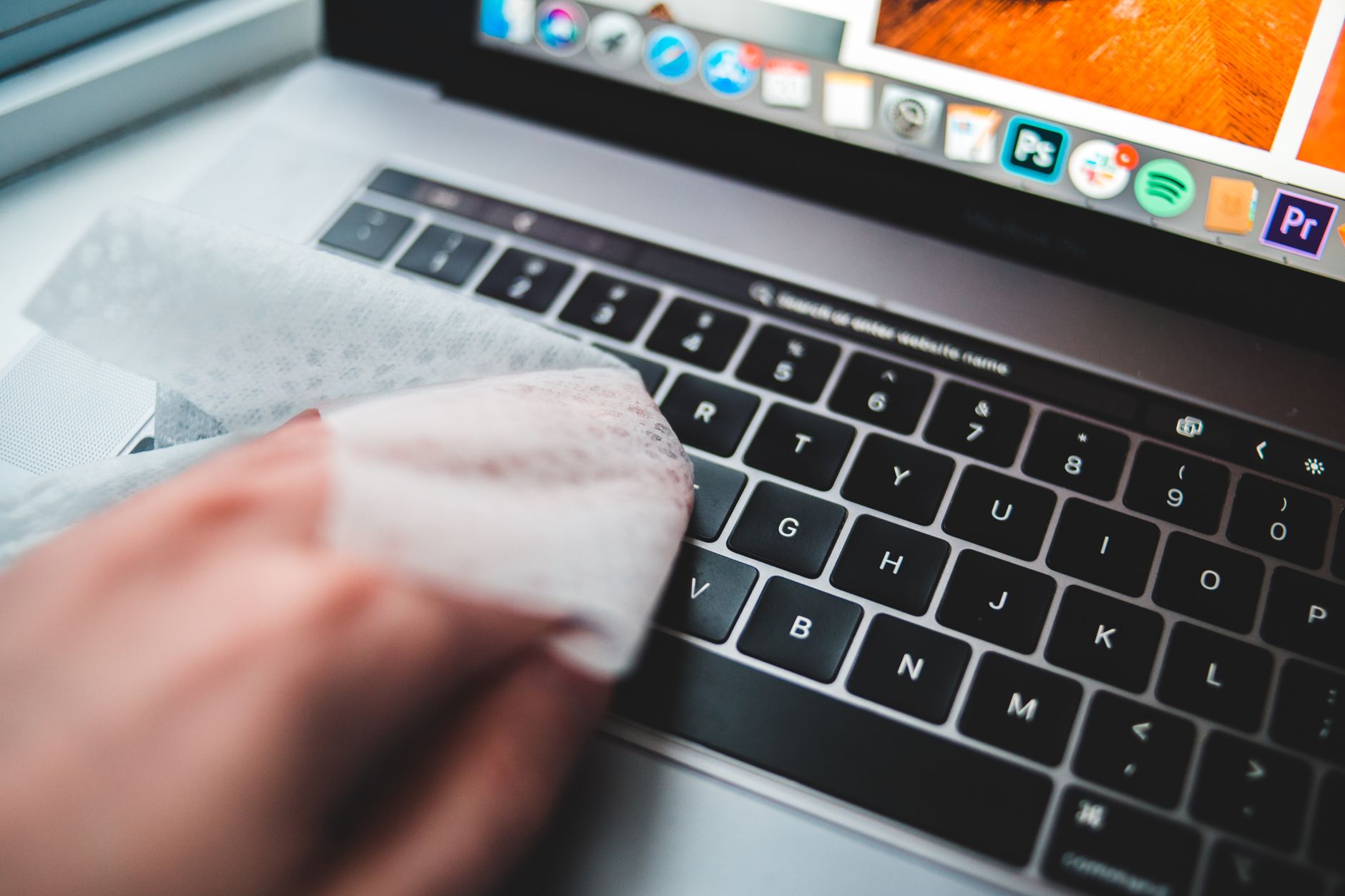
Cleaning your MacBook screen is essential to maintaining a clear and visually appealing display. Over time, fingerprints, dust, and smudges tend to accumulate, obscuring your view and potentially affecting your work experience. This article provides a comprehensive guide on how to clean your MacBook screen safely and effectively without causing any damage.
Whether you are preparing for a presentation or simply want to enjoy a pristine screen, following the proper techniques and using the right tools will help you achieve a sparkling clean display.
How to Clean MacBook Screen?
To clean your MacBook screen effectively, you need to use specific tools and steps to prevent damage to the screen while removing smudges and dirt. The process involves turning off your MacBook, choosing gentle cleaning solutions, and using soft, lint-free materials.
Understanding Your MacBook Screen
The MacBook screen is equipped with a high-resolution Retina display, which is sensitive to abrasives and harsh chemicals. It is crucial to understand that improper cleaning methods can lead to scratches, discoloration, or even permanent damage. Therefore, it is vital to employ the right cleaning techniques and materials.
What You Will Need
- Microfiber cloth (preferably clean and dry)
- Distilled water
- Isopropyl alcohol (70% or less, optional)
- Spray bottle (for mixing cleaning solution)
- Soft-bristled brush or compressed air (optional)
Cleaning Before You Start
Before you begin cleaning your MacBook screen, ensure that your device is turned off and unplugged. Disconnect any external devices and cables. This will prevent any accidental input while cleaning and ensure your safety during the process.
Step-by-Step Cleaning Process
Follow the steps outlined below to clean your MacBook screen effectively.
- Gather Your Materials: Collect all necessary cleaning supplies listed above. Ensure that your microfiber cloth is clean to avoid accidentally spreading dirt or residue on the screen.
- Mix Your Cleaning Solution: If you decide to use a cleaning mixture, combine equal parts distilled water and isopropyl alcohol in your spray bottle. Remember to avoid using any harsh chemicals, such as window cleaners or bleach, as they can damage the screen.
- Turn Off Your MacBook: Before applying any solution, turn off your MacBook and unplug it from any power source. Allow it to cool down if it has been in use.
- Dust the Screen: Use a soft-bristled brush or compressed air to remove any loose dust or debris from the screen. This step helps prevent scratching the surface during the cleaning process.
- Apply Cleaning Solution to the Cloth: Lightly spray the cleaning solution onto your microfiber cloth. Never spray the solution directly onto the screen, as excess liquid can seep into the edges and damage the internal components.
- Wipe the Screen: Gently wipe the screen in a circular motion with the dampened microfiber cloth. Start from the top and work your way down to avoid streaks. Be careful around the edges and don’t apply too much pressure.
- Dry the Screen: If necessary, use a separate dry microfiber cloth to wipe away any remaining moisture. This step ensures that no streaks are left on the screen.
- Inspect Your Work: Take a moment to check the screen for any remaining marks or streaks. If any areas look dirty, repeat the cleaning process on those specific spots.
- Reassemble Your MacBook: Once the screen is clean and dry, reconnect any cables or devices that were disconnected.
Common Mistakes to Avoid
When cleaning your MacBook screen, it’s crucial to avoid some common pitfalls. Here are a few mistakes people often make:
- Using Paper Towels: Paper towels can scratch the screen’s surface. Always use a soft microfiber cloth.
- Harsh Chemicals: Household cleaning products, window cleaners, or abrasive cleaners can damage the screen. Stick to distilled water and isopropyl alcohol.
- Applying Excess Liquid: Too much cleaning solution can seep into the edges of the screen and damage the internal components. Always use a damp cloth rather than a soaked one.
- Cleaning While Powered On: Cleaning your screen while the MacBook is powered on may lead to unwanted keystrokes or clicks. Make sure it is shut down before cleaning.
Maintaining a Clean MacBook Screen
Aside from occasional deep cleaning, regular maintenance can keep your MacBook screen looking fresh. Incorporating these practices into your routine will help reduce the frequency of intense cleaning:
- Use a Screen Protector: Consider investing in a high-quality screen protector to shield your screen from dust and smudges.
- Minimize Hand Contact: Try to keep your fingers away from the screen. Use a keyboard cover or design a workspace that limits contact with the screen.
- Clean Regularly: A quick dusting with a microfiber cloth can help maintain clarity and prevent buildup over time.
Alternative Cleaning Methods
While the method outlined is highly effective, there are alternative options worth considering depending on your preference and materials available:
- Pre-Moistened Screen Wipes: Specially designed wipes for electronics are a convenient alternative if you are short on time. Ensure they are safe for use on screens and free from harsh chemicals.
- Ultrasonic Cleaning Devices: For those looking for high-tech solutions, there are ultrasonic cleaners specifically designed for screen cleaning. Be cautious, as using them improperly can lead to damage.
- Electronics Cleaning Spray Kits: These kits often come with specific wipes designed for electronic devices, providing added assurance of safety.
When to Seek Professional Cleaning
In some cases, your MacBook screen may require more than just a DIY cleaning solution. Consider seeking professional cleaning services when:
- The screen is damaged, and you notice scratches or deep smudges that cannot be removed.
- Lcd issues have developed, leading to discoloration or screen flickering.
- You feel unsure about performing the cleaning process yourself and prefer expert intervention.
Conclusion
Cleaning your MacBook screen is a straightforward yet vital process. By using safe tools and following the correct steps, you can ensure that your display remains clear and pristine. Regular cleaning and maintenance will extend the life of your screen, preserving the visual quality that is a hallmark of Apple’s Retina display technology. Make these cleaning habits a part of your tech upkeep routine.
If you’re interested in optimizing other aspects of your device, consider reading our guides on how to clean your laptop screen and how to clean your keyboard keys.