
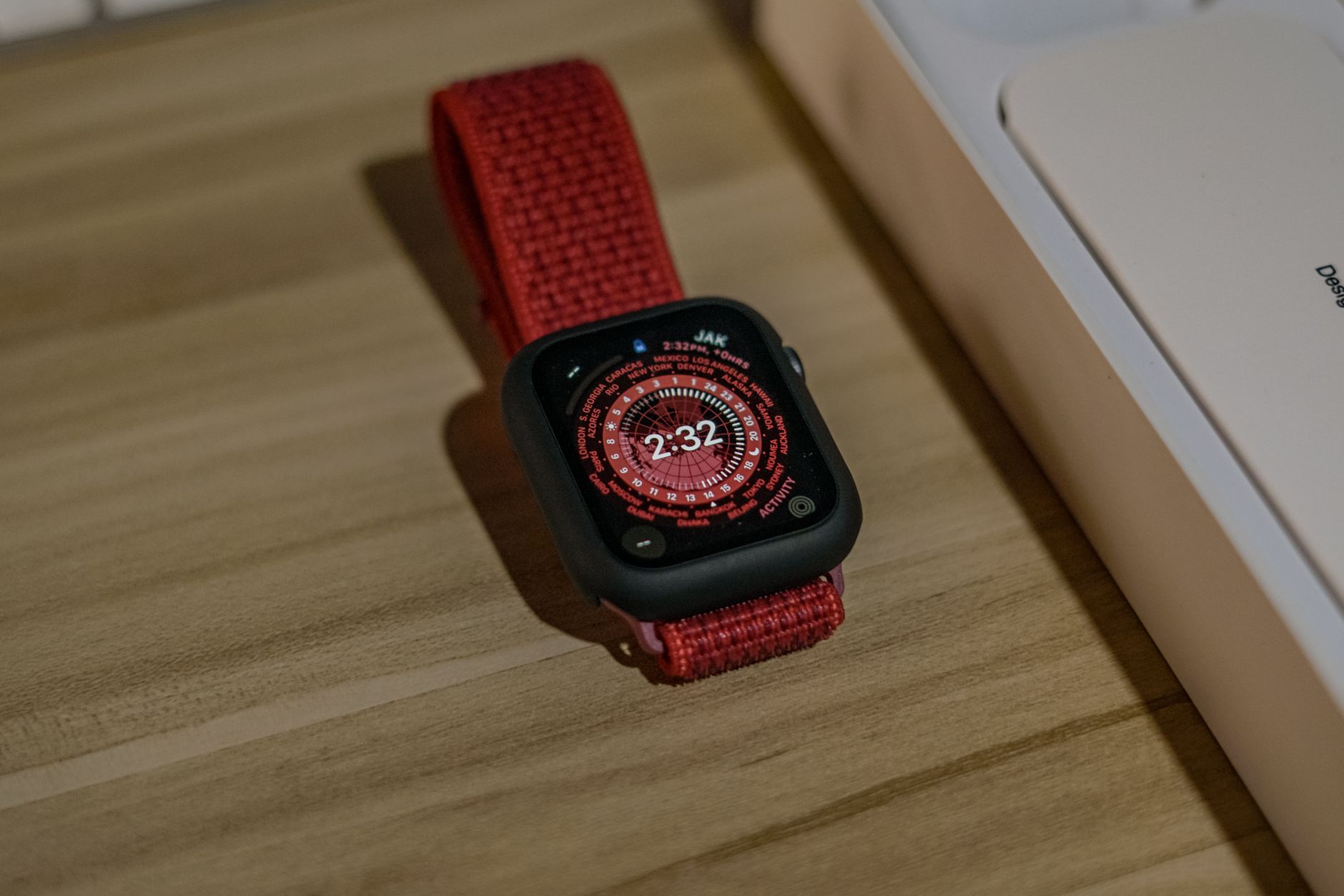
Your Apple Watch is a reliable companion that helps you stay connected, track your health, and manage tasks on the go. But what happens when you find it not charging? There can be several reasons behind this issue, leading to frustration when you need your device the most. This article will delve into the various causes and potential fixes for an Apple Watch that refuses to charge.
Whether it’s a problem with the hardware, software, or accessories used, understanding the issue can help you approach the problem systematically. Let’s explore the reasons your Apple Watch might not be charging and how to troubleshoot the problem effectively.
Why Is My Apple Watch Not Charging?
Your Apple Watch may not be charging due to various factors related to either the device itself or its accessories. Common culprits include a faulty charger, software glitches, dirt on the connectors, or even battery issues. Our comprehensive guide will help you diagnose the problem and implement effective fixes.
Common Causes of Charging Issues
To effectively troubleshoot your Apple Watch charging issue, it’s crucial to understand the common causes. Below are the most prevalent factors you should consider:
- Faulty charging cable or adapter
- Dirty or obstructed charging surfaces
- Software glitches or outdated watchOS
- Low battery health or battery issues
- Magnetic charging problems
1. Faulty Charging Cable or Adapter
The most straightforward problem could lie with the charging cable or power adapter. If the cable is damaged, fraying, or the adapter is malfunctioning, your watch may not charge properly.
To check if your charger is the issue, try the following:
- Examine the charging cable for any visible signs of wear or damage.
- Try using a different Apple Watch charger or power adapter.
- Plug the charger into a different power outlet.
2. Dirty or Obstructed Charging Surfaces
Dirt or debris on the back of the watch or on the charging pad can impede the connection and prevent charging. Regular cleaning can help keep your device functioning properly.
To clean the charging surfaces, follow these steps:
- Remove the watch from the charging pad.
- Gently wipe the back of the watch and the magnetic charger with a soft, lint-free cloth.
- If there is stubborn dirt, slightly dampen the cloth with water, ensuring that no moisture gets into the charging port.
3. Software Glitches or Outdated watchOS
Your device’s software plays a critical role in its performance, including charging. Bugs and glitches can affect how your watch interacts with the charger. An update to watchOS may fix these issues.
To check for software updates:
- Ensure your watch is connected to your iPhone.
- Open the
Watchapp on your iPhone. - Select
General, then tapSoftware Update. - If an update is available, follow the prompts to install it.
4. Low Battery Health or Battery Issues
Your Apple Watch’s battery health can decline over time. If the battery is nearing the end of its life cycle, it may not hold a charge effectively.
To check battery health:
- Open the
Settingsapp on your Apple Watch. - Select
Batteryand then tapBattery Health. - If the maximum capacity is significantly lower than 100%, you might need a battery replacement.
5. Magnetic Charging Problems
The charging mechanism of the Apple Watch relies on magnetism. If the watch isn’t positioned properly against the charger, it won’t charge. Other metallic objects near the charger could also interfere with the connection.
To ensure proper charging:
- Position the watch carefully on the charger, ensuring alignment.
- Remove any metallic objects that might be near the charging surface.
Advanced Troubleshooting Steps
If the basic troubleshooting steps haven’t resolved the charging issue, consider more advanced solutions. These steps will guide you through potential fixes that involve deeper checks or resets.
1. Reset Your Apple Watch
Resetting your Apple Watch can solve many software-related issues, including charging problems. This action will not erase your data.
To reset your Apple Watch:
- Press and hold the side button until you see the power off slider.
- Drag the slider to turn your watch off.
- Once it’s off, press and hold the side button again until you see the Apple logo.
2. Unpair and Re-pair Your Watch
If resetting doesn’t help, unpairing and then re-pairing your Apple Watch with your iPhone can refresh the connection and software settings.
To unpair your Apple Watch:
- Open the
Watchapp on your iPhone. - Tap
All Watchesat the top left corner. - Select your watch, then tap the info button
(i). - Select
Unpair Apple Watchand confirm the action.
After unpairing, re-pair the watch by following the on-screen instructions when you select Pair New Watch.
3. Check for Hardware Issues
If none of the previous solutions are effective, there may be a hardware issue. Problems such as a damaged battery, charging port, or internal components can cause failure to charge.
For hardware checks, consider taking the following actions:
- Inspect for any physical damage to the watch.
- Reach out to Apple Support or visit an Apple Store for diagnostics.
When to Seek Professional Help
In some cases, the issue may be beyond simple troubleshooting. If you notice the following symptoms, it’s best to seek professional assistance:
- Apple Watch won’t turn on at all.
- Signs of swelling or damage to the watch or battery.
- Charging accessories that emit strange noises or overheat.
- Frequent software glitches after updates.
Contact Apple Support or visit an Apple Store to address these issues effectively. They can diagnose the problem accurately and guide you through repair or replacement options.
Preventive Measures to Avoid Future Issues
To minimize the chances of your Apple Watch encountering charging issues in the future, follow these preventive measures:
- Regularly clean the watch’s charging port and charging surface.
- Use only certified Apple accessories for charging.
- Keep your watch updated with the latest software.
- Avoid exposing your device to extreme temperatures.
Taking these precautions can help prolong your Apple Watch’s battery life and functionality.
Summary of Solutions
To summarize, if your Apple Watch is not charging properly, first check the charger and connections. Clean any dirt that may be interrupting the charge, and update the software if required. If problems persist, consider resetting or unpairing your watch. Lastly, don’t hesitate to seek professional support when needed.
To take the next step in your Apple Watch troubleshooting journey, you might want to learn how to reset your device or unpair it: How to Reset Apple Watch and How to Unpair Apple Watch.