
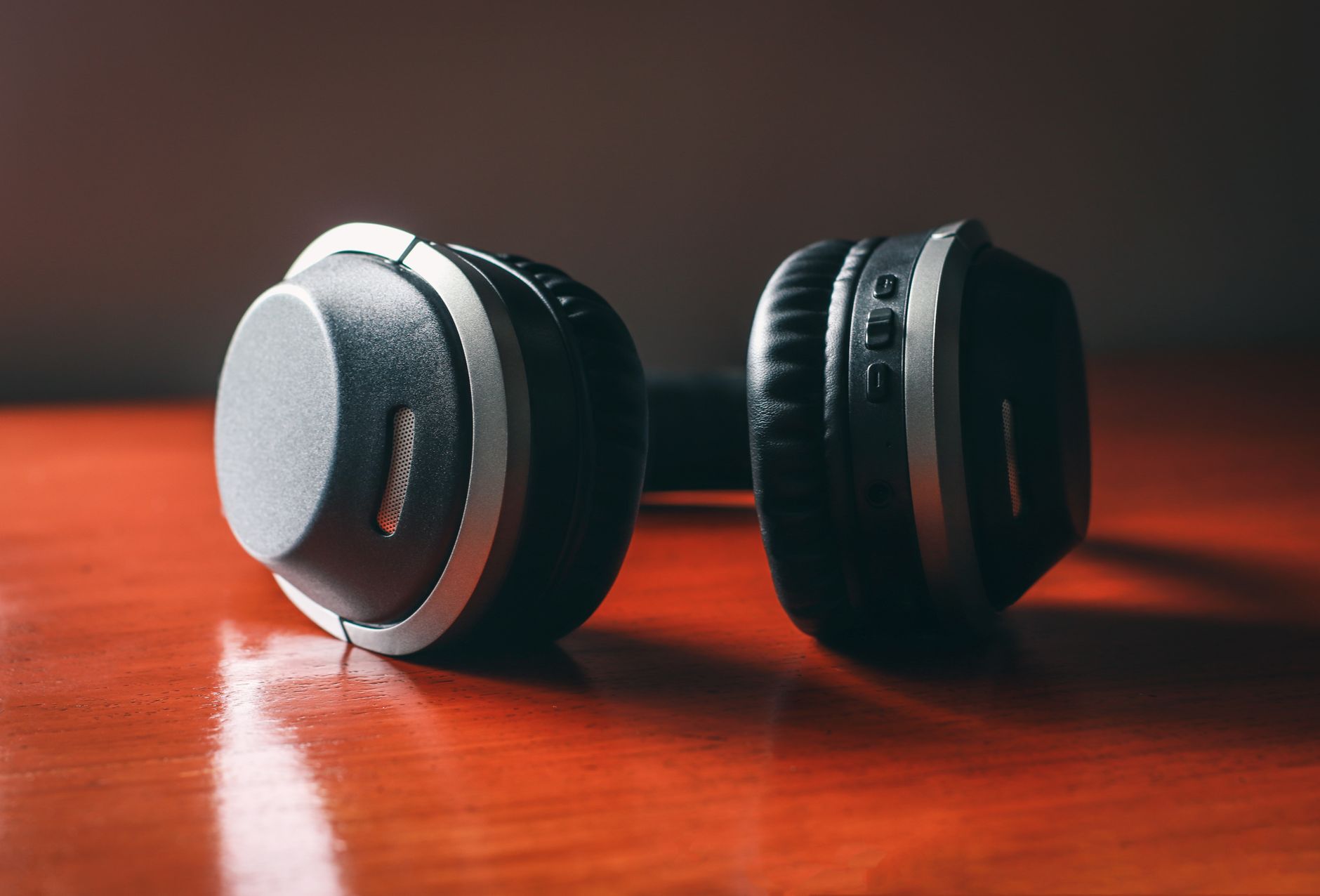
Beats headphones, known for their excellent sound quality and stylish design, have become a popular choice among music lovers and audiophiles alike. Pairing these headphones with your device can enhance your listening experience, whether you are using them with a smartphone, tablet, or computer. This guide provides a comprehensive overview of how to pair Beats headphones, including setup, connection fixes, and troubleshooting common issues.
Whether you’re a new user or have been using Beats for a while, this guide will help you establish a connection quickly and address any issues you may encounter during the setup process.
How to Pair Beats Headphones?
To pair Beats headphones, you’ll need to enable Bluetooth on your device and put the headphones in pairing mode. The process varies slightly depending on whether you are using iOS, Android, or a computer. Here’s a step-by-step guide on how to do it for each platform.
Prerequisites for Pairing
- Beats headphones (Powerbeats, Studio, Solo, or Beats Fit Pro).
- Your Bluetooth-enabled device (smartphone, tablet, or computer).
- Battery charge on your headphones.
- Updated operating system on your device for compatibility.
Pairing Beats Headphones with iPhone
- Ensure your Beats headphones are charged. Press the power button to turn them on.
- On your iPhone, open the Settings app.
- Tap on Bluetooth and toggle it on, if it isn’t already.
- Put your Beats headphones in pairing mode. For most models, this is done by holding the power button until the LED indicator flashes, indicating they are ready to connect.
- Look for your Beats headphones in the list of devices. Tap on the name of your headphones to connect.
- Once connected, the LED light will stop flashing and remain solid, indicating a successful pairing.
Common Issues When Pairing with iPhone
If you encounter issues, consider the following:
- Ensure that the headphones are not connected to another device. Disconnect them if necessary.
- Forget the device in Bluetooth settings and attempt to reconnect.
- Update your iPhone to the latest version if connectivity problems persist.
Pairing Beats Headphones with Android Devices
- Charge your Beats headphones and turn them on.
- On your Android device, go to Settings.
- Select Connected devices (or Bluetooth settings).
- Turn on Bluetooth, if it is off.
- Set your Beats headphones in pairing mode by holding the power button until the LED flashes.
- Your headphones should appear in the list. Tap on their name to establish a connection.
- Wait for confirmation that the headphones are connected.
Troubleshooting Android Pairing Issues
If the connection fails, try these steps:
- Ensure Bluetooth is enabled on your Android device.
- Restart your device and try the pairing process again.
- Reset the Bluetooth settings on your headphones by turning them off and on again.
Pairing Beats Headphones with Windows Computers
- Ensure your headphones are charged and turned on.
- On your Windows computer, click on the Start menu, and go to Settings.
- Select Devices and then Bluetooth & other devices.
- Turn on Bluetooth, if it is not already enabled.
- Put your Beats headphones in pairing mode by holding the power button until you see the LED flashing.
- Click on “Add Bluetooth or other device” in the Bluetooth settings.
- Select Bluetooth, and choose your Beats headphones from the list of devices.
- Follow any prompts that may appear to complete the connection process.
Resolving Pairing Issues with Windows
If you have trouble connecting, consider the following suggestions:
- Ensure that your headphones are close to the computer.
- Forget the connection from Bluetooth settings and reconnect.
- Update your Bluetooth drivers through Windows Update.
Pairing Beats Headphones with macOS
- Charge your Beats headphones and power them on.
- On your Mac, click the Apple logo in the top left corner and select System Preferences.
- Click on Bluetooth, and ensure that Bluetooth is turned on.
- Set your Beats headphones to pairing mode by holding the power button until the LED starts to flash.
- Your Beats headphones will appear in the list. Click on the “Connect” button to pair them.
- Once connected, the status should change to “Connected.”
Troubleshooting macOS Pairing Issues
If you encounter difficulties while connecting, try these steps:
- Make sure your headphones are charged sufficiently.
- Remove the headphones from the Bluetooth devices list and initiate the pairing process again.
- Restart your Mac and attempt to reconnect.
Pairing Beats Earbuds
For those using Beats earbuds, such as the Beats Fit Pro or Powerbeats Pro, the pairing process is similar but may have specific adjustments:
- Open the lid of the charging case (for Powerbeats Pro) or hold the button on the earbuds (for Beats Fit Pro) to turn them on.
- Put your device in Bluetooth settings (as specified for iPhone, Android, macOS, or Windows).
- Locate your earbuds in the Bluetooth list and tap to connect.
Resetting Beats Headphones
If you continue to have pairing issues, you may need to reset your Beats headphones. This can resolve software glitches and establish a fresh connection. Here’s how to do it:
Resetting Powerbeats and Powerbeats Pro
- Press and hold the power button on your headphones for about 10 seconds.
- Release the button when the LED indicator flashes red and white.
- Your headphones are now reset and should be in pairing mode the next time you turn them on.
Resetting Beats Solo and Studio
- Connect the headphones to a power source using the included USB cable.
- Press and hold the volume up button and the power button simultaneously for about 10 seconds until the LED flashes.
- Your headphones are reset and will need to be re-paired with devices.
Tips for Optimal Connection
- Keep your headphones and device within close range during initial pairing.
- Avoid interference from other Bluetooth devices while connecting.
- Ensure software on your devices is up to date for the best compatibility.
- Regularly charge your headphones to prevent battery issues.
Additional Troubleshooting Steps
If none of the aforementioned methods resolve your pairing issues, consider the following:
- Check the headphone battery level. Low battery can prevent pairing.
- Try pairing with a different device to isolate the issue.
- Inspect the headphone and device for physical damage that might affect connectivity.
- Consult the official Beats support page for further troubleshooting resources.
Common Connection Fixes
Sometimes, headphone connectivity does not work as expected after pairing. The following fixes may help resolve these common issues:
Audio Quality Issues
- Check for any nearby devices that could cause interference.
- Try turning off and then back on your Bluetooth device.
- Move away from physical obstructions that might disrupt the signal.
Lagging or Delayed Audio
- Manage background applications on your device that may be consuming Bluetooth bandwidth.
- Consider resetting the network settings on your device if lagging persists.
Headphones Not Appearing in Bluetooth List
- Make sure the headphones are turned on and in pairing mode.
- Toggle Bluetooth off and then on again on your device.
Conclusion
Pairing Beats headphones is generally a straightforward process, whether you’re using an iPhone, Android device, Windows PC, or Mac. By following the steps outlined in this guide, you can establish a connection and troubleshoot common issues effectively. Should you experience any problems, resetting your headphones or checking your device settings can often resolve the situation. Enjoy your music with the rich sound quality that Beats headphones provide!
For more tech tutorials and troubleshooting tips, consider exploring how to connect Beats to iPhone or how to pair Beats earbuds.