
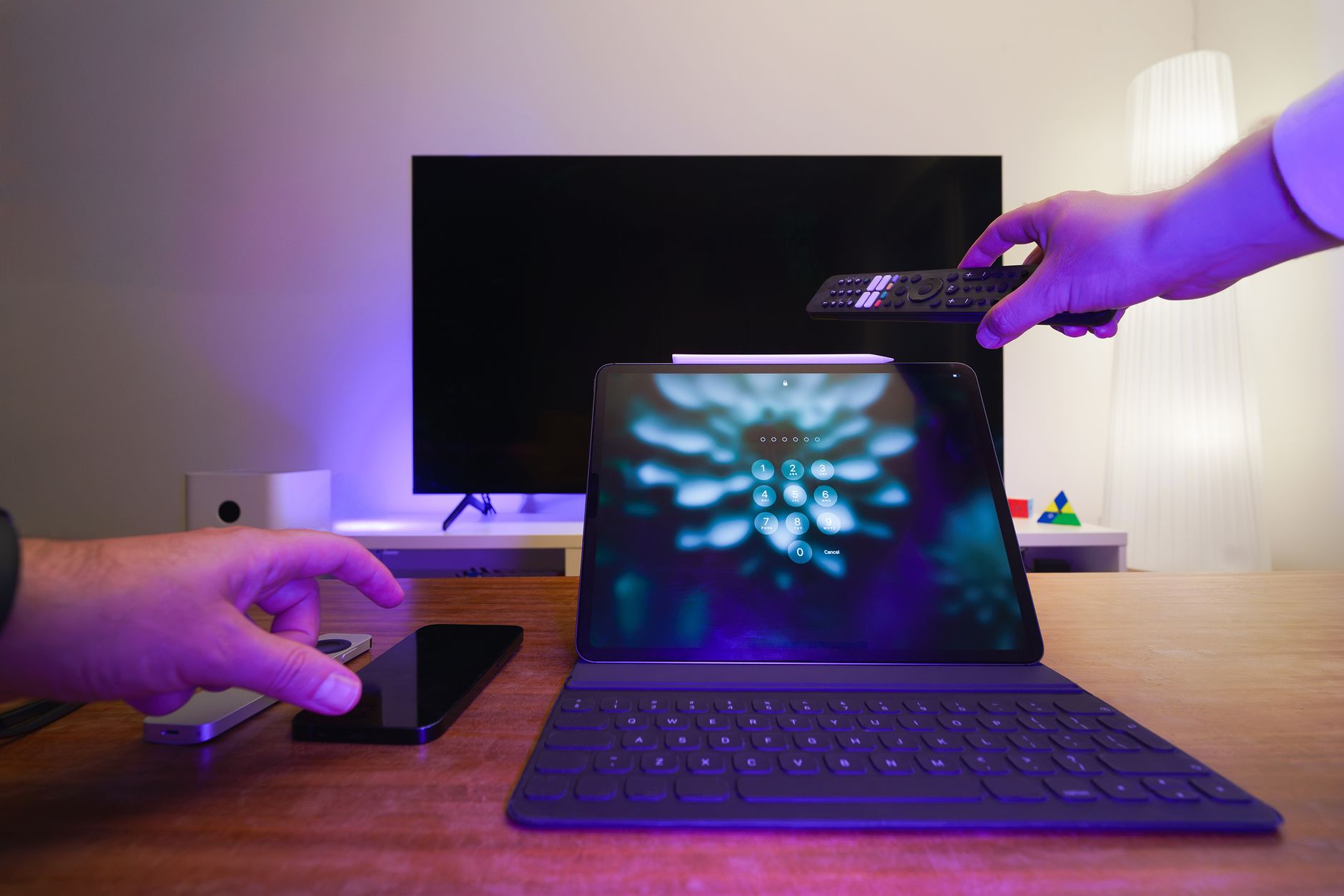
Programming a Roku remote can enhance your streaming experience by allowing seamless control over various devices. Whether you need to pair a new remote, reset an existing one, or explore settings options, understanding the process is essential for optimal performance. This guide offers practical steps to program a Roku remote successfully, ensuring you can enjoy your favorite content hassle-free.
In this article, we will cover the different types of Roku remotes, the steps needed to program them, troubleshooting tips, and additional settings to optimize your streaming experience. Let’s get started.
How to Program a Roku Remote?
To program a Roku remote, you typically need to pair it with your Roku device. The steps can vary based on whether you have a standard IR remote or a more advanced Roku voice remote. Both methods are straightforward, and this guide will provide detailed instructions for each.
Understanding Your Roku Remote Types
Before diving into the programming process, it’s essential to understand the different types of Roku remotes:
- Standard IR Remote: This type uses infrared signals to communicate with the Roku device. It requires a direct line of sight for operation.
- Roku Voice Remote: This remote connects to the Roku device via Wi-Fi. It supports voice commands and includes additional features such as programmable shortcut buttons.
- Roku Smartphone App: This is a digital remote available as a mobile application. It provides features like voice search and keyboard input, making it an alternative to physical remotes.
Prerequisites for Programming a Roku Remote
Before you start programming your remote, ensure you have the following:
- Your Roku device is powered on and connected to your TV.
- The remote has fresh batteries installed.
- If you are using a voice remote, make sure you are within the wireless range.
Steps to Program Your Roku Remote
Pairing a Roku Voice Remote
- Insert fresh batteries into the remote.
- Turn on your TV and Roku device. Ensure that the device is connected to the same Wi-Fi network as your remote.
- Hold down the
Pairingbutton located in the battery compartment until the remote’s status light starts flashing. This may take about 3 to 5 seconds. - Release the
Pairingbutton. You should see a prompt on your TV screen indicating that the remote is attempting to pair. - Wait for the remote to pair. Once successful, you will see a confirmation message on the TV screen indicating that the pairing process is complete.
- Test the remote by using the directional pad or pressing the
Homebutton to confirm functionality.
Pairing a Standard IR Remote
- Insert fresh batteries into the remote.
- Point the remote directly at the Roku device.
- Press any button on the remote to check if it responds.
- If the Roku device does not respond, ensure that there are no obstacles blocking the line of sight between the remote and the device.
- Repeat the process if the remote still does not work, replacing the batteries if necessary.
Troubleshooting Common Roku Remote Issues
If you face issues while programming your Roku remote, consider the following troubleshooting steps:
Remote Not Pairing?
- Check battery installation: Ensure that batteries are inserted correctly, matching the +/- symbols.
- Distance and obstacles: Make sure you are within range; for IR remotes, remove any obstructions between the remote and the Roku device.
- Resync the remote: Hold the
Pairingbutton for several seconds, or restart your Roku device to refresh connections. - Software update: Ensure your Roku device is updated to the latest software version. You can check for updates in the settings menu.
Remote Control Lagging or Unresponsive
- Replace batteries: Weak batteries can cause delayed responses or unresponsiveness.
- Reset your Roku device: Unplug the device for 10 seconds, then plug it back in to reset.
- Check for interference: Move any electronic devices that may interfere with the remote’s signal.
Resetting Your Roku Remote
If your Roku remote is still not working properly after trying the above steps, it may help to reset it. Here’s how to reset both types of remotes:
Resetting the Roku Voice Remote
- Remove the batteries from the remote.
- Unplug your Roku device from power.
- Wait for about 30 seconds, then plug the Roku device back in.
- While the Roku device is booting up, insert the batteries back into the remote.
- Once the Roku home screen appears, hold the
Pairingbutton for 5 seconds until the indicator light flashes. - Wait for the remote to pair again, with confirmation on screen.
Resetting the Standard IR Remote
- Remove the batteries from the remote.
- Unplug your Roku device from power.
- Wait for about 30 seconds, then replug the Roku device.
- Reinsert the batteries into the remote.
- Test the remote after boot-up by pressing any button to see if it responds.
Additional Settings and Options for Your Roku Remote
When your remote is functioning properly, it’s essential to explore additional settings to optimize your streaming experience:
Controlling TV Power and Volume
If your Roku remote has TV control features, you can program it to turn your TV on and off or adjust volume:
- Press and hold the
Homebutton for about 5 seconds. - Scroll and select
Settings, thenRemote & devices. - Select
TV input, then follow the prompts to set up your TV control by entering the brand of your TV. - Follow the on-screen instructions, testing power and volume buttons until setup is complete.
Using Voice Commands
Your Roku voice remote lets you use voice commands for easier navigation:
- Press the microphone button on your remote to activate.
- Speak commands like “Launch Netflix” or “Search for action movies.”
- Practice using different commands to see what works best for accessing content.
Exploring the Roku Mobile App
The Roku mobile app offers additional functionality as a remote control:
- Download the Roku app from your device’s app store.
- Ensure your smartphone is connected to the same Wi-Fi network as your Roku device.
- Open the app and select your Roku device from the list.
- Use the app to control your Roku device, search for channels, and even cast videos from your phone to your TV.
Tips for Maintaining Your Roku Remote
To ensure your Roku remote continues functioning smoothly, follow these maintenance tips:
- Keep batteries fresh: Regularly check and replace batteries to prevent leaks or corrosion.
- Minimize exposure to extreme temperatures: Store your remote in a place with stable temperatures.
- Clean the remote: Wipe it down periodically with a damp cloth to remove dust or grime.
- Use a remote holder: Enclose your remote in a holder to avoid misplacing it.
Conclusion
Programming a Roku remote is a fundamental skill for enjoying a smooth streaming experience. By following these detailed steps and understanding how to troubleshoot common issues, you can effectively manage your Roku device. Take advantage of advanced settings and features to enhance your entertainment setup.
To further your knowledge and resolve any additional issues you may encounter, consider exploring our guides on resetting a Roku remote and pairing a Roku remote. These resources provide comprehensive support to ensure your Roku experience remains enjoyable.