
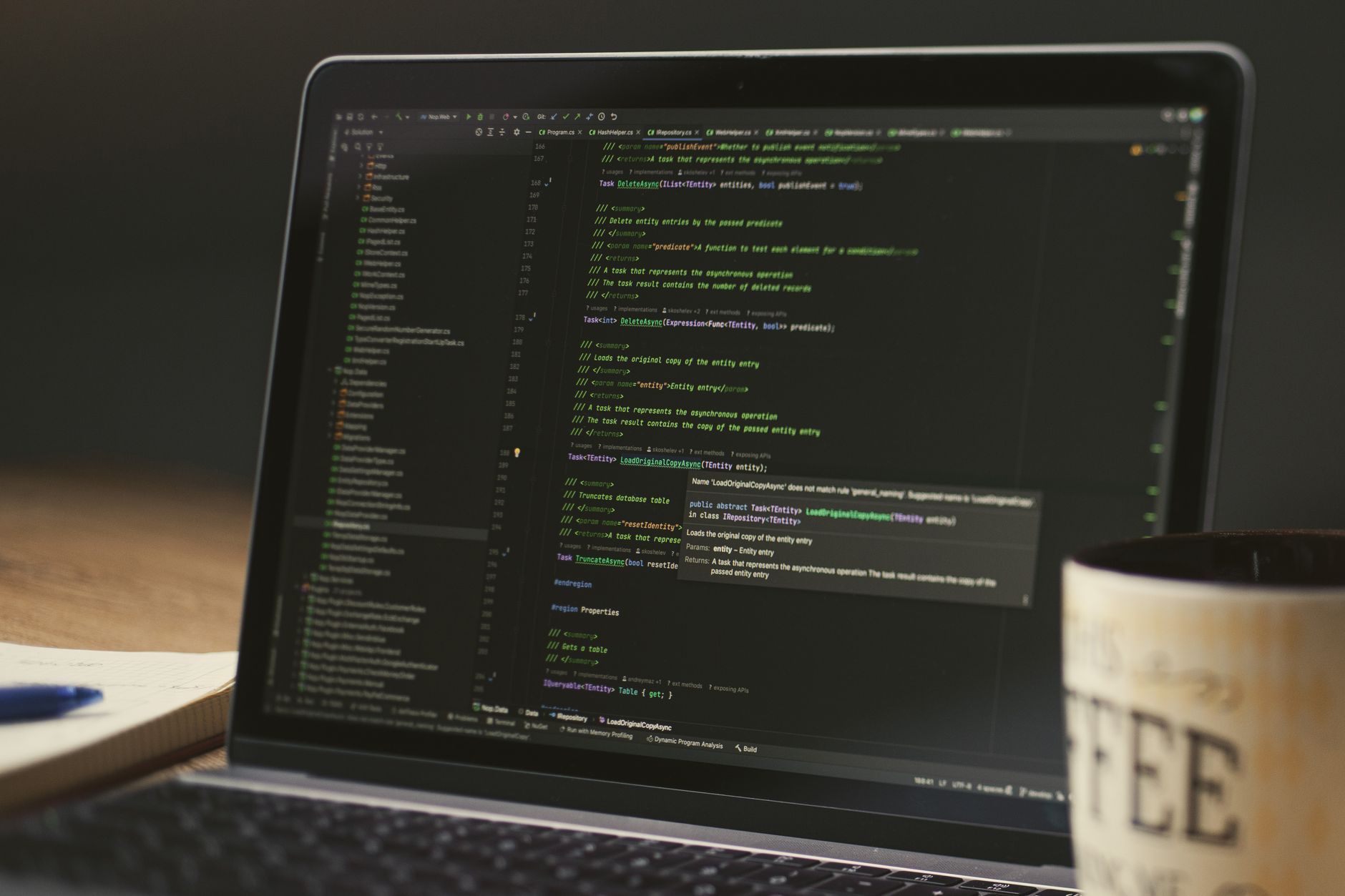
Chrome OS, the operating system designed for Chromebooks, is known for its user-friendly interface and security features. However, it also has a Developer Mode that opens a range of advanced functionalities. By enabling Developer Mode, users can gain access to features such as shell commands, the ability to install Linux applications, and customizing system settings. This guide will walk you through how to turn on Chrome OS Developer Mode safely and effectively.
Before diving into the process, it’s essential to understand the implications of enabling Developer Mode. It can void your warranty, lead to potential data loss, and expose your device to security vulnerabilities. Therefore, backup any important data and ensure you’re prepared for the changes. Now, let’s explore the prerequisites and steps to activate Developer Mode on Chrome OS.
What Is Chrome OS Developer Mode?
Developer Mode is a special feature in Chrome OS that allows users to access advanced settings and features. It is primarily used by developers for testing applications and experimenting with system settings. When Developer Mode is activated, you can perform activities like:
- Accessing the command line interface.
- Installing any Linux distribution alongside Chrome OS.
- Running custom scripts and applications.
- Bypassing some of the built-in security features for a broader range of capabilities.
While Developer Mode can be incredibly powerful, it is crucial to know that it temporarily disables some security features. Therefore, consider your intended use and proceed with caution.
Prerequisites for Enabling Developer Mode
Before you can enable Developer Mode on your Chromebook, there are a few things to prepare and consider:
- Backup Your Data: The process will erase all local data on your device, including downloaded files and user settings. Ensure that anything important is saved to the cloud or an external drive.
- Power Supply: Make sure your Chromebook is connected to a power source throughout the process to prevent any interruptions.
- Recognizing Your Chromebook Model: Some models have different key combinations. Confirm your Chromebook model to follow the appropriate steps.
How to Turn on Chrome OS Developer Mode
Step-by-Step Instructions
- Turn Off Your Chromebook: Start by shutting down your Chromebook completely. Ensure it’s powered down before moving to the next step.
- Enter Recovery Mode: To access Recovery Mode, press and hold the
Esc+Refreshbuttons (the circular arrow key) along with thePowerbutton. You may need to release thePowerbutton after your Chromebook starts, but continue holding the other two keys until you see a recovery screen. - Enable Developer Mode: Once in Recovery Mode, you will see a screen stating “Chrome OS is missing or damaged.” This is the correct screen. Press
Ctrl+Dto enter Developer Mode. A dialog will appear prompting you to confirm; pressEnter. - Wait for the Transition: Your Chromebook will begin the transition to Developer Mode. This process may take a while, and your device will restart several times. You will see a screen with a progress bar, indicating the switch.
- Complete the Setup: After the transition, you’ll arrive at the setup screen, prompting you to configure your device as if it were brand new. Follow the on-screen instructions.
- Disable OS Verification: Initially, you’ll see a warning screen every time you turn on your Chromebook, reminding you that OS verification is turned off. Press
Ctrl+Dat this screen to bypass it.
Once you’ve completed these steps, Developer Mode will be active, granting you access to features not typically available in standard mode. To access the terminal, you can use the Ctrl + Alt + T key combination to open the Crosh (Chrome Shell) environment.
Using Developer Mode Wisely
While Developer Mode unlocks additional functionalities, it is vital to understand how to utilize these features safely:
- Install Linux Applications: With Developer Mode enabled, consider installing Linux applications to expand your Chromebook’s functionality. This is done through the Crostini project, which supports various Linux distributions.
- Enable and Disable Secure Boot: You can change the behavior of Secure Boot in Developer Mode. However, be cautious; disabling this feature can allow potentially harmful software to run.
- Regular Updates: Keep your Chromebook updated to ensure both your Linux apps and the Chrome OS are secure. Lack of updates can leave your device vulnerable.
Common Issues and Their Solutions
As with most advanced features, users may encounter specific issues when attempting to enable or use Developer Mode. Below are common problems and helpful solutions:
1. Data Loss
As stated earlier, enabling Developer Mode erases all data. Ensure that you have backed everything up. If you do encounter data loss, restoring from a backup is vital to recover your files.
2. Boot Loop
If your Chromebook seems to be stuck in a boot loop after enabling Developer Mode, try hard resetting your device. Press and hold the Power button until it shuts down, then turn it back on.
3. Security Warnings
After enabling developer mode, your Chromebook will display security warnings upon startup. This is normal behavior. Press Ctrl + D to skip the warning screen every time you boot up.
4. Difficulty Accessing Crosh
If for some reason you cannot open the shell by pressing Ctrl + Alt + T, ensure that you are not in a restricted browsing mode and that your keyboard shortcuts are set up correctly in settings. You can also enter “crosh” in the regular Chrome browser’s address bar.
Reversing Developer Mode
If you find that Developer Mode is not suitable for your needs, you may want to revert back to standard mode. This process involves disabling Developer Mode entirely, which will restore your device to its original state, including reinstalling Chrome OS.
- Recover Your Data: Before reverting, ensure any important files you created during Developer Mode are backed up to an external source.
- Enter Recovery Mode: Power off your Chromebook and follow the same steps to enter Recovery Mode.
- Reinstall Chrome OS: When prompted, you can restore the original Chrome OS by following the instructions to recover your Chromebook. Confirm any prompts to ensure successful reinstallation.
Additional Resources
We understand that navigating through Developer Mode can be complex, especially if you are new to the features available in Chrome OS. Here are a few resources that can assist you in further exploring Developer Mode:
- Google’s Support Page on Developer Mode – Get official insights and instructions straight from Google.
- How to Geek on Enabling Developer Mode – A comprehensive guide on enabling Developer Mode with additional tips.
- Installing Linux Apps on Your Chromebook – A great primer on using Crostini with Developer Mode enabled.
Conclusion
Enabling Chrome OS Developer Mode can significantly enhance the functionality of your Chromebook, giving you a chance to explore features tailored for developers and advanced users. However, it comes with risks like data loss and security vulnerabilities. Always ensure you back up your data and fully understand what Developer Mode entails before proceeding.
For those considering this path, starting with simple terminal commands can be an excellent way to familiarize yourself with the environment. If you need further assistance, explore our guides on powerwashing a Chromebook or factory resetting your Chromebook for troubleshooting tips.