
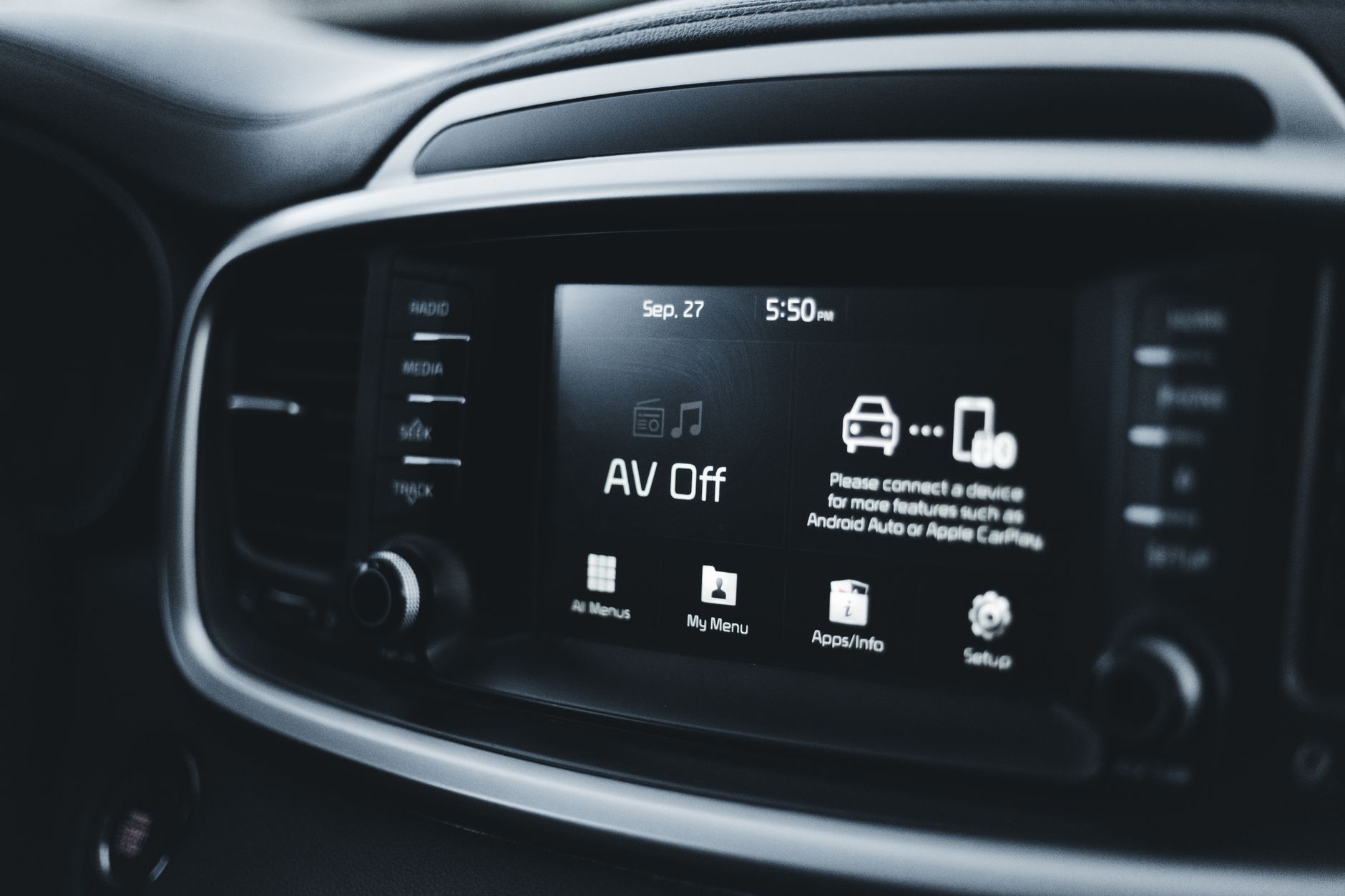
Apple CarPlay is a software feature that connects your iPhone to your car’s infotainment system, allowing for greater integration between your mobile device and vehicle. Through CarPlay, drivers can access key apps, make calls, send and receive messages, and use navigation tools directly through the car’s display.
This technology streamlines the driving experience, prioritizing safety and convenience without requiring drivers to constantly look at their phones. In this article, we will explore what Apple CarPlay is, how it works, its common uses, and its advantages and limitations.
What Is Apple CarPlay?
Apple CarPlay is an advanced interface that transforms a compatible vehicle’s dashboard display into an extension of your iPhone. By facilitating seamless integration, CarPlay allows users to utilize several iPhone features while keeping their focus on the road. This integration is designed to be intuitive, often resembling the iPhone interface itself.
How Does Apple CarPlay Work?
Apple CarPlay mainly functions via a wired or wireless connection between your iPhone and your car’s infotainment system. Here’s how the process typically works:
- Compatibility Check: Ensure your car supports Apple CarPlay. Many modern vehicles from brands like Ford, BMW, Audi, and others have built-in compatibility. You can reference your car’s user manual or the manufacturer’s website for confirmation.
- Connection: Using a USB cable, connect your iPhone to the vehicle’s USB port. For models that support wireless CarPlay, enable Bluetooth on both devices and follow the pairing instructions.
- Launch CarPlay: Once connected, the CarPlay interface should automatically launch on your car’s display. If it does not, look for the CarPlay icon or access it through your vehicle’s apps menu.
After setup, you can control CarPlay using the car’s touchscreen, physical buttons, or by voice using Siri. This control method allows for easy access without taking your hands off the wheel.
Common Uses of Apple CarPlay
Apple CarPlay offers numerous functionalities that enhance convenience while driving. Some of its common uses include:
- Navigation: Use Apple Maps or compatible navigation apps like Google Maps and Waze to get real-time directions, traffic updates, and estimated arrival times.
- Communication: Make hands-free calls or send and receive messages through Siri. CarPlay reads texts aloud so drivers can keep their focus on the road.
- Music and Entertainment: Access streaming music apps such as Apple Music, Spotify, and podcast services. Control music playback with voice commands or the touchscreen.
- Calendar and Reminders: Check your daily agenda, receive reminders, and create new events through Siri, helping you stay organized on the go.
Benefits of Using Apple CarPlay
There are several advantages to using Apple CarPlay, making it a popular choice among drivers:
- Increased Safety: By enabling hands-free operation through voice commands, CarPlay minimizes distractions and enhances safety while driving.
- Seamless User Experience: The interface is designed to mimic a user-friendly iPhone layout, making it easier for users to adapt quickly.
- App Compatibility: Besides native Apple applications, CarPlay supports various third-party apps, offering extensive customization options to meet users’ needs.
- Regular Updates: CarPlay receives regular software updates, improving functionality and adding new features over time.
Limitations of Apple CarPlay
While Apple CarPlay offers numerous benefits, it also has some limitations that potential users should consider:
- Device Compatibility: CarPlay is only available for iPhone devices running iOS 7.1 or later. Users with Android devices will need to use Android Auto instead.
- App Limitations: Not all applications are available on CarPlay, and some features may be restricted compared to their native app counterparts on the iPhone.
- Requires Data Connection: CarPlay may require an internet connection for comprehensive navigation and app functionality, especially for streaming services.
How to Set Up Apple CarPlay
If your car supports CarPlay, setting it up is usually straightforward. Below are the steps to follow:
- Check Compatibility: Verify if your car supports Apple CarPlay. Refer to the manufacturer’s guidelines for compatibility.
- Connect Your iPhone: Use a Lightning USB cable to connect your iPhone to the car’s USB port. If your car supports wireless CarPlay, activate Bluetooth and Wi-Fi on your iPhone.
- Allow Connection: If prompted, grant permissions to allow CarPlay to access your iPhone.
- Customize Settings: Once connected, you may want to customize your CarPlay settings via
Settings > General > CarPlayon your iPhone. - Use Siri: Activate Siri by pressing and holding the voice command button on the steering wheel or tapping the CarPlay display.
Troubleshooting Common Issues
Setting up or using Apple CarPlay may occasionally result in difficulties. If you encounter problems, consider the following troubleshooting methods:
Connection Issues
- Restart Your Devices: Restart both your iPhone and your car’s infotainment system to resolve connection problems.
- Check the Cable: If using a wired connection, ensure your Lightning cable is functioning correctly. Trying a different cable can help isolate the issue.
App Functionality Problems
- Update Apps: Ensure that all applications used with CarPlay are up to date, as outdated versions may not function properly.
- Reconnect CarPlay: Disconnect your iPhone and reconnect to refresh the connection and resolve app issues.
Siri Not Responding
- Enable Siri: Check that Siri is enabled on your iPhone via the
Settings > Siri & Searchmenu. - Network Connection: Ensure your iPhone has a stable internet connection since Siri may require it for specific tasks.
Best Practices for Using Apple CarPlay
To maximize your experience with CarPlay, consider the following best practices:
- Adapt App Layout: Customize the layout of your CarPlay apps to prioritize the most frequently used ones for easy access.
- Familiarize Yourself: Spend some time familiarizing yourself with the App Interface and Siri commands to enhance your efficiency and safety.
- Use Voice Commands: Rely on voice commands as much as possible to maintain focus on the road. Practice common commands to become proficient.
Comparing Apple CarPlay and Android Auto
Understanding other options is essential when evaluating Apple CarPlay. Android Auto serves as its counterpart for users with Android devices. Here we compare the two:
| Feature | Apple CarPlay | Android Auto |
|---|---|---|
| Device Compatibility | iPhone (iOS 7.1 and later) | Android Phones (running Android 5.0 and later) |
| Voice Assistants | Siri | Google Assistant |
| App Support | Many iOS apps | Many Android apps |
| Customization | Limited app customization | More extensive options |
Final Thoughts
Apple CarPlay significantly enhances the connectivity between your iPhone and vehicle, making it easier and safer to access vital information and entertainment while driving. Its compatibility with several popular apps and its user-friendly interface contribute to an enriched driving experience. However, potential users should consider not only its advantages but also its limitations, including device compatibility and app support.
If you’re interested in learning more about Apple CarPlay, be sure to explore guides on how to use it effectively and to understand its features in more depth. You can find practical tips and step-by-step instructions in our resources: How to Use Apple CarPlay and What Is CarPlay.