
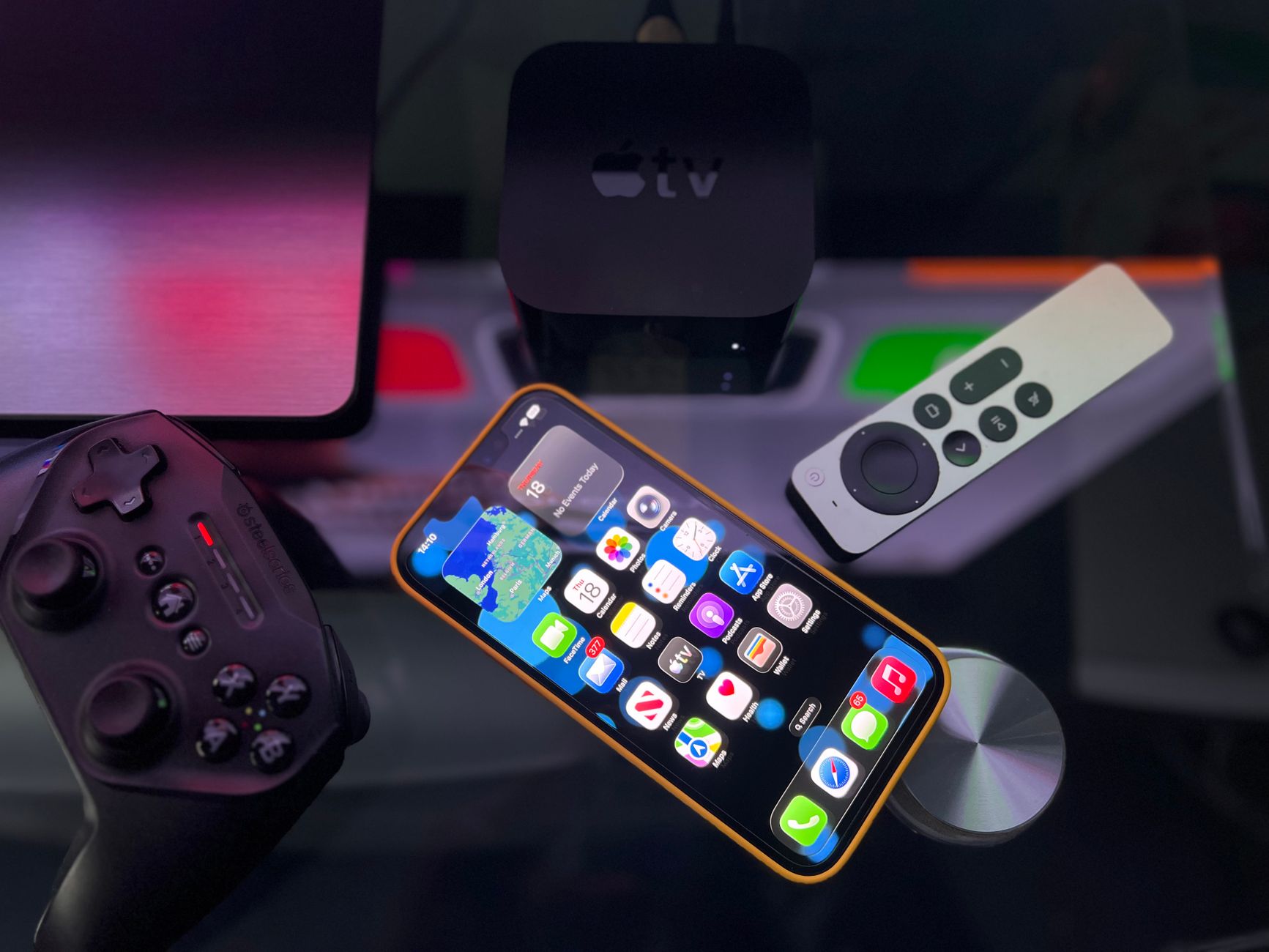
Resetting your Apple TV Remote can be an essential troubleshooting step if you’re experiencing connectivity issues or unresponsiveness. This guide will explain how to reset both the Siri Remote and the Apple Remote, covering all necessary steps for different models. You’ll learn how to pair your remote after resetting it, ensuring seamless control over your Apple TV.
Whether you’re using the latest Siri Remote or an older Apple Remote, you’ll find the instructions straightforward and easy to follow. This article will provide comprehensive steps to achieve a successful reset and pairing sequence for your device.
How to Reset Apple TV Remote?
To reset an Apple TV Remote, you need to know which model you have. The resetting process can differ slightly between the Siri Remote and the older Apple Remote. Here’s how to perform a reset for both types.
Prerequisites for Resetting Your Apple TV Remote
- Ensure your Apple TV is powered on.
- Have the remote handy that you want to reset.
- If applicable, make sure your Apple TV is updated to the latest software version.
Resetting the Siri Remote
The Siri Remote is also equipped with touch controls, which might require a different resetting approach. To reset the Siri Remote, follow these steps:
- Locate the Menu and Volume Down buttons on the remote.
- Simultaneously press and hold the
Menubutton and theVolume Downbutton for about 5 seconds. - The status light on your Apple TV should blink, indicating a reset attempt.
- Release the buttons and wait a few seconds for the remote to power off.
- To turn on the remote again, press any button on the remote.
Resetting the Apple Remote
If you are using an older Apple Remote that has a circular control, here’s how to reset it:
- Press and hold the Menu and Right buttons for about 6 seconds.
- After the status light blinks, release the buttons. This signifies that the remote is resetting.
- Wait for a few seconds for the remote to complete the reset process.
Pairing Your Apple TV Remote After Reset
Once you’ve successfully reset your Apple TV remote, you will need to re-pair it with your Apple TV. Here’s how to do that:
- Hold the remote close to your Apple TV (within a few inches).
- Press and hold the
MenuandVolume Upbuttons simultaneously for about 5 seconds. This will initiate the pairing process. - If prompted, follow any additional instructions that appear on your TV screen.
- Once paired, you should be able to control your Apple TV with your remote as usual.
Troubleshooting Common Pairing Issues
If you encounter difficulties during the pairing process after resetting your remote, consider the following troubleshooting steps:
- Check the battery level of your remote. A low battery can hinder the pairing process.
- Ensure there are no obstructions between the remote and Apple TV.
- Restart your Apple TV by unplugging it from the power source for about six seconds, then plugging it back in.
- Update your Apple TV if not already done, as older software versions may cause compatibility issues with the remote.
- Try resetting your Apple TV by holding the Menu and Home (TV icon) buttons on the remote for about 10 seconds.
Resetting Your Apple TV Without a Remote
If you don’t have access to your remote or it’s not functioning, don’t worry. You can reset your Apple TV through other means:
- Use the Apple TV app on your iPhone or iPad as a remote control. Download the app and connect it to the same Wi-Fi network as your Apple TV.
- If you have a compatible Bluetooth keyboard, you can use it to navigate the Apple TV interface.
- For models that allow it, factory resetting your Apple TV can also be done through the settings on your TV screen if you have temporarily regained access.
Factory Resetting Your Apple TV
If simply resetting the remote doesn’t resolve the issue, consider performing a factory reset on your Apple TV. Note that this will erase all your settings and data. Here’s how to do it:
- Open the Settings app on your Apple TV.
- Navigate to System.
- Select Reset, and choose either Reset All Settings or Erase All Content and Settings.
- Confirm your choice.
- Your Apple TV will restart and will be set back to its factory settings.
Conclusion
Resetting your Apple TV remote is a straightforward process that can resolve many control issues. Whether you own a Siri Remote or an older Apple Remote, following the clear steps outlined will help you regain control over your Apple TV. Remember to re-pair the remote after resetting it to ensure continued functionality.
For further assistance, you can explore helpful guides like how to reset your AirPods Pro and instructions for resetting your Firestick remote.