
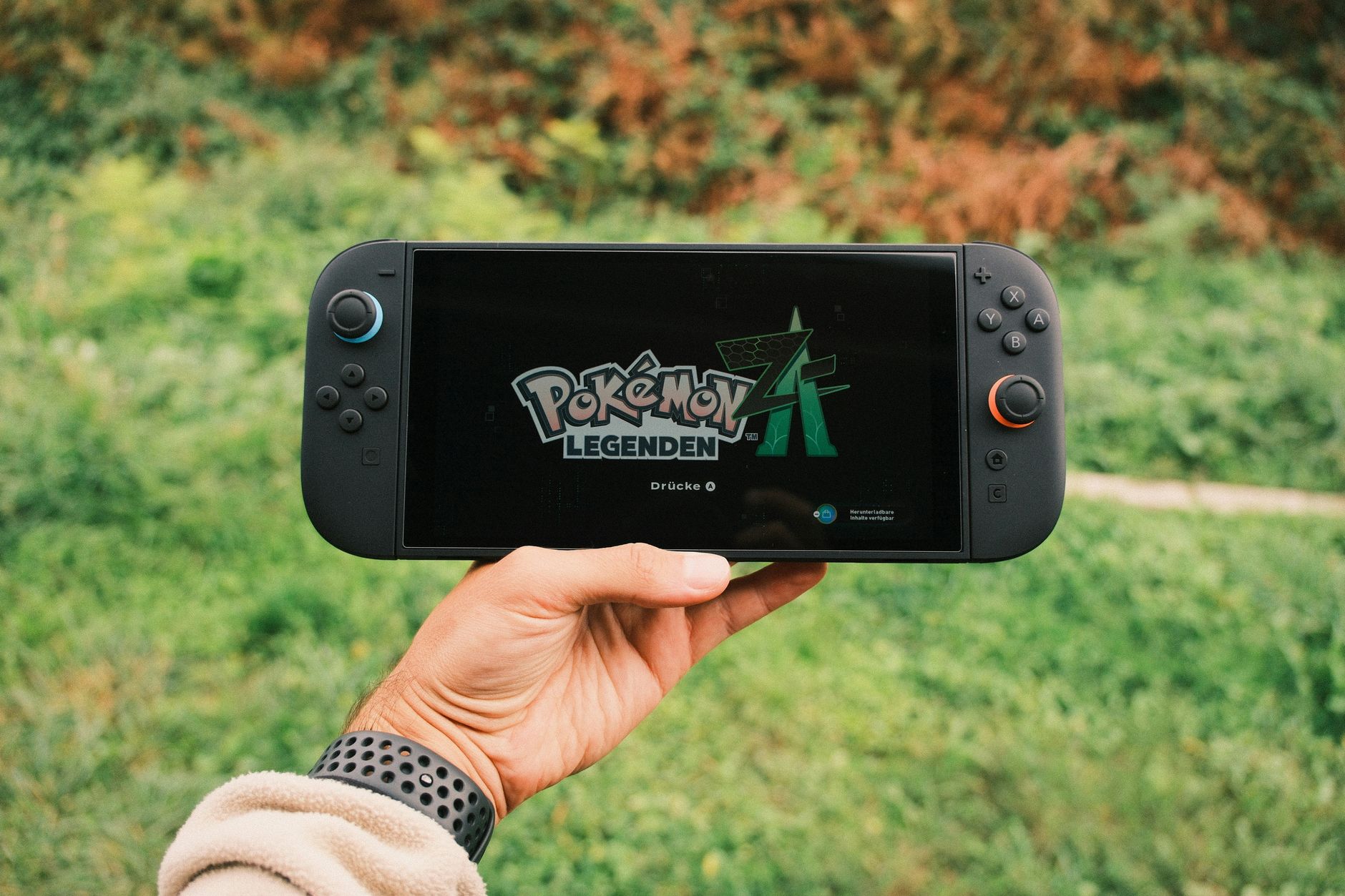
Resetting your Nintendo Switch can resolve various issues, such as slow performance, unexpected crashes, or problems with connectivity. Understanding how to perform a reset is essential for maintaining optimal performance. In this guide, you’ll learn how to back up your data, reset your console, and recover any lost information in case of an emergency.
We will cover different reset methods, including soft resets, hard resets, and factory resets. Each of these approaches serves distinct purposes and can help you get your device back on track. Let’s get started!
How to Reset Nintendo Switch?
To reset your Nintendo Switch, you can choose from several methods depending on the issue you are facing. Below, we’ll discuss each method, outlining its purpose and providing step-by-step instructions.
Understanding the Types of Resets
In total, there are three types of resets you can perform on a Nintendo Switch:
- Soft Reset: A quick restart of your console, good for minor issues.
- Hard Reset: A forced shutdown and restart, useful if the console is unresponsive.
- Factory Reset: A complete erasure of all data and settings, restoring the console to its original state.
Backing Up Your Data
Before performing a more drastic reset, it’s important to back up your data. This ensures that you’ll be able to recover games, saved files, and any other preferences after the reset.
How to Back Up Save Data
Cloud saves are a useful feature for Nintendo Switch owners who subscribe to the Nintendo Switch Online service. Here’s how to back up your save data:
- Ensure you are subscribed to Nintendo Switch Online.
- Go to the System Settings from the home menu.
- Scroll down and select Data Management.
- Choose Save Data Cloud Backup.
- Select your user profile to view available backups.
If you do not have the online service, you may consider using an external device to back up your data manually if feasible, although this is not officially supported.
Performing a Soft Reset
A soft reset is essentially a reboot of the console, and it is helpful for minor glitches or audio/output issues. To perform a soft reset:
- Press and hold the Power button located at the top of your console until the Power Options menu appears.
- Select Restart.
After a brief moment, your Nintendo Switch will reboot. This method does not erase any saved data or settings.
Executing a Hard Reset
If your Nintendo Switch is frozen or unresponsive, a hard reset may be necessary. Here’s how to perform a hard reset:
- Press and hold the Power button for approximately 15 seconds.
- Once the screen goes black, release the Power button.
- Press the Power button again to turn the console back on.
This process forces the console to shut down completely and can resolve many unresponsive issues without data loss.
Conducting a Factory Reset
A factory reset is a more extreme measure and should be performed only when necessary since it wipes all saved data and settings from the console. Before proceeding, ensure your important data is backed up. Follow these steps for a factory reset:
Resetting from System Settings
- From the home screen, navigate to System Settings.
- Scroll down to System and select it.
- Scroll down to the bottom and select Formatting Options.
- Choose Reset Console.
- Confirm the action by selecting Next and then Reset.
Your console will begin the factory reset process, returning to its original settings.
Resetting from Recovery Mode
If your console cannot boot into the main menu, you may need to perform a factory reset through recovery mode:
- Turn off the Nintendo Switch completely by holding the Power button for 15 seconds.
- Once off, press and hold the Volume Up and Volume Down buttons, then press the Power button.
- Continue holding the volume buttons until you see the recovery mode menu.
- Select Initialize Console Without Deleting Save Data if you want to keep your data, or choose Initialize Console for a full factory reset.
Post-Reset Recovery Steps
After resetting your console, you may want to recover your data and settings. Here’s how to proceed:
Restoring Save Data
If you performed a factory reset and had previously backed up your save data to the cloud:
- Reopen the Data Management section in the System Settings.
- Select Save Data Cloud Backup.
- Choose the game for which you want to restore save data and follow the prompts to download it.
Re-downloading Games and Software
Any games or applications you had purchased can be easily re-downloaded:
- Go to the eShop from the home screen.
- Navigate to your profile and select Redownloadable Software.
- Choose the games you wish to redownload and follow the prompts.
Common Errors and Their Fixes
Understanding potential issues that can arise during or after a reset can save you time and frustration. Here are some common problems and solutions:
- Error: Console Fails to Boot: If the console doesn’t start, check your power supply and ensure it’s plugged in correctly.
- Error: Save Data Not Found: Verify that you have an active Nintendo Switch Online subscription to access cloud saves.
- Error: System Update Issues: If you cannot update the system after a reset, try connecting to a different network or rebooting your router.
Alternatives to Resetting
Sometimes, minor issues can be resolved without performing a reset. Consider the following alternatives:
- Updating System Software: Always ensure your system is up to date, as software updates can contain fixes for bugs.
- Clearing Cache: Go to System Settings > Data Management and select Save Data Cloud Backup to clear specific game caches.
- Re-connecting Accessories: If peripherals are not functioning correctly, disconnect them and reconnect them to ensure proper synchronization.
Best Practices Post-Reset
After you have reset your Nintendo Switch, consider implementing these best practices to enhance performance and prevent future issues:
- Regularly update your system and games to benefit from the latest features and fixes.
- Back up your save data often, especially before major resets.
- Maintain optimal storage by managing game installations and removing unneeded files.
Conclusion
Resetting your Nintendo Switch doesn’t have to be a daunting process. Whether you opt for a soft reset, hard reset, or a factory reset, understanding these methods will empower you to maintain your console effectively. Always remember to back up your data and consider alternatives before proceeding with a reset.
Take the next step in your gaming experience by ensuring your Nintendo Switch stays in top shape. Explore more troubleshooting guides and gain deeper insights into optimizing your gaming technology!
Check out related guides such as how to reset your Fire Stick or how to factory reset a Chromebook for more tech support!