
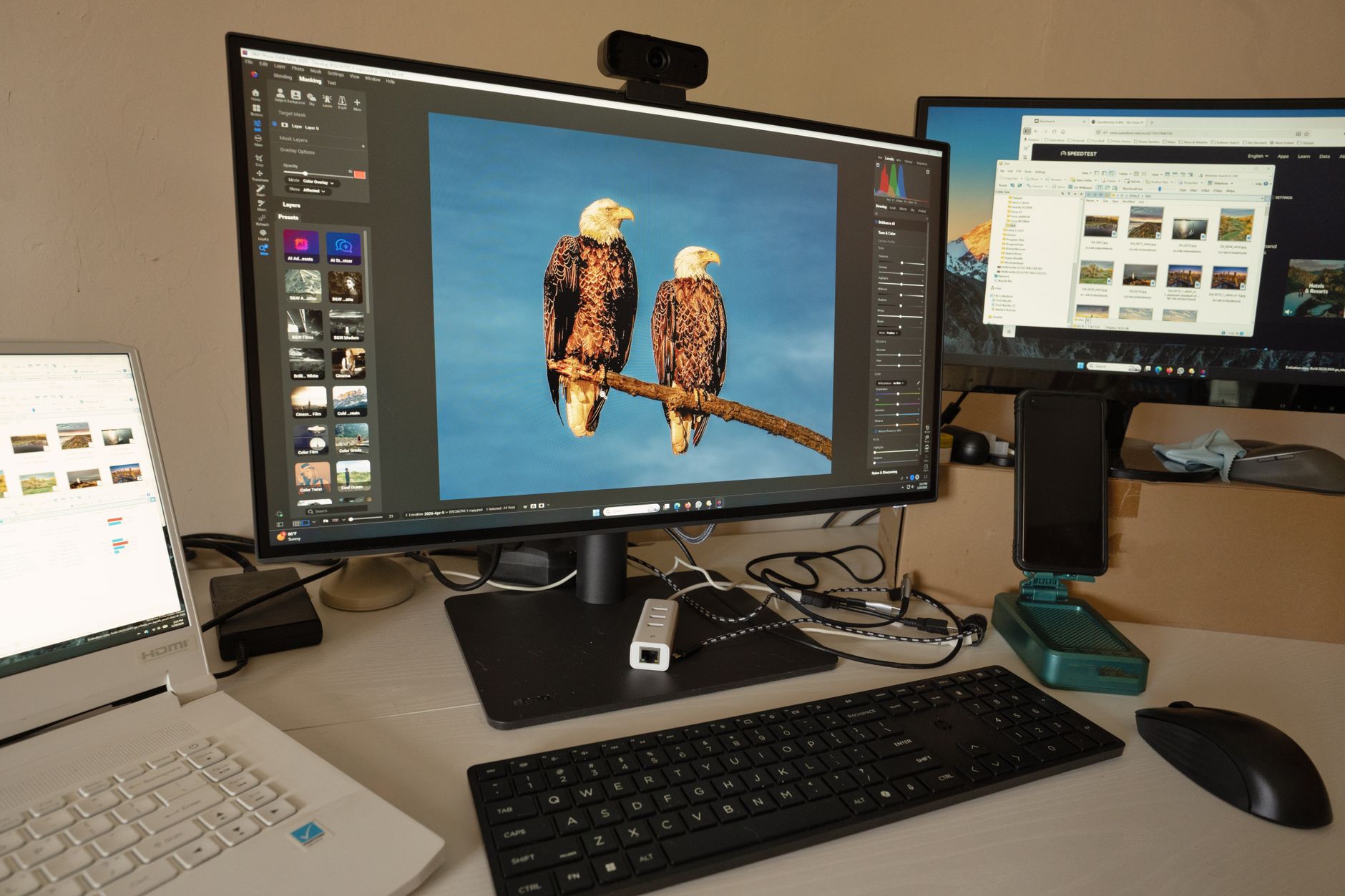
Dealing with pixelated photos can be frustrating, especially when they capture memorable moments. Pixelation usually occurs due to low resolution, excessive enlargement, or heavy compression. Fortunately, there are various methods and tools available to improve image quality and restore clarity. This guide will walk you through several approaches to fix pixelated photos.
In this article, we will explore various software tools, settings, and techniques that can help you turn those disappointing images into clearer, more vibrant pictures. We’ll also discuss common causes of pixelation and how to avoid them in the future.
How to Fix Pixelated Photos?
To fix pixelated photos, you can utilize various image editing tools and techniques. These can include using software such as Adobe Photoshop, GIMP, or online services like Fotor or Let’s Enhance. You can also apply specific settings and adjustments to enhance image quality. The effectiveness of these methods will depend on the initial state of the photo and the desired output.
Common Causes of Pixelation
Understanding the reasons behind pixelation is the first step toward preventing it in the future. Here are some common causes:
- Low Resolution: Images captured at a low pixel count may appear blurry or blocky when viewed at larger sizes.
- Excessive Enlargement: Enlarging a photo beyond its original size can cause loss of detail, resulting in pixelation.
- High Compression: Saving images in formats with high compression (like JPEG) can introduce artifacts and degrade quality.
- Screen Resolution: Viewing images on high-resolution screens can reveal pixelation in images that were not created at a suitable resolution.
Editing Software to Fix Pixelated Photos
1. Adobe Photoshop
Adobe Photoshop is one of the most powerful tools for photo editing. Here’s how to use it to fix pixelated images:
- Open the Image: Launch Photoshop and open your pixelated photo.
- Resize the Image: Go to
Image>Image Size. UncheckResampleto maintain the original proportions, then increase the resolution and adjust the dimensions as needed. - Apply the Shake Reduction Tool: Navigate to
Filter>Sharpen>Shake Reduction. This tool is beneficial for reducing pixelation caused by camera shake. - Use the Smudge Tool: Select the Smudge Tool from the toolbar. Gently drag over the areas that appear pixelated to smooth out the edges.
- Use Gaussian Blur: For particularly rough areas, apply
Filter>Blur>Gaussian Blur. Adjust the radius to blur the areas just enough to hide pixelation. - Sharpen the Image: Finally, go to
Filter>Sharpen>Unsharp Maskto enhance details without adding noise. - Save Your Edited Image: Go to
File>Save Asto save your enhanced image in the desired format.
2. GIMP
GIMP is a free and open-source alternative to Photoshop. Here’s how to fix pixelated images using GIMP:
- Open Your Image: Start GIMP and load the pixelated image.
- Scale the Image: Go to
Image>Scale Image. Increase the image size, ensuring to maintain the aspect ratio. - Use the Heal Tool: Select the Heal Tool to smooth out pixelated areas by painting over them.
- Apply Selective Gaussian Blur: Go to
Filters>Blur>Gaussian Blur. Apply a moderate blur to reduce pixelation, but be careful not to overdo it. - Sharpen the Image: Use
Filters>Enhance>Sharpenfor enhancing details. - Save Your Final Image: Export the image in the desired format via
File>Export As.
3. Online Tools
If you prefer web-based solutions, various online tools can help with pixelated photos. Here are some options:
- Fotor: An online photo editor that provides tools for sharpening and enhancing images to reduce pixelation.
- Let’s Enhance: This AI-powered tool focuses on upscaling images while reducing pixelation and enhancing clarity.
- PineTools: A simple image editor where you can apply blur or sharpen effects easily to correct pixelation.
Advanced Techniques to Improve Image Quality
1. Upscaling AI Tools
AI-powered software can analyze images and predict missing details. Programs such as Topaz Gigapixel AI and Waifu2x are designed to upscale images intelligently without adding pixelation. Using these tools is straightforward:
- Open the Software: Launch the AI tool of your choice.
- Upload Your Image: Load the pixelated image into the software.
- Select the Upscale Factor: Choose the desired scale (e.g., 2x, 4x) based on your needs.
- Start Processing: Initiate the upscale process, allowing the software to analyze and enhance the image.
- Export Your Image: Save your enhanced image when processing is complete.
2. Resynthesizer Plugin for GIMP
If you’re using GIMP, the Resynthesizer plugin is a powerful tool that can help fix pixelated images:
- Install Resynthesizer: Download and install the Resynthesizer plugin for GIMP.
- Open GIMP and Load Your Image: Start GIMP and open the pixelated photo.
- Select the Area: Use the selection tool to outline the pixelated regions.
- Apply the Plugin: Navigate to
Filters>Enhance>Heal Selectionto fix the selected area. - Export the Enhanced Image: Save your work once satisfied with the enhancements.
3. Image Denoising
Sometimes pixelation results from noise, especially in low-light images. Denoising techniques can enhance image quality:
- Use Software Like Neat Image: This software specializes in reducing noise in photographs.
- Open Your Photo: Load the pixelated image into the denoising software.
- Adjust Denoising Settings: Fine-tune the strength of the noise reduction effect to see which works best for your image.
- Preview and Save: Preview the changes, and if satisfied, save the final image.
Best Practices to Prevent Pixelation
Preventing pixelation involves understanding how to capture and save images correctly. Here are some tips:
- Use a Suitable Camera: Invest in a camera with a higher resolution for better image quality.
- Save in High Quality: When saving images, choose formats that maintain quality, like PNG or TIFF, instead of JPEG.
- Avoid Excessive Resizing: Try to keep the original dimensions whenever possible. If resizing is necessary, do it minimally.
- Maintain Backup Copies: Always keep a higher-resolution version of your photos available to avoid loss of quality.
Conclusion
Fixing pixelated photos is entirely possible with the right tools and techniques at your disposal. Whether you’re using professional editing software like Adobe Photoshop or free alternatives like GIMP, understanding the methods will assist you in enhancing your images. AI-powered tools can offer remarkable results without extensive editing knowledge. Remember always to prioritize image quality to prevent future pixelation.
Explore methods such as image storage best practices and advanced editing techniques for ongoing improvement. For further assistance with your images, consider learning about how to remove backgrounds from images or unblur images.