
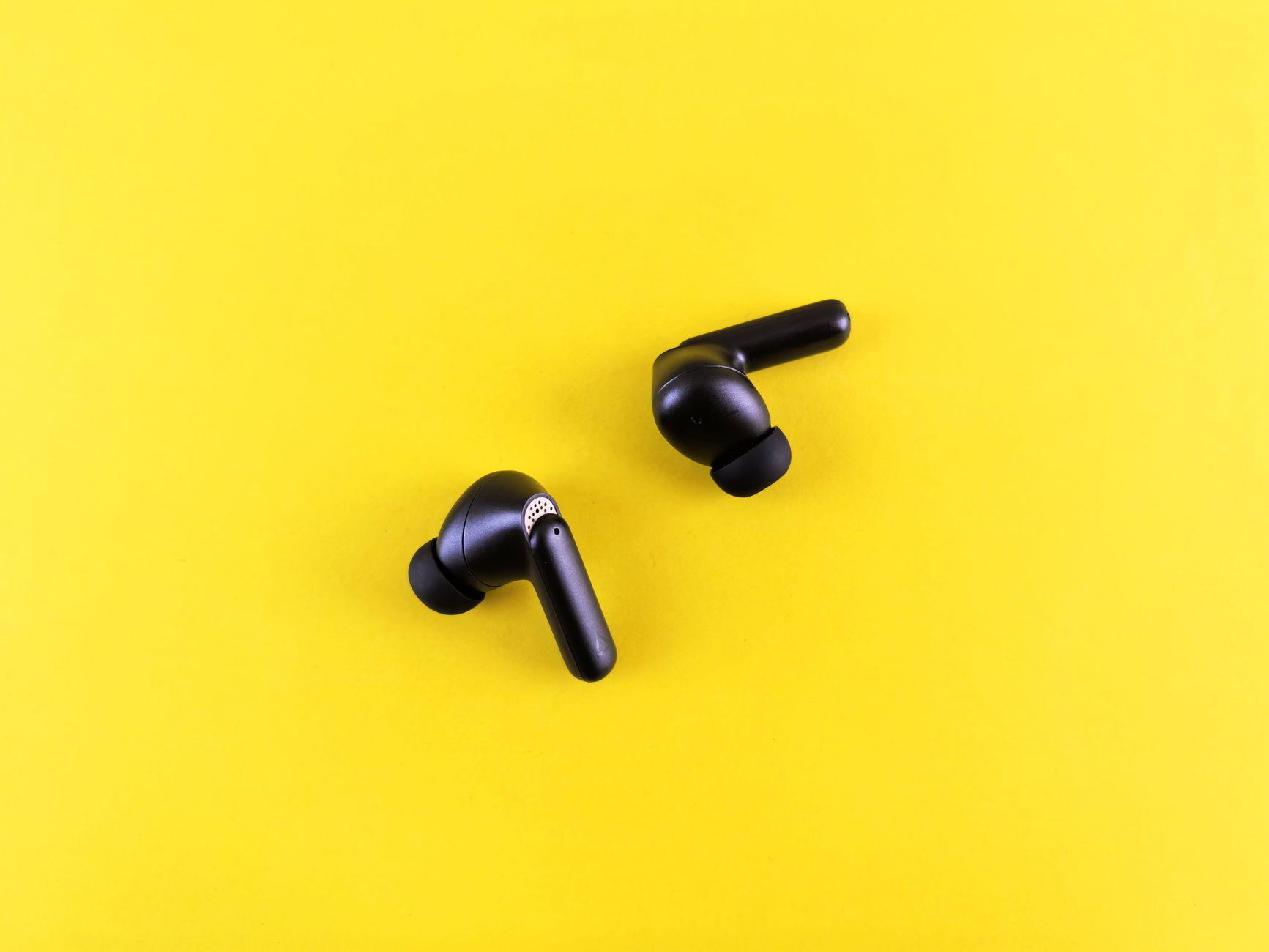
JBL earbuds are popular for their impressive sound quality, comfort, and wireless convenience. Pairing them with your devices can sometimes be tricky, especially if you’re unfamiliar with Bluetooth technology. This guide will provide step-by-step instructions on how to pair JBL earbuds and troubleshoot common connection issues.
With these instructions, you will learn how to connect your earbuds to various devices seamlessly, as well as how to resolve typical pairing problems. Let’s dive in!
How to Pair JBL Earbuds?
To pair JBL earbuds, you need to enable Bluetooth on your device and put the earbuds in pairing mode. This often involves holding down a button on the earbuds until they enter discoverable mode. Each pair of JBL earbuds might have a slightly different process, but these general steps will guide you through the pairing process.
Prerequisites for Pairing JBL Earbuds
- Compatible Device: Ensure you have a device that supports Bluetooth, such as a smartphone, tablet, or laptop.
- Charged Earbuds: Make sure your JBL earbuds are charged. Most models will offer about 5-10 hours of playtime on a full charge.
- Bluetooth Enabled: Verify that Bluetooth is enabled on your device.
Pairing JBL Earbuds with Different Devices
Pairing with Android Devices
- Ensure your JBL earbuds are charged and powered on.
- Go to the “Settings” app on your Android device.
- Select “Connected devices” or “Bluetooth,” depending on your device.
- Enable Bluetooth if it’s off.
- Put your JBL earbuds in pairing mode. Usually, this involves pressing and holding the power button or Bluetooth button.
- Look for your JBL earbuds in the list of available devices. Tap to connect.
- Follow any additional prompts that may appear.
- Once connected, you’ll see a message that confirms the connection.
Pairing with iOS Devices
- Start by charging your JBL earbuds and turning them on.
- Open the “Settings” app on your iPhone or iPad.
- Choose “Bluetooth” from the settings menu.
- Ensure Bluetooth is turned on by sliding the toggle.
- Put your JBL earbuds in pairing mode—this is typically accomplished by holding the power or Bluetooth button.
- Look for your JBL earbuds under “Other Devices.” Tap on the name to initiate pairing.
- Follow any prompts that appear onscreen to complete the connection.
Pairing with Windows Laptops
- Power on your JBL earbuds and make sure they are charged.
- Open the “Start” menu and go to “Settings.”
- Select “Devices” and then click on “Bluetooth & other devices.”
- Toggle Bluetooth to the “On” position.
- Put your JBL earbuds in pairing mode by holding down the appropriate button.
- Click “Add Bluetooth or other device” and select “Bluetooth” from the options.
- Your JBL earbuds should appear in the list. Click on them to start connecting.
- Wait for a confirmation message that the device is connected successfully.
Pairing with macOS Devices
- Make sure your JBL earbuds are turned on and charged.
- Click on the Apple menu and select “System Preferences.”
- Open “Bluetooth.” Ensure Bluetooth is enabled.
- Put your JBL earbuds into pairing mode by holding the designated button.
- Look for your JBL earbuds in the list of devices and select “Connect.”
- Once connected, you will see the earbuds listed as “Connected.”
Troubleshooting Common Pairing Issues
If you encounter issues pairing your JBL earbuds with your device, consider the following troubleshooting tips:
1. Resetting Your JBL Earbuds
Sometimes, resetting your earbuds can solve connection problems. The reset procedure varies depending on the model, but it generally involves:
- Turning off the earbuds.
- Holding down the power button until the lights blink amber and then white.
- Releasing the button and waiting for the earbuds to power down.
- Turning them on and attempting to pair again.
2. Ensuring Bluetooth is Enabled
Verify that Bluetooth is enabled on the device you are trying to connect to. Sometimes, Bluetooth may inadvertently be turned off. Check settings to confirm.
3. Forgetting Previous Connections
If your earbuds have been paired with multiple devices previously, you might need to “forget” them from the device you are currently using:
- Go to Bluetooth settings on your device.
- Find your JBL earbuds in the list of paired devices.
- Tap on the device and choose “Forget” or “Remove.” This clears the previous connection.
- Attempt to pair the earbuds again.
4. Checking Battery Levels
Ensure your JBL earbuds are charged. If the battery is low, they may not connect properly. Charge them for at least 30 minutes before attempting to pair again.
5. Interference from Other Devices
Bluetooth devices can sometimes interfere with each other. Turn off other nearby Bluetooth devices or move to a different location to minimize possible disruptions.
6. Update Device Software
Outdated software can cause connectivity issues. Ensure your device’s operating system is updated to the latest version.
7. Checking for Firmware Updates on JBL Earbuds
If your JBL earbuds support firmware updates, make sure they are up to date by using the JBL app:
- Download the JBL app from the Google Play Store or Apple App Store.
- Open the app and connect your earbuds.
- Follow the instructions for checking and installing firmware updates.
Understanding JBL Earbud Models
Various models of JBL earbuds are available, each featuring slightly different pairing methods. Here’s a quick overview of popular JBL earbud models and their unique functionalities:
| Model | Unique Features |
|---|---|
| JBL Free X | True wireless, sweatproof, intuitive controls |
| JBL Tune 225TWS | Dual connect, hands-free calls, 25 hours of battery life |
| JBL Reflect Flow | Active noise cancellation, 30 hours of playtime |
| JBL Live 300TWS | Voice assistant integration, ambient aware feature |
Benefits of Using JBL Earbuds
- Sound Quality: JBL is renowned for its powerful audio performance, delivering crisp highs and deep bass.
- Comfort: Most models are designed with ergonomics in mind, ensuring a comfortable fit for prolonged use.
- Battery Life: Many JBL earbuds offer long battery life, enabling extended listening sessions without frequent recharging.
- Durability: Many models are water and sweat-resistant, making them suitable for fitness use.
- Versatile Compatibility: JBL earbuds can connect to various devices, providing flexibility for users.
Conclusion
Pairing your JBL earbuds should be a straightforward process. By following the steps outlined in this guide, you can connect them to your devices quickly and efficiently. If you encounter any issues, the troubleshooting tips provided can help resolve most connection problems.
If you continue to experience difficulties or want to ensure your earbuds are functioning optimally, consider reaching out to JBL customer support for further assistance.
For more technology tutorials and guides, feel free to explore useful topics such as how to pair AirPods to a laptop and how to put AirPods in pairing mode.