
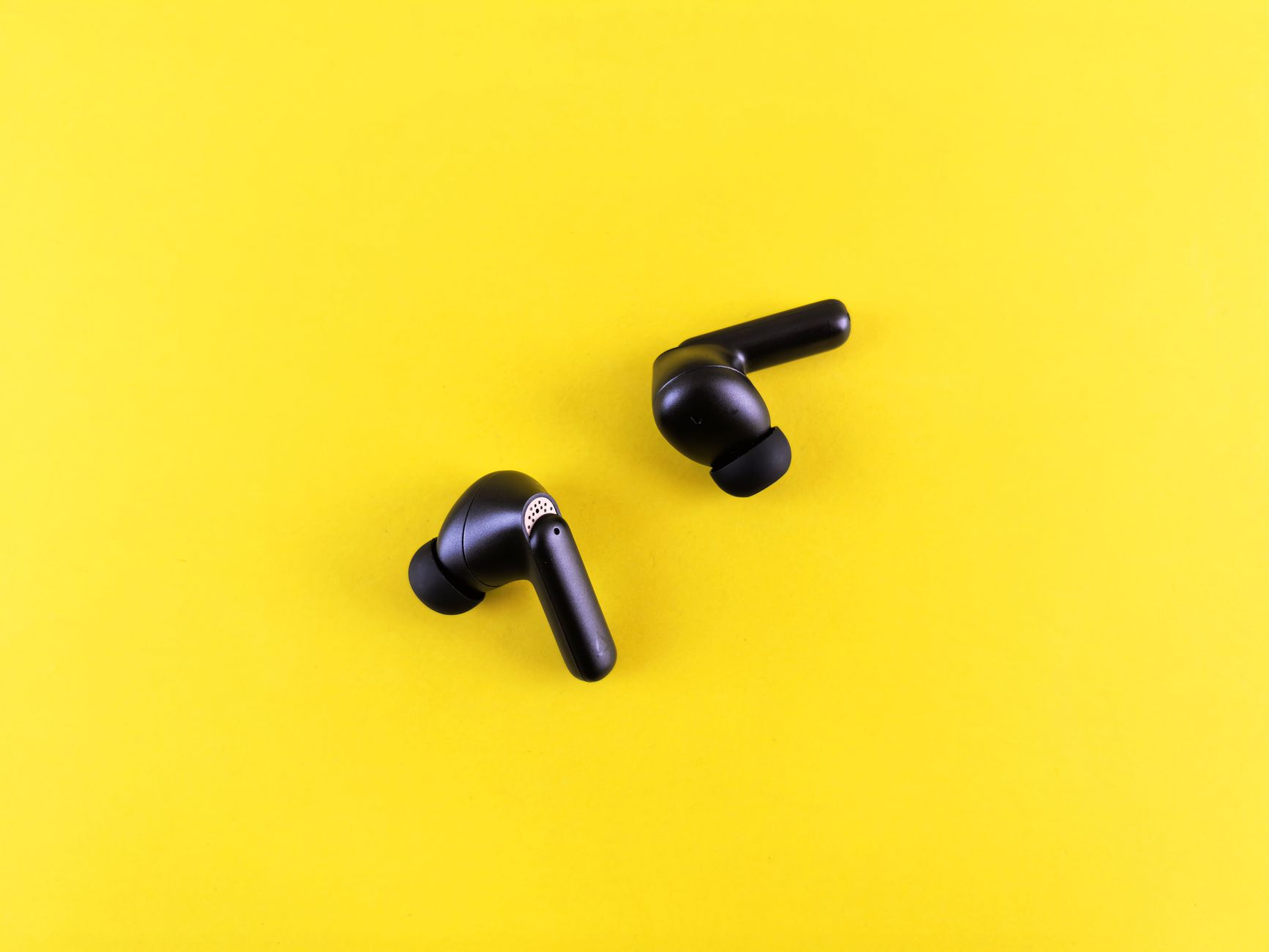
AirPods are a popular accessory that offer convenient wireless audio experiences for Apple users and beyond. Whether you are listening to music, conversing on a call, or enjoying a podcast, knowing how to put AirPods in pairing mode is essential for seamless connectivity. In this article, we will guide you through the process of activating pairing mode, along with additional tips for setup and troubleshooting.
Pairing your AirPods with devices is a straightforward process. However, for new users or those who encounter issues, it can sometimes lead to confusion. This guide covers everything from the steps to initiate pairing mode, the types of devices compatible with AirPods, to troubleshooting common connection problems.
How to Put AirPods in Pairing Mode?
To put your AirPods in pairing mode, follow these simple steps:
- Make sure your AirPods are charged and removed from the charging case.
- Ensure Bluetooth is enabled on the device you wish to pair with. This could be an iPhone, iPad, Mac, or another Bluetooth-capable device.
- Hold the button on the back of the AirPods charging case until the LED indicator flashes white.
- On your device, navigate to the Bluetooth settings, and select your AirPods from the list of available devices.
When you successfully put your AirPods in pairing mode, the LED light on the front of the charging case will flash white, indicating that they are discoverable by other devices.
Prerequisites for Pairing AirPods
Before you start, ensure you have the following:
- An Apple device (iPhone, iPad, or Mac) or other Bluetooth-enabled device.
- Fully charged AirPods and their charging case.
- Latest software updates installed on your device for optimal performance.
Step-by-Step AirPods Pairing Guide
For iPhone or iPad
Pairing AirPods with an iPhone or iPad is particularly easy. Here’s how:
- Open the lid of your AirPods charging case without removing the AirPods.
- Place the case near your iPhone or iPad.
- Follow the on-screen setup animation that appears on your device. Tap “Connect.”
- Once connected, you’ll see the battery status of both your AirPods and the charging case.
For Mac
The pairing process for a Mac is also straightforward:
- Click on the Apple menu and then select “System Preferences.”
- Select “Bluetooth.”
- With the lid open, hold the button on the back of the AirPods case until the light flashes white.
- In the Bluetooth window, your AirPods should appear. Click “Connect.”
For Other Bluetooth Devices
If you’re connecting your AirPods to a non-Apple device, follow these steps:
- Ensure your AirPods case is open.
- Press and hold the button on the back of the case until the light starts flashing white.
- On the Bluetooth device (such as an Android phone or Windows laptop), go to Bluetooth settings and search for new devices.
- Select your AirPods from the list to pair.
Confirming Successful Pairing
Once your AirPods are successfully connected, you will hear a confirmation sound in the AirPods. Additionally, the Bluetooth settings on your device will show the AirPods as connected. Here are a few checks you can perform:
- Look for the AirPods’ name in your Bluetooth settings.
- Check the battery status of the AirPods and charging case.
- Play audio to ensure sound is successfully routed to the AirPods.
Troubleshooting Common Pairing Issues
Even though pairing AirPods is usually trouble-free, occasionally users may encounter issues. Here are some common problems and their fixes:
AirPods Not Appearing in Bluetooth List
- Ensure AirPods are in pairing mode: The LED light should flash white.
- Restart your device’s Bluetooth. Sometimes toggling Bluetooth off and on can resolve connection issues.
- Ensure your device is within range—typically no farther than 30 feet (10 meters) away.
AirPods Won’t Connect
- Disconnect and forget the AirPods from your device’s Bluetooth settings, then repeat the pairing process.
- Restart your AirPods by placing them back in the charging case, closing the lid, and then removing them again.
Audio Issues or Delays
- Check whether there are any obstructions between the AirPods and the device that could be causing interference.
- Restart the device that your AirPods are connected to. This can clear temporary issues.
Using Multiple Devices
If you own multiple Apple devices, AirPods can seamlessly switch between them, provided they are all signed in with the same Apple ID. To ensure this feature works:
- Go to “Settings” → “Bluetooth” on your iPhone or iPad and ensure your AirPods are connected.
- On your Mac, ensure that your AirPods are also listed under “Bluetooth” within System Preferences.
- Use your device normally; if, for example, you get a call on your iPhone, your AirPods will automatically switch to it. Just be sure ‘Automatic Switching’ is enabled in your AirPods settings.
Resetting Your AirPods
In some cases, resetting your AirPods may help resolve persistent issues. Here’s how to reset them:
- Place the AirPods in the charging case and keep the lid open.
- Press and hold the button on the back of the case for about 15 seconds until the LED light flashes amber, then flashes white.
- Remove the AirPods from the case and pair them with your device again as if they are new.
Tips for Maintaining Your AirPods
To enhance the longevity and performance of your AirPods, consider following these maintenance tips:
- Store your AirPods in the charging case when not in use to prevent them from getting damaged.
- Keep your AirPods clean by wiping them down with a soft, dry cloth. Avoid getting moisture in the openings.
- Regularly check for software updates on your devices to ensure optimal compatibility.
Alternative Wireless Earbuds
If your experience with AirPods is not as expected, or if you are searching for alternatives, consider these other wireless earbuds:
Samsung Galaxy Buds
These earbuds are excellent for Android users and offer great sound quality along with features like touch controls and ambient sound mode.
Bose QuietComfort Earbuds
Known for their superior noise cancellation, these earbuds provide an excellent audio experience and are comfortable for extended wear.
Sony WF-1000XM4
With high-quality sound and noise-cancellation features, this option is ideal for audiophiles who prioritize sound quality and style.
Conclusion
Learning how to put AirPods in pairing mode is a fundamental skill that allows you to enjoy the full benefits of your wireless audio experience. By following the detailed steps outlined in this guide, you can configure and troubleshoot your AirPods effectively. If you encounter issues, remember to check the troubleshooting section for help.
Be sure to explore our other tutorials on how to pair AirPods to iPhone and how to pair AirPods to a laptop for further information and assistance.