
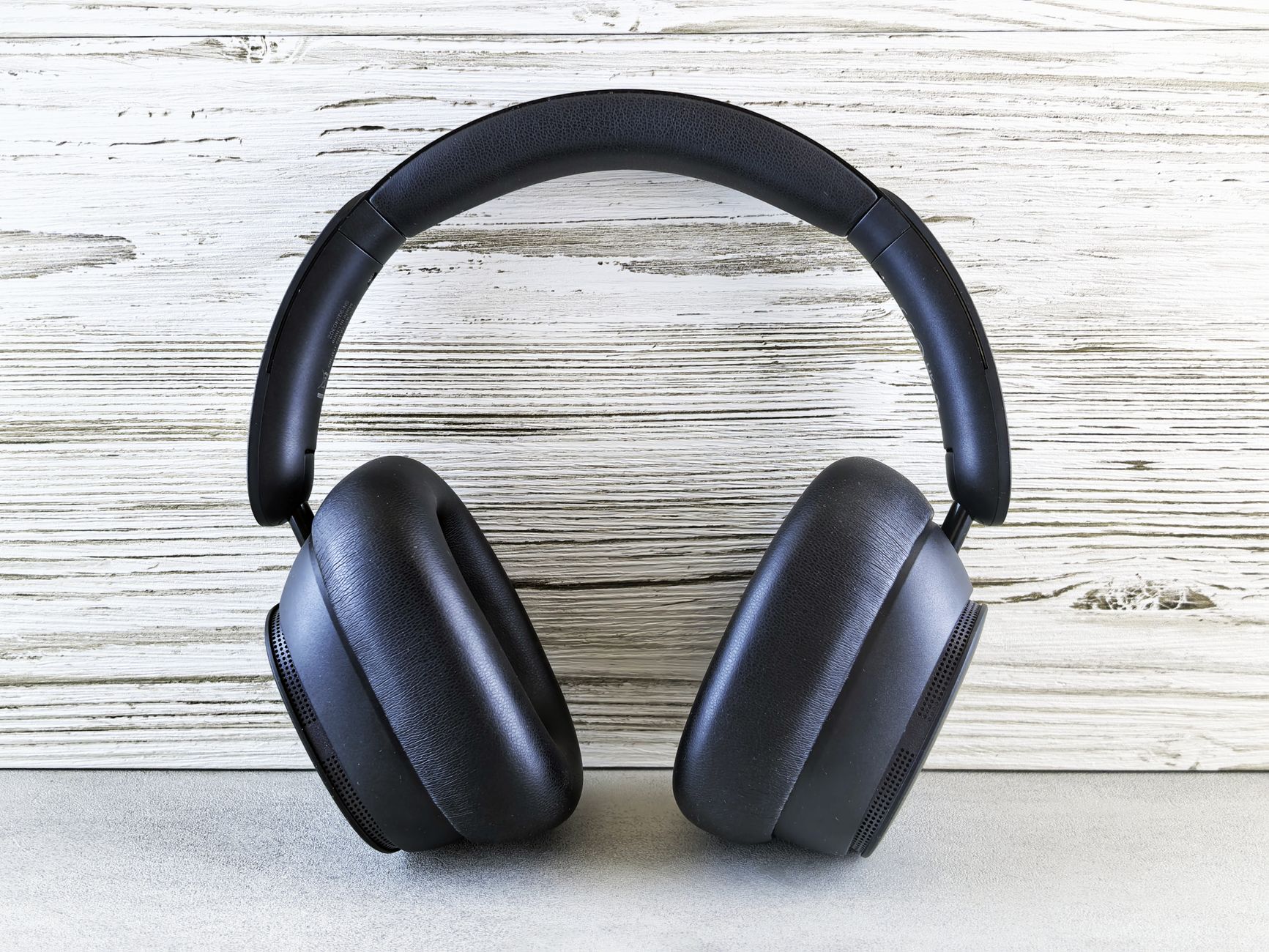
Noise-canceling technology in headphones has revolutionized the way we experience audio, helping users immerse themselves in their favorite music, podcasts, or movies without disturbances from the outside world. Apple has incorporated this technology into its AirPods Pro, making them a popular choice among audio enthusiasts and everyday users alike.
In this guide, we will walk you through the steps to turn on noise cancelling on your AirPods Pro, as well as share troubleshooting tips and information to help you make the most of this feature.
How to Turn on Noise Cancelling on AirPods?
To activate noise cancelling on your AirPods Pro, you will need to use either your iPhone, iPad, or the AirPods themselves. Follow the steps outlined below to enable noise cancelling mode effectively.
Prerequisites
- Ensure that you own AirPods Pro as noise cancelling features are not available on other AirPods models.
- Make sure that your AirPods Pro are fully charged or at least have sufficient battery.
- Check if your AirPods Pro are connected to your Apple device via Bluetooth.
- Ensure your device (iPhone/iPad) is updated to the latest iOS version.
Turning On Noise Cancelling Using an iPhone or iPad
Here are the steps for enabling noise cancelling on AirPods Pro through an iPhone or iPad:
- Connect your AirPods Pro to your iPhone or iPad by opening the charging case near your device.
- Once connected, go to the Settings app on your iPhone or iPad.
- Scroll down and tap on Bluetooth.
- Locate your AirPods Pro in the list of devices and tap the i icon next to them.
- In the menu that opens, find the section labeled Noise Control.
- Tap on Noice Cancellation to turn it on. You will see a checkmark indicating that it is enabled.
Using the AirPods Pro Controls
If you prefer a more direct approach, you can turn on noise cancelling by using the controls on your AirPods Pro. Here’s how:
- Wear your AirPods Pro.
- Press and hold the force sensor located on the stem of either AirPod. Hold it for a few seconds until you hear a switch sound, indicating that noise cancellation has been activated.
- To switch back to Transparency mode or turn off noise cancellation, simply press and hold the force sensor again.
Understanding Noise Cancellation and Transparency Modes
AirPods Pro features two distinct ways to manage sound: Noise Cancellation and Transparency mode. Understanding their functionality can enhance your listening experience.
Noise Cancellation
This mode is designed to block out external sounds effectively. Ideal for noisy environments, such as planes, trains, or busy streets, noise cancellation uses built-in microphones to detect external noise and counteract it with sound waves, creating a quieter listening experience.
Transparency Mode
In contrast, Transparency mode allows outside sounds to filter through while you listen to your audio. This is particularly useful when you need to be aware of your surroundings, like when you’re walking in a busy area or talking to someone while wearing your AirPods Pro.
Adjusting Noise Control Settings
In addition to simply turning noise cancellation on and off, you can customize how you use these modes from your device settings:
- Go back to the Bluetooth settings where your AirPods Pro is listed.
- Tap the i icon next to the AirPods Pro.
- Here, you can set what happens when you press and hold the force sensor. You can select between switching between Noise Cancellation and Transparency mode, or to turn off your AirPods.
Troubleshooting Noise Cancelling Issues
If you’re having trouble turning on noise cancelling or if it seems to be malfunctioning, here are some troubleshooting steps to consider:
Check for Firmware Updates
Outdated firmware can sometimes cause performance issues. Here’s how to check for updates:
- Connect your AirPods Pro to your iPhone or iPad.
- Open the Settings app.
- Select Bluetooth and find your AirPods Pro.
- Tap the i icon, and scroll down to the Version number.
- If the firmware is outdated, updates are generally applied automatically when your AirPods are connected to a power source and near an iPhone or iPad.
Resetting Your AirPods Pro
If noise cancelling still doesn’t work after checking updates, it might be helpful to reset your AirPods Pro:
- Put your AirPods Pro in their charging case.
- Keep the lid open, and press and hold the setup button on the back of the case until you see the status light flashing amber.
- Release the button, close the lid, and wait for about 30 seconds.
- Open the case near your iPhone or iPad to reconnect them.
Common Errors and Fixes
Below are some common issues users encounter with noise cancelling and their likely solutions:
Noise Cancelling Is Not Working
- Ensure the AirPods Pro are properly seated in your ears for effective sound isolation.
- Double-check the Noise Control settings for correct configuration.
- Try cleaning your AirPods Pro; earwax or debris can interfere with the performance.
AirPods Pro Connect, But Noise Cancelling Doesn’t Activate
- Double-check that the AirPods Pro are charged adequately.
- Reset your AirPods as outlined above to resolve potential software glitches.
- If all else fails, contact Apple Support for professional assistance.
Using Noise Cancelling Effectively
Maximize the benefits of noise cancellation by keeping the following tips in mind:
- Ensure a proper fit by using the ear tips that come in different sizes to find the best fit that seals off external noise.
- Engage noise cancellation during commutes, workouts, or while studying for a focused listening experience.
- Monitor the battery level, as prolonged use of noise cancellation can drain the battery faster.
Alternatives to AirPods Pro Noise Cancelling
If, after trying the AirPods Pro noise cancelling feature, you find it does not meet your needs, here are some alternatives:
- Sony WH-1000XM4: Known for exceptional noise cancelling features and extensive customization.
- Bose QuietComfort 35 II: Offers top-notch noise cancelling and comfort for long listening sessions.
- Microsoft Surface Headphones: Provides decent noise cancelling abilities along with an intuitive control scheme.
Conclusion
Turning on noise cancelling on your AirPods Pro is a straightforward process, whether you opt to use your iPhone, iPad, or the AirPods themselves. Once activated, the noise cancelling feature can significantly enhance your listening experience by blocking unwanted distractions. If you encounter issues, you now have troubleshooting steps to guide you toward a resolution.
For further information about your AirPods, you can learn how to reset your AirPods Pro or check the battery level of your AirPods. Exploring these guides will help you optimize your use of this versatile and popular tech product.