
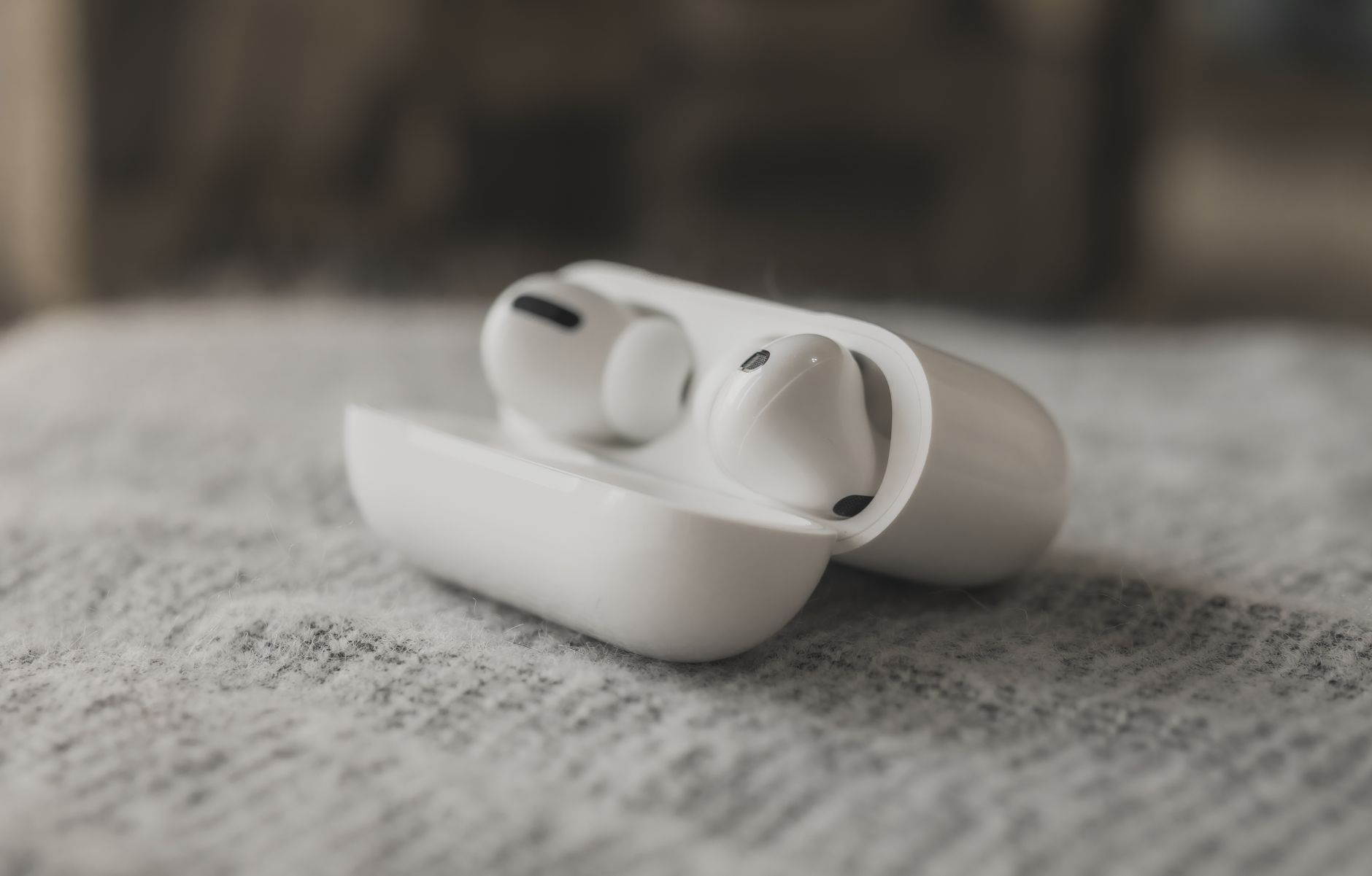
The AirPods Pro have gained popularity due to their innovative noise cancellation features, seamless connectivity, and impressive sound quality. But like any technology, users may encounter issues that require a reset. Learning how to reset your AirPods Pro can help resolve these problems and restore optimal performance. This comprehensive guide covers the steps to successfully reset your AirPods Pro, including troubleshooting pairing issues and setting them up again.
Whether you’re experiencing connectivity troubles, changes in sound quality, or simply wish to pair them with a new device, knowing how to reset AirPods Pro is a valuable skill. In this article, we’ll walk through the reset process, including button operations, settings adjustments, and setup steps afterward.
How To Reset AirPods Pro?
To reset your AirPods Pro, you need to follow a specific sequence of steps to disconnect and clear them from any paired devices. The reset process restores factory settings, erasing any custom configurations. This guide provides step-by-step instructions to help you reset and reconfigure your AirPods Pro easily.
Prerequisites for Resetting AirPods Pro
- Ensure that your AirPods Pro are charged. Low battery may interfere with the reset process.
- Have a compatible device on hand (iPhone, iPad, or Mac) if you want to pair them afterward.
- Familiarize yourself with basic controls, such as the usage of the charging case and the force sensor on the AirPods Pro.
Steps to Reset Your AirPods Pro
- Place AirPods in the Charging Case: Ensure both AirPods Pro are inside their charging case and that the lid is closed.
- Open the Charging Case: Open the lid of the charging case without removing the AirPods Pro.
- Put AirPods Pro in Pairing Mode: Press and hold the button on the back of the case. Keep holding the button until the status light on the front starts flashing amber and then white. This indicates that your AirPods are now in pairing mode.
- Disconnect from Device: Go to the Bluetooth settings on your device (iPhone, iPad, or Mac) and forget the AirPods Pro from the list of connected devices. This ensures that they are not associated with your device.
- Close the Lid: Close the lid of the charging case. Wait for about 30 seconds to ensure that the reset process has completed.
- Reconnect AirPods Pro: Open the lid of the charging case near your device to initiate the pairing process again. Follow the on-screen instructions to complete the setup.
Visual Indicator and Confirmation
During the reset process, the flashing status light is a crucial visual indicator. The light will first flash amber when resetting and then turn white when the reset is complete and the AirPods are ready to pair. If you see a steady white light, it means your AirPods Pro are in pairing mode and can be connected to your devices.
Common Issues When Resetting AirPods Pro
Despite following the reset instructions, some users may still face difficulties. Here are a few issues that may arise and how to troubleshoot them:
1. AirPods Not Pairing After Reset
If your AirPods do not pair with your device after reset, try the following:
- Ensure Bluetooth is enabled on your device.
- Move closer to your device (within Bluetooth range).
- Restart your device to refresh the Bluetooth connections.
2. AirPods Not Charging
If your AirPods Pro do not seem to charge, follow these troubleshooting steps:
- Check that the charging case has battery life. Connect it to a power source to charge.
- Inspect the lightning connector and charging cable for damage.
- Clean the charging contacts on both the case and AirPods with a soft, dry cloth to remove any debris.
3. Sound Issues Persisting After Reset
If you encounter quality issues even after resetting, consider the following:
- Ensure that the AirPods Pro are clean, particularly the microphone and speaker mesh.
- Check audio settings on your connected device, ensuring equalizer or spatial audio settings do not interfere.
- Verify that software on the device is up-to-date.
How to Pair Your AirPods Pro Again
Once you have reset your AirPods Pro, you can pair them with your device anew. The process is straightforward and can be completed in a few easy steps:
- Open the Case: Ensure that the AirPods Pro are in the charging case and open the lid near your iPhone, iPad, or Mac.
- Follow On-Screen Instructions: A prompt should appear on your device’s screen, guiding you through the remaining pairing process.
- Complete Setup: Follow additional prompts to customize your settings, like enabling noise cancellation or transparency modes.
Final Thoughts on AirPods Pro Reset
Resetting your AirPods Pro is quite beneficial when encountering connectivity issues or performance inconsistencies. With a simple reset process, you can restore factory settings, which often resolves many common problems.
The reset process effectively clears any pairing history, allowing users to start fresh, especially when connecting to new devices. Regular maintenance, like keeping them clean and ensuring the software and firmware are updated, can prolong the life of your AirPods Pro.
For further assistance, Apple provides extensive support resources online, including guides on troubleshooting specific issues. Refer to those resources if you continue to face difficulties after following this guide.
Now that you’re equipped with the knowledge to reset and set up your AirPods Pro again, take a moment to enjoy their pristine audio performance! If you encounter further issues, consider checking out our related articles for additional insights.
To explore more tech tutorials or guides, check out why your AirPods keep disconnecting and learn how to find lost AirPods. These resources may offer additional solutions to any issues you experience.