
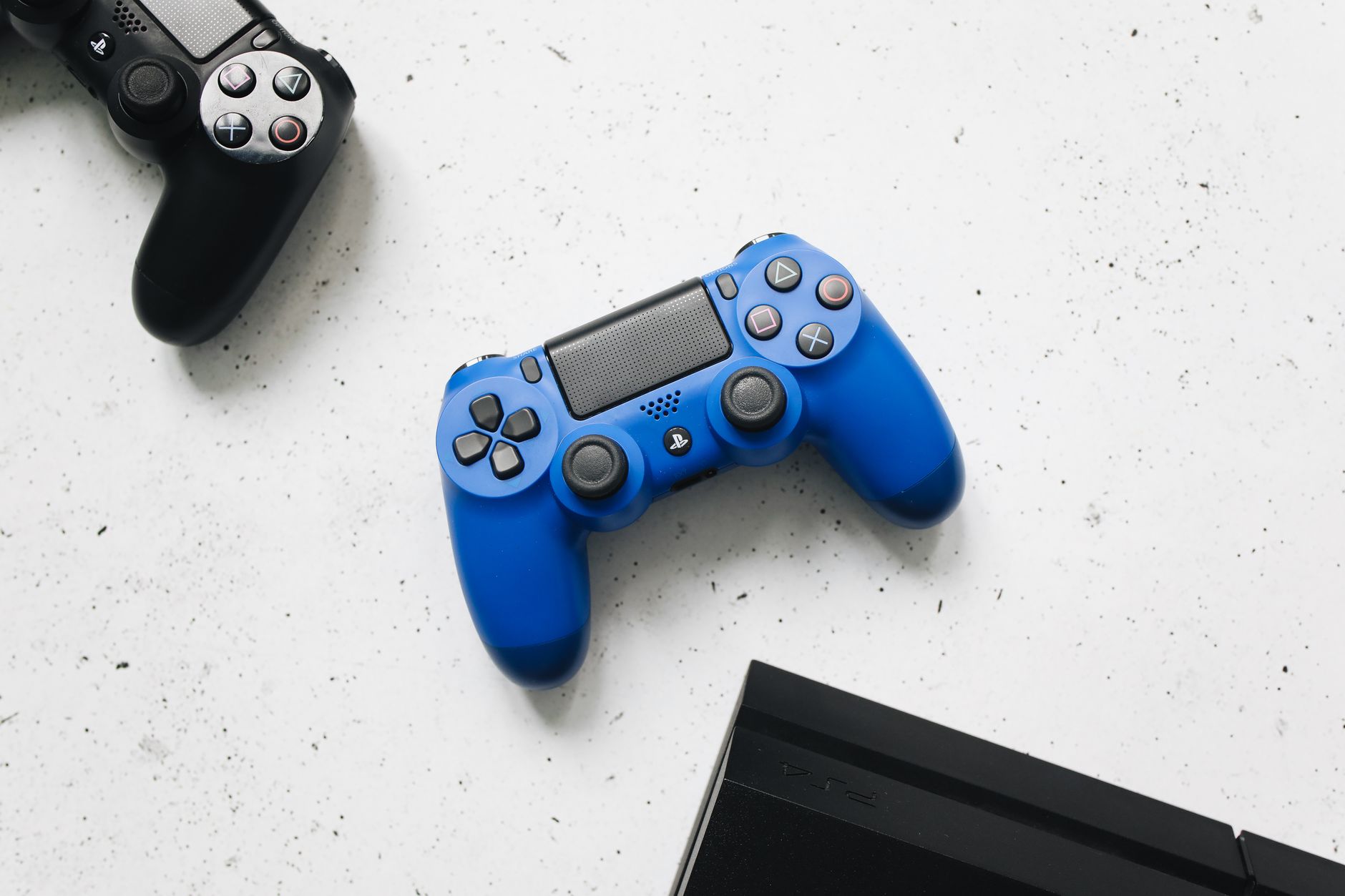
Connecting a PS4 controller to your PC can significantly enhance your gaming experience. Whether you want to play your favorite titles on Steam or emulate console games, using a controller provides a more comfortable setup. This guide will cover both wired and wireless connection methods, along with troubleshooting tips.
By the end of this article, you will know how to connect your PS4 controller to your PC easily. We will walk through prerequisites, necessary software, and detailed step-by-step instructions for various operating systems.
How to Connect PS4 Controller to PC?
To connect a PS4 controller to your PC, you can either use a USB cable for a wired connection or Bluetooth for wireless connectivity. Each method has its benefits, and this article will explain how to set up both options.
Prerequisites for Connecting PS4 Controller to PC
- A PlayStation 4 controller (DualShock 4)
- A Windows PC (running Windows 7, 8, 10, or 11)
- A USB cable (for wired connection) or Bluetooth capability (for wireless connection)
- Steam or DS4Windows software (optional, for better compatibility)
Method 1: Connecting via USB Cable
The simplest way to connect your PS4 controller to a PC is by using a USB cable. Here’s how to do it:
- Connect one end of the USB cable to your PS4 controller and the other end to a USB port on your PC.
- Your PC should automatically detect the controller. After a few moments, the controller will be ready to use. You might see a notification indicating that new hardware has been installed.
- You can now launch your preferred game or gaming platform (like Steam) to check if the controller works properly.
Method 2: Connecting via Bluetooth
If you prefer a wireless method, connecting via Bluetooth is an excellent option. Here are the steps to set up your PS4 controller wirelessly:
- Ensure your PC has Bluetooth capabilities. If not, you might need to purchase a Bluetooth adapter.
- On your PC, navigate to the “Settings” app.
- Click on “Devices” and ensure that Bluetooth is turned on.
- Press and hold the
Sharebutton and thePSbutton on your PS4 controller simultaneously until the light bar begins to flash. - Once in pairing mode, return to the “Bluetooth & other devices” settings on your PC.
- Click on “Add Bluetooth or other device.”
- Select “Bluetooth” and wait for your controller to appear in the list. It may take a moment if this is your first time pairing.
- Click on the controller when it appears and choose “Pair” to complete the connection.
Using Your PS4 Controller
Once connected, you can use the PS4 controller to navigate activities on your PC. The controller should be recognized in most modern games. Here’s what you can expect:
- Games on Steam and other platforms will usually recognize the controller automatically.
- If certain buttons do not respond as expected, you may need to configure controls within the game settings.
- Some games may require additional software for optimal performance or compatibility.
Software Solutions for Enhanced Compatibility
While a PS4 controller can be connected directly, using third-party software can improve your gaming experience and control mapping. Two popular options are:
1. Steam’s Built-in Controller Support
If you are using Steam, it provides built-in support for PS4 controllers. Simply follow these steps:
- Open Steam and go to “Settings.”
- Click on the “Controller” tab.
- Select “General Controller Settings.”
- Check the box for “PlayStation Configuration Support.”
- This enables you to customize button layouts and calibrate your controller for specific games.
2. DS4Windows for Advanced Configuration
If you need more advanced features, DS4Windows is a popular tool. This software allows custom button mapping, profiles, and better compatibility overall:
- Download DS4Windows from the official website.
- Extract the downloaded ZIP file and run
DS4Windows.exe. - Follow the setup prompts, ensuring you install the necessary drivers.
- Connect your PS4 controller via USB or Bluetooth.
- Create and configure controller profiles as needed.
Troubleshooting Common Issues
If you encounter problems while connecting your PS4 controller to PC, here are some common issues and their potential fixes:
1. Controller Not Recognized
If your controller isn’t detected:
- Ensure your USB cable is functional or try a different port.
- If using Bluetooth, confirm that Bluetooth is enabled on your PC.
- Check if your controller is in pairing mode (light bar flashing).
2. Input Lag or Connectivity Issues
If you’re experiencing input lag during gameplay:
- For wired connections, try using a different USB port, preferably on the back of the PC.
- For wireless, ensure a clear line of sight between the controller and the PC.
- Interference from other Bluetooth devices could also cause issues; try to minimize this.
3. Game Not Recognizing Controller
If a specific game doesn’t recognize your controller:
- Check the game settings to see if there’s an option to use a controller.
- Try restarting the game to refresh input detection.
- Consider using DS4Windows to force the game to recognize the PS4 controller.
Alternative Controller Options
If you’re not having success with the PS4 controller or prefer something different, consider these alternatives:
1. Xbox Controller
Xbox controllers have native support across most Windows operating systems and may connect more seamlessly.
2. Other PC Gamepads
Other third-party gamepads can provide similar functionality. Look for options that advertise compatibility with Windows PCs.
Conclusion
Connecting your PS4 controller to a PC is easy and can greatly enhance your gaming experience. Whether using a wired connection or Bluetooth, you can enjoy the freedom of using a controller across various titles. If you encounter issues, remember the troubleshooting tips provided above, and consider leveraging software like Steam or DS4Windows for advanced features.
If you’re interested in continuing to expand your tech knowledge, check out our guide on how to connect a PS4 controller for more tips and tricks!