
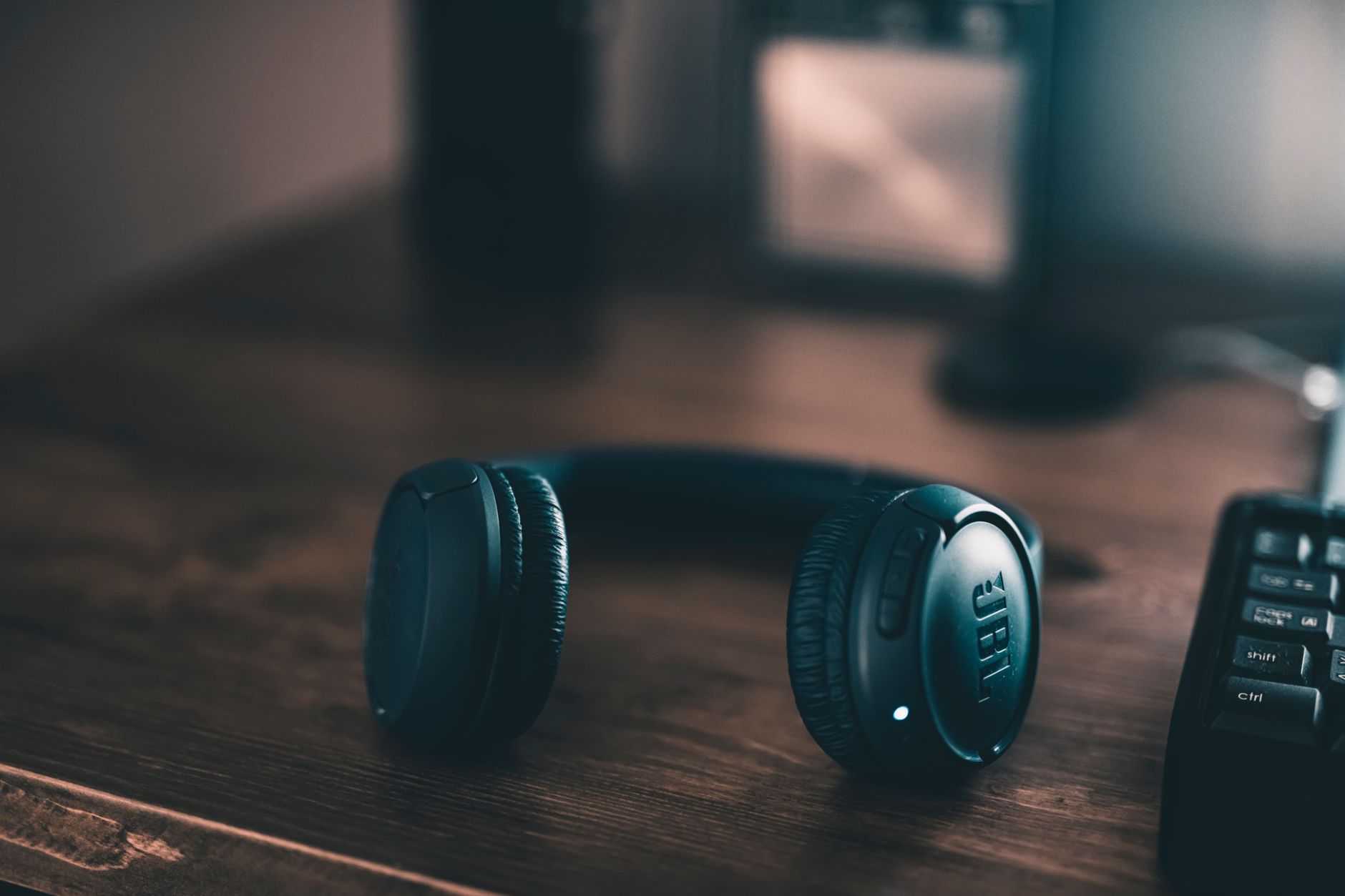
Wireless Bluetooth headphones have become essential for audio enthusiasts and casual listeners alike. However, like any electronic device, they may encounter issues that require resetting. In this guide, we will walk you through how to reset Bluetooth headphones effectively, providing practical steps and tips for various brands and models.
Understanding when and why to reset your headphones can save you time and hassle. This article covers common scenarios and detailed instructions to help you reset your headphones successfully.
How to Reset Bluetooth Headphones?
To reset Bluetooth headphones, you typically need to perform a combination of button presses or use a specific pairing process. The exact method may vary by model, but you will generally restore the headphones to their factory settings. This can resolve connectivity issues and restore default configurations.
Common Scenarios That Require a Reset
Before diving into the reset methods, here are some common situations where a reset may be necessary:
- Your headphones won’t connect to your device.
- They keep disconnecting during use.
- Audio quality is poor or distorted.
- Buttons or controls are not functioning properly.
- You want to pair them with a new device.
General Steps to Reset Bluetooth Headphones
While each brand may have its specific method, the general steps for resetting Bluetooth headphones usually involve the following:
- Ensure your headphones are charged.
- Turn off the headphones.
- Press and hold a specific button or combination of buttons to enter the reset mode.
- Observe any LED indicators or sounds to confirm the reset.
- Reconnect the headphones to your device.
Resetting Popular Bluetooth Headphone Brands
Below, we will discuss how to reset some of the most popular Bluetooth headphone models available in the market.
Apple AirPods (All Versions)
- Place AirPods in their charging case and keep the lid open.
- Press and hold the Setup button on the back of the case until the LED light flashes amber, then white.
- Close the lid and then reconnect them to your device.
Sony Wireless Headphones
For most Sony Bluetooth headphones:
- Turn off the headphones.
- Press and hold the power button for about 7 seconds until the indicator light flashes red and blue.
- Release the button and wait for the headphones to reset.
Bose SoundLink Headphones
- Power on your headphones.
- Press and hold the Power and Volume Down (-) buttons simultaneously for about 10 seconds.
- Release both buttons when you hear a voice prompt stating that the headphones have been reset.
Jabra Wireless Headphones
- Ensure your headphones are turned off.
- Press and hold the Volume Up (+) and Multi-Function buttons simultaneously for about 5 seconds.
- The LED will flash to indicate the reset is successful.
Samsung Galaxy Buds
- Place your Galaxy Buds in the charging case, and ensure the lid is closed.
- Keep the case open while simultaneously holding the touch sensors on both earbuds for about 10 seconds.
- Release when you hear a sound indicating the reset is complete.
Additional Setup Tips
When resetting your Bluetooth headphones, follow these additional tips to ensure a smooth experience:
- Clear Bluetooth device cache on your phone or computer before reconnecting.
- Ensure your operating system and Bluetooth drivers are updated.
- Proximity matters; keep your headphones close to the device you intend to connect them to.
- Unpair the headphones from all devices before attempting to reset.
- Consult your specific model’s user manual for detailed instructions.
Troubleshooting Post-Reset Issues
If your headphones still have issues after resetting, consider the following troubleshooting steps:
Updating Firmware
Many modern Bluetooth headphones have firmware updates that can enhance performance and fix bugs. Check the manufacturer’s website for updates or use a companion app to do so.
Check Bluetooth Connection
Ensure that your device’s Bluetooth is functioning properly. You can try connecting other Bluetooth devices to see if the issue persists.
Interference Problems
Bluetooth devices can experience interference from other electronic devices. Try moving away from devices like microwaves or Wi-Fi routers.
Battery Health
Double-check that your headphones are adequately charged. A weak battery can cause connectivity issues and performance variability.
Physical Damage
Inspect your headphones for any signs of physical damage. If they have sustained damage, the reset may not resolve the issues.
When to Seek Professional Help
If all else fails, you may need to consider seeking help from the manufacturer’s customer service team. Professional assistance may also be necessary if you suspect hardware failure or battery issues.
Conclusion
Resetting Bluetooth headphones is often a straightforward process that can rectify many common issues. With the right approach, you can easily restore your headphones to their factory settings and enhance your listening experience. Always refer to your model-specific instructions and be prepared to troubleshoot if problems persist.
For further assistance, check out our guides on resetting AirPods Pro and on how to restart Bluetooth service on Windows for more insights into Bluetooth device management.