
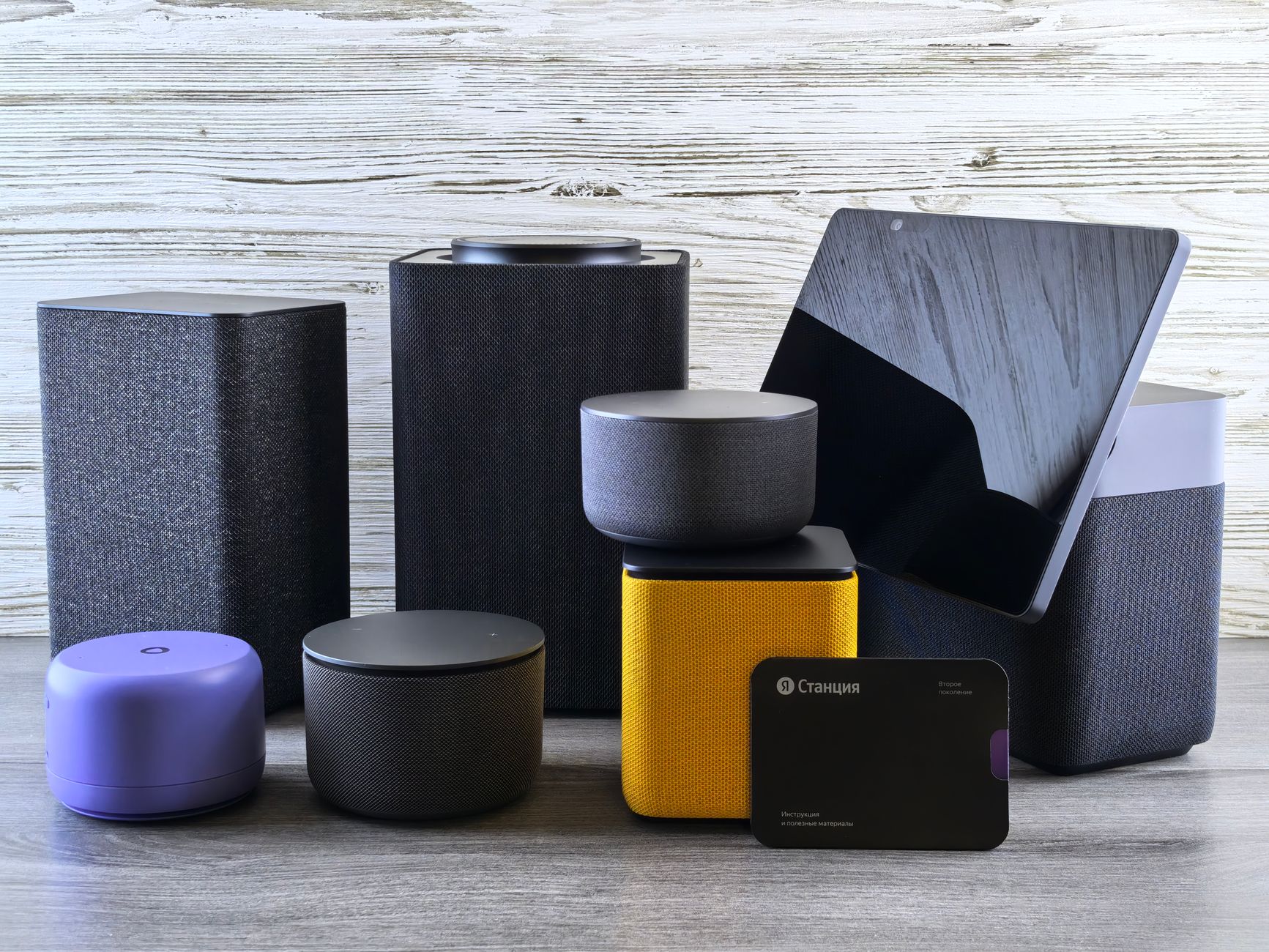
Keeping your devices personalized can greatly enhance your experience, and one of the most customizable aspects of Amazon’s Alexa is its voice. Changing Alexa’s voice can be a fun way to refresh your interactions with the virtual assistant and make it more appealing to your preferences.
In this article, we will explore how to change Alexa’s voice through various settings and customization options, ensuring you get the voice that suits your style or mood. Let’s dive into the steps you need to follow to alter Alexa’s voice on your devices.
How to Change Alexa Voice?
Changing Alexa’s voice is a straightforward process that can be easily executed via the Alexa app or through your device’s settings. You can choose from a variety of voices and accents, enabling a range of conversational styles.
Understanding Your Options
Before diving into the steps, it’s essential to understand what types of voice customizations are available. Here’s what you can typically change:
- Voice Selection: Choose different voice options, including accents and genders.
- Celebrity Voices: Switch to certain celebrity voices in specific countries, available for a limited time or through specific commands.
- Speech Rate: Adjust how quickly or slowly Alexa speaks.
Prerequisites
Before you start changing Alexa’s voice, ensure you meet the following prerequisites:
- You need a compatible Alexa device, such as an Echo or Echo Dot.
- The Alexa app installed on your smartphone or tablet (available for iOS and Android).
- Your device must be connected to the internet.
- The latest software version of Alexa should be installed.
Steps to Change Alexa’s Voice Using the Alexa App
The simplest way to change Alexa’s voice is through the Alexa app. Follow these steps:
- Open the Alexa App: Launch the Alexa app on your mobile device.
- Select Devices: Tap on the “Devices” icon located at the bottom of the screen.
- Choose Your Device: From the list of devices, tap on the Echo device for which you want to change the voice.
- Go to Settings: Tap on the gear icon to access the device settings.
- Select Device Settings: Scroll down and choose “Alexa’s Voice.”
- Choose a Voice: You will see different voice options available. Select the voice you prefer.
- Confirm Your Selection: After selecting the voice, confirm your selection by tapping “OK” or “Done.”
Upon completion, you will hear Alexa speak in the new voice the next time you interact with her.
Changing Alexa’s Voice via Voice Commands
In some cases, you can also change Alexa’s voice using voice commands. Here’s how:
- Simply say, “Alexa, change your voice.”
- Alexa will respond by presenting voice options if available.
- Follow the prompts to select the desired voice.
This feature may not be available in all regions, so if it doesn’t work, refer back to the app method.
Adjusting the Speech Rate
Besides changing the voice, you can also adjust how fast or slow Alexa speaks. Here’s how you can do that:
- Open the Alexa App: As before, launch the Alexa app.
- Select Devices: Tap on “Devices” at the bottom.
- Choose Your Device: Select the device for which you want to adjust the speech rate.
- Device Settings: Access the gear icon and select “Device Settings.”
- Adjust Speech Rate: Look for the “Speech Rate” option and select your preferences.
After adjusting the speech rate, Alexa will apply the changes the next time you interact with her.
Special Voices and Features
Another exciting aspect of Alexa is the availability of special celebrity voices. Here’s how to utilize this feature:
- Enable Celebrity Voices: Some celebrity voices, like those of Samuel L. Jackson or Melissa McCarthy, require explicit activation. You can do this through the Alexa app or directly via voice commands.
- Purchasing Needed: Keep in mind that some celebrity voices might require an additional purchase.
- Use Associated Commands: You can invoke special voice modes by saying, “Alexa, talk like [celebrity name].”
These special voices can add a fun twist to your interactions with Alexa, though their availability may vary.
Potential Issues When Changing Alexa’s Voice
While changing Alexa’s voice is generally a smooth process, you may encounter some common issues. Here are a few potential problems and their fixes:
- No Voice Options Available: Ensure your Alexa app is updated and that Alexa is connected to the internet.
- Voice Not Changing: After previous attempts, you might need to restart your device or the app for changes to take effect.
- Limited Voices in Your Region: Some voices might not be available depending on your geographical location.
Alternative Methods to Change Alexa’s Voice
If you find that you cannot change Alexa’s voice through the app or voice commands, there may be other platforms that support settings adjustments:
- Amazon Echo Show: If you have a device with a screen, such as the Echo Show, you can change the voice via touch settings.
- Online Account Settings: You can also log in to your Amazon account via a browser and go to ‘Alexa Privacy’ settings to make changes related to voice settings.
Frequently Asked Questions
Can I set a voice for multiple Alexa devices?
Yes, if you want to have a uniform voice across all your Alexa devices, you’ll need to change it individually for each device. There is no global setting for voice customization across all devices.
Are there different languages available?
Yes, Alexa supports various languages and accents. To change the language, go to the device settings in the Alexa app and select ‘Language.’ From there, you can choose your preferred language.
Will changing the voice affect my skills and routines?
Generally, changing the voice does not affect your skills or routines; however, some specific skills may be optimized for particular voices. Check within the skill settings if you face any inconsistencies.
Conclusion
Changing Alexa’s voice can add a personalized touch to your virtual assistant experience. With a variety of voices and accents available, you can choose one that resonates with you or fits the mood you wish to create. Remember to explore different options and thoroughly adjust the speech rate for enhanced interaction. If you encounter any issues, don’t hesitate to refer back to the troubleshooting steps outlined above.
Now that you’re familiar with changing Alexa’s voice, consider exploring other tech tutorials like how to reset Alexa and how to change Siri’s voice.