
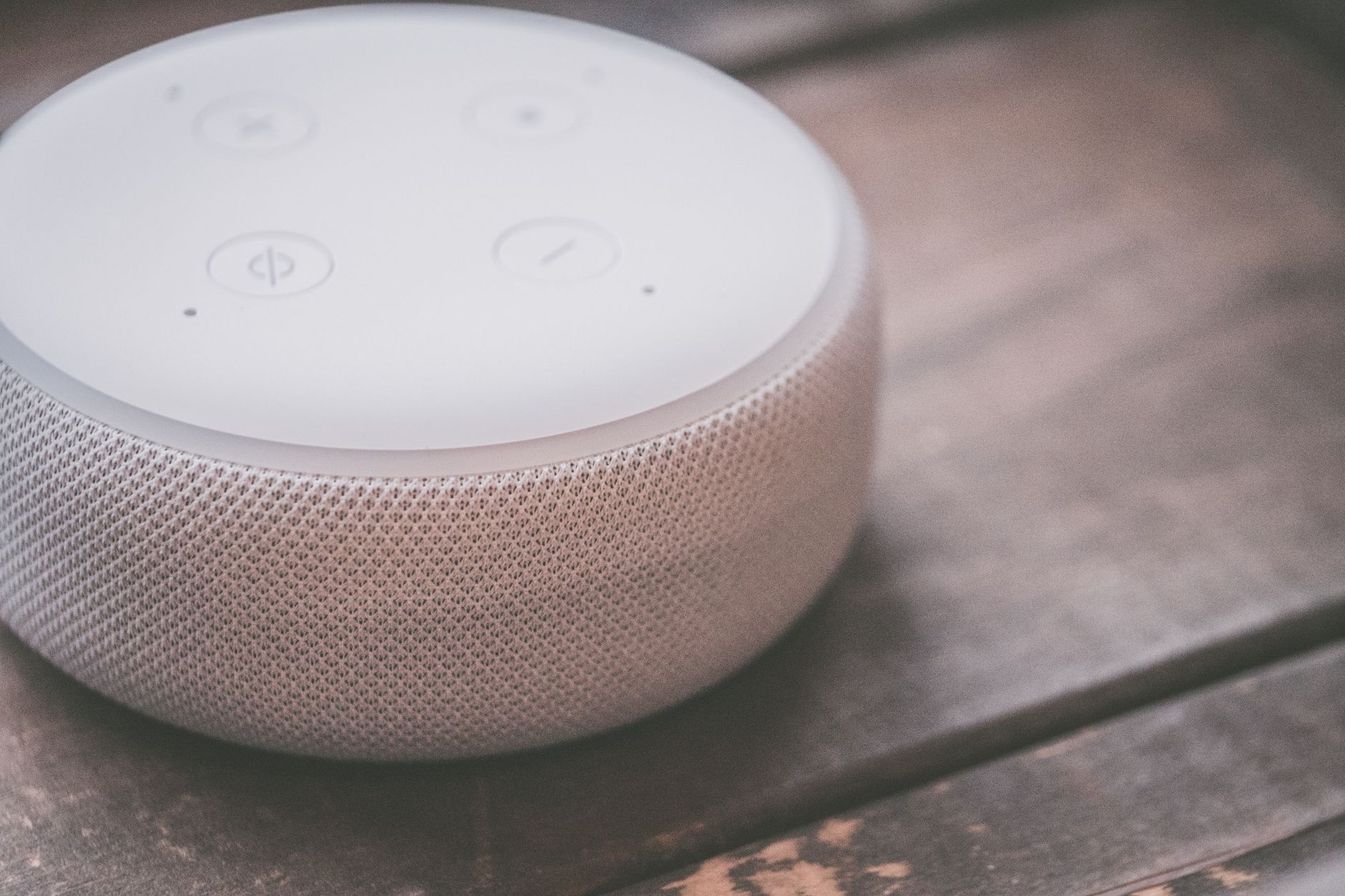
As smart home technology continues to advance, devices like Amazon’s Alexa have become staples in many households. However, there may come a time when you need to reset your Alexa device, whether due to performance issues, changes in your household, or simply wanting to pass it on to someone else. This article will guide you through the necessary steps to reset your Alexa, covering various reset options and providing helpful setup tips.
Resetting your Alexa can solve many common problems such as unresponsive behavior, connectivity issues, and configuration changes. This guide will also address how to back up your settings to make the reset process as smooth as possible.
How to Reset Alexa?
Resetting an Alexa device is a straightforward process, but the steps may vary depending on the specific model you own. In this section, we will provide an overview of the different reset options available and how to confirm a successful reset.
What Types of Alexa Devices Need Resetting?
Before diving into the reset steps, it’s essential to understand the types of Alexa devices that typically require resetting. Here are some of the most popular models:
- Amazon Echo (Original, 2nd Generation, 3rd Generation)
- Amazon Echo Dot (Original, 2nd Generation, 3rd Generation)
- Amazon Echo Show (5, 8, 10)
- Amazon Echo Studio
- Amazon Echo Flex
Each device may have slightly different resetting procedures, so ensure you know which model you own before proceeding.
Backup Your Settings Before Resetting
Before you reset your Alexa device, it is wise to back up your settings to make the reconfiguration process seamless. Here’s how to back up standard settings and preferences:
- Open the Alexa app on your phone.
- Go to the Devices tab.
- Select your Alexa device.
- Note down custom settings such as routines, connected smart devices, and preferences.
- Use the Manage Your Content and Devices section for content purchases.
Backing up settings will save time and effort when you set up your Alexa again after a reset.
Different Reset Options for Alexa Devices
There are different methods to reset your Alexa device, which can be performed using either the physical buttons on the device or through the Alexa app. The reset process varies slightly based on the device model you own.
Soft Reset vs. Hard Reset
A soft reset simply restarts the device without erasing your saved settings. This can resolve temporary connectivity issues or bugs. A hard reset, on the other hand, deletes all saved settings and preferences, restoring the device to factory settings.
How to Soft Reset Alexa
If your Alexa device is unresponsive, a soft reset might be all you need:
- Unplug the device from the power source.
- Wait for about 30 seconds, then plug it back in.
- Wait for the device to fully reboot and reconnect to your home network.
Check if the issue persists after the reboot before proceeding to a hard reset.
How to Hard Reset Alexa
A hard reset is necessary if you want to erase all settings and preferences. Here are the steps for various Alexa device models:
Amazon Echo (1st Generation)
- Press and hold the Action button (the button with a dot) for about 5 seconds.
- When the light ring turns orange, follow the voice prompts to complete the setup.
Amazon Echo (2nd Generation)
- Press and hold the Action button and the Microphone off button at the same time.
- Release both buttons when the light ring turns orange.
- Follow the voice instructions to reconfigure the device.
Amazon Echo (3rd Generation)
- Press and hold the Action button for about 25 seconds until the light ring turns off and on again.
- Once the light ring is orange, follow the setup prompts.
Amazon Echo Dot (1st Generation)
- Press and hold the Microphone off and Action button simultaneously for 5 seconds.
- Wait for the light ring to turn orange.
Amazon Echo Dot (2nd Generation)
- Press and hold the Microphone off and Action button simultaneously for 5 seconds.
- The light ring will turn orange, indicating it is in setup mode.
Amazon Echo Dot (3rd Generation)
- Hold the Action button for about 25 seconds until the light ring turns off and back on.
- Wait for the light ring to turn orange.
Amazon Echo Show (various models)
- Swipe down from the top of the screen to access the Settings menu.
- Select Device Options.
- Choose Reset to Factory Defaults.
- If prompted, confirm your selection.
Confirming the Reset
Once you have completed the hard reset, confirm the process:
- The device will announce that it is in setup mode and the light ring will show an orange color.
- If you can connect the device to your Wi-Fi network using the Alexa app, the reset was successful.
Reconfigure Your Alexa Device
After successfully resetting your Alexa device, you will need to reconfigure it:
- Open the Alexa app on your mobile device.
- Tap on the Devices icon at the bottom of the screen.
- Select + (Add Device) to start the setup process.
- Follow the prompts to connect your device to Wi-Fi and sign in to your Amazon account.
- Restore any settings you backed up before the reset to recreate your preferred usage.
Troubleshooting Common Issues After Resetting Alexa
Resetting your Alexa device can sometimes lead to additional issues. Below are solutions to common problems you might encounter:
Issues with Wi-Fi Connectivity
If your Alexa device fails to connect to Wi-Fi after a reset:
- Ensure you are entering the correct Wi-Fi password.
- Move the device closer to the router for a stronger signal.
- Reboot your router and try reconnecting the Alexa device.
Alexa Not Responding
If Alexa isn’t responding after a reset:
- Check the device’s power connection to ensure it is plugged in properly.
- Verify that the microphone is turned on by checking the button status. If it’s off, turn it back on.
- Perform a soft reset by unplugging and replugging the device.
Unresponsive or Incorrect Voice Commands
If Alexa is not processing voice commands correctly:
- Ensure your device is in a quiet environment to better “hear” your requests.
- Check for system updates through the Alexa app or the device settings.
Conclusion
Knowing how to reset Alexa can be incredibly useful, whether you need to troubleshoot a problem or prepare the device for a new owner. By following the steps outlined in this guide, you can efficiently reset your device and ensure it operates effectively in your smart home environment.
For additional assistance, consider exploring related tech topics such as how to reset your Firestick remote or how to factory reset a Google Home Mini. These resources can be invaluable in maintaining your collection of smart home devices.