
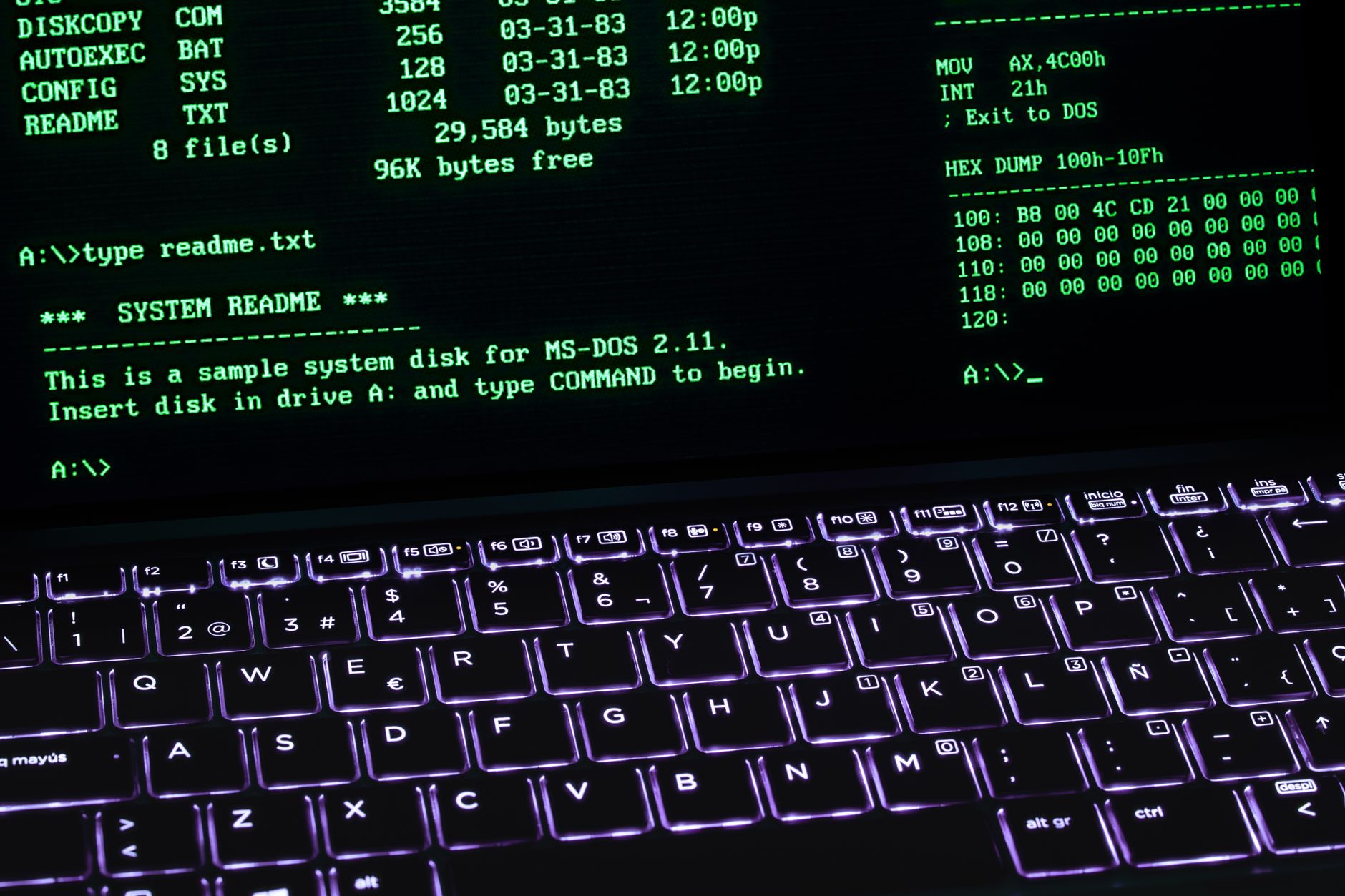
An operating system (OS) is a crucial piece of software that acts as an intermediary between computer hardware and users. It manages hardware resources, provides a user interface, and enables applications to run effectively. Understanding the functions and types of operating systems can enhance your knowledge of how computers and devices operate.
This article delves into what an operating system is, how it works, its core functions, types, and common uses, providing you with a comprehensive understanding of this essential software.
What Is an Operating System?
An operating system is a software program that manages computer hardware and software resources, providing services for computer programs. It is essential for the execution of applications and ensures that users can interact with the hardware seamlessly. Operating systems serve several key roles, including resource management, user interface provision, and task scheduling.
How Do Operating Systems Work?
Operating systems work by managing hardware resources and overseeing operations of various system components. They interact with the hardware through device drivers, which are specialized software that allow the OS to communicate with hardware devices. Here are the fundamental processes involved in how operating systems function:
- Booting: The process begins when a computer is powered on. The BIOS (Basic Input/Output System) initializes hardware and locates the OS in storage, loading it into memory.
- Process Management: Once loaded, the OS manages process execution, which involves creating, scheduling, and terminating processes. It allocates resources such as CPU time to ensure efficient operation.
- Memory Management: The OS oversees RAM allocation, ensuring that applications have sufficient memory during execution. It also manages virtual memory, allowing programs to use more memory than what is physically available.
- File System Management: Operating systems manage file storage, retrieval, and organization on storage devices. They enforce rules for data management and provide directory structures for efficient access.
- Device Management: Through device drivers, the OS controls peripheral devices like printers, disk drives, and keyboards, enabling them to operate collaboratively with the main software.
- User Interface: The OS provides either a command-line interface (CLI) or a graphical user interface (GUI) to allow users to interact with the system and applications easily.
Core Functions of an Operating System
Understanding the core functions of an operating system can help you appreciate its importance. Here are the primary functions:
- Process Management: The OS handles processes, allowing multiple applications to run simultaneously while managing their resource needs.
- Memory Management: This involves tracking each byte in a computer’s memory and allocating space for applications as necessary.
- File System Management: The OS manages files on storage devices, creating, deleting, and accessing files as directed by users or applications.
- Device Management: Operating systems coordinate the use of hardware devices, ensuring each can communicate without conflict.
- Security and Access Control: The OS enforces security settings and permissions to protect system resources and data from unauthorized access.
- User Interface Management: Providing a user interface that facilitates interaction and efficient use of system resources and applications.
Types of Operating Systems
There are several types of operating systems, each designed for specific environments and use cases. Here’s a breakdown of the most common types:
1. Desktop Operating Systems
These are designed for personal computers and workstations, focusing on providing graphical user interfaces and support for a wide variety of applications. Common examples include:
- Windows: Popular for its wide compatibility with software applications and hardware.
- macOS: Designed exclusively for Apple’s hardware, known for its aesthetic interface and design-focused applications.
- Linux: An open-source operating system that comes in various distributions (distros), tailored to different needs and preferences.
2. Mobile Operating Systems
These are optimized for mobile devices, focusing on power efficiency and touch-based interfaces. Key examples include:
- Android: A highly customizable OS based on Linux, prevalent in many smartphones and tablets.
- iOS: Exclusive to Apple’s mobile devices, known for its secure environment and extensive app ecosystem.
3. Server Operating Systems
These operating systems are designed for server management and efficient resource handling. They often prioritize stability and security. Some examples include:
- Windows Server: A variant of Windows designed for server use, featuring networking, database, and integration capabilities.
- Linux Server Distributions: Various Linux-based operating systems designed for server management, praised for efficiency and security.
4. Real-Time Operating Systems (RTOS)
RTOS ensures that processing tasks are executed within specific timing constraints, suitable for embedded systems like medical devices or automotive control systems. Examples include:
- VxWorks: Widely used in embedded systems for aerospace and industry applications.
- FreeRTOS: An open-source RTOS for microcontrollers, popular in IoT applications.
5. Distributed Operating Systems
These coordinate a group of separate computers to users as though they are a single system. They are used in high-performance computing and cloud systems. Examples include:
- Hadoop: Mainly for distributed data processing.
- Google’s Android: Functions as a distributed OS in cloud-based environments.
Common Uses of Operating Systems
Operating systems serve a multitude of functions across various sectors, enabling users and applications to interact effectively with computer hardware. Here are some common uses:
1. Personal Computing
Operating systems provide the foundational software environment for personal computers. They allow users to run applications, manage files, and perform day-to-day tasks like browsing the internet, writing documents, and gaming.
2. Mobile Devices
Mobile operating systems manage applications and hardware interactions on smartphones and tablets, allowing functionality like touch controls, camera access, and internet connectivity.
3. Server Management
Server operating systems manage resources for hosting websites, applications, and databases. They enable remote access, data management, and facilitate networking solutions.
4. Embedded Systems
Operating systems are integral to embedded systems, found in various devices such as smart appliances, medical devices, and automotive control systems. They ensure real-time processing and interaction with hardware components.
5. Cloud Computing
Operating systems play a crucial role in managing virtual machines and containers in cloud environments, enabling scalable and efficient computing resource allocation.
Choosing an Operating System
When selecting an operating system, several factors should be considered based on your use case:
- Compatibility: Ensure the OS supports the hardware and software applications you plan to use.
- User Interface: Choose an OS that provides an intuitive interface suited to your skill level.
- Support and Updates: Opt for an operating system that receives regular updates to enhance security and add new features.
- Community and Resources: Consider the availability of documentation, forums, and support communities to assist with troubleshooting and learning.
- Performance: Evaluate how the OS performs with the applications you intend to use, especially in resource-intensive scenarios.
Common Problems with Operating Systems and Troubleshooting
Even with their essential functions, operating systems can encounter issues. Here are some common problems along with troubleshooting tips:
1. System Crashes
Random system crashes can be caused by software bugs, hardware failures, or resource overload. To troubleshoot:
- Check for overheating components.
- Run system updates to ensure software is current.
- Analyze recent changes in hardware or software that could be causing instability.
2. Slow Performance
A sluggish operating system can result from resource-hogging applications, malware, or fragmented storage. To improve performance:
- Close unnecessary applications running in the background.
- Run a malware scan using reliable antivirus software.
- Optimize storage by defragmenting hard drives or clearing unnecessary files.
3. Startup Issues
Problems during the booting process can arise from corrupted files or hardware errors. For troubleshooting:
- Enter safe mode to diagnose issues without loading unnecessary programs.
- Check BIOS settings to ensure the correct boot device is selected.
- Repair corrupted files using built-in repair tools or installation media.
4. Driver Conflicts
Driver issues can lead to hardware components not functioning correctly. To resolve this:
- Check for updates to device drivers.
- Uninstall and reinstall problematic drivers from Device Manager.
- Use manufacturer software to update drivers automatically.
Maintaining Your Operating System
Maintaining an operating system is crucial for optimal performance and security. Here are key practices for OS maintenance:
- Regular Updates: Keep the OS and all applications updated to protect against vulnerabilities.
- Scheduled Backups: Regularly back up important data to prevent data loss in case of a system failure.
- Disk Cleanup: Use built-in tools to remove unnecessary files and free up disk space.
- Monitor System Performance: Use performance monitoring tools to track resource usage and identify bottlenecks.
Operating systems are the backbone of computer and device functionality, enabling countless applications and services. Understanding their operation, types, and maintenance can greatly enhance your computing experience.
If you’re interested in enhancing your technical knowledge, consider exploring related content such as what a router is and understanding BIOS boot order.