
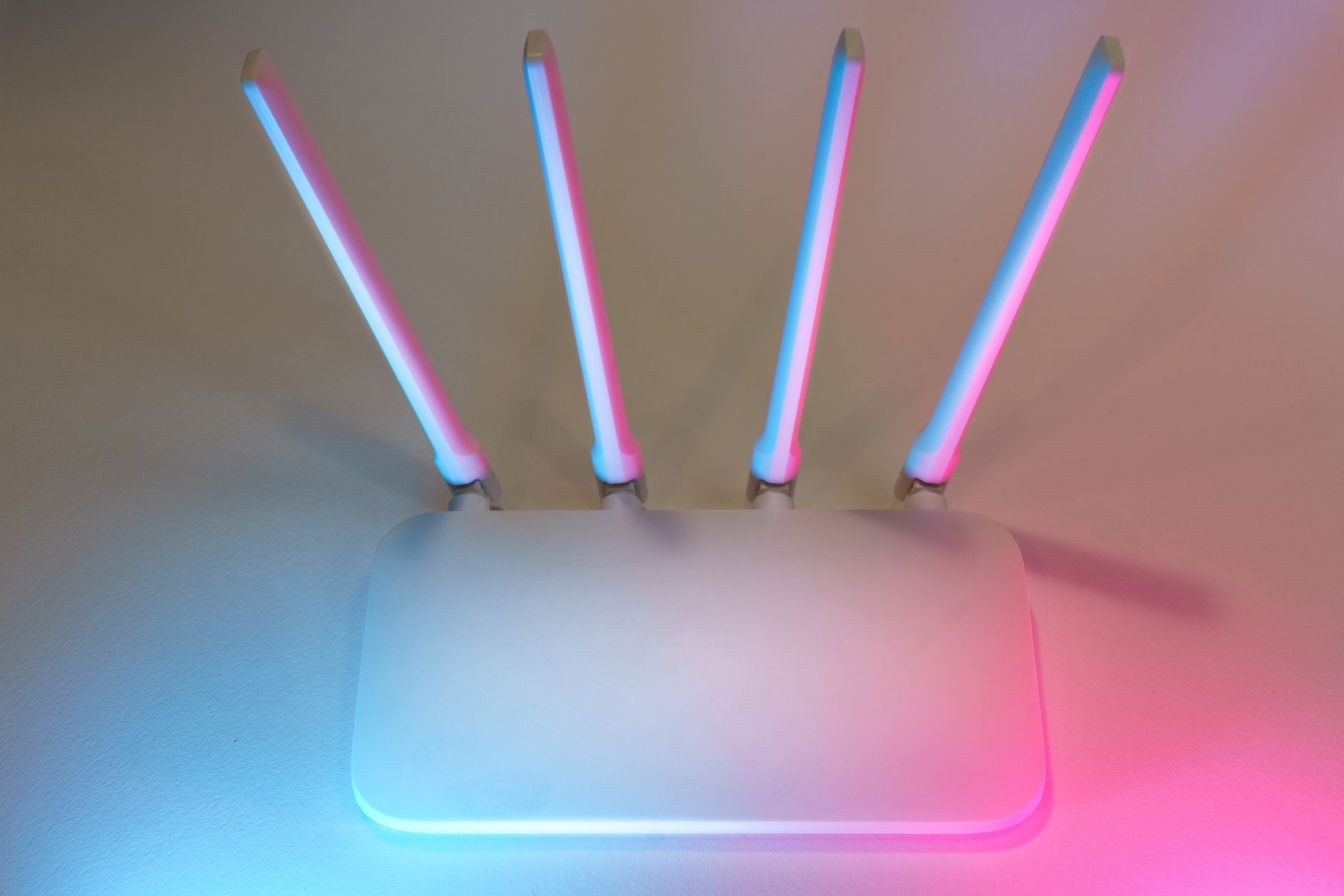
When we think about internet connectivity, a router is often at the center of the conversation. It serves as a vital device that allows multiple devices to connect to the internet and communicate with each other. Understanding what a router is and how it works can greatly enhance your ability to troubleshoot network issues and optimize your home or office connections.
This article will explore the various aspects of routers, including how they function, the different types available, important features, and tips for proper setup. By the end, you will have a thorough understanding of what a router is and how to leverage its capabilities effectively.
What Is a Router?
A router is a networking device that forwards data packets between computer networks. It connects multiple devices, such as computers, smartphones, and smart TVs, to the internet or to each other within a local area network (LAN). By managing traffic between various devices and networks, routers play a critical role in keeping your internet connection stable and efficient.
How Does a Router Work?
At its core, a router performs two main functions: routing and switching. Routing involves determining the best path for data packets across interconnected networks, while switching enables devices within the same network to communicate. Here’s a breakdown of how routers operate:
-
Data Packet Reception: When data is sent over the internet, it’s broken down into smaller packets. A router receives these packets from various devices.
-
Packet Analysis: The router analyzes the destination IP address of each packet to determine where it needs to go. It uses a routing table that maintains the best paths available.
-
Packet Forwarding: Once the destination is identified, the router forwards the packets to the next network or device along the path, utilizing its port interfaces.
-
Local Communication: Additionally, routers facilitate communication between devices within the same LAN, allowing them to share files and printers.
Types of Routers
Routers come in several types, each designed for specific networking needs. Here are the most common types:
- Wireless Routers: These routers transmit data over a wireless signal, allowing devices like laptops and smartphones to connect without physical cables.
- Wired Routers: Also known as Ethernet routers, these require devices to be directly connected using Ethernet cables.
- Core Routers: Found within the backbone of the internet, core routers are designed to handle high-capacity data transfers and direct traffic between large networks.
- Edge Routers: These act as intermediaries between external networks and an organization’s internal network, managing data entering and exiting.
- Virtual Routers: Software-based routers that provide routing services without dedicated hardware. They are often used in cloud computing and virtualized environments.
Key Features of a Router
When choosing a router, several key features can enhance your internet experience. Familiarizing yourself with these features can help you make an informed decision:
- Speed: Measured in Mbps (megabits per second), speed determines how quickly data can be transmitted over the network. Consider routers that support the latest Wi-Fi standards for better speed.
- Range: The coverage area of a router is important, especially in larger homes or offices. Look for routers that offer extended range and can cover multiple rooms or floors.
- Dual-Band or Tri-Band: Dual-band routers operate on both 2.4 GHz and 5 GHz frequencies, while tri-band routers add an additional 5 GHz band, helping to reduce congestion and improve performance.
- Security Features: Look for routers that offer robust security measures such as WPA3 encryption, firewalls, and parental controls to protect your network.
- Quality of Service (QoS): This feature prioritizes bandwidth for specific tasks, such as streaming and gaming, ensuring smooth performance even during heavy network loads.
- Ethernet Ports: Check the number of Ethernet ports available for wired connections. More ports allow for connecting multiple devices directly.
- USB Ports: Some routers include USB ports for connecting external drives or printers, allowing for shared access on the network.
Router Setup: Step-by-Step Guide
Setting up a router may seem daunting, but it can be accomplished with a few straightforward steps. Here’s a simple guide to help you get your router up and running:
What You Will Need
- A wireless or wired router.
- An active internet connection (cable or DSL).
- Ethernet cables (if needed for wired connections).
- A computer or mobile device for accessing the router’s settings.
- The router’s user manual for specific instructions.
Setup Steps
-
Unpack and Place the Router: Remove the router from its packaging, and place it in a central location for optimal signal distribution.
-
Connect the Power Adapter: Plug the router into a power source and turn it on. Wait for the status lights to stabilize, usually indicating that the router is ready.
-
Connect to the Internet: If you are using a DSL or cable modem, connect an Ethernet cable from the modem to the WAN (or Internet) port on the router.
-
Connect Your Device: Using another Ethernet cable (for a wired connection) or Wi-Fi, connect your computer or mobile device to the router’s network. For a wireless connection, check the router’s label for the default Wi-Fi network name (SSID) and password.
-
Access the Router’s Settings: Open a web browser and enter the router’s IP address (often found on the back of the device or in the user manual). Typical addresses include 192.168.1.1 or 192.168.0.1.
-
Log In: Enter the default username and password. It’s commonly set as “admin” for both fields, though it can vary by brand. Be sure to change this later for security purposes.
-
Configure Settings: Following the on-screen setup wizard, configure settings such as Wi-Fi name, password, and security protocols. Adjust other settings like QoS and parental controls as needed.
-
Update Firmware: Check for firmware updates and install them to ensure optimal performance and security. This can usually be found in the settings menu.
-
Test Your Connection: After completing the setup, test your internet connection on connected devices to confirm that everything is working properly.
Troubleshooting Common Router Issues
Despite the best configurations, issues can still arise. Here are some common router problems and troubleshooting steps:
Poor Connection or Slow Speeds
- Reset the Router: Sometimes, simply restarting the router can resolve speed issues. Unplug it for about 10 seconds, then plug it back in.
- Check for Interference: Ensure that the router is placed away from walls, metal objects, and other electronic devices that could interfere with the signal.
- Limit Connected Devices: Too many devices connected to the router can slow down the network. Disconnect devices that are not in use.
- Change Wi-Fi Channels: Switching to a less crowded channel can improve performance. Use the router’s settings to change channels.
No Internet Connection
- Check the Cables: Ensure that all cables are securely connected and that the modem is powered on and functioning.
- Restart Your Modem: Similar to the router, a modem restart can often resolve connectivity issues.
- Verify ISP Status: Check with your Internet Service Provider (ISP) for any outages or service issues that may be affecting your connection.
Cannot Access Router Settings
- Check IP Address: Ensure that you are using the correct IP address to access the router settings.
- Use Another Device: Sometimes, issues may be specific to a device. Try accessing the router settings from another computer or mobile device.
- Reset the Router: If you cannot log in, consider performing a factory reset (refer to the user manual). This will restore default settings, including the username and password.
Best Practices for Router Maintenance
To ensure your router functions optimally, consider the following maintenance practices:
- Regular Firmware Updates: Keep your router updated with the latest firmware to enhance security and performance.
- Change Default Login Credentials: Changing the default username and password can help prevent unauthorized access to your network.
- Monitor Connected Devices: Regularly check which devices are connected to your network and remove any that are unfamiliar.
- Schedule Reboots: Periodically rebooting your router can help maintain its performance and stability.
- Backup Configurations: Make a backup of your router settings so you can easily restore them in case of a reset or malfunction.
Choosing the Right Router
When it comes time to purchase a router, careful consideration of your specific needs will drive the best choice. Factors to consider include:
- Size of Your Space: How large is your home or office? Larger spaces may benefit from a mesh Wi-Fi system or a high-range router.
- Number of Connected Devices: Assess how many devices will be connected simultaneously to determine whether you need a high-capacity router.
- Internet Speed: Choose a router that supports the speed plan provided by your ISP to ensure you can utilize your internet package fully.
- Budget: Routers are available across a wide price range. Determine your budget and compare features within that range.
- Future Needs: Consider potential future upgrades. It might be wise to invest in a router capable of handling expected increases in speed and connected devices.
As technology evolves, routers are also incorporating smart features. These include app controls, integration with home automation systems, and advanced security protocols to protect against cyber threats.
The Importance of Router Security
Router security is a crucial aspect of your overall cybersecurity posture. Here are some vital points to understand regarding router security:
- Encryption: Advanced encryption standards (like WPA3) help safeguard your network from unauthorized access. Ensure that your router uses strong encryption methods.
- Firewall Protection: A router with a built-in firewall adds a layer of security by monitoring incoming and outgoing traffic.
- Guest Network: Set up a separate guest network for visitors. This isolates your primary network and devices from guests, enhancing security.
- Disable WPS: Wi-Fi Protected Setup (WPS) can be vulnerable to brute-force attacks. Consider disabling this feature if it’s not necessary.
- Regularly Review Security Settings: Frequently check your security settings and make adjustments based on new threats or vulnerabilities.
Conclusion
Understanding what a router is, how it works, and how to set it up is essential for leveraging its capabilities effectively. By choosing the right router, maintaining its performance, and ensuring its security, you can enjoy a stable and efficient internet connection. As technology advancements progress, routers will continue to evolve, providing users with enhanced features and functionality for a better online experience.
If you’re interested in learning more about similar topics, consider exploring other guides on networking and tech devices, such as understanding what a switch is, how to improve Wi-Fi performance, and employing cybersecurity measures for your home networks.