
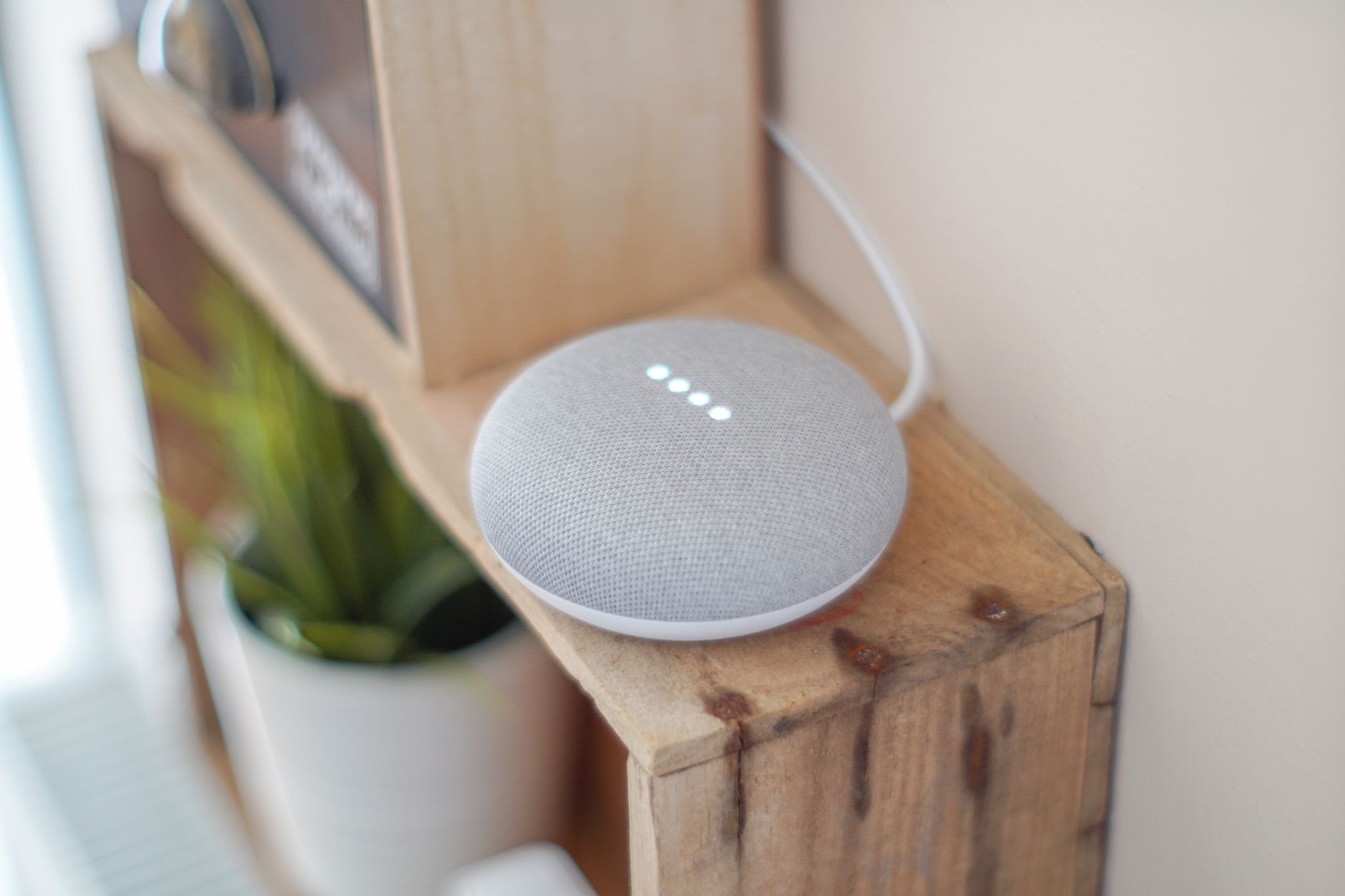
The Google Home Mini is a streamlined, compact smart speaker that adds convenience and functionality to everyday life. However, there may come a time when you need to factory reset your Google Home Mini, whether it’s due to issues connecting to your network, selling the device, or returning it to its original settings. Understanding how to properly perform this reset can save you from frustration and help maintain the device’s performance.
This guide will walk you through the step-by-step process of how to factory reset your Google Home Mini, covering both hardware and software aspects as necessary. By the end of this article, you will be empowered to recover and set up your Mini effectively.
How to Factory Reset Google Home Mini?
Factory resetting your Google Home Mini is a straightforward process that involves pressing a button on the device. This action restores it to its original factory settings, deleting all personal data, connected accounts, and preferences.
Why Factory Reset Google Home Mini?
There are several reasons you might want or need to factory reset your Google Home Mini:
- Device Issues: If your device is unresponsive or frequently disconnects from Wi-Fi, a reset may help.
- Change of Ownership: Resetting the device ensures that your personal information and preferences are removed before selling or giving it away.
- Network Changes: If you’ve changed your Wi-Fi network and are having trouble reconnecting, a reset can help in establishing a new connection.
- Privacy Concerns: If you are concerned about your data or voice commands being stored, performing a reset will clear all previous data.
Prerequisites for Factory Resetting
Before you proceed, ensure the following:
- Your Google Home Mini is plugged in and powered on.
- You have access to a smartphone or a PC to establish a new setup after resetting.
Steps to Factory Reset Google Home Mini
Method 1: Using the Reset Button
- Locate the factory reset button on the device. On the Google Home Mini, it is a small circular button located on the bottom of the speaker.
- Press and hold the factory reset button for about 15 seconds. You will hear a confirmation tone indicating that the device is about to reset.
- Continue holding the button until the speaker announces that it’s resetting.
- Release the button once the reset process begins. The Google Home Mini light will change color as it resets.
After the reset, your Google Home Mini will go through its boot-up process, which may take a few minutes. When it is finished, the speaker will be in setup mode.
Method 2: Resetting via the Google Home App (for network issues)
If you’re experiencing networking issues and need to reset your device without directly using the hardware button, you can also reset through the Google Home app:
- Open the Google Home app on your smartphone or tablet; ensure you’re signed in with the same Google account linked to your device.
- Find your Google Home Mini in the list of available devices.
- Tap on the device name to access its settings.
- In the top right corner, tap on the gear icon to access Device Settings.
- Scroll down and look for the option labeled “Remove Device” and tap it.
- Confirm the action. This will not be a full factory reset but will remove your settings and data from the current account.
Verifying Successful Factory Reset
After completing the reset process using either method, you should ensure that your Google Home Mini is ready for a new setup:
- Observe the LED light on the top of the speaker. It should pulsate orange, indicating it is in setup mode.
- Open the Google Home app again to set up your device.
- If the app detects the Mini, follow the on-screen instructions to connect it to your Wi-Fi network and link your Google account.
Troubleshooting Common Reset Issues
Sometimes, resetting devices can come with some challenges. Here’s how you can troubleshoot common issues:
- The speaker does not respond: Ensure that the device is plugged in and powered on. If the light does not turn on, try using a different power outlet or check if the power adapter is working correctly.
- The reset button doesn’t seem to work: Press and hold the button longer, as it may take a bit longer than 15 seconds. Ensure you are holding the correct button.
- Speaker is stuck while resetting: Unplug the device from the wall, wait for a few moments, and then plug it back in to try the process again.
- Cannot reconnect after reset: Ensure that you are using the correct Wi-Fi network details and double-check your Google Account credentials during the setup process.
Post-Reset Configuration and Setup
Once your Google Home Mini is reset successfully, it will require you to set it up as if it were a new device. Here is how to accomplish this:
- Ensure your smartphone is connected to the Wi-Fi network you intend to use with your Google Home Mini.
- Open the Google Home app and tap the ‘+’ or ‘Add’ button to set up a new device.
- Select ‘Set up device’, then ‘New devices’ to allow the app to search for your Mini.
- Once detected, follow the app’s instructions to connect to Wi-Fi and link your Google account.
- After following the prompts, your Google Home Mini should be ready for use.
Common Features You’ll Need to Reconfigure
After a factory reset, the following features will need to be setup again:
- Wi-Fi Network: Connect to your home or mobile hotspot.
- Google Account: Sign in with your Google account to link the device.
- Smart Home Devices: You can reconnect your smart home devices such as lights, thermostats, and cameras.
- Music Services: Set up preferred music streaming services like Spotify, YouTube Music, or others.
- Voice Match: Set up Voice Match for personalized responses based on your voice.
Preventive Measures to Avoid Frequent Factory Resets
To minimize the need for frequent factory resets, consider the following tips:
- Regularly update the Google Home app to ensure it has the latest features and fixes.
- Keep your device firmware updated, as updates often come with performance enhancements.
- Avoid using multiple devices on a single Google Home account if they are not necessary for your household.
- Check your Wi-Fi network’s strength and invest in a range extender if certain areas have weak signals.
Alternatives to Factory Resetting
Before deciding to reset your Google Home Mini, consider other alternatives to troubleshoot potential issues:
- Restarting the Device: Sometimes, simply unplugging the device, waiting a few seconds, and plugging it back in can resolve minor issues.
- Checking Network Settings: Ensure that your Wi-Fi settings are correct and your router is functioning well.
- Clearing Voice History: If privacy is your concern, you can clear voice recordings without needing a full reset through your Google account settings.
- Adjusting Device Settings: Through the Google Home app, you can check and adjust various settings without resetting.
Conclusion
Factory resetting your Google Home Mini is a straightforward process that allows you to troubleshoot and resolve issues effectively. By following the step-by-step guide outlined above, you can restore your smart speaker to its original settings and ensure it runs smoothly for your needs.
If you need further information on related topics, check out our guides for resetting your devices, including how to factory reset a MacBook or learn about resetting AirPods Pro. These resources will complement your journey in managing your tech devices effectively.