
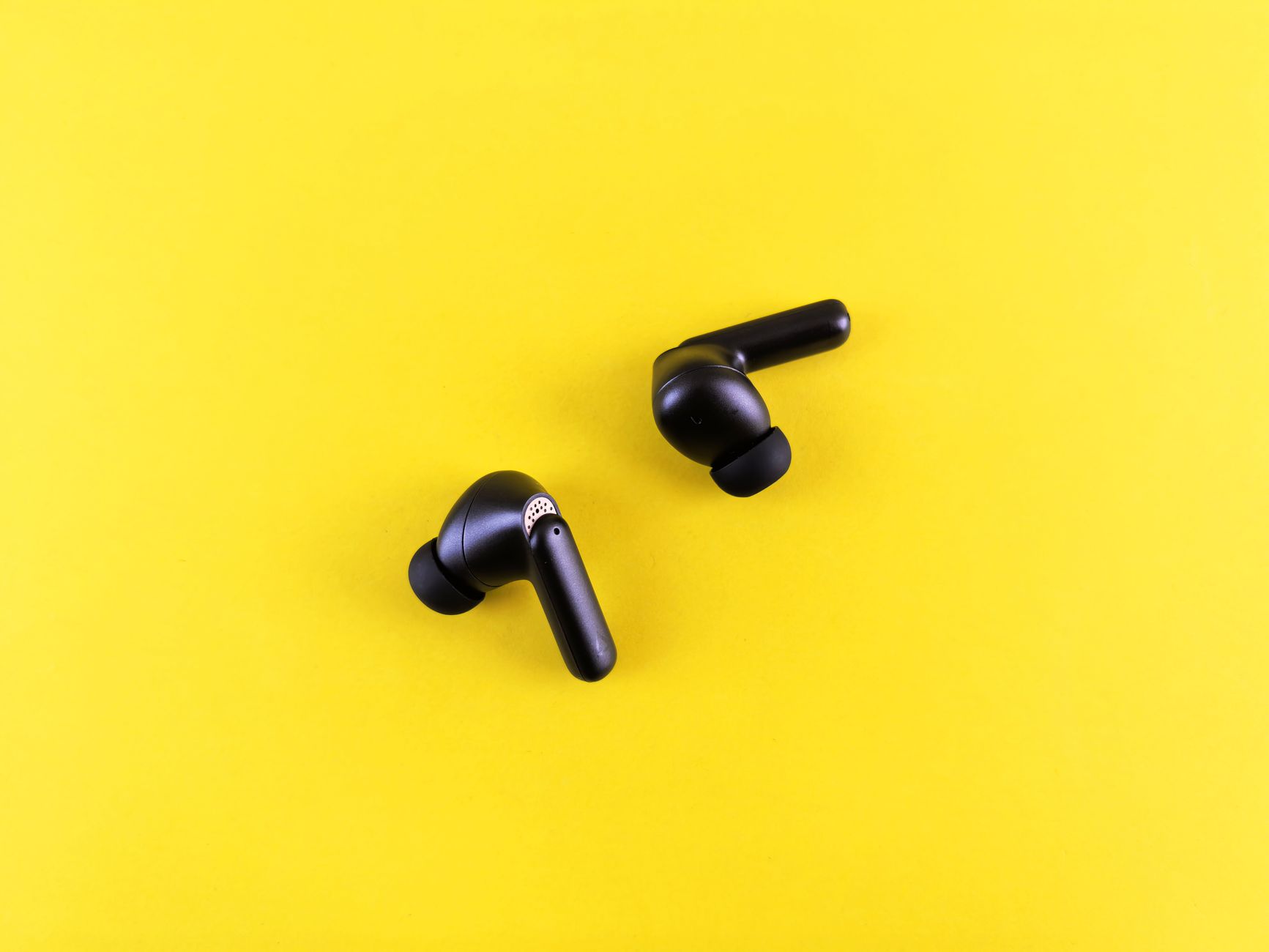
AirPods are popular wireless earbuds known for their convenience and sound quality. However, many users find that the default volume may not always be sufficient for their listening preferences. In this article, we will explore various ways to increase the volume of your AirPods effectively.
Through valuable tips on fit, software settings, and other audio enhancements, you will be able to optimize your listening experience and enjoy your music, podcasts, or calls at a louder and clearer volume.
How to Make AirPods Louder?
To make your AirPods louder, you can adjust various settings and configurations, improve the fit of your earbuds, and utilize features available on your device. By following the steps outlined below, you can enhance the audio experience on your AirPods significantly.
Check Volume Settings on Your Device
Before diving into additional tweaks, make sure to check the basic volume settings on your connected device:
- Unlock your iPhone, iPad, or other compatible device.
- Play audio through your AirPods.
- Use the volume buttons on the side of your device to increase the volume.
If you do not hear the expected increase in volume, consider the following settings specific to your device.
For iOS Devices
For iPhones and iPads, you can adjust the volume settings within the Sound & Haptics options:
- Open the Settings app.
- Select Sounds & Haptics.
- Adjust the Ringer and Alerts slider to your preferred level.
For macOS Devices
If you’re connecting your AirPods to a Mac, follow these steps:
- Click the Apple menu at the top left of your screen.
- Select System Preferences.
- Click on Sound.
- Select the Output tab and ensure your AirPods are selected.
- Adjust the output volume slider to increase the sound level.
Improve AirPods Fit for Better Sound Quality
Sometimes, the perceived volume of your AirPods can be affected by their fit in your ears. A snug fit can lead to an enhanced audio experience. Here are some tips:
Choose the Right Ear Tips
If you have AirPods Pro, you can switch out the ear tips for a better seal. Apple includes multiple sizes:
- Small
- Medium
- Large
Choose the ear tips that best fit your ears to improve sound isolation and overall audio quality.
Fit and Positioning
When using standard AirPods, ensure that they are correctly positioned in your ears. A secure fit can significantly enhance sound quality and volume. Tilt the AirPods slightly forward or backward until you find the position that maximizes sound delivery.
Adjust Audio Settings on Your Device
Many devices come with specific audio settings that can enhance the output of your AirPods. Here’s how to access these options:
Equalizer Settings on iOS
iOS devices have built-in Equalizer settings that can help increase volume:
- Open the Settings app.
- Scroll down and tap on Music.
- Select EQ.
- Choose a preset that enhances volume, such as Loudness or Hip-Hop.
Experiment with different presets to see which suits your music preferences best.
Sound Check and Volume Limit Settings
Check to ensure that neither the Sound Check nor the Volume Limit is restricting the output:
- In the Settings app, go to Music.
- Disable Sound Check if it is turned on.
- Ensure the Volume Limit is set to maximum or disabled.
Utilize Accessibility Features
Apple includes various accessibility features that can improve sound quality and volume:
Mono Audio
Enabling mono audio can make sound appear louder in some scenarios:
- Open the Settings app.
- Select Accessibility.
- Tap on Audio/Visual.
- Toggle on Mono Audio.
Hearing Aid Compatibility
If you use hearing aids, the hearing aid compatibility feature may help boost sound:
- Go to Accessibility in the Settings app.
- Tap on Hearing Devices.
- Toggle Hearing Aid Mode on.
Check the AirPods Battery Level
If your AirPods are low on battery, the volume may be impacted:
- Open the lid of the AirPods case near your iPhone or iPad to check the battery level indicator.
- Alternatively, ask Siri, “What’s my battery level?” while wearing your AirPods.
Charge your AirPods if the battery is low to ensure optimal volume output.
Reset Your AirPods
Resetting your AirPods can resolve software-related issues that might be limiting the volume:
- Place your AirPods in their charging case and close the lid.
- Wait for about 30 seconds, then open the lid.
- On your device, navigate to Bluetooth settings and select the “i” icon next to your AirPods’ name.
- Tap Forget This Device.
- Put the AirPods back in the case, press and hold the setup button until the status light flashes amber and then white.
- Reconnect your AirPods to your device.
Third-Party Apps for Enhanced Audio
Several third-party apps can help boost volume beyond the device’s default settings:
- Equalizer PRO – A customizable equalizer app that allows detailed sound adjustments.
- Boom 3D – Offers 3D surround sound and volume boosting features.
Make sure to access the app settings to increase the volume through equalization and various presets.
Use a Sound Amplifier
Finally, consider using a portable sound amplifier to boost the audio signal:
- Bluetooth Amplifiers – Devices that amplify sound for all audio sources.
- Hearing Amplifiers – Devices specifically designed to enhance sound for hearing-impaired users.
These devices can enhance the audio experience, especially in noisy environments.
Troubleshooting Common Issues
Even after adjusting settings and improving fit, you may encounter issues that still limit your AirPods volume. Here are some common troubleshooting steps:
Static or Distorted Sound
If you experience static or distortion, it may be due to a poor connection:
- Ensure that the AirPods are within range of your device.
- Reset your AirPods as mentioned previously.
- Check for interference from other Bluetooth devices and move away from those.
Audio Lag
For audio that is out of sync with video:
- Disconnect and reconnect your AirPods to see if the issue resolves.
- Update your device’s operating system for potential fixes.
- Reset the AirPods if the problem persists.
Frequent Disconnections
If your AirPods frequently disconnect:
- Ensure that the AirPods are within Bluetooth range.
- Check to see if there are any software updates for the AirPods or your device.
- Forget the AirPods and reconnect them as described earlier.
Conclusion
Making your AirPods louder involves a mix of adjusting device settings, optimizing fit, and utilizing available features and apps. By following the steps above, you can significantly enhance your audio experience and enjoy your favorite content at the volume you prefer.
For more tips on maintaining your AirPods and troubleshooting common issues, explore our articles on cleaning your AirPods and dealing with connectivity issues.