
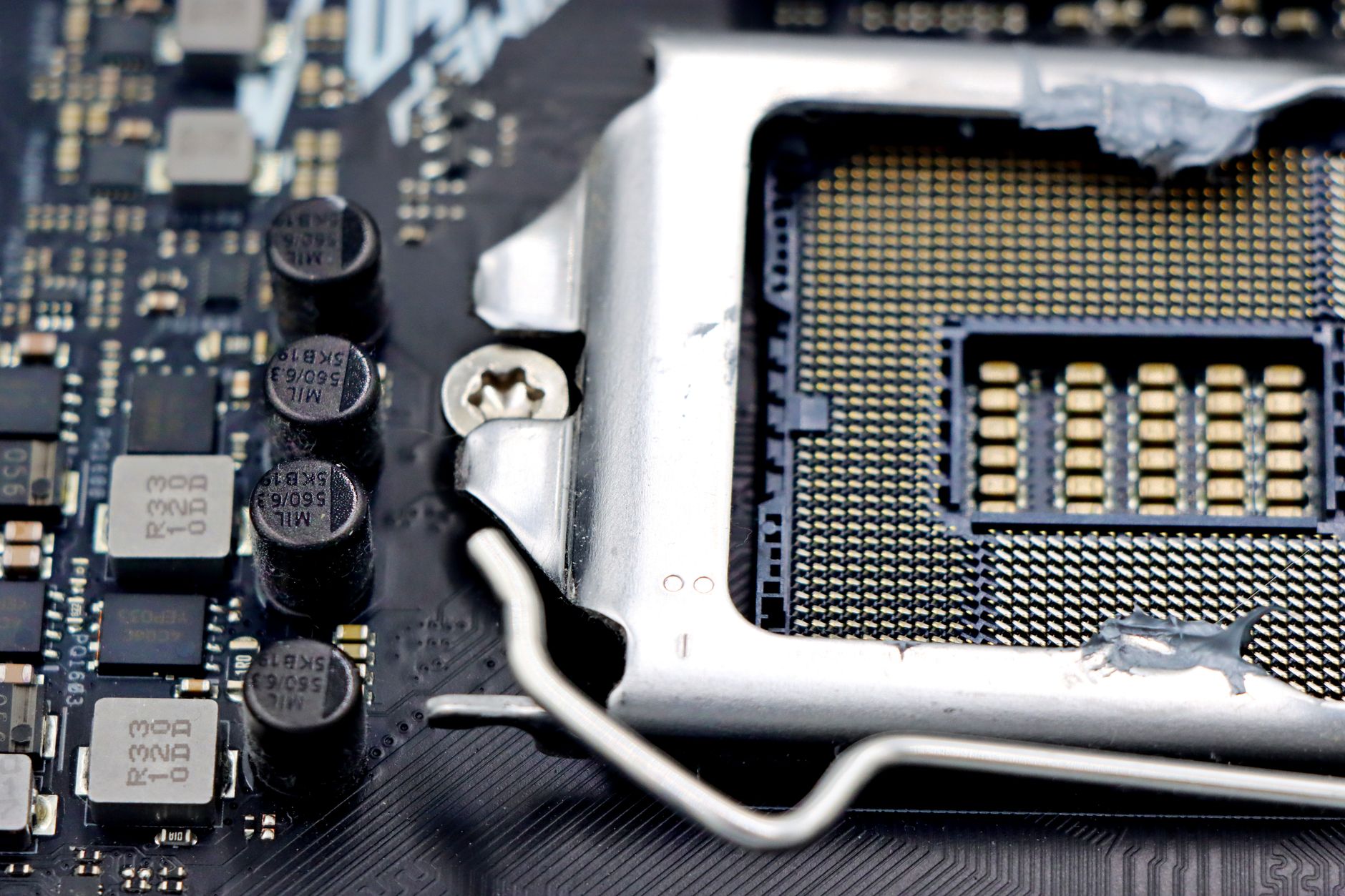
Updating the Basic Input/Output System (BIOS) can profoundly impact your computer’s performance, compatibility, and stability. It is a process that can help fix bugs, improve hardware support, and sometimes enhance performance. This guide will provide a comprehensive overview of updating your BIOS, including what you need to know about compatibility, setup, and safety checks.
BIOS resides in a small memory chip on the motherboard and is essential for starting your computer and controlling its hardware components. While updating the BIOS can be beneficial, it comes with risks and requirements, as improper updates can potentially harm your system. This article will help you navigate the steps safely.
How to Update BIOS?
To update the BIOS, you need to acquire the correct BIOS version for your specific motherboard. The update process involves downloading the BIOS from the manufacturer’s website and then either using an update utility or configuring it through the BIOS setup. Following proper procedures is crucial to reduce the chances of errors during this potentially risky operation.
Understanding BIOS Update Compatibility
Before proceeding with an update, ensure your system is compatible with the new BIOS version. Compatibility checks encompass two main components: your motherboard model and hardware specifications.
Check Your Motherboard Model
Identifying your motherboard model is a crucial first step. You can do this through:
- Using system information tools like
msinfo32on Windows. - Physically inspecting the motherboard and looking for its model number.
- Using third-party software like CPU-Z or Speccy to retrieve motherboard details.
Verify BIOS Version
Alongside your motherboard model, knowing your current BIOS version helps in determining whether an update is necessary. You can check this in:
- The BIOS setup menu, usually accessed by pressing a specific key (like DEL or F2) during startup.
- The footer of the BIOS splash screen.
- System information tools on your operating system.
Researching BIOS Updates
Once you have your motherboard model and the current BIOS version, visit the manufacturer’s website to find available updates. Each BIOS update comes with release notes detailing the improvements and fixes, which can include:
- Bug fixes
- Support for new hardware components
- Performance improvements
- Security patches
Ensure that the release notes indicate that the new BIOS version addresses something relevant to your use case before proceeding with the update.
Preparation Steps for BIOS Update
Preparation is key when updating the BIOS. Properly preparing your system can help mitigate potential issues that may arise during and after the update process. The following steps can help prepare you for a successful update.
Backup Important Data
Before any critical system operation like a BIOS update, it is wise to back up your data. Although the update itself does not affect data stored on your hard drives, unexpected issues can arise that may lead to data loss. Use external drives or cloud services to keep your essential files safe.
Ensure Stable Power Supply
A power failure during a BIOS update can brick your motherboard, leading to severe issues. If you are using a laptop, ensure it is plugged in. For desktop users, consider using an Uninterruptible Power Supply (UPS) to prevent power loss during the update.
Create a Restore Point
While creating a restore point for your operating system does not directly affect the BIOS, it’s a precaution you can take in case you run into issues after the update. In Windows, you can create a restore point through:
- Search for “Create a restore point” in the Start menu.
- Select the drive you are backing up, usually C:.
- Click on the “Create” button to generate a restore point.
Methods of Updating BIOS
There are several methods to update your BIOS, and the approach may vary by motherboard manufacturer. The most common methods include using a Windows application, a bootable USB drive, or the BIOS setup utility.
Updating BIOS via Windows Application
Some motherboard manufacturers provide Windows-based applications for BIOS updates, making the process more straightforward. Here’s a general process you can follow:
- Download the BIOS update file from the manufacturer’s website.
- Install the provided update utility on your system.
- Run the utility and follow the on-screen prompts to initiate the update.
Updating BIOS via Bootable USB Drive
This method is often more reliable because it does not depend on the operating system. Follow these steps:
- Prepare a USB drive formatted to FAT32.
- Download the BIOS file from the manufacturer’s website.
- Copy the BIOS update file to the root directory of the USB drive.
- Restart your computer and enter the BIOS setup by pressing the relevant key (usually DEL, F2, or ESC) during startup.
- Locate the “BIOS Update” or “EZ Flash” option in the BIOS menu.
- Select the USB drive and choose the BIOS file to start the update process.
Updating BIOS via BIOS Setup Utility
If your motherboard has direct BIOS update capabilities, follow the steps below:
- Enter the BIOS setup during boot.
- Find the BIOS update option (this may vary by manufacturer but often appears as “Flash BIOS” or “Update BIOS”).
- Select the option to access remote servers or your USB drive.
- Follow the prompts to download and install the latest BIOS version.
Post-Update Steps
Upon completion of the BIOS update, it is essential to verify that everything functions correctly and to carry out a few recovery tasks.
Confirming BIOS Update Success
After the update process, you can confirm the BIOS version to ensure it updated correctly. This is done by:
- Re-entering the BIOS setup and checking the version listed on the main screen or under the “System Information” tab.
- Booting into the operating system and checking the system information.
Load Optimized Defaults
Sometimes, a BIOS update may change important settings. Therefore, it may be a good idea to load optimized defaults. This option can usually be found in the BIOS settings menu:
- Enter the BIOS setup.
- Find the option “Load Optimized Defaults” (the wording may differ based on the manufacturer).
- Apply the changes and exit.
Common Issues and Troubleshooting
While the BIOS update process is generally straightforward, there are common problems users may encounter. Below are some of these issues and troubleshooting methods.
Failed Update
If the BIOS update failed or was interrupted, it could leave the motherboard non-functional. In such cases, try:
- Resetting the CMOS. This can often be done by removing the motherboard battery for a few minutes or using the reset jumper, if available.
- Consulting your motherboard manual for recovery procedures.
Hardware Compatibility Issues
Post-update, some hardware components may stop working correctly. To resolve this:
- Check the manufacturer’s release notes for any specific mentions regarding hardware support.
- Rollback to the previous BIOS version if the new update causes issues.
Boot Loop Problems
After a BIOS update, users sometimes experience boot loops where the system fails to start. To troubleshoot:
- Inspect all hardware connections and ensure memory modules and graphics cards are firmly seated.
- Attempt to boot into safe mode or recovery options.
Safety Checks and Recommendations
Updating your BIOS is a significant action that should be approached cautiously. Here are some final safety checks and recommendations:
Read Manufacturer Documentation
Every motherboard brand and model has its process for BIOS updates. Always refer to the manufacturer’s website or user manual regarding detailed instructions specific to your device.
Stay Informed About Firmware Updates
Keep an eye on firmware updates and changelogs from the manufacturer regularly. Evaluate if each update will significantly benefit your system before deciding to proceed.
Avoid Unofficial BIOS Versions
Always download BIOS updates from the official manufacturer’s website. Unofficial versions can compromise your system, lead to instability, or even damage your hardware.
Conclusion
Updating the BIOS can enhance system performance, resolve compatibility problems, and increase stability. Proper preparations, such as ensuring compatibility, creating backups, and following the update procedure carefully, can significantly reduce the inherent risks of BIOS updates.
For your next step, consider visiting relevant tech tutorials that can enhance your knowledge of computer hardware and BIOS settings, such as understanding BIOS Boot Order and troubleshooting Windows Update Errors.