
Building a PC can be an exciting and rewarding project, allowing you to create a custom machine tailored to your specific needs. Whether it’s for gaming, content creation, or everyday use, understanding how to choose compatible components, set them up correctly, and perform safety checks is crucial. This guide will walk you through the entire process.
From selecting hardware that works well together to ensuring your system is safe to operate, this article covers all the essential steps. You’ll gain the confidence to navigate the world of PC building and troubleshoot common issues.
How to Build a PC: What Do You Need?
Before diving into the process of building your PC, it’s important to gather the necessary components and tools. Here’s what you’ll need:
- Computer Case: The enclosure for all your components. Make sure it’s compatible with your motherboard size (ATX, microATX, or mini-ITX).
- Motherboard: The main circuit board that connects all components. Ensure it has the right socket for your CPU and supports your RAM type and speed.
- Processor (CPU): The brain of your computer. Choose a CPU that matches your needs, be it for gaming, rendering, or multitasking.
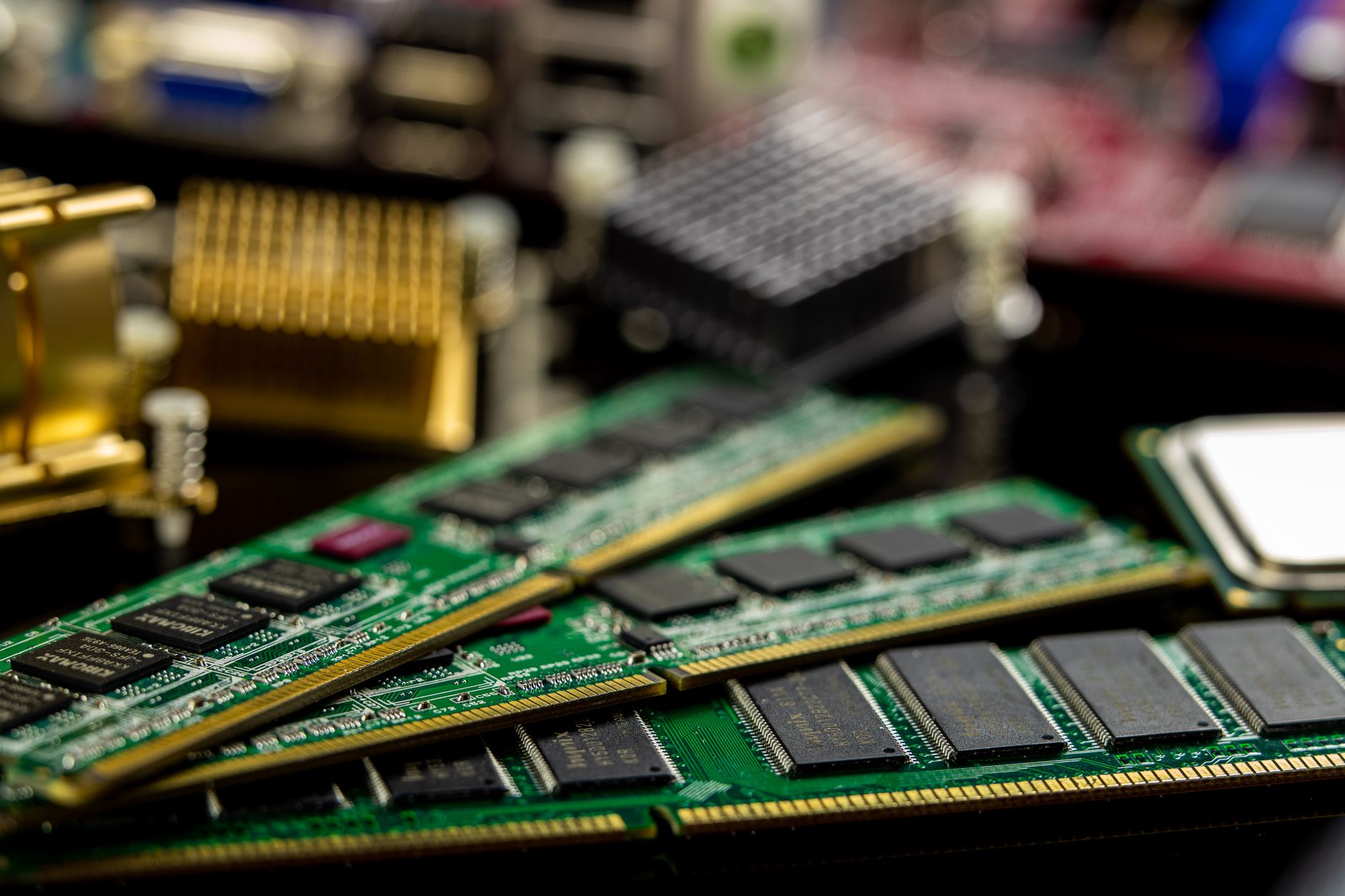
- RAM: Memory that enables your system to operate smoothly. A minimum of 8GB is recommended for most users, with 16GB or more for gaming or intensive tasks.
- Storage: Typically, either a Hard Disk Drive (HDD) or a Solid State Drive (SSD). SSDs offer better performance, while HDDs provide more storage at a lower cost.
- Graphics Card (GPU): Essential for gaming and graphic design. Ensure it’s compatible with your motherboard and has adequate power supply.
- Power Supply Unit (PSU): Provides power to your components. Choose one with enough wattage to support all components plus some headroom for future upgrades.
- Cooling System: This can be air or water cooling. Adequate cooling is essential to maintain optimal performance and longevity.
- Peripherals: Monitor, keyboard, mouse, and any additional accessories.
- Tools: Primarily a Phillips screwdriver, and optionally, anti-static wristband for safety while handling components.
Step-by-Step Guide to Building Your PC
1. Plan for Compatibility
Before purchasing any components, do thorough research to ensure they are compatible with each other. Compatibility primarily revolves around the CPU, motherboard, and RAM:
- Check the CPU socket type of the motherboard and ensure your chosen CPU matches (e.g., Intel LGA or AMD AM4).
- Confirm that the motherboard supports the type and speed of RAM you plan to use.
- Make sure the GPU fits the case and is compatible with the motherboard’s PCIe slot.
- Verify the PSU has enough power connectors for all your components.
2. Prepare Your Workspace
A clear and organized workspace is vital for assembling your PC. Follow these guidelines:
- Use a flat surface, like a table, with plenty of space to spread out your components.
- Ground yourself to prevent static damage by using an anti-static wristband or touching a grounded metal object.
- Organize components and tools nearby for easy access.
3. Install the CPU and RAM on the Motherboard
- Open the CPU socket on the motherboard by lifting the lever or pressing the latch.
- Align the CPU’s notches with the socket and gently place it in without forcing it. Lower the lever back into place.
- Locate the RAM slots on the motherboard. Open the clips on the sides of the slots.
- Align the notch on the RAM module with the slot and press down firmly until you hear a click.
4. Attach the Motherboard to the Case
- Place standoffs in the case according to the motherboard layout. These will prevent direct contact between the motherboard and the case.
- Carefully position the motherboard over the standoffs and secure it with screws.
5. Install Power Supply
- Insert the PSU into the case, typically at the bottom or top, depending on the case design.
- Secure it with screws, ensuring that the fan is open to the correct airflow (outwards or inwards).
6. Install Storage Devices
- For SSDs, use the dedicated slots or 2.5-inch drive bays with appropriate screws.
- For HDDs, insert them into the drive bays and secure them with screws.
- Connect the SATA cables from storage devices to the motherboard and power cables from the PSU.
7. Install the Graphics Card
- Identify the PCIe slot for the GPU on the motherboard and remove the necessary backplate from the case.
- Align the GPU with the PCIe slot and gently press down until it clicks into place.
- Secure the GPU with screws and connect the power cables from the PSU if required.
8. Connect All Cables
- Connect the 24-pin motherboard power cable and the 4/8 pin CPU power cable from the PSU to their respective ports on the motherboard.
- Connect the case’s front panel connectors (power switch, reset switch, USB ports, audio jacks) to the motherboard, referring to the motherboard manual for proper orientation.
- Ensure that all components, including fans, storage, and GPU, are connected to the PSU.
9. Close the Case and Power Up
- Replace the side panel of the case and secure it with screws.
- Sit the PC in an open area for better airflow during the initial testing. Plug the monitor, keyboard, and mouse into their respective ports.
- Power on your PC and check if all fans spin and LED indicators light up.
10. Install the Operating System
With everything assembled, it’s time to install an operating system:
- Insert your installation media (USB drive or DVD) into the PC.
- Turn on the PC and enter the BIOS setup by pressing a designated key (usually Delete or F2).
- Set the boot order to prioritize your installation media.
- Save changes and exit BIOS. Follow the prompts to install the OS.
Safety Checks and Troubleshooting
After successfully assembling your PC, conducting safety checks is essential to ensure the system operates without issues. Here are some crucial checks:
- Check all connections: Ensure power, data, and connector cables are securely attached.
- Monitor temperatures: Use hardware monitoring software to check CPU, GPU, and system temperatures. Ensure they stay within safe limits.
- Test RAM: Run a memory test tool to check for any errors in RAM functionality.
- Inspect for short circuits: Open the case and check for any loose screws or cables that could cause a short circuit.
Common Issues and Solutions
If your PC has issues during startup or operation, consider these common problems and their potential solutions:
- No Power: Check the power supply connections and ensure the PSU switch is on. Verify that the power cable is correctly plugged into an outlet.
- Beeping Sounds: Listen to the beep codes, indicating hardware issues. Refer to your motherboard manual for specific diagnostic codes.
- No Display Output: Ensure the GPU is seated correctly. Check monitor cables and settings.
- Operating System Installation Fails: Verify installation media is working. Try a different USB port or use a different drive.
Understanding BIOS and Boot Order
After installing the PC and operating system, configuring the BIOS is crucial for optimal performance. You might need to update your BIOS as well. This involves:
- Boot into BIOS on startup.
- Set the boot order based on your desired boot device.
- Update the BIOS to the latest version from the manufacturer’s website for improved compatibility and performance.
For a detailed guide on BIOS boot order, refer to the Understanding BIOS Boot Order.
Additionally, if you are unsure how to update your BIOS, check out the guide on How to Update BIOS.
Final Thoughts
Building a PC is an excellent way to gain hands-on experience with technology and create a system that meets your specific requirements. By following this step-by-step guide, you’ll be well-equipped to assemble a functional PC successfully. Remember to prioritize component compatibility, maintain organization during assembly, and perform critical safety checks upon startup.
As you become familiar with the process, you may also explore future upgrades or additional components to enhance your system’s performance. Happy building!
For more information on related topics, check out our guides on understanding BIOS, or learn how to update your BIOS for improved functionality.