
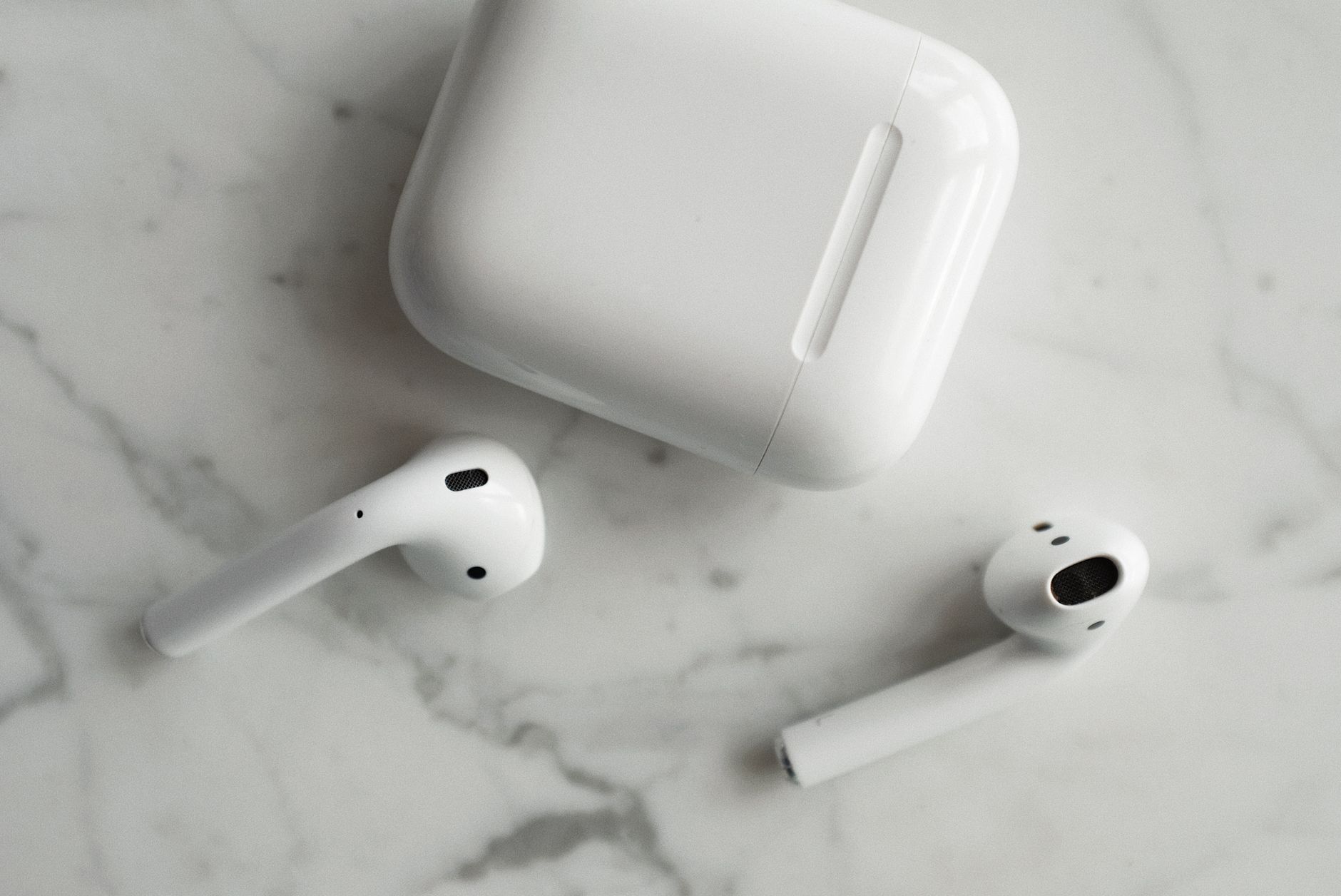
AirPods have revolutionized the way we listen to music and take calls. However, like any electronic device, they may encounter issues requiring a restart. Restarting your AirPods can resolve sound quality issues, connection problems, and even reset their battery performance. This article provides a comprehensive guide on how to effectively restart your AirPods, including steps for both AirPods and AirPods Pro.
We’ll also discuss when a restart is necessary, common issues that can be resolved through this process, and troubleshooting tips for when your AirPods won’t restart. Whether you’re using a standard pair or the Pro model, this guide will help you maintain your AirPods in peak condition.
How to Restart AirPods?
To restart your AirPods, you need to reset them by placing them in their charging case, waiting a moment, and then reconnecting them to your device. This process can fix various connectivity issues and clear temporary glitches. The following instructions provide a clear path to restart your AirPods.
Prerequisites for Restarting AirPods
- Ensure your AirPods are charged and not in low battery mode.
- Have the charging case available as it is necessary for the restart process.
- Your iOS device or other Bluetooth devices should be nearby for reconnection.
Steps to Restart AirPods
- Place your AirPods in their Charging Case: Open the lid of the charging case and make sure both AirPods are inside.
- Close the Lid: Close the lid of the charging case and wait for about 30 seconds. This waiting time helps reset their internal connections.
- Open the Lid: After thirty seconds, open the lid of the charging case once again.
- Reconnect AirPods: On your iPhone, go to
Settings > Bluetooth. Look for your AirPods in the list. Tap on them to reconnect.
If you successfully reconnect your AirPods, you have effectively restarted them. If your AirPods do not connect, more troubleshooting may be needed.
When to Restart Your AirPods
It’s useful to know when a restart might be necessary. Here are several scenarios when restarting your AirPods could help:
- Audio Cutouts: If sound intermittently drops or there are issues with sound quality.
- Connection Problems: When your device fails to connect to your AirPods or frequently disconnects.
- Battery Issues: If the battery percentage does not update or shows erratic behavior.
- Software Glitches: If you face software-related troubles, such as updates not applying or features not functioning properly.
Common Issues Resolved by Restarting AirPods
Restarting your AirPods can solve several common problems:
- Issues with Siri: Problems activating Siri using voice commands.
- Volume-Leveling Faults: Inconsistent volume levels across different applications or calls.
- Audio Latency: When there is a noticeable delay in audio during media playback or games.
- Connection to Multiple Devices: Problems switching between devices or connecting to a new device.
What to Do If AirPods Won’t Restart
If you encounter problems restarting your AirPods, try these troubleshooting steps:
- Check Battery Levels: Ensure your AirPods and the charging case have sufficient battery. Place the charging case on a charger if required.
- Update Device Software: Make sure your iOS device is updated to the latest version. Go to
Settings > General > Software Update. - Reset AirPods Completely: If a simple restart doesn’t work, you may have to reset them completely. To do this:
- Go to
Settings > Bluetoothon your device. - Find your AirPods in the device list, tap the “i” icon next to it.
- Select Forget This Device and confirm.
- Put the AirPods back in their case, close the lid, wait 30 seconds.
- Open the lid and press and hold the button on the back of the case until the LED light flashes amber, then white.
- Now, pair your AirPods with your device again.
- Go to
- Confirm Bluetooth is Functioning: Check to see if Bluetooth is functioning properly on your device. You might try restarting Bluetooth or turning it off and back on again.
- Check for Interference: Ensure there are no devices causing Bluetooth interference. This includes microwaves, wireless speakers, and other Bluetooth devices.
Comparing Regular AirPods and AirPods Pro
While the restarting process is similar for all models, there are a few differences between standard AirPods and AirPods Pro that can influence usage:
| Feature | AirPods | AirPods Pro |
|---|---|---|
| Active Noise Cancellation | No | Yes |
| Fit Type | In-Ear | In-Ear with Silicone Tips |
| Translucent Design | Yes | No |
| Battery Life (Listening Time) | Up to 5 hours | Up to 4.5 hours with ANC |
Additional Troubleshooting Tips for AirPods
Here are a few more troubleshooting techniques that you can follow for persistent issues:
- Cleaning your AirPods: Ensure that your AirPods are clean and free of debris that might affect performance. Wipe them down with a soft, lint-free cloth.
- Testing with Other Devices: If possible, test your AirPods with another device to see if the issue persists. This can help determine if the problem lies in the AirPods or in the original device.
- Check for Firmware Updates: AirPods automatically update their firmware. If your AirPods are not functioning properly, check to ensure they’re updated. You can do this via the Settings app on your iOS device.
Maintaining Your AirPods
Regular maintenance can help prevent issues from arising. Here are some tips for maintaining your AirPods:
- Store Properly: Always return your AirPods to their charging case when not in use.
- Avoid Extreme Temperatures: Keep your AirPods away from extreme temperatures that could damage the battery.
- Keep Firmware Updated: Make sure you have the latest updates installed for optimal functionality.
Conclusion
Restarting your AirPods is a simple yet effective solution for many common problems. Following the steps outlined above will help ensure that your AirPods are functioning correctly. If issues persist after a restart and other troubleshooting steps, consider contacting Apple Support for further assistance.
For those facing persistent issues, you might also find useful information in our resources on resetting AirPods Pro and troubleshooting connection problems at why your AirPods won’t connect.