
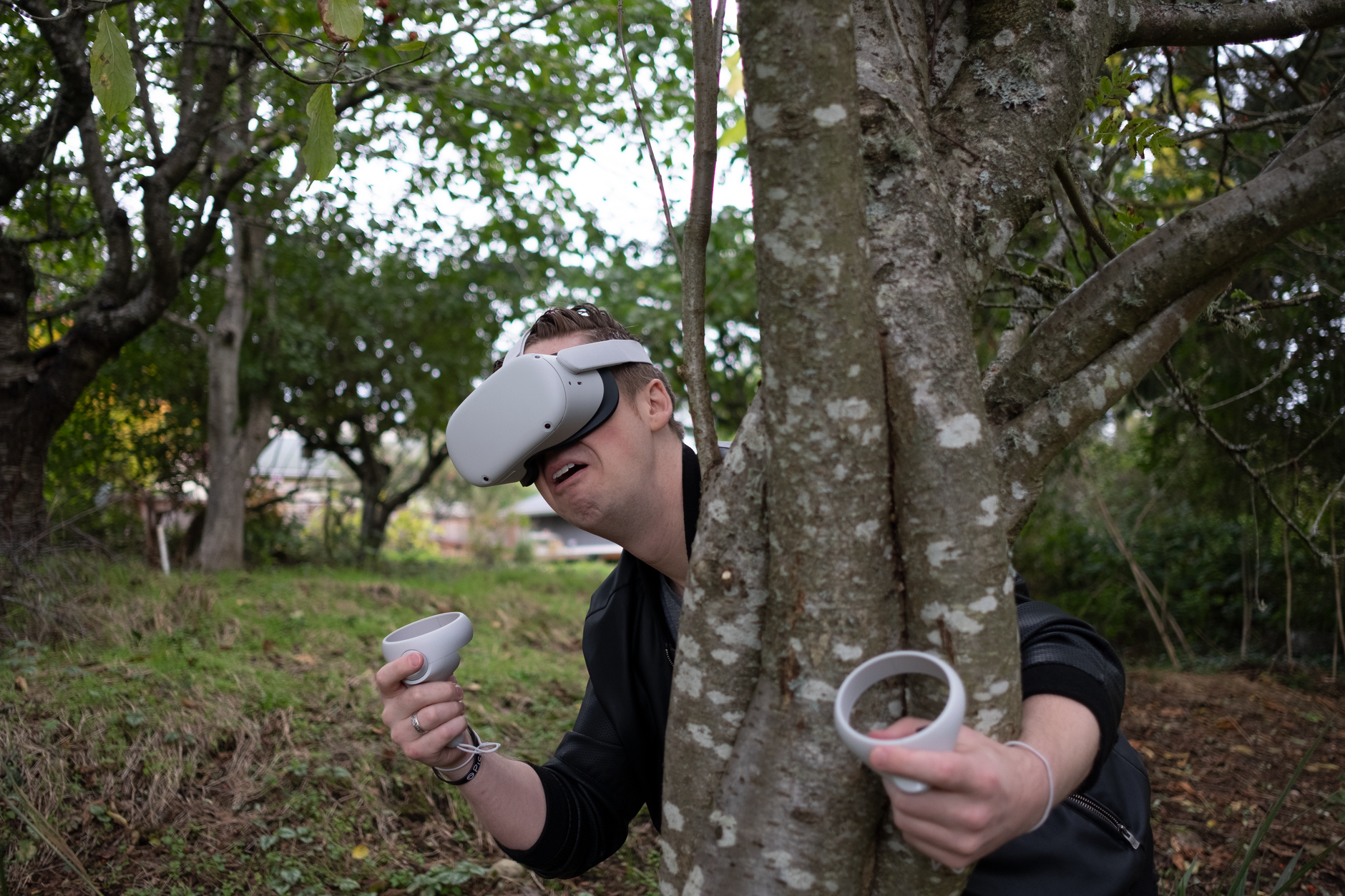
Oculus Quest 2 is a powerful virtual reality headset that opens up a world of immersive experiences. One of the exciting features of the Oculus Quest 2 is the ability to cast its virtual reality content to a television. This enables others to watch what you’re experiencing in VR, making it perfect for sharing games or experiences with friends and family.
This guide will take you through the steps of casting your Oculus Quest 2 to a TV, whether you prefer a wireless setup or use cables. You’ll learn about the prerequisites, step-by-step instructions, troubleshooting tips, and more.
How to Cast Oculus Quest 2 to TV?
To cast Oculus Quest 2 to a TV, you can use built-in features that allow wireless streaming or utilize cables with specific adapters. In general, you need a compatible TV or a casting device like Chromecast, along with the Oculus app installed on your mobile device. Here’s how to get started with both methods.
Prerequisites for Casting Oculus Quest 2
- Oculus Quest 2 headset
- Smart TV or TV with casting device (like Chromecast)
- Oculus app installed on a mobile device (iOS or Android)
- Wi-Fi network that is stable
- Optional: HDMI cable if using a wired connection
Wireless Casting Using the Oculus App
To cast your Oculus Quest 2 to a compatible smart TV wirelessly, follow these steps:
- Check Compatibility: Ensure your TV supports screen casting or has a Chromecast connected.
- Connect to Wi-Fi: Make sure both your Oculus Quest 2 and TV are connected to the same Wi-Fi network.
- Open the Oculus App: Launch the Oculus app on your mobile device and make sure you’re logged in.
- Select Devices: In the Oculus app, tap the “Devices” icon at the bottom of the screen.
- Connect to Headset: Tap on “Quest 2” to connect to your headset.
- Cast: Tap on “Cast” and select your TV from the list of available devices.
- Start Casting: After selecting your TV, tap “Start Casting.” A notification will appear in your headset.
- Confirm Casting: In your Oculus Quest 2, confirm the casting request. Your VR experience will now appear on the TV screen.
Wired Casting using an HDMI Cable
If you prefer a wired connection, or your TV doesn’t support wireless casting methods, an HDMI cable is a viable option. Here’s how to set this up:
- Obtain the Right Cable: You will need a USB-C to HDMI adapter and an HDMI cable. Ensure they are compatible with your devices.
- Connect Adapter: Plug the USB-C end of the adapter into your Oculus Quest 2 headset.
- Connect HDMI Cable: Connect one end of the HDMI cable to the adapter and the other end to your TV.
- Select Input Source: Turn on your TV and select the HDMI input corresponding to where you plugged in the cable.
- Use the Headset: Put on your Oculus Quest 2. You should see your VR experiences mirrored on the TV screen.
Troubleshooting Common Issues
If you’re having trouble casting your Oculus Quest 2 to a TV, consider these common issues and their solutions:
1. Unable to Find TV in Casting Options
- Check Wi-Fi Connection: Ensure both your headset and TV/Chromecast are on the same Wi-Fi network.
- Restart Devices: Restart your Oculus Quest 2 and the TV/Chromecast. Sometimes, a simple reboot resolves connectivity issues.
- Update Devices: Ensure that your Oculus firmware, Oculus app, and TV software are up to date.
2. Poor Connection Quality
- Wi-Fi Strength: Check the strength of your Wi-Fi signal in the area where the headset and TV are located. Move closer to the router if needed.
- Reduce Interference: Minimize physical obstructions and reduce interference from other electronic devices.
3. No Audio on TV
- Volume Settings: Ensure the volume on both the TV and headset are turned up and unmuted.
- Audio Output Settings: On your TV, navigate to the audio settings to ensure the correct output is selected.
Alternatives to Casting Oculus Quest 2
If you find that casting isn’t working for you, here are some alternatives to consider:
- Directly Using TV Apps: Some VR content may be available directly through apps on your smart TV, reducing the need for casting.
- Screen Mirroring: Use a different screen mirroring app or device, such as Apple AirPlay, if compatible with your setup.
- VR Media Players: Utilize VR media players that support viewing and sharing VR content directly onto your TV.
Final Thoughts
Casting your Oculus Quest 2 to a TV can enhance your virtual reality experience by allowing others to join in on the fun. Whether you choose to cast wirelessly through the app or via a wired connection using an HDMI cable, setting it up is generally straightforward.
Remember to troubleshoot any connectivity issues that may arise and explore alternative ways to share content if necessary. With these steps, you’re now ready to immerse yourself and your audience in the world of virtual reality.
If you’re looking for more tech tutorials and guides, be sure to check out how to connect a Bluetooth speaker to your TV or learn how to reset a Roku remote for additional insight into enhancing your entertainment setup.