
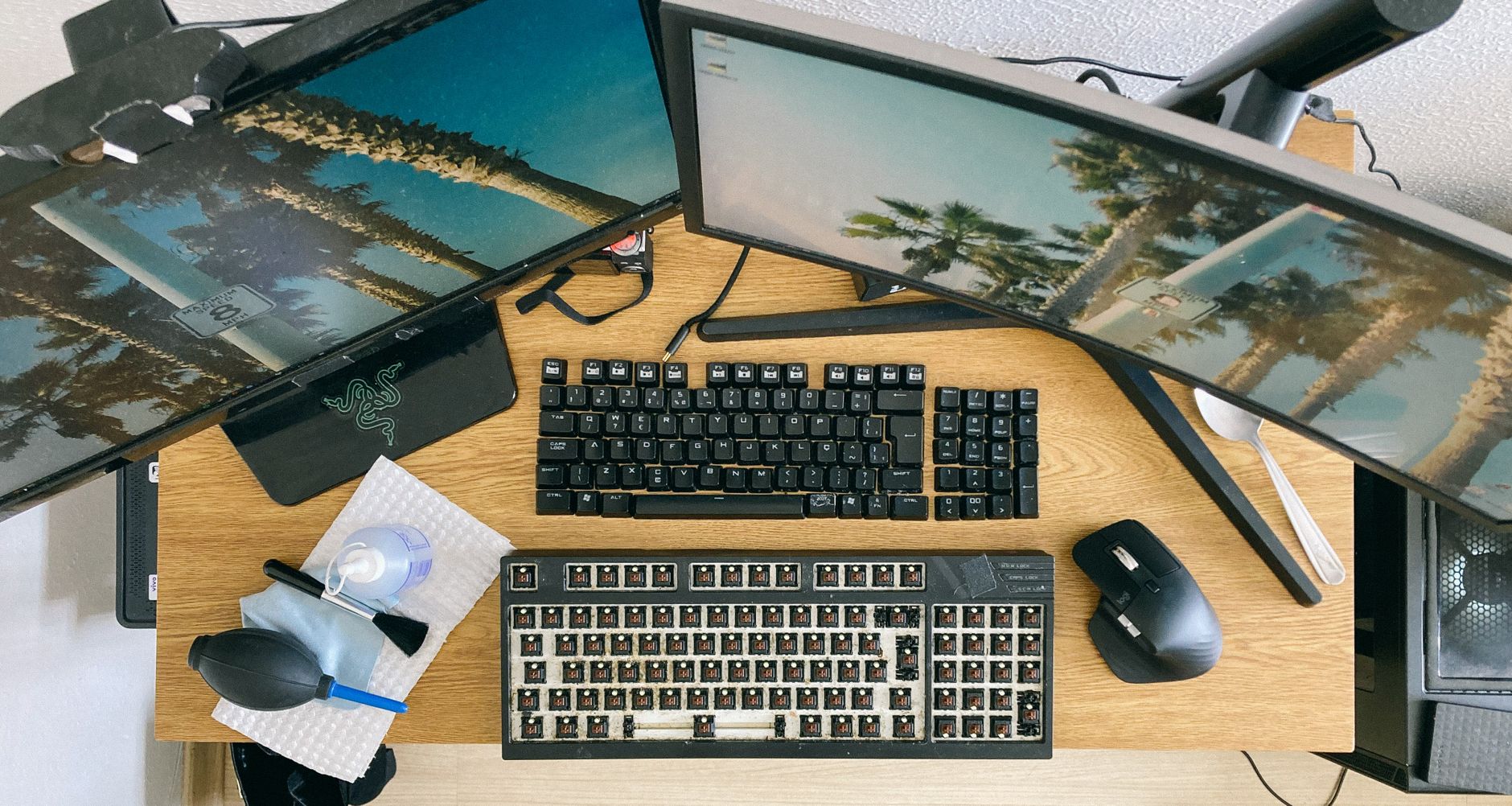
Cleaning your computer screen is a simple yet essential task that can greatly enhance your viewing experience. A clean screen not only improves visibility but also prevents the buildup of dirt and oils that can damage your screen over time. In this guide, we will provide you with safe tools and effective steps for cleaning your computer screen.
Understanding the type of screen you have—be it a laptop, desktop monitor, or tablet—can influence the cleaning method used. Let’s delve into the ways you can safely and efficiently clean your computer screen without causing any damage.
How to Clean Computer Screen?
To clean your computer screen effectively, you need to follow specific steps using safe materials to avoid damaging the display. The process involves gathering cleaning supplies, ensuring a safe cleaning environment, and applying the correct cleaning techniques.
Gather Your Tools
Before you start cleaning, it’s essential to gather the right tools. Here are the recommended cleaning supplies:
- Microfiber cleaning cloth
- Distilled water
- Isopropyl alcohol (optional)
- Spray bottle
- Soft brush (optional)
Microfiber cloths are ideal because they do not scratch the screen and effectively pick up dust and debris. Distilled water is preferred, as tap water may contain minerals that can leave streaks. Isopropyl alcohol can be mixed with water to enhance cleaning power, particularly for tough stains.
Preparation Before Cleaning
To ensure a safe cleaning process, you need to prepare both your workspace and the device. Here’s how:
- Power down your device: Always turn off your computer and unplug it from the wall. This prevents any electrical shock and improves visibility of dust and smudges on the screen.
- Remove any accessories: Detach peripherals like external keyboards and mice to avoid cleaning them inadvertently.
- Assess condition: Examine your screen for any significant buildup of grime, scratches, or permanent marks. If your screen is excessively dirty or damaged, consider professional cleaning or screen replacement.
Cleaning Steps for a Computer Screen
Now that you have your tools ready and preparation done, follow these steps to clean your computer screen effectively:
- Prepare a cleaning solution if needed: If you’re using a cleaning solution, mix a solution using equal parts of distilled water and isopropyl alcohol in a spray bottle. Shake gently to combine.
- Use a microfiber cloth: Take a clean microfiber cloth and fold it into quarters. This helps create a robust surface for cleaning.
- Apply the solution: If you have a cleaning solution, spray a minimal amount on the cloth—never directly onto the screen. Too much liquid can drip and cause damage. If using plain distilled water, dampen the cloth slightly.
- Wipe the screen: Gently wipe the screen in a circular motion without applying too much pressure. Start from one corner and work your way to the opposite side.
- Focus on smudges: For stubborn spots, hold the dampened cloth on the area for a few seconds before wiping it to loosen any buildup.
- Use a dry section of the cloth: After cleaning, use a dry part of the microfiber cloth to buff the screen gently to remove any residual moisture.
- Final touches: Inspect the screen from different angles to ensure it is clean and free of streaks. Use a soft brush to loosen any dust from the monitor edges if necessary.
Additional Tips for Maintaining a Clean Screen
Maintaining a clean screen goes beyond just occasional cleaning. Here are some tips to keep your computer screen looking fresh:
- Use a screen protector: A quality screen protector can protect against scratches and reduce the accumulation of dirt.
- Keep your workspace clean: Regularly dusting your workspace prevents dust from settling on your screen.
- Limit eating/drinking near your device: Food and beverages can cause significant messes. Try to keep these activities away from your computer.
- Establish a cleaning routine: Schedule a cleaning session for your screen every few weeks to maintain clarity.
What Not to Use When Cleaning Computer Screens
It is critical to avoid certain materials and methods that can damage your screen:
- Avoid paper towels: They can scratch your screen and leave behind lint and debris.
- Don’t use window cleaners: Products containing ammonia can damage the screen’s protective coating.
- Avoid bleach or other strong cleaners: Chemical cleaners can cause irreversible damage.
- Don’t apply too much pressure: Excess pressure can crack your screen or cause it to malfunction.
Screen Variations and Specific Cleaning Techniques
Different screen types require specific care methods. Below are general recommendations for various types of screens:
LCD Screens
LCD screens are commonly found in laptops and monitors. Follow the general cleaning steps mentioned earlier. These screens are sensitive to excessive moisture, so always ensure your cloth is damp and not wet.
LED Screens
LED screens are simply a type of LCD that uses LED backlighting. The cleaning method remains the same as for LCD screens. Ensure that you do not use abrasive materials.
Touchscreens
Touchscreens are best cleaned with the gentlest approach. Use a microfiber cloth and distilled water solution if necessary. Avoid using a cloth that might leave fibers behind.
Glass and Ultrawide Displays
For devices with a glass screen or ultrawide display, follow the same cleaning steps. These surfaces can scratch easily, so using a dedicated microfiber cloth is recommended.
Common Errors and Troubleshooting When Cleaning Screens
Even with the best intentions, several common errors may arise during the cleaning process. Here’s how to troubleshoot:
- Streaking: If your screen appears streaky after cleaning, this often results from using too much liquid. Make sure to use minimal moisture on your cloth and go over the screen with a dry part of the cloth.
- Dust Still Present: If you notice dust remaining, it could be due to not using the right brush or cloth. Try a clean microfiber cloth or a soft brush to lift any stubborn particles.
- Smudges Remain: Stubborn smudges may require extra time. Allow the damp cloth to sit on the spot for a moment before trying to clean it again, ensuring the residue loosens.
When to Seek Professional Help
If you encounter severe damage such as cracks, permanent marks, or significant dirt buildup that you cannot remove, it may be time to consult with professionals. Some technicians specialize in computer hardware cleaning and maintenance. Attempting to fix severe damage on your own can worsen the situation.
Conclusion
Cleaning your computer screen may seem like a simple task, but it contributes significantly to your overall tech experience. Regular maintenance helps prevent damage and enhances visibility. By following the steps outlined above—using safe tools and techniques—you can ensure that your screen stays in optimal condition. Remember to use the correct materials, avoid anything abrasive, and establish a cleaning routine to keep your workspace clear and effective.
For more specific cleaning tips, check out our guides on cleaning a MacBook screen and cleaning a monitor screen. These resources can provide additional insights tailored to different devices.