
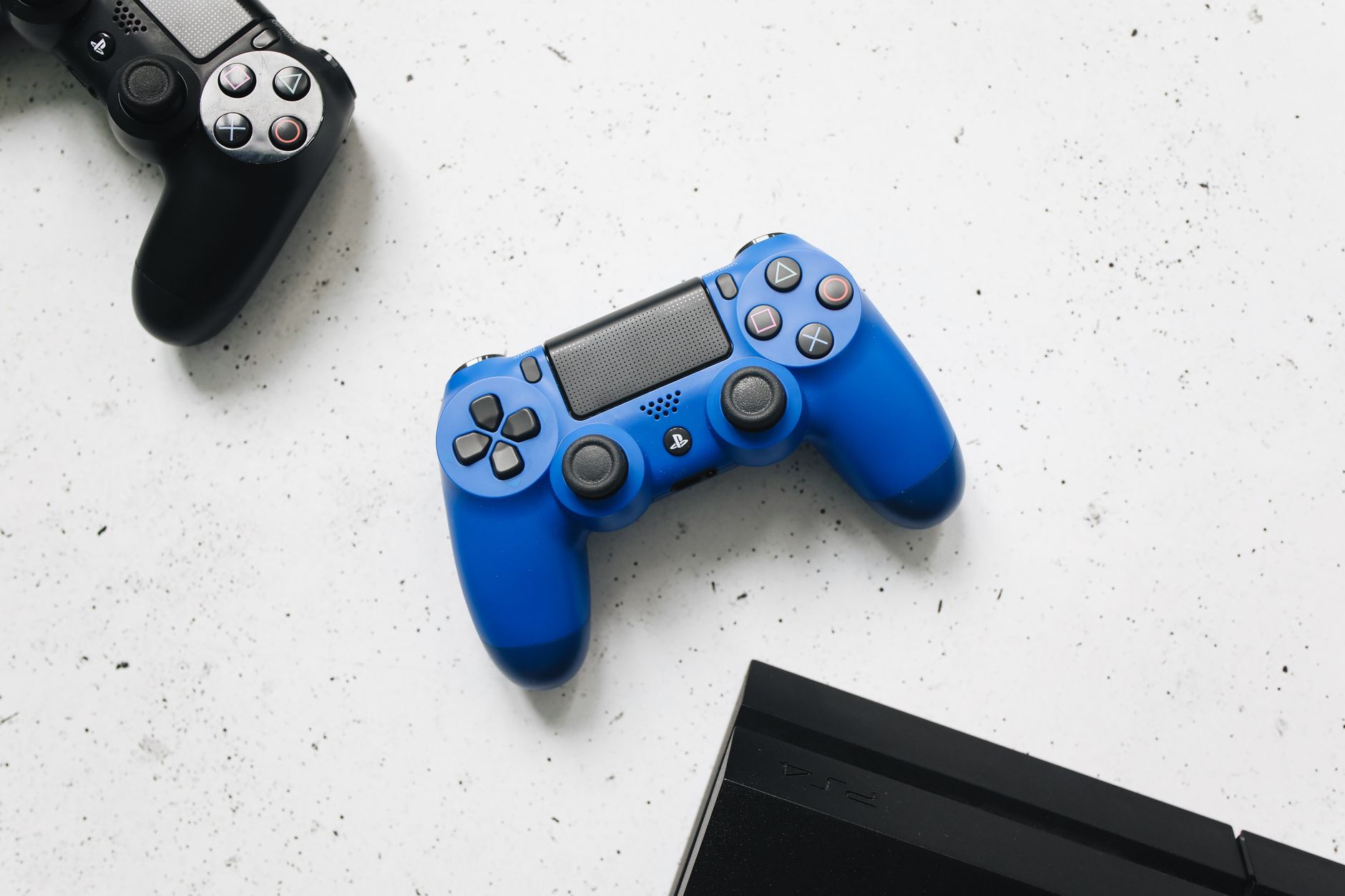
Connecting a PS4 controller can enhance your gaming experience by offering improved control and comfort. This guide will help you connect your PS4 controller to various devices, including the PlayStation 4 console, PCs, and mobile devices. We will also cover common connection issues and their solutions.
Whether you’re a seasoned gamer or a newcomer, knowing how to connect a PS4 controller effectively is crucial for enjoying your time in the gaming world. We’ll walk you through each step to ensure a smooth setup and connection process.
How to Connect a PS4 Controller?
To connect a PS4 controller, ensure the controller is charged, then use a USB cable to connect it directly to your PS4 console or compatible device. You can also pair it via Bluetooth for a wireless connection. If you encounter any issues, troubleshooting steps will help resolve them.
Connecting a PS4 Controller to a PlayStation 4 Console
Setting up your PS4 controller with the console is a straightforward process. Follow these steps:
- Ensure your PlayStation 4 console is powered on.
- Use a USB cable to connect the controller to one of the USB ports on the console.
- Press the
PSbutton in the center of the controller. The light bar on the controller will illuminate, indicating that it is connected. - Once connected, you can remove the USB cable to use the controller wirelessly.
If you want to connect a second controller, simply connect it using the USB cable and press the PS button as before.
Connecting a PS4 Controller to a PC
Connecting your PS4 controller to a PC can be done using either USB or Bluetooth. We will outline both methods for you.
Using a USB Connection
- Plug one end of a USB cable into the PS4 controller and the other end into a USB port on your PC.
- Windows should automatically recognize the controller and install the necessary drivers.
- To verify the connection, you can go to
Control Panel > Devices and Printers. Your controller should be listed as a game controller.
Using Bluetooth Connection
Connecting a PS4 controller to a PC via Bluetooth involves these steps:
- Ensure your PC has Bluetooth capability. If not, consider using a Bluetooth dongle.
- On your PC, navigate to
Settings > Devices > Bluetooth & Other Devices. - Enable Bluetooth if it’s not already on.
- On your PS4 controller, press and hold the
PSand theSharebuttons simultaneously until the light bar starts to flash. - On your PC, click on
Add Bluetooth or other device. - Select
Bluetoothfrom the options presented. - Your PC will search for available devices. When you see your controller listed, click on it to complete the pairing process.
You can check if it’s connected successfully by going to Control Panel > Devices and Printers and confirming that your controller appears as a connected game controller.
Connecting a PS4 Controller to a Mobile Device
You can also connect your PS4 controller to mobile devices like smartphones and tablets for gaming on the go. Here’s how:
For Android Devices
- Make sure your mobile device supports Bluetooth and has it enabled.
- On the PS4 controller, press and hold the
PSandSharebuttons until the light bar flashes. - On your Android device, go to
Settings > Bluetooth. - Look for available devices and select the PS4 controller from the list to pair it.
- Once paired, you should be able to use the controller in supported games.
For iOS Devices
- Make sure your iOS device is updated to at least iOS 13, as this version supports Bluetooth controllers.
- On the PS4 controller, press and hold the
PSandSharebuttons until the light bar flashes. - On your iOS device, go to
Settings > Bluetooth. - Enable Bluetooth if it isn’t already on and search for available devices.
- Select the PS4 controller from the list to connect it.
After connection, you can play compatible games using your PS4 controller.
Troubleshooting Connection Issues
Sometimes, you may encounter issues when connecting your PS4 controller. Here are common problems and solutions:
Controller Not Connecting
- Ensure the controller is charged. Low battery can prevent a successful connection.
- Check the USB cable for damage. Try using a different USB cable to connect to the console.
- Restart the console or PC you are trying to connect to. This can help reset the connection settings.
- For Bluetooth connections, remove any existing pairings for the controller on other devices.
Controller Not Recognized by PC
- Make sure your USB drivers are updated. Check the manufacturer’s website for the latest drivers.
- Test the controller on another PC to see if it is recognized. This will help determine if the issue lies with the controller or the PC.
- If using Steam, go to Steam settings and ensure the controller support is enabled.
Controller Disconnecting During Use
- Check the battery level of your controller. If the battery is low, recharge it for a stable connection.
- For Bluetooth connections, ensure no other devices are interfering with the Bluetooth signal.
- Avoid using the controller too far from the console or PC, as distance can hinder the connection.
Conclusion
Connecting your PS4 controller is an essential skill for any gamer, whether you’re playing on a console, PC, or mobile device. By following the steps outlined above, you can easily set up your controller and troubleshoot any potential issues that may arise.
Now that you know how to connect and troubleshoot your PS4 controller, ensure it’s ready for your next gaming session. Enjoy the enhanced control and comfort that the PS4 controller offers!
If you’re interested in more tech tutorials, guides, and troubleshooting information, check out our articles on how to connect a PS4 controller and how to connect a PS4 controller to a PC.