
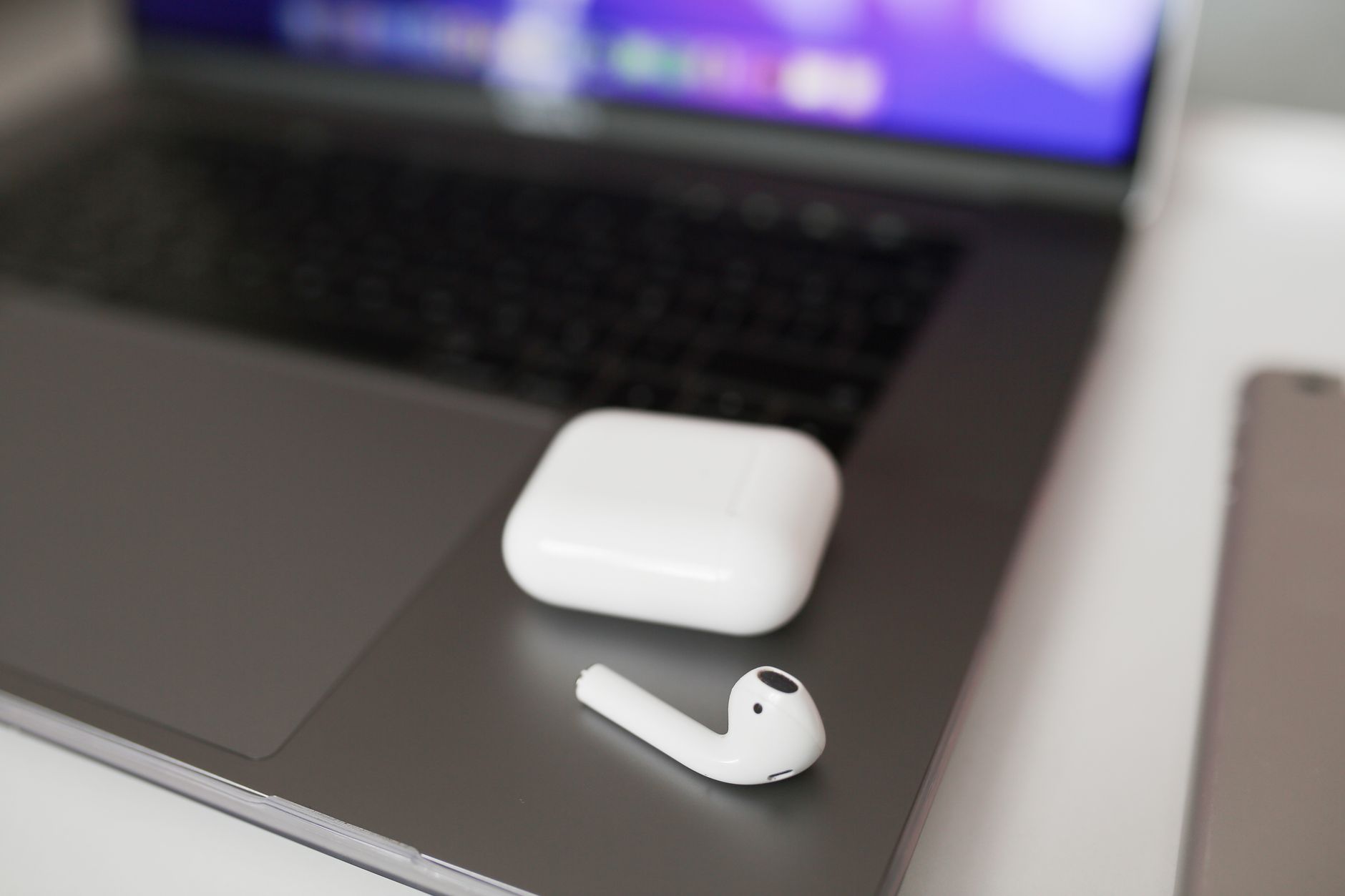
Connecting your AirPods to your MacBook is a straightforward process that enhances your audio experience, making it convenient to listen to music, take calls, or engage in video conferencing. This guide will walk you through the pairing and setup process, providing tips and troubleshooting advice to ensure a seamless connection.
Whether you are using the latest MacBook model or an older version, the steps to connect your AirPods remain largely the same. Read on to discover how to quickly and effectively pair your AirPods with your MacBook.
How to Connect AirPods to MacBook?
To connect your AirPods to a MacBook, you need to ensure that your devices are compatible and that Bluetooth is enabled. The process generally involves opening the AirPods case, activating pairing mode, and selecting your AirPods from the Bluetooth settings on your MacBook. This connection allows you to enjoy high-quality audio wirelessly.
Prerequisites for Connecting AirPods to MacBook
- A compatible MacBook with macOS 10.2 or later.
- AirPods, AirPods Pro, or AirPods Max.
- Bluetooth must be enabled on the MacBook.
- The AirPods should have sufficient battery charge.
Step-by-Step Guide to Pair Your AirPods with MacBook
Follow these steps to connect your AirPods to your MacBook:
- Ensure Bluetooth is Enabled:
Click the Bluetooth icon in the menu bar at the top right of your screen. If you do not see this icon, you can enable Bluetooth by going to
System Preferences > Bluetoothand turning it on. - Open the AirPods Case:
Take your AirPods out of their charging case. Leave the case open to initiate the pairing process.
- Press the Setup Button:
On the back of the AirPods case, press and hold the small setup button until the LED light on the front starts flashing white. This indicates that the AirPods are in pairing mode.
- Select AirPods from Bluetooth Settings:
On your MacBook, go back to the Bluetooth settings window. You should see your AirPods listed under “Devices.” Click on them to connect.
- Confirm the Connection:
Once connected, you will see a message stating “Connected” under your AirPods in the Bluetooth settings. Your AirPods are now paired with your MacBook and ready to use.
Testing Your AirPods Connection
To verify that your AirPods are working correctly, play some audio or a video on your MacBook. Sound should play through your AirPods. You can adjust the volume using the MacBook’s volume controls or the controls on your AirPods.
Troubleshooting Connection Issues
If you encounter problems connecting your AirPods to your MacBook, here are some common issues and their solutions:
AirPods Will Not Connect
If your AirPods do not appear in the Bluetooth menu or will not connect, try the following:
- Ensure Bluetooth is Active: Double-check that Bluetooth is turned on.
- Charge Your AirPods: If the battery is low, charge your AirPods for a few minutes and repeat the pairing process.
- Reset AirPods: If problems persist, reset your AirPods by holding the setup button on the case until the light flashes amber, then white.
Audio Quality Issues
If you experience poor sound quality, consider these tips:
- Check Distance: Ensure that you are within a reasonable range of your MacBook. Bluetooth signals can be interrupted by walls or other obstacles.
- Disconnect Other Devices: If multiple devices are connected, disconnect any unnecessary devices to improve the audio quality.
- Update macOS: Outdated software can impact performance. Check for macOS updates under
System Preferences > Software Update.
Using AirPods with Multiple Devices
If you frequently switch between devices, such as using your AirPods with your iPhone and MacBook, the connection process is similar. However, make sure to disconnect from one device before connecting to another to prevent confusion and ensure a smooth transition.
Automatic Device Switching
Newer AirPods models (2nd generation and later) support automatic switching. This feature allows your AirPods to seamlessly switch between devices that are connected to the same iCloud account. To enable this feature:
- Ensure all devices are signed in to the same iCloud account.
- Make sure your AirPods are in pairing mode.
- Connect to one device and begin using them.
Using AirPods with Other Devices
In addition to MacBooks, AirPods can be used with any other Bluetooth-enabled device, including smartphones, tablets, and some smart TVs. The general pairing process remains similar:
- Enable Bluetooth on the target device.
- Open the AirPods case and press the setup button.
- Select the AirPods in the Bluetooth settings of the other device.
Managing AirPods Settings on MacBook
You can customize several settings for your AirPods directly on your MacBook:
- Change Name: To rename your AirPods, go to
System Preferences > Bluetooth, right-click (or control-click) on your AirPods, and selectRename. - Microphone Settings: You can select whether the microphone is set to use the left or right AirPod, or to automatically switch between them based on usage.
- Noise Control for AirPods Pro or Max: Change noise control settings in
System Preferences > Bluetoothor by pressing and holding the force sensor on the AirPods Pro.
Maintaining Your AirPods
Caring for your AirPods is essential for optimal performance. Here are a few maintenance tips:
- Keep Them Clean: Regularly clean your AirPods and their case using a soft, lint-free cloth. Avoid getting moisture in any openings.
- Charge Regularly: Keep your AirPods charged to ensure they are ready for use whenever you need them.
- Store Correctly: Always store your AirPods in their case when not in use to prevent damage and to keep them charged.
Conclusion
Connecting your AirPods to your MacBook can significantly enhance your audio experience, allowing seamless communication and entertainment. By following this guide, you should be able to connect and troubleshoot any potential issues with ease. Regular maintenance will ensure that you continue to enjoy your AirPods for a long time.
If you want to learn more about connecting your AirPods to laptops or troubleshooting connectivity issues, check out how to connect AirPods to a laptop and why your AirPods won’t connect for more detailed solutions.