
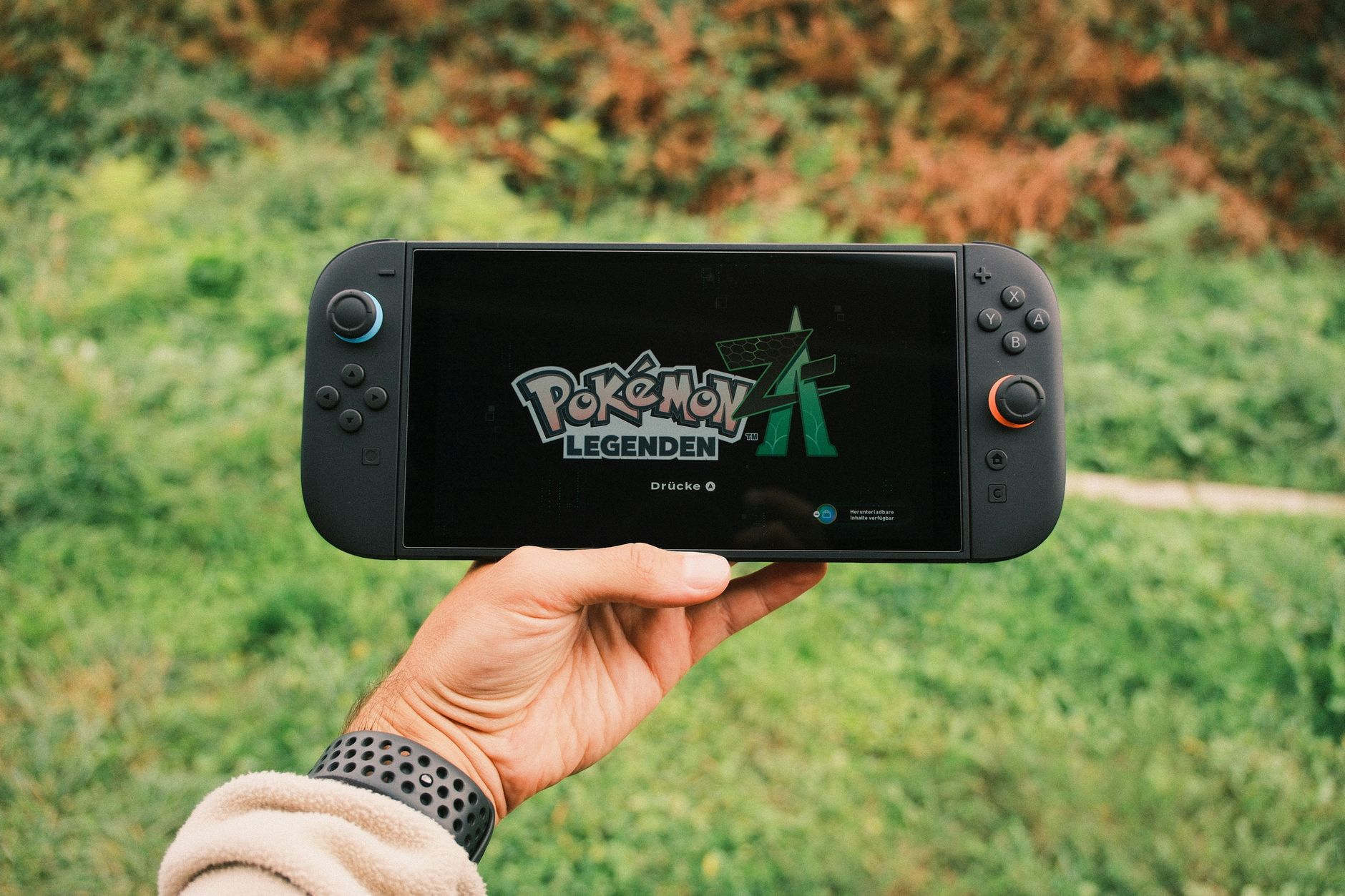
The Nintendo Switch is a versatile gaming console that allows players to enjoy their favorite titles on both handheld mode and TV mode. However, connecting it to a TV may seem daunting, especially for new users. This guide will walk you through the setup process, highlight potential issues, and provide troubleshooting tips to ensure a seamless gaming experience.
With the right instructions, you’ll have your Nintendo Switch up and running on your TV in no time. Whether you’re looking for help with the physical connections or want to address common problems that may arise, we’ve got you covered.
How to Connect Nintendo Switch to TV?
To connect your Nintendo Switch to a TV, you need to follow a few simple steps. Plug the power adapter into the dock, connect the dock to the TV using an HDMI cable, and place the Nintendo Switch into the dock. Once everything is connected properly, you’ll see the screen display on your TV.
What You Will Need
- Nintendo Switch console
- Nintendo Switch dock
- Power adapter (included with the console)
- HDMI cable (included with the console)
- Compatible TV with an HDMI port
Step-by-Step Instructions to Connect Your Nintendo Switch to a TV
- Prepare your dock: Unbox your Nintendo Switch and locate the dock. Make sure it’s set up in a stable area near your television.
- Connect the power adapter: Plug the power adapter into the back of the dock. Ensure the other end is connected to a power outlet.
- Connect the HDMI cable: Locate the HDMI port on the back of the dock and connect one end of the HDMI cable. Then, plug the other end into any available HDMI port on your TV.
- Prepare your Nintendo Switch: If the console is not already charged, you may need to connect it to the dock before proceeding.
- Dock the Nintendo Switch: Insert the Nintendo Switch console into the dock. The screen will face the front of the dock, with the connectors aligning with the console’s pins.
- Power on your TV: Turn on your television and select the HDMI input to which your console is connected. You should now see the Nintendo Switch home screen appear on your TV.
Verifying the Connection
Once you’ve followed the steps above, you should be able to see the Nintendo Switch interface displayed on your TV. If the screen doesn’t appear, check the following:
- Ensure the Nintendo Switch is properly seated in the dock.
- Verify that the HDMI cable is firmly connected on both ends.
- Make sure your TV is set to the correct HDMI input.
Troubleshooting Common Issues
Sometimes, even after following all previous steps, issues may still arise. Here are common problems and their solutions:
No Signal on TV
- Check the HDMI cable connection – ensure it’s securely plugged into both the dock and the TV.
- Confirm that the Nintendo Switch is properly docked, and the LED light on the dock is illuminated.
- Try a different HDMI port on your TV or replace the HDMI cable if you have an extra one available.
- Make sure your TV is set to the correct source/input.
TV Screen Flickers or Goes Blank
- Restart your Nintendo Switch by undocking it, turning it off completely, and then re-docking.
- If your TV has settings for picture quality or resolution, try switching those to see if that resolves the issue.
- Check for software updates on your Nintendo Switch, as a software update may help with display issues.
Audio Issues
- Ensure that your TV’s volume is turned up and not muted.
- Go to the Nintendo Switch settings and ensure that the audio settings are correct.
- Try disconnecting and reconnecting the HDMI cable to re-establish the audio connection.
Switching Display Modes
To switch between handheld mode and TV mode, simply undock the Nintendo Switch to play on the console’s built-in screen. Place it back in the dock to return to TV mode. The device should automatically switch modes without any hassle.
Alternative Connection Methods
Connecting via USB-C
The Nintendo Switch can also connect to certain TVs via USB-C. Many modern TVs have USB ports that allow for video input when paired with the right adapters. However, the quality and compatibility may vary, so refer to your TV’s user manual for specifics.
Remote Play Options
If you’re unable to connect your Nintendo Switch directly to a TV, consider using remote play options. Some applications allow you to stream games to another device, though this may not offer the same experience as gaming directly through the TV.
Tips for Optimal Performance
- Use a high-quality HDMI cable to ensure better video and audio transmission.
- Avoid placing the dock in enclosed spaces to prevent it from overheating during use.
- Keep your Nintendo Switch software updated for optimal performance.
Disconnecting Your Nintendo Switch
- Turn off or sleep the console: Before unplugging, it’s a good practice to either turn off the Nintendo Switch or put it in sleep mode.
- Remove the device from the dock: Pull the console gently from the dock.
- Unplug the HDMI and power cables: Disconnect the HDMI cable from the dock and your TV, and unplug the power adapter if it’s no longer needed.
Conclusion
Connecting your Nintendo Switch to a TV is usually a straightforward process, but it can sometimes lead to frustrations. By following the steps and troubleshooting tips outlined in this guide, you should be ready to enjoy gaming on a larger screen.
If you require additional assistance or would like to learn more about your Nintendo Switch, be sure to check our guides on how to reset your Nintendo Switch or how to connect a PS4 controller for a unique experience.
Explore more related tech tutorials, such as how to reset Nintendo Switch and how to connect PS4 controller, for further assistance with your gaming experience.