
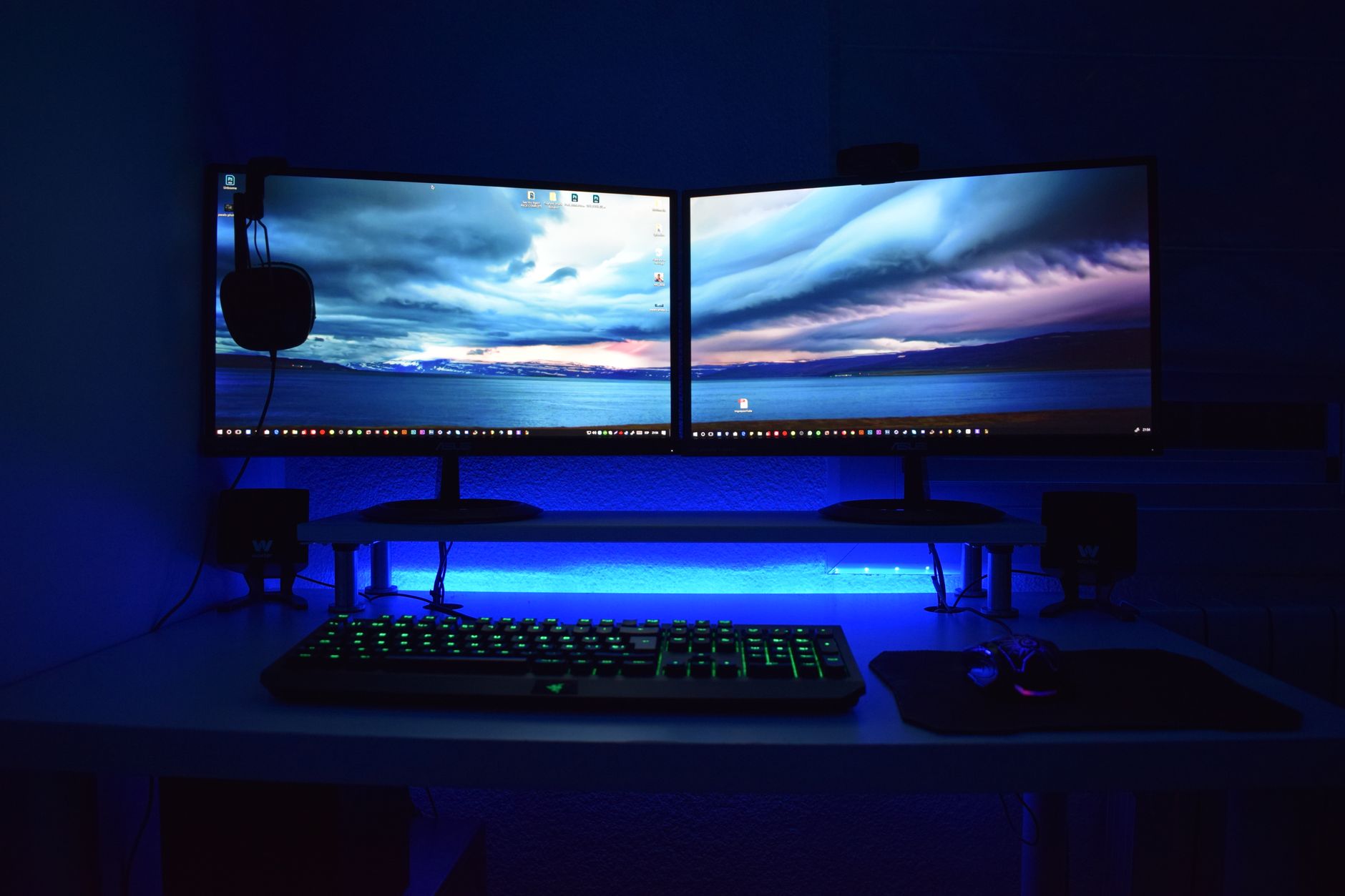
Connecting two monitors can significantly enhance your productivity, whether you are a gamer, a professional, or someone who loves multitasking. This setup allows you to spread applications across multiple screens, making it easier to reference documents, chat with colleagues, or enjoy immersive gameplay.
In this guide, we’ll explore how to connect two monitors, troubleshoot common connection issues, and highlight the necessary hardware and software considerations for maximizing your dual-monitor experience.
How to Connect Two Monitors?
Connecting two monitors can be achieved through various cable connections and display settings adjustments. The process may vary slightly based on your operating system and hardware capabilities.
Prerequisites for Connecting Two Monitors
- Two Monitors: Ensure both monitors are powered on and have available input ports.
- Cables: Depending on the ports, you may need HDMI, DisplayPort, DVI, or VGA cables.
- Graphics Card: Verify that your computer’s graphics card supports multiple displays.
- Operating System: Familiarize yourself with the display settings on your OS, whether it’s Windows, macOS, or Linux.
Step-by-Step Guide to Connect Two Monitors
Step 1: Check Ports and Prepare Cables
1. Identify the video ports available on your graphics card and both monitors. Common types include HDMI, DisplayPort, DVI, and VGA.
2. Acquire necessary cables based on the available ports. If the ports do not match, you may need adapters.
Step 2: Connect the Monitors to Your Computer
1. Turn off your computer and both monitors.
2. Connect the first monitor to the graphics card using the chosen cable.
3. Connect the second monitor to the same graphics card using a different cable for the second monitor.
4. Ensure all connections are secure. Tighten screws on DVI or VGA connectors if applicable.
5. Power on the monitors followed by your computer.
Step 3: Configure Display Settings on Your Operating System
For Windows 10/11 Users
1. Right-click on the desktop and select Display settings.
2. Under the Multiple displays section, click on the drop-down menu and select Extend these displays.
3. Click Identify to see which monitor corresponds to which number on the screen.
4. Drag the monitor icons to set their arrangement to match your physical layout.
5. Click Apply to save changes.
For macOS Users
1. Click on the Apple menu and select System Preferences.
2. Choose Displays.
3. Click the Arrangement tab. Check the box for Mirror Displays if you want the same content on both; uncheck it to extend the display.
4. Drag the display icons to match your physical monitor setup.
5. Close the window to save your settings.
For Linux Users
1. Go to Settings and select Displays.
2. Under Display Arrangement, you can select either mirror or extend displays.
3. Adjust the position of the monitors by dragging them to the desired layout.
4. Save the changes.
Troubleshooting Common Connection Issues
Even with the right setup, issues may arise when connecting dual monitors. Here’s how to address common problems.
Monitor Not Detected
– **Check Cable Connections:** Ensure that the cables are securely connected to both the monitors and the computer.
– **Graphics Card Settings:** Make sure the graphics card is not disabled in the BIOS settings. Restart your computer and access the BIOS by pressing the appropriate key during startup.
– **Updated Drivers:** Check for outdated graphics card drivers. Update them via the manufacturer’s website or device manager.
Displays Not Mirroring or Extending Properly
– **Display Settings Check:** Go back to your display settings and verify that you selected the correct arrangement (Extend or Duplicate).
– **Resolution Settings:** Make sure both monitors are set to their native resolutions. Mismatched resolutions may lead to display issues.
Flickering or Distorted Image
– **Cable Integrity:** Inspect the cables for any damage. Try using different cables to rule out cable-related issues.
– **Port Issues:** Test different ports on the graphics card. Sometimes, a defective port can cause display issues.
Performance Problems
– **Adjusting Graphics Settings:** If your system struggles with running multiple monitors, consider lowering the graphic details in applications or games.
– **Check Task Manager:** Open Task Manager (Ctrl + Shift + Esc) to see if CPU or GPU resources are being overutilized.
Additional Hardware Considerations
As you consider connecting two monitors, keep the following hardware options in mind:
Graphics Cards
– Ensure your graphics card supports multi-monitor setup. Dedicated graphics cards from NVIDIA or AMD typically have better support and performance for dual-monitor arrangements.
– Check the specifications for your integrated graphics if you are using a laptop or a desktop without a dedicated GPU.
Monitor Types
– When selecting monitors, consider resolution and size. Matching monitors can enhance usability.
– Look for features such as adjustable stands, VESA mount compatibility, and built-in USB hubs for easier connectivity.
Software Tools for Multi-Monitor Management
Managing dual monitors can sometimes require additional software for better functionality and user experience. Here are a few options:
- DisplayFusion: This tool offers advanced features for multi-monitor setups, such as customizable wallpapers, hotkeys, and monitor profiles.
- Actual Multiple Monitors: This software provides additional features like taskbars on each monitor and enhanced window management capabilities.
- Windows PowerToys: A free Microsoft utility that offers window management among other tools, beneficial for those seeking quick arrangements.
Best Practices for Using Dual Monitors
To maximize the benefits of connecting two monitors, follow these best practices:
- Keep Monitors Aligned: Position monitors at eye level and aligned horizontally for a seamless visual experience.
- Utilize Window Snapping: Use the snapping feature in Windows or similar features in other operating systems to manage open applications efficiently.
- Organize Your Workspace: Dedicate each monitor for specific tasks, such as productivity tools on one screen and communication tools on another.
Conclusion
Setting up dual monitors can enhance productivity and improve your overall user experience. Ensure you have the right hardware and follow the outlined steps to connect and configure your monitors properly.
If you encounter any issues, refer to the troubleshooting guide for common problems. By adopting best practices and using additional software tools, you can make the most out of your dual-monitor setup.
For more detailed tutorials on building your PC or installing RAM, check out our guides on how to build a PC and how to install RAM.