
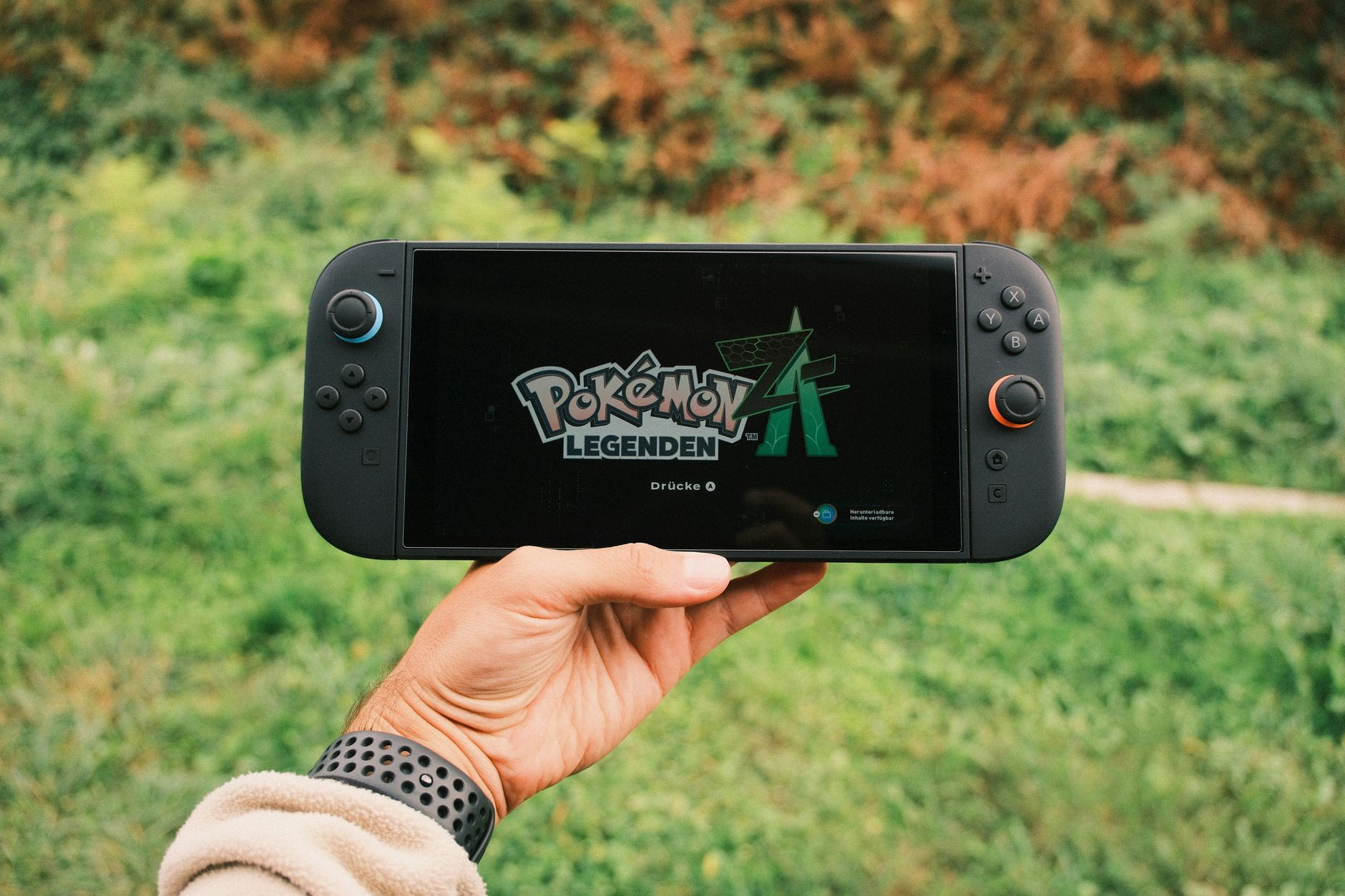
Factory resetting your Nintendo Switch can be a useful step to take when troubleshooting issues or if you’re preparing to sell or give away the device. This process restores the console to its original state, erasing all saved data, user accounts, and game content. Understanding how to properly execute a factory reset will help ensure that your Nintendo Switch is functioning optimally.
In this guide, we will walk you through the steps to factory reset your Nintendo Switch, both through the console’s settings and by using recovery mode if the device isn’t booting correctly. We will also cover what to do before and after the reset to protect your data.
How to Factory Reset Nintendo Switch?
You can factory reset your Nintendo Switch by accessing the system settings or using recovery mode. The chosen method will depend on whether your console is fully operational. Both processes will remove all user data, so it’s essential to understand the implications.
Prerequisites for Factory Resetting
- Ensure your Nintendo Switch is fully charged or plug it into a power source during the process.
- If possible, back up any important game data or profiles to the cloud using Nintendo Switch Online if you have a subscription.
- Make sure you know your Nintendo Account login credentials in case you need to set it up again post-reset.
Method 1: Factory Reset through System Settings
The easiest way to reset the Nintendo Switch is through its system settings, provided the console is functioning normally. Follow these steps:
- From the Home Menu, navigate to the System Settings icon, which looks like a gear.
- Scroll down to the System tab located on the left side of the screen.
- Scroll all the way down and select Formatting Options.
- Choose Reset Console from the options presented.
- Your Switch will prompt you to confirm that you want to reset the console. Review the information regarding data loss and tap on Next.
- Select Reset to finalize the factory reset. Your console will restart and begin the reset process.
Post-Reset Tasks
After the reset is complete, the Nintendo Switch will take you through the initial setup process just like it did the first time you powered it on. You will need to:
- Select your language and region.
- Connect to your Wi-Fi network.
- Sign in to your Nintendo Account or create a new one.
- Restore game data from cloud saves if applicable.
Method 2: Factory Reset using Recovery Mode
If your Nintendo Switch is not functioning correctly or fails to boot up, recovery mode will allow you to factory reset the console. Follow these instructions:
- Turn off the console by holding the power button for at least three seconds, then select Power Options and finally tap Turn Off.
- Once the console is completely powered off, press and hold the Volume Up and Volume Down buttons, and then press the Power button.
- Continue to hold the volume buttons until the Nintendo logo appears. Release the buttons.
- If successful, you’ll see the Recovery Mode menu. Here, select Initialize Console.
- Your console will prompt you for confirmation regarding data erasure. Confirm your choice by selecting Initialize.
- Wait for the reset to complete, and your Switch will reboot automatically.
Important Notes on Recovery Mode
Recovery mode is typically used as a last resort. If you’ve consistently experienced issues with your console, consider visiting the Nintendo Support website for further assistance or warranty options before performing this step.
Common Issues and Troubleshooting Tips
Factory resetting can resolve various performance issues but may also introduce new problems if not done correctly. Here are common issues and potential solutions:
- Console won’t turn on: Ensure that your Nintendo Switch is charged. If the device does not respond at all, try performing a hard reset by holding the power button for at least 12 seconds.
- Errors during reset: If you encounter an error while trying to reset, make sure your console is up to date with the latest firmware. Attempt a reset through recovery mode if the usual method fails.
- Data recovery: If you’re concerned about losing important save data, check if you have a Nintendo Switch Online subscription for cloud save functionality before resetting.
What Happens After a Factory Reset?
After performing a factory reset, all user data, including saved games, profiles, and downloaded content will be erased. It’s crucial to be aware of this to avoid losing important information.
Once the reset is complete, the console will prompt you to set it up as new. At this point, you can:
- Restore data from the cloud if you had previously saved it using Nintendo Switch Online.
- Re-download any games or apps purchased through the Nintendo eShop.
- Add or link your Nintendo Account to restore your account settings, friends list, and any downloadable content (DLC).
Conclusion and Additional Information
Understanding how to factory reset your Nintendo Switch can be a lifesaver in troubleshooting ghost bugs, preparing for new ownership, or even optimizing performance issues. Make sure to follow the backup instructions if you have any essential data.
For further assistance, you might want to check out our guides on how to reset your Nintendo Switch or learn about resetting other consoles like the PS4.