
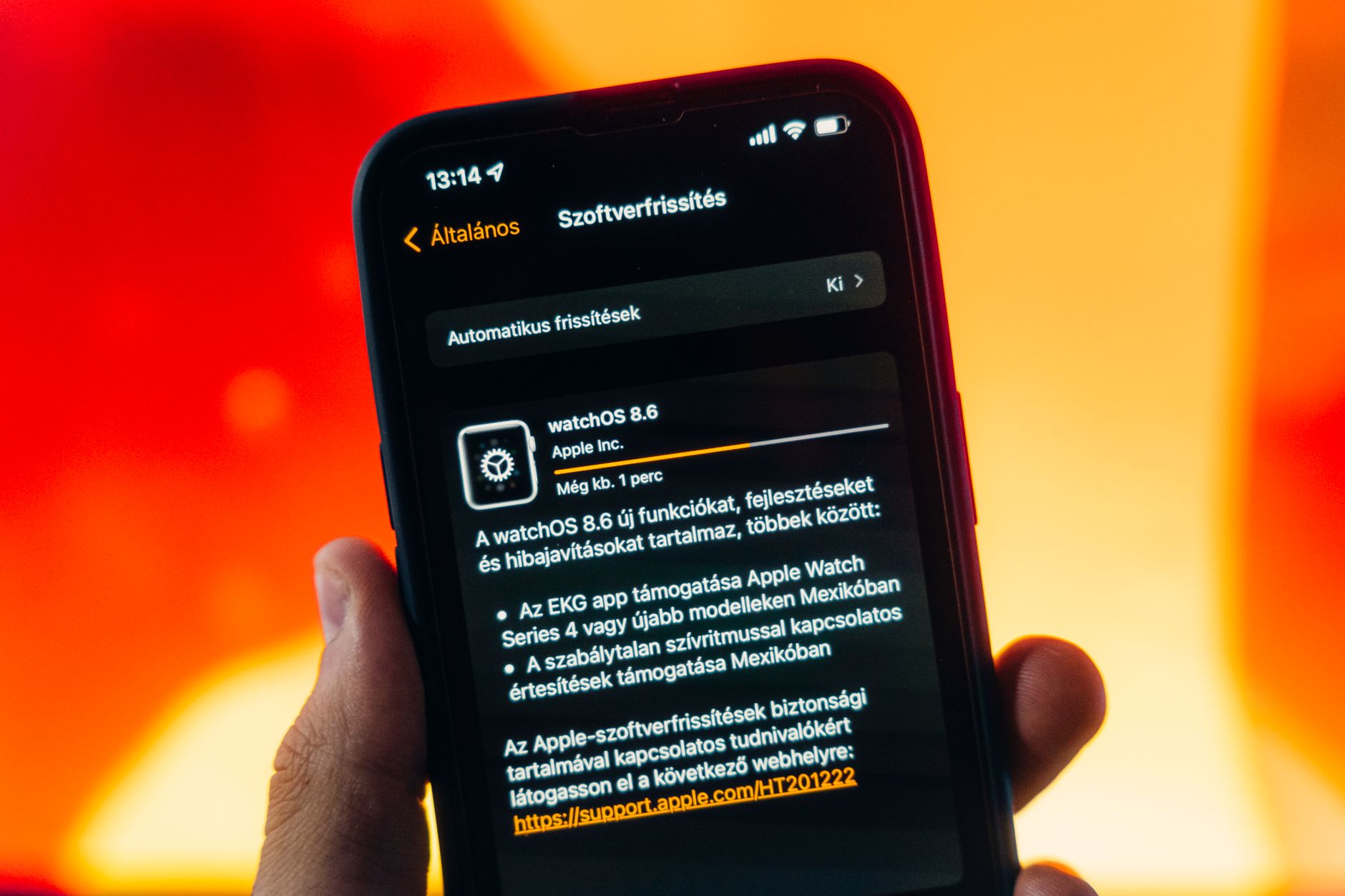
The release of iOS versions often comes with a host of new features, enhancements, and important updates that can significantly enrich the user experience. As Apple prepares to launch iOS 26, many users are eager to understand how to access this latest update, whether their devices are compatible, and what improvements they can expect. This guide will break down the essential steps for obtaining iOS 26, outline supported devices, and detail the update process.
With the right information at your fingertips, upgrading to iOS 26 can be a seamless experience. This article will provide you with actionable steps, crucial prerequisites, common issues, and tips to ensure a smooth transition to the new operating system.
How to Get iOS 26?
To get iOS 26, you must ensure that your device is compatible with the update. Then, follow the provided steps to download and install the update from Apple’s servers. Confirming that your device meets the requirements and is adequately prepared will streamline the process.
Supported Devices for iOS 26
Before starting the update procedure, it’s crucial to confirm if your device is compatible with iOS 26. Apple generally supports its devices for several generations, but specific models may not receive every update. Here’s a list of devices that are expected to support iOS 26:
- iPhone 14 series
- iPhone 13 series
- iPhone 12 series
- iPhone 11 series
- iPhone SE (2nd generation and later)
- iPad Pro (all models)
- iPad Air (3rd generation and later)
- iPad (8th generation and later)
- iPad Mini (5th generation and later)
For older devices, it is advisable to check Apple’s official website for a comprehensive, updated list of compatible models as new information could emerge regarding this release.
Prerequisites for Updating to iOS 26
Before updating your device to iOS 26, ensure that you have prepared adequately. Here are some essential prerequisites:
- Backup your data: It’s crucial to create a backup of your device to avoid losing important information during the update process. You can back up your device using iCloud or iTunes.
- Check storage space: iOS updates typically require several gigabytes of free space. Ensure that your device has sufficient storage availability before proceeding.
- Update to the latest version: If you are currently on an older version of iOS, consider updating to the latest version available to help facilitate a smoother transition to iOS 26.
- Stable internet connection: Ensure that you have access to a stable Wi-Fi connection during the download and installation process, as a weak connection can lead to interruptions.
Steps to Update to iOS 26
Now that you have confirmed your device’s compatibility and prepared accordingly, follow these steps to update to iOS 26:
- Connect to Wi-Fi: Ensure your device is connected to a reliable Wi-Fi network. Open the “Settings” app and tap on “Wi-Fi” to make your connection.
- Check for updates: Navigate to “Settings,” select “General,” and tap on “Software Update.” Your device will automatically check for the latest updates available.
- Initiate download: If iOS 26 is available for your device, you will see a prompt to download and install the update. Tap “Download and Install.”
- Enter passcode: You may be required to enter your device passcode to proceed with the download.
- Agree to terms: Read through the Terms and Conditions and tap “Agree” to continue with the installation process.
- Download progress: The iOS will begin downloading. You can monitor the progress on the screen. Once the download is complete, a message will prompt you to install.
- Install the update: Tap the “Install” button. Your device will restart to complete the installation.
- Confirmation: After your device restarts, you should see the new iOS 26 welcome screen, indicating a successful installation.
What to Expect After the Update
Once the update is complete, your device will likely showcase several new features and improvements, which may include advanced privacy settings, enhanced performance, and possibly new applications or updates to existing applications. Here are common changes you may encounter:
- User Interface Tweaks: Expect minor changes to the interface that may enhance navigation and functionality.
- Performance Enhancements: The new version may improve device speed, battery efficiency, and multitasking capabilities.
- New Features: Apple often adds new features with each iOS update, such as enhanced Siri functionality, additional widget capabilities, and improved screen sharing options.
- Security Improvements: Always a priority for Apple, iOS updates typically strengthen user security and privacy measures.
Troubleshooting Common Issues During Update
Despite careful preparation, users may encounter issues when upgrading to iOS 26. Here are some common problems and their potential solutions:
Device Not Compatible
If you receive a message claiming your device is not supported, verify the list of compatible devices. If your device is compatible and you still get this message, try restarting your device and attempting the update again.
Insufficient Storage Space
If your device lacks sufficient storage during the update, you can free up space by removing unnecessary applications or media files. Check the storage settings by navigating to “Settings,” then “General,” and tap on “iPhone Storage” to see what can be removed.
Wi-Fi Connection Issues
A strong Wi-Fi connection is crucial for downloading updates. If you experience interruptions, verify your connection and consider switching to a different network or restarting your router.
Update Fails or Freezes
If your update freezes or fails, force restart your device. On an iPhone 8 or later, quickly press and release the Volume Up button, then the Volume Down button, and then press and hold the side button until you see the Apple logo. For older models, follow the different button sequences appropriate to your device model.
Error Messages
Sometimes users may encounter specific error messages during the installation process. Look up the error code on Apple’s official website as it will typically provide a solution or direction on how to resolve the issue.
Backing Up Your Data
As mentioned earlier, backing up your data before a major update is crucial. For those unfamiliar with the methods, here’s a quick overview:
Backing Up via iCloud
- Connect to Wi-Fi.
- Open “Settings” and tap on your name at the top.
- Select “iCloud,” then “iCloud Backup.”
- Tap “Back Up Now” and ensure the backup is complete before proceeding with updates.
Backing Up via iTunes/Finder
- Connect your device to your computer using a USB cable.
- Open iTunes or Finder (depending on your macOS version).
- Select your device when it appears, then choose “Back Up Now.”
- Wait for the backup to finish before disconnecting the device.
Post-Update Considerations
After successfully updating to iOS 26, consider the following:
- Explore New Features: Take some time to explore and familiarize yourself with any new features or changes to existing ones.
- Check App Compatibility: Some applications may need updates to work seamlessly with iOS 26. Check for updates in the App Store.
- Document Issues: Report any bugs or issues to Apple as they can work on fixing them in future updates. Use the Feedback assistant if bugs are encountered.
Conclusion
Upgrading to iOS 26 can significantly improve your device’s functionality, features, and security. By ensuring that your device is compatible, preparing it appropriately, and following the outlined steps, you will be well-equipped to enjoy all the new offerings that come with this update. As technology continues to evolve, staying updated will enhance your overall experience and productivity.
For additional help with tech-related challenges, consider exploring related articles such as how to update your BIOS or tips on how to reset your Apple Watch.